Skip to content
  • There are no suggestions because the search field is empty.

Data Sources Tab

Data Sources Tab

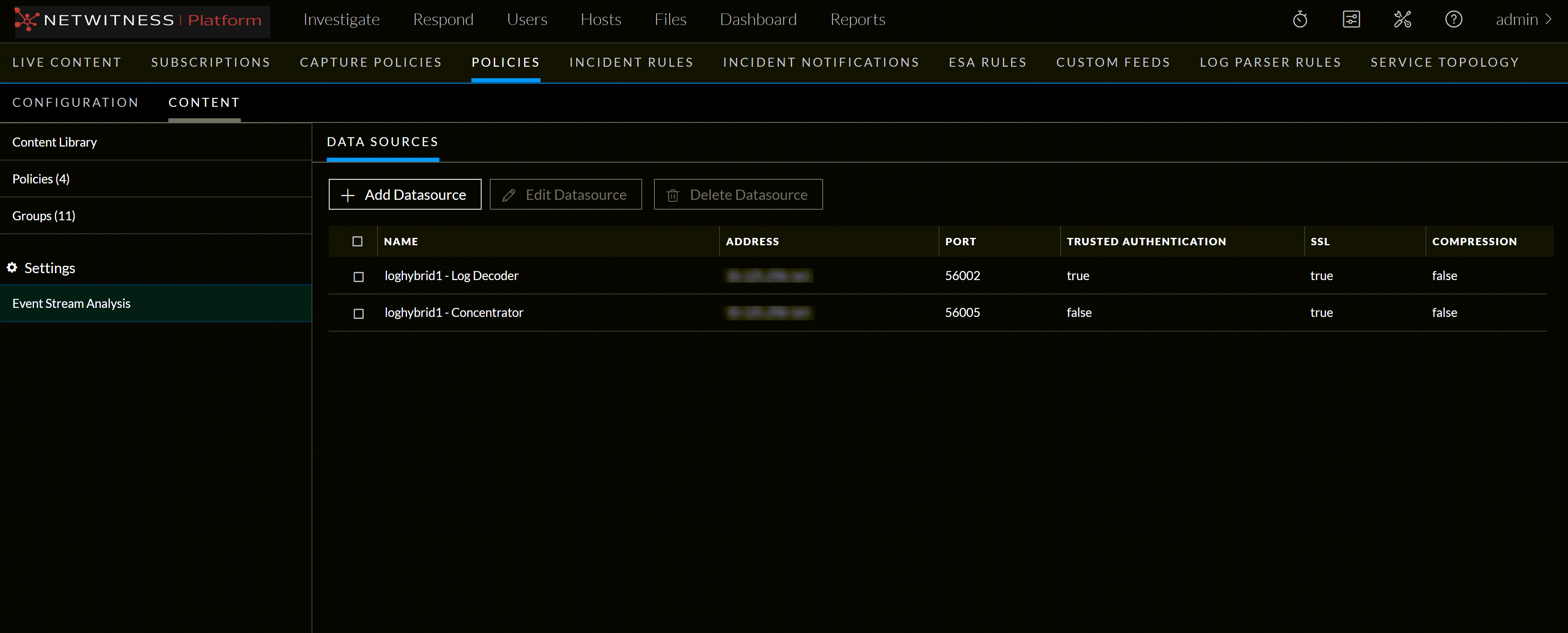
Below is an example of the Content > Settings > Event Stream Analysis > Data Sources tab:

Datasource_tab.png

The following table describes the Data Sources tab.

  • Column 1: 1
  • Column 2:

    Toolbar

    • Add Datasource- Lets you to add a new Datasource. For more information, see Add an ESA Datasource.

    • Edit - Datasource - Lets you edit the Datasource. For more information, see Edit an ESA Datasource.

    • Delete Datasource - Deletes the selected Datasource.


  • Column 1: 2
  • Column 2:

    Data Sources List Pane

    • Name - Shows the name of the data sources used by the selected ESA service. Data sources can be Concentrators or Decoders.

    • Address - IP address of the datasource where the ESA service is installed.

    • Port - Shows the port number used for authentication.

    • Trusted Authentication - Indicates that it uses Trusted Authentication for communication with ESA Service.

    • SSL - Indicates that it uses SSL for Authentication.

    • Compression - Enables you to adjust the Compression Level on different datasources for ESA.


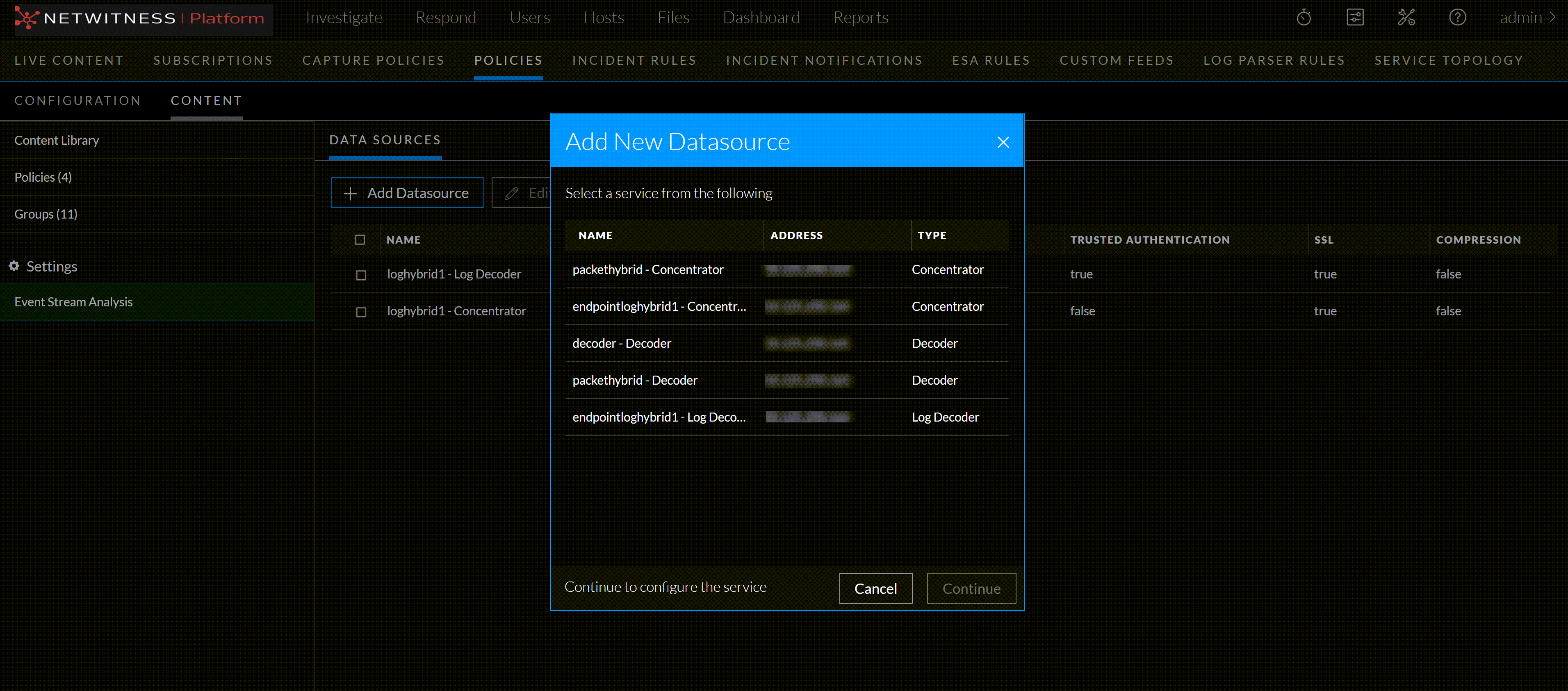
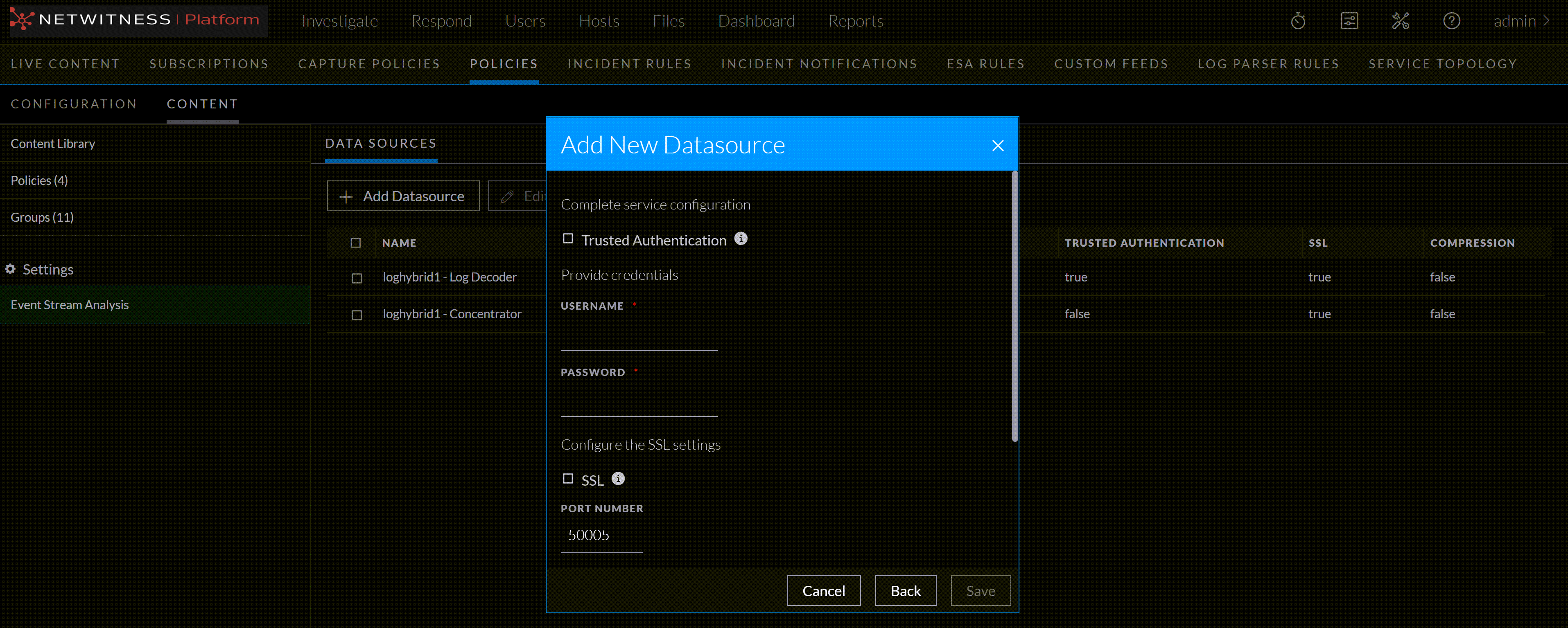
Below is an example of the Add New Datasource dialog:

Add_datasource1.png

Add_datasources1.png

The table describes the information and options in the Add New Datasource dialog.

  • Field: Trusted Authentication
  • Description:

    This option will enable the use of SSL by default for authentication.


  • Field: Username
  • Description: The username used to sign in to your account for authenticating the datasource.

  • Field: Password
  • Description: The password for authenticating the datasource.

  • Field: SSL
  • Description: This will enable the use of SSL for authentication.

  • Field: Port Number
  • Description:

    This will enable the use of the port number for authentication.


  • Field:

    Compression

  • Description:

    This option enables you to adjust the Compression Level on different datasources for ESA.


  • Field: Compression Level
  • Description: Enables you to set different compression level. Compression Level: 0, 1, and 9. For more information, see Add an ESA Datasource.

  • Field:

    Test Configuration

  • Description:

    Validates the provided configuration.


  • Field: Save
  • Description: Saves the settings and closes the Add New Datasource dialog.

  • Field:

    Cancel

  • Description:

    Cancels the operations.