.png?width=180&height=32&name=NW%20Logo%20(2).png)
Decrypt Incoming PacketsDecrypt Incoming Packets
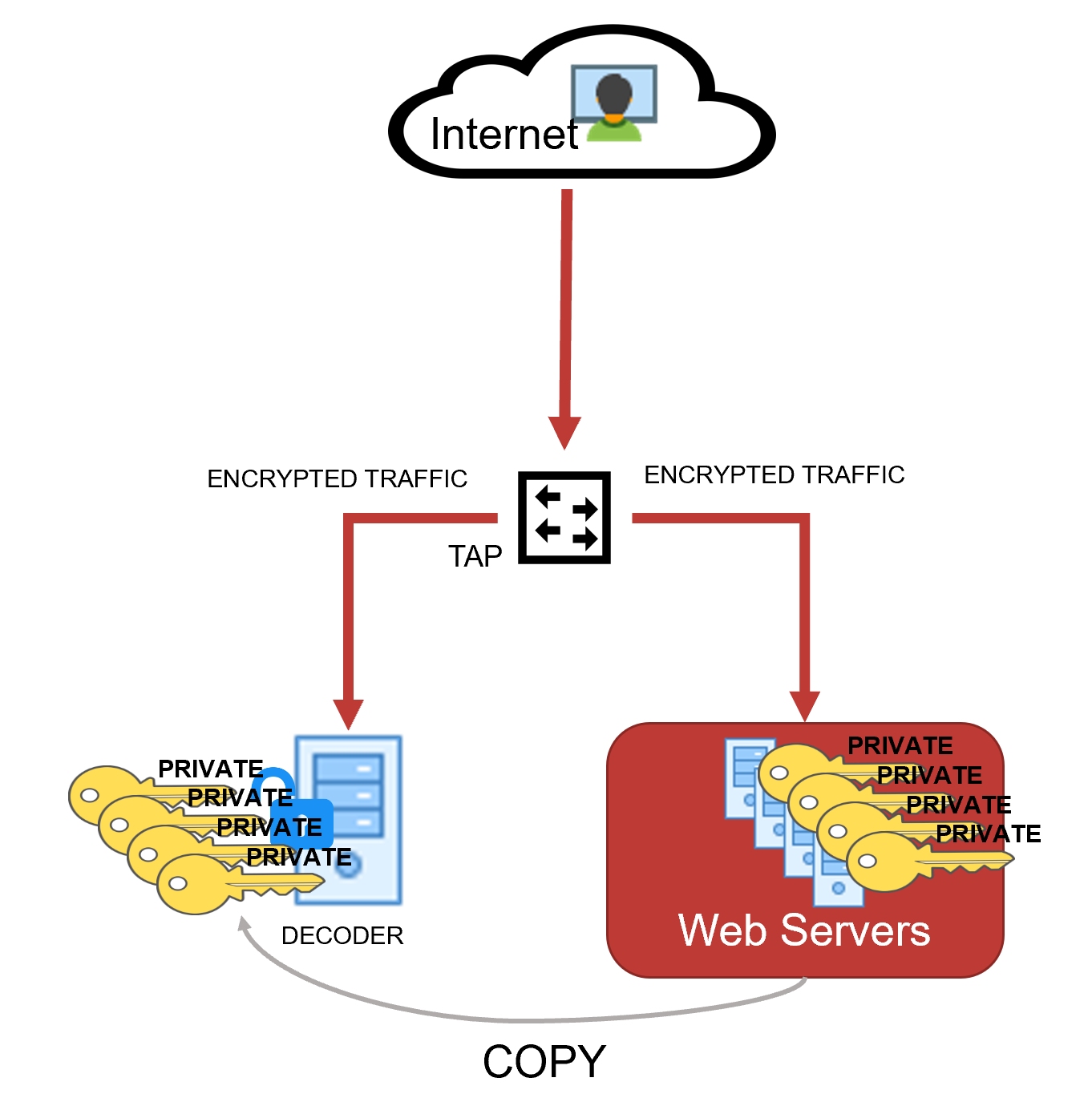
Administrators can configure a Network Decoder to decrypt incoming network packets. This capability is currently supported with encrypted communications to managed servers using TLS 1.2 or earlier and certain cipher suites, which are described in Supported Cipher Suites . The following figure illustrates the supported configuration of a Network Decoder deployed as a passive network device where it captures network traffic for managed servers. The Network Decoder is able to decrypt the traffic by using private keys uploaded to it from the managed servers .
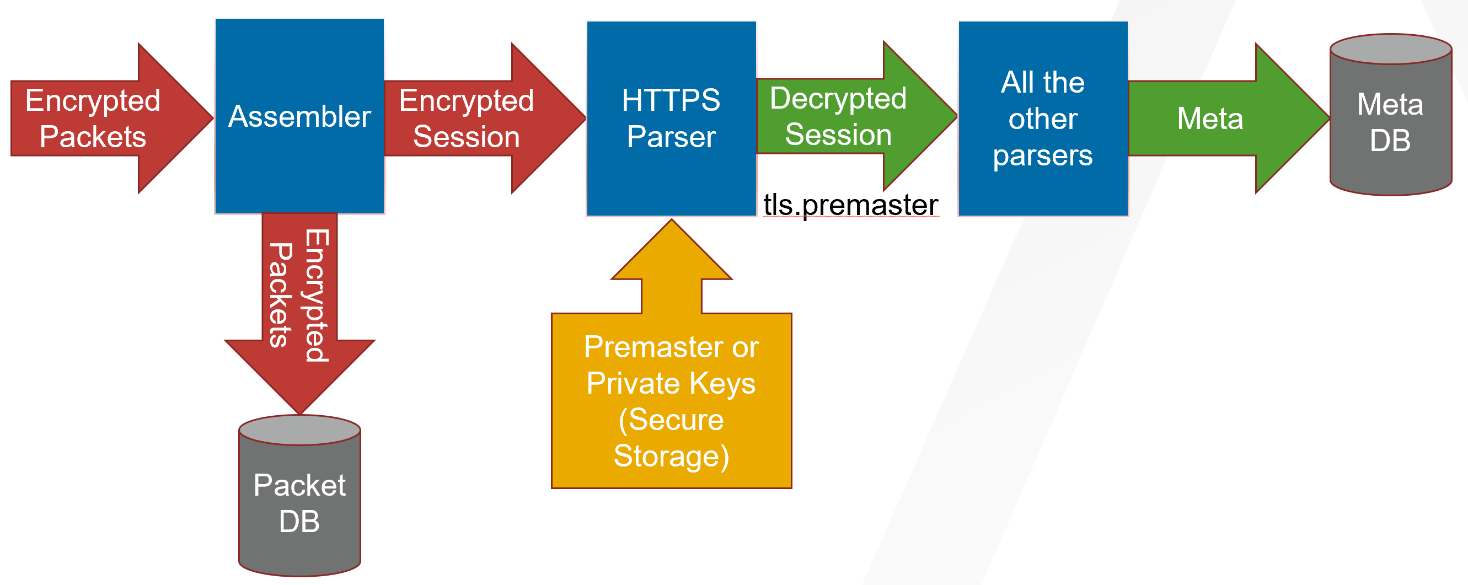
As the network traffic is collected and passed through the system, the encrypted packets are stored as captured even if the system has been able to decrypt them. As the Decoder parses the encrypted traffic, it uses any private keys that have been uploaded, and determines if the network traffic can be decrypted. If the Decoder is able to decrypt the traffic, it generates an additional meta key, defined as tls.premaster, which contains the decryption key for that particular session. Whether the traffic is decrypted or not, the metadata service is tagged as 443 or SSL/TLS traffic, as the Decoder is port agnostic, even though it is marked with the default port number. The following figure shows the basic progression through the NetWitness platform as the packets are being decrypted and the session metadata is generated.
Follow the steps below to configure the Network Decoder to natively decrypt this network traffic.
- Step 1: Validate That The Network Decoder Captures Encrypted Traffic
- Step 2: Obtain Private Keys from Managed Servers
- Step 3: Validate That The Private Key Cipher Suite is Supported
- Step 4: Confirm HTTPS Parser is Enabled on Decoders
- Step 5: Upload the Supported Private Keys to Decoders
- Step 6: Reload HTTPS Parser on Decoders
- Step 7: View Decrypted Sessions
Note: Currently, you cannot review the decypted payloads directly in the in the user interface. However, you can review them using the RESTful API interface and the NwConsole. However, the Decoders being able to decrypt traffic enables them to detect and generate potentially malicious communications that would otherwise not be detected.
See Troubleshooting for resolving any issues you might encounter while performing these steps.
Step 1: Validate That The Network Decoder Captures Encrypted Traffic Step 1: Validate That The Network Decoder Captures Encrypted Traffic
First, make sure the Decoder is actually capturing the SSL/TLS traffic from the managed servers that you want to use to gain visibility into the encrypted sessions. You can do this by searching in the Investigate views (Navigate or Events) using the IP addresses of the servers as the destination IP addresses, and the service as SSL/TLS.
For example, if you are searching for HTTPS traffic to 192.168.1.2 and 192.168.1.3, you can run the following query:
service = 443 && ip.dst = 192.168.1.2, 192.168.1.3
Conduct this search on the Concentrator that aggregates metadata from the Decoder that is expected to capture this network segment, or on a Broker that may have access to all collected metadata.
(Version 11.6 or later) In case of simultaneous ingestion of the encrypted and decrypted traffic streams in the Decoder, ensure that multi-thread assembly is enabled. This is to prevent mixing of packets from different sessions by single thread assembly. For more information, see the following topics:
Step 2: Obtain Private Keys from Managed Servers Step 2: Obtain Private Keys from Managed Servers
Private keys are the asymmetric keys generated by services that accept TLS traffic. They are normally stored in PEM files. These keys are used during the TLS handshake to encrypt the premaster symmetric key that is used for the rest of the payload encryption.
Note: The method to export private keys from web servers (from which to decrypt traffic) varies depending on the product. Refer to the product documentation for instructions for exporting private keys.
Extracting Certificates for the Decoder SSL DecryptionExtracting Certificates for the Decoder SSL Decryption
Extracting the proper key materials from popular servers is required to leverage the Decoder built-in decryption capability. The following are a few examples to extract private keys and certificates from popular servers like Apache, Microsoft IIS, and Exchange.
Note: These procedures can also be used as references to extract keys from other servers as well.
Extract private key from Apache
The private key file location would be referenced in the main Apache configuration file, which is httpd.conf or apache2.conf. The config directive SSLCertificateKeyFile will specify the path on your server where private keys are stored.
If Apache is using OpenSSL default certificates and keys, then locate private keys (which are usually saved to the folder /usr/local/ssl by default). You can run the command openssl version –a to find OPENSSLDIR where your server is saving the keys.
If the private key is password protected, then it can be extracted using the below command with the password.
openssl rsa -in yourcertificate.pem -out serverkey.pem
Validate the located private key using the following command.
openssl rsa -in serverkey.pem -check -noout
Extract Private Key and Certificate from Windows Servers
Windows servers provide the interface to extract certificates and private keys in PKCS12 format files (.pfx format). It is recommended to use password protection while exporting private keys.
After exporting keys to the pfx file, you can use the OpenSSL tool to extract private keys as PEM files and upload them to Decoder.
Step 2 (a): Extract PKCS12 file from Internet Information Services (IIS)
There are multiple ways to extract certificates from IIS and the following are few examples.
Using IIS Manager App
-
Open Internet Information Services Manager App.
-
Under IIS > Navigate to Select Certificates > Select Features view > Select the required web or application server certificate.
-
Right-click the certificate and select the Export option. In the export wizard, select the file path to save the pfx file (PKCS12 format)
-
Example: C:\ServerCerts\servercrt.pfx.
-
Enter the password and confirm the password in the export.
-
This would create password protected pfx file which contains a private key and associated certificate.
Using Microsoft Management Console (MMC)
-
Open Microsoft Management Console (MMC).
-
In the Console Root expand Certificates (Local Computer).
-
If the Certificates folder is not available then navigate to File > Add Snap In > Add Certificates.
-
Locate your server certificate, it is located in the Web Server or Personal sub-folders.
-
Right-click the certificate, identified by the Common Name, select Export, and follow the wizard. Use password to protect the pfx file.
-
This would create password protected pfx file which contains a private key and associated certificate.
Step 2 (b): Extract PKCS12 file from Exchange Servers
Refer the Export a Certificate from an Exchange Server document for information on how to extract the pfx file from the Exchange server.
Step 2 (c): Extract Private Key From a pfx File Using OpenSSL
OpenSSL tool provides API to export keys in PEM format.
-
Extract private key in PEM format, at the openssl prompt use the password to decrypt the pfx file.
openssl pkcs12 -in servercrt.pfx -nocerts -nodes -out serverkey.pem -
Validate the private key generated
openssl rsa -in serverkey.pem -check -noout
-
Extract cert in PEM format to validate compatibility with private key
openssl pkcs12 -in servercrt.pfx -nokeys -out serverkey.crt
-
Validate private key and certificate modulus. The modulus should be the same for both the private key and its certificate.
openssl rsa -noout -modulus -in serverkey.pem
openssl x509 -noout -modulus -in serverkey.crt
Recommendations
Once private keys are extracted from servers and imported to Decoder, it is recommended to secure or delete the extracted PEM file of the private key (serverkey.pem) generated by the above OpenSSL commands.
Step 3: Validate That The Private Key Cipher Suite is Supported Step 3: Validate That The Private Key Cipher Suite is Supported
As a passive collection device, the Network Decoder can only decrypt ciphers that use the RSA key exchange. The list of supported keys, and whether the keys are FIPS compliant, are listed in Supported Cipher Suites and Unsupported Cipher Suites . If you are expecting to decrypt less-secure channels of communication, you might need to disable FIPS. However, this is a system change to the entire Decoder, not just the parsing of captured traffic, so take caution before disabling FIPS. If you require more-secure cipher suites for the managed server communications, search for "SSL decrypt" in our third party partner integrations section at RSA Ready Community (https://community.rsa.com/community/products/rsa-ready).
Note: If FIPS is enabled, the list of ciphers for decryption is restricted to only those that are FIPS-compliant.
Supported Cipher Suites Supported Cipher Suites
The following table lists which cipher-suites are supported using private keys.
Unsupported Cipher Suites Unsupported Cipher Suites
The following table lists which cipher-suites are not supported using private keys.