.png?width=180&height=32&name=NW%20Logo%20(2).png)
Deployment Optional Setup Procedures
You can deploy NetWitness with the following options.
New Health and Wellness Search
Hybrid Categories on Series 6 (R640) Hardware
NW Server Deployment on ESA Hardware
Introduction to ESA Primary Disaster Recovery Failover
Perform ESA Primary Disaster Recovery Failover (Make Active)
Troubleshoot ESA Primary Disaster Recovery Failover Issues
Analyst User Interface
The Analyst User Interface (UI) gives you access to a subset of features in the NetWitness Platform UI that you can set up in individual locations when you deploy NetWitness Platform in multiple locations. It is designed to reduce latency and improve the performance that can occur when accessing all functionality from the Primary User Interface on the NW Server Host (Primary UI).
You can have multiple Analyst UI instances provisioned in the same manner as the other NW component hosts.
Features and Limitations
Each Analyst UI host:
- Can be deployed to specific organizational groups. For example: the Americas, EMEA, APAC, Tier 1 Analysts, Tier 3 Analysts.
- If Analyst UI hosts are deployed regionally, you have the capability of querying those regional brokers directly (less latency), instead of than having to route through the Primary UI.
- Helps distribute load off the Primary UI.
- Has its own Reporting Engine (RE).
- If it becomes unavailable for any planned or unplanned reason, it will not affect the Primary UI or any other Analyst UI instances.
- Provides the same pre-query filter verification, Data Privacy protection, and RBAC functionality as the Primary UI.
- Points back to the primary NW Server for authentication and configuration.
- Does not have access to any administrative functions. All administration functions take place on the Primary UI.
- Does not allow you to create or manage Content (that is, ESA rules, app rules, feeds). All Content creation and management takes place on the Primary UI.
Use Case
Large environments that include Geo distribution with a single data center and multiple NW Servers require Analyst UI instances in all their NetWitness locations or managed entities.
For example, if an Analyst UI is deployed for the EMEA SOC team, analysts can query their EMEA NetWitness Platform hosts directly. If the EMEA team has Broker hosts and Concentrator hosts within the region, the Analyst UI can connect and query them instead of connecting back to Primary user Interface (Primary UI).
Deployment
You must install the Analyst UI service category on a dedicated host, and you install it in the same manner as any component service category on a host.
See the "Task 2 - Install the latest version on Other Component Hosts" in the NetWitness Platform Installation Guides for instructions on how to install any component service. Go to the NetWitness All Versions Documents page and find NetWitness Platform guides to troubleshoot issues.
After you provision the Analyst UI host (that is after you run the nwsetup-tui for the component host designated for the Analyst UI), complete the following steps to install the Analyst UI service category on the provisioned host.
- Log in to NetWitness and go to
 (Admin) > Hosts.
The New Hosts dialog is displayed with the Hosts view grayed out in the background.Note: If the New Hosts dialog is not displayed, click Discover in the Hosts view toolbar.
- Select the host in the New Hosts dialog and click Enable.
The New Hosts dialog closes and the host is displayed in the Hosts view. - Select that host in the Hosts view (for example, Analyst UI) and click
 .
.
The Install Services dialog is displayed. - Select Analyst UI in Category and click Install.
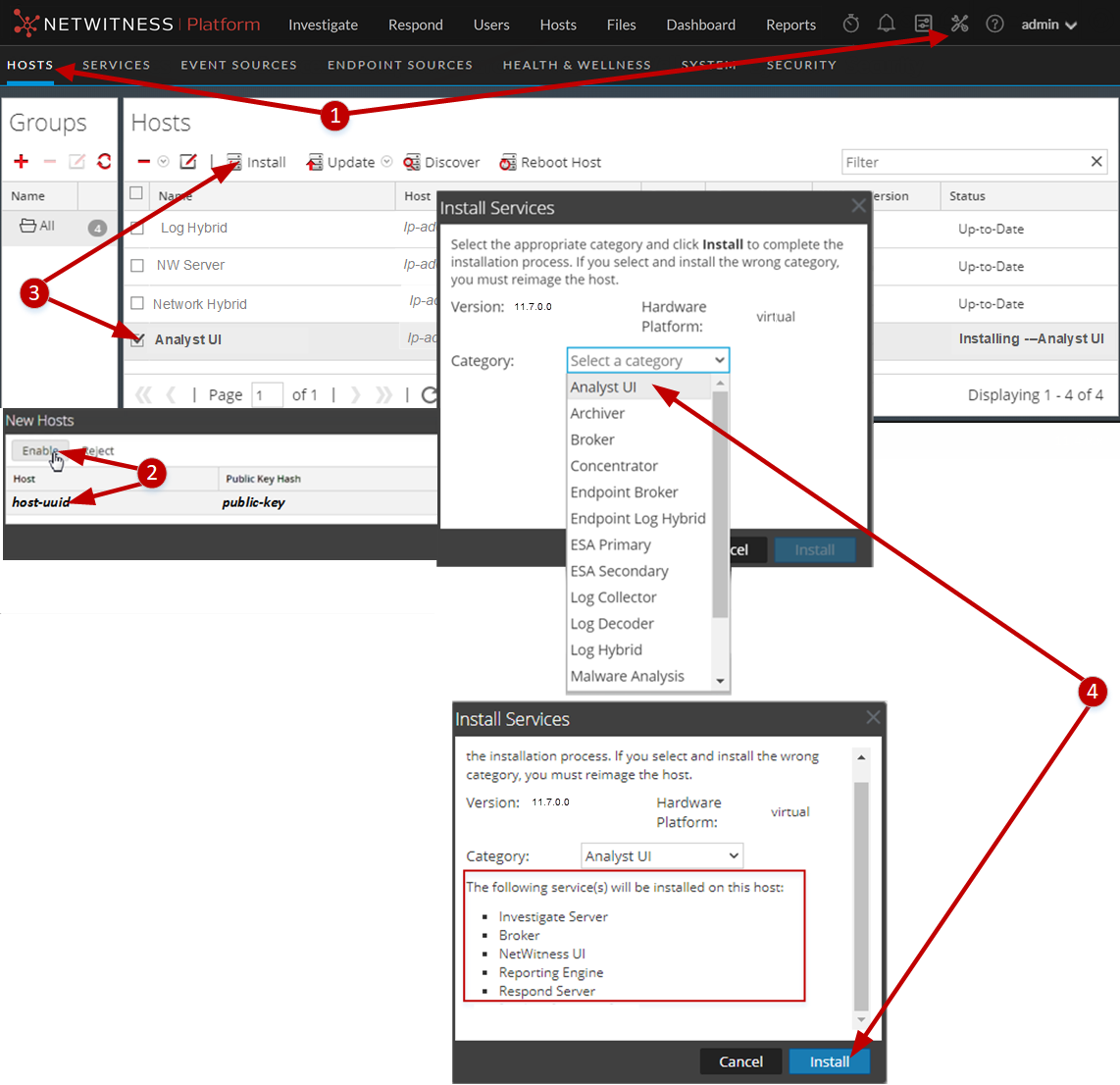
- Configure NetWitness Platform for each Analyst UI instance.Go to the NetWitness All Versions Documents page and find NetWitness Platform guides to troubleshoot issues.
- Make sure that each Analyst UI instance is connected to the correct local Reporting Engine and has the appropriate Investigation parameters set. The Getting Started Guide for NetWitness Platform describes the default Analyst UI Dashboard and how you manage dashboards.
Note: You must add data sources to each Reporting Engine instance to execute Reports and Charts on an Analyst UI. See "Configure the Data Sources" in the Reporting Engine Configuration Guide for NetWitness Platform for instructions.
-
Configure whether to normalize alerts for any Respond Server (NW Server or Analyst UI) by enabling or disabling alert normalization. "Configure Analyst UI for Respond Server Alert Normalization" in the NetWitness Respond Configuration Guide for NetWitness Platform tells you how to configure Respond Server alert normalization for the Analyst UI.
- Make sure that each Analyst UI instance is connected to the correct local Reporting Engine and has the appropriate Investigation parameters set. The Getting Started Guide for NetWitness Platform describes the default Analyst UI Dashboard and how you manage dashboards.
Group Aggregation
You use Group Aggregation to configure multiple Archiver or Concentrator services as a group and share the aggregation tasks between them. You can configure multiple Archiver services or Concentrator services to efficiently aggregate from multiple Log Decoder services to improve query performance on the data:
- Stored in the Archiver.
- Processed through the Concentrator.
RSA Group Aggregation Deployment Recommendations
RSA recommends the following deployment for Group Aggregation:
- 1 - 2 Log Decoders
- 3 - 5 Archivers or Concentrators
Advantages of Using Group Aggregation
- Increases the speed of NetWitness queries.
- Improves the performance of aggregate queries (Count and Sum) on the environment.
- Enhances investigation service performance.
- Gives you the option of storing data for a longer duration for investigation purposes.
The following diagram illustrates Group Aggregation.
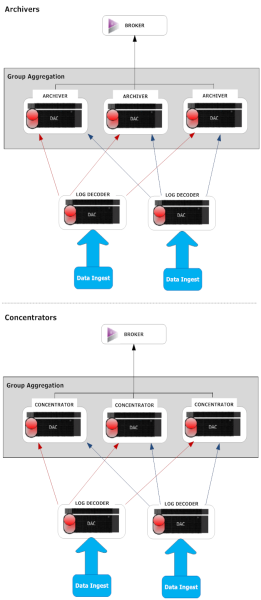
You can have any number of Archivers or Concentrators grouped together and form an aggregation group. The Archiver or Concentrator services in the group divide all the aggregated sessions between them based on the number of sessions defined in the Aggregate Max Sessions parameter.
For example, in an aggregation group containing two Archiver services or two Concentrator services with the Aggregate Max Sessions parameter set to 10,000, the services would divide the session between themselves as illustrated in the following table.
- Column 1: Archiver 0 or Concentrator 0
- Column 2: Archiver 1 or Concentrator 1
- Column 1: 1 - 9,999
- Column 2: 10,000 - 19,999
- Column 1: 20,000 - 29,999
- Column 2: 30,000 - 39,999
- Column 1: 40,000 - 49,999
- Column 2: 50,000 - 59,999
Configure Group Aggregation
Complete this procedure to configure multiple Archiver or Concentrator services as a group and share the aggregation tasks between them.
Prerequisites
Plan the network design for group aggregation. The following figure is an example of a group aggregation setup.
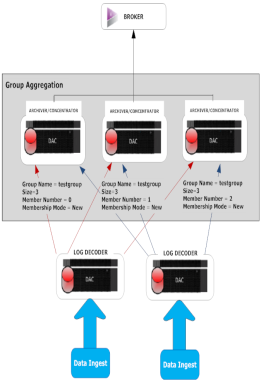
Ensure that you understand the Group aggregation parameters in the following table, and create a group aggregation plan.
- Parameter:
Group Name
- Description:
It determines the group to which the Archiver or Concentrator belongs.
You can add any number of groups aggregating data from a Log Decoder. The Group Name parameter is used by the Log Decoder to identify which Archiver or Concentrator services are working together. All Archiver or Concentrator services in the group should have the same group name.
- Parameter:
Size
- Description:
It determines the number of Archiver or Concentrator services in the aggregation group.
- Parameter:
Member Number
- Description:
It determines the position of the Archiver or Concentrator in the aggregation group. For a group of size N, member number from 0 to N-1 must be set on each of the Archiver or Concentrators services in the aggregation group.
For example: If the size of the aggregation group is 2, the member number of one of the Archiver or Concentrator service should be set to 0 and the member number of the other Archiver or Concentrator should be set to 1.
- Parameter:
Membership Mode
- Description:
There are two membership modes:
- New: Adding a new Archiver or Concentrator service as a member to the existing aggregation group or creating an aggregation group. The Archiver or Concentrator service does not aggregate any existing sessions from the service as other members of the group would have already aggregated all the sessions on the service. This Archiver or Concentrator service will only aggregate new sessions as they appear on the service.
- Replace: Replacing an existing aggregation group member. The Archiver or Concentrator will begin aggregation from the oldest session available on the service it is aggregating from.
Note: The Membership Mode parameter has an effect only when no sessions have been aggregated from the service. After some sessions are aggregated, this parameter has no effect.
Set up Group Aggregation
This workflow shows the procedures you complete to configure group aggregation.
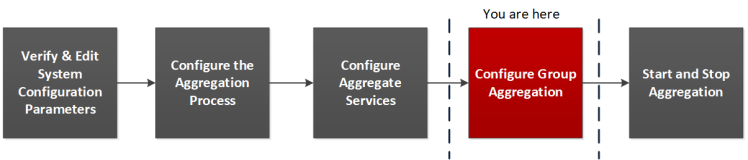
Complete the following steps to set up group aggregation.
- Configure multiple Archiver or Concentrator services in your environment. Make sure that you add the same Log Decoder as data source to all the services.
-
Perform the following on all the Archiver or Concentrator services that you want to be part of aggregation group:
- Go to
 (Admin) > Services.
 -
Select the Archiver or Concentrator service, and select
 > View > Config.
The Service Config view of the Archiver or Concentrator is displayed.
- In the Aggregate Services section, select Log Decoder.
- Click
 to change the status of the Log Decoder to offline if it is online.
 -
Click
 .
.The Edit Aggregate Service dialog is displayed.
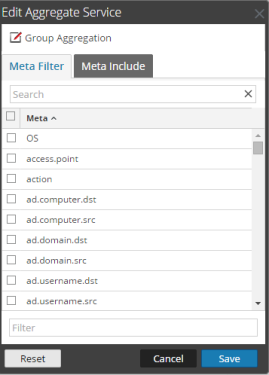
-
Click
 .
.The Edit Group Aggregation dialog is displayed.
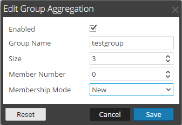
-
Select the Enabled checkbox and set the following parameters:
- In the Group Name field, type the group name.
- In the Size field, select the number of Archiver or Concentrator services in the aggregation group.
- In the Member Number field, select the position of the Archiver or Concentrator in the aggregation group.
- In the Membership Mode drop-down menu, select the mode.
- Click Save.
- In the Service Config view, click Apply.
- Perform Step b to Step i on all other Archiver or Concentrator services that need to be part of group aggregation.
- Go to
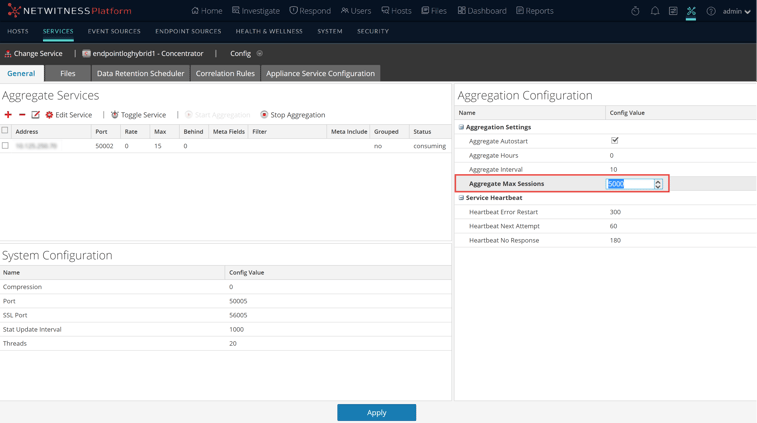
-
In the Aggregation Configuration section, set the Aggregate Max Sessions parameter set to 10000.
New Health and Wellness Search
New Health and Wellness is an advanced monitoring and alerting system that provides insights on the operational state of the host and services in your deployment and helps identify potential issues.
System Requirements
The following tables list the memory, disk, and CPU recommended for the New Health and Wellness based on the size of the deployment.
Note: The recommended values might differ when you install and try the new features and enhancements.
Caution: If the New Health and Wellness node is on a different subnet, you must open the respective NetWitness Platform hosts port. For more information, see "New Health and Wellness on Different Subnet" section in the Network Architecture and Ports.
Standalone Virtual Host
Minimum memory for a standalone virtual host is 16 GB.
Each NetWitness platform host writes 150 MB of New Health and Wellness metrics data into Elasticsearch data per day. For example, if you have 45 NetWitness Platform hosts then 6.6 GB of metrics data is written to Elasticsearch per day.
- CPU: 4 cores
- Memory: 16 GB
Physical Host
- Deployment Size: Small (~5-10 hosts / 20-40 services)
- Memory: 16 GB
- CPU: 15%
- DISK per day: 1.5 GB
- Deployment Size: Medium (~150-200 hosts / 300- 400 services)
- Memory: 18 GB
- CPU: 15%
- DISK per day: 29 GB
- Deployment Size: Large (~250-300 hosts / 500-600 services)
- Memory: 22 GB
- CPU: 15%
- DISK per day: 44 GB
Based on the resources available, you can deploy the New Health and Wellness feature on any one of the following, listed in the order of preferred deployment method with most preferred first:
- Standalone virtual host (Most preferred recommendation to ensure no performance impact on any other functionality of deployed nodes)
- Physical host:
- Broker
- Admin Server
- ESA
Installing New Health and Wellness enables all hosts in your deployment to start sending metrics to monitor New Health and Wellness. After you deploy New Health and Wellness , see the "Monitor New Health and Wellness " topic in the System Maintenance Guide for instructions on how to configure and use this feature.
Please direct any New Health and Wellness feedback to nw.health.wellness.feedback@netwitness.com.
After you provision the New Health and Wellness host, complete the following steps to install the New Health and Wellness service category on the provisioned host.
- Log in to NetWitness and go to (Admin) > Hosts.
The New Hosts dialog is displayed with the Hosts view grayed out in the background.Note: If the New Hosts dialog is not displayed, click Discover in the Hosts view toolbar.
Note: If you are not installing New Health and Wellness on a standalone virtual host ignore step 2.
- Select the host in the New Hosts dialog and click Enable.
The New Hosts dialog closes and the host is displayed in the Hosts view. - Select that host on which New Health and Wellness should be installed in the Hosts view (for example, New Health and Wellness) and click .
The Install Services dialog is displayed.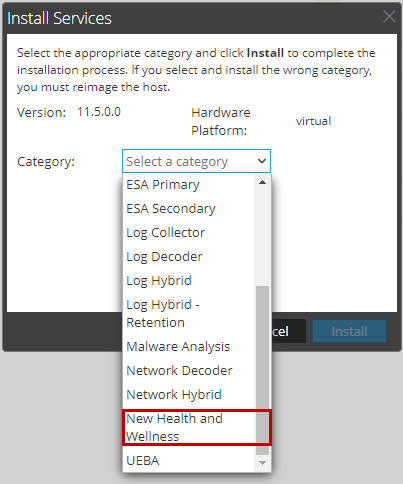
- Select New Health and Wellness in Category and click Install.
-
Refresh all hosts to write to elastic search.
-
SSH to the NW Server host.
- Run the following commands.
nw-manage --refresh-host --host-all
This may take few minutes for the changes to take effect based on the number of hosts in your deployment.
-
Note: (For Standalone Virtual host only) After you review your initial datastore configuration, you may determine that you need to add a new volume. For information on adding a new volume see “Add New Volume and Extend Existing File Systems” topic in the Virtual Host Installation Guide.
Note: After you have installed New Health and Wellness, for some reason, if you want to uninstall New Health and Wellness, you must refer to "Uninstall New Health and Wellness" in the Upgrade guide.
Hybrid Categories on Series 6 (R640) Hardware
You can install Hybrid Categories such as Log Hybrid and Network (Packet) Hybrid service categories on a Series 6 (R640) Physical host. This gives you the ability to attach multiple PowerVault external storage devices to the Series 6 (R640) Physical host.
NW Server Deployment on ESA Hardware
You now have the option to deploy the NW Server host on Series 6 Analytics hardware. The Series 6 Analytics Hardware has more memory and storage capacity than the standard Core appliance on which NW Server has typically been deployed. This results in better overall responsiveness and larger retention capacity for Report Engine.
Note: You can install the NW Server on ESA hardware, but you cannot co-locate any ESA services (categories) with the NW Server on this hardware.
Second Endpoint ServerSecond Endpoint Server
Complete the following procedure to deploy a second Endpoint Server.
- Set up a new host in NetWitness Platform.
- For a physical host, complete steps 1 to 16 in "Install NetWitness Platform" under "Installation Tasks" in the Physical Host Installation Guide for NetWitness Platform 12.5.
- For a virtual host, complete steps 1 to 6 in "Step 4. Install NetWitness Platform" in the Virtual Host Installation Guide for NetWitness Platform 12.5.
Go to the NetWitness All Versions Documents page and find NetWitness Platform guides to troubleshoot issues.
- SSH to the host that you set up in step 1.
- Submit the following command string.
mkdir -p /etc/pki/nw/nwe-caNote: You do not need to modify ,,,,,,, ,,,,,,, ,,,,,,, ,,,,,,, ,,,,,,, ,,,,,,, ,,,,,,, click Discover in the Hosts view toolbar.
,,,,,,, ,,,,,,, ,,,,,,, ,,,,,,, Endpoint Server II) and click .
.
The Install Services dialog is displayed.,,,,,,, ,,,,,,, ,,,,,,, ,,,,,,, ,,,,,,, when configured, receives backups of the primary NW Server in the active role at regular intervals. If the primary NW Server fails (goes offline), the fail-over procedure must be executed allowing the secondary NW Server to assume the active role.,,,,, we support a secondary NW Server that has a different IP address from the primary NW Server. Having the same IP address for both the primary NW Server and secondary NW Server is no longer necessary.,,,,,,, a failure or scheduled switch from the primary NW Server to the secondary NW Server is referred to as a fail-over. You fail back to return to the normal operating state (that is, primary NW Server in the active role and the secondary NW Server in the standby role).,,,,,, ,,,,,,, get the primary NW Server back online and set it up in the standby role. This is a temporary operating state.3Fail the secondary NW Server back to the primary. The primary NW Server is back to the active role and secondary is back to the standby role. This is the normal operating state.,,,,,,, ,,,,,,, follow the same administrative procedures, for example, for upgrade and maintenance, as the procedures for the primary active NW Server.,,,, ,,,,,,, ,,,,,,, ,,,,,,, ,,,,,,, ,,,,,,, ,,,,,,, ,,,,,,, ,,,,,,, ,,,,,,, ,,,,,,, ,,,,,,, ,,,,,,, but you are able to recover it easily without re-imaging (for example, the active NW Server has corrupt or insufficient RAM). You do not need to run the nwsetup-tui and you do not need to contact NetWitness Customer Support to reestablish correct licensing when:,,,,,, install new RAM) and fail back to it from the secondary host.
The Installation program runs and stops at the Enter (y/Y) to clear drives prompt that asks you to format the drives.
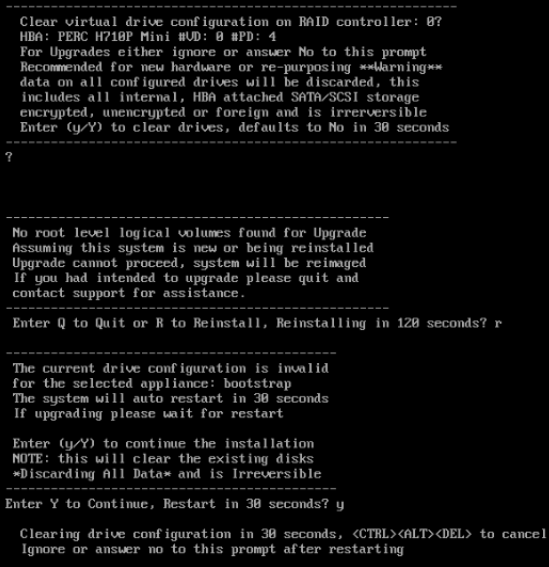
Caution: You must respond y or Y to this prompt even if the host does not have an internal RAID configuration or the installation will fail.
,,,,,,, so if you ignore the prompt and it will select No in 30 seconds and will not clear the drives. The Press enter to reboot prompt is displayed.
The system displays all installation tasks it is performing. This can take a minute or so.After it completes the tasks, the installation program reboots the host.,,,,,, for example a build stick).,,,,,,, ,,,,,,, ,,,,,,, ,,,,,,, ,,,,,,, use the down and up arrows to move among fields, use the Tab key to move to and from commands (such as
2.) The Setup program adopts the color scheme of the desktop or console you use access the host.
3.) During the Setup program, when you are prompted for the network configuration of the host, be sure to specify the same network configuration that was used for the original installation of 11.x on this host (it must be exactly the same)., ,,,,,,, ,,,,,,, that is active or standby of the host).
The Install or Recover prompt is displayed.
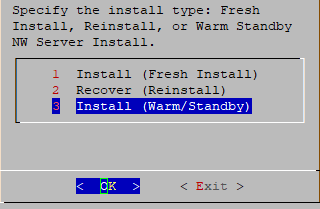
The Standby Host Recovery Mode prompt is displayed.
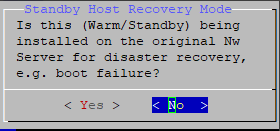
The Host Name prompt is displayed
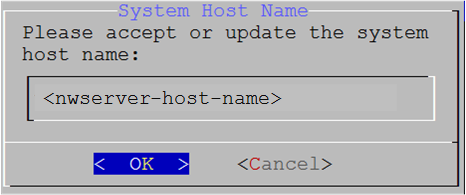
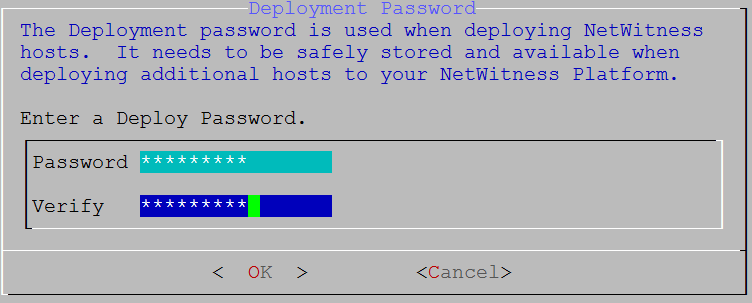
The Deployment Password prompt is displayed.
One of the following conditional prompts is displayed. the following prompt is displayed.