Skip to content
  • There are no suggestions because the search field is empty.

Deployment Stats

Tags: Documentation

When an ESA deployment is deployed, you can view details about how the deployment is performing, such as statistics on the engine, rule, and alert. You can also view information on which rules are enabled or disabled and change their status.

This topic describes how to view an ESA Correlation service’s deployment statistics (stats). This procedure is useful when determining a rule's effectiveness or troubleshooting an ESA rule deployment.

Caution: When you modify and re-deploy an ESA rule deployment, all the stats are removed from that deployment. The generated alerts are not removed from NetWitness.

To view a Deployment Stats

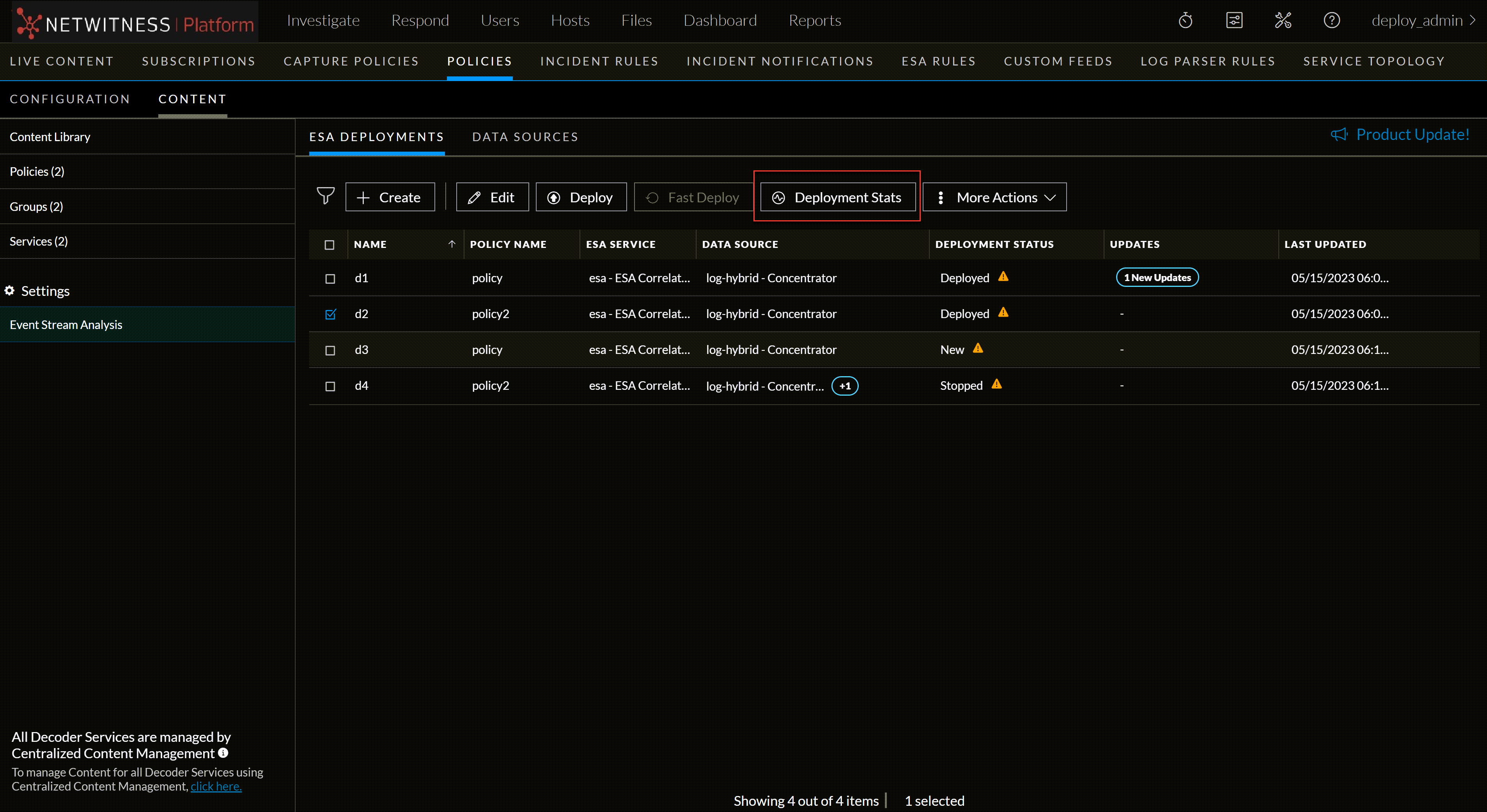
  1. Go to Configure.png (CONFIGURE) > Policies > Content.

  1. Under Settings, click Event Stream Analysis > ESA Deployments.

The available deployments are displayed.

  1. Select a deployment you want to see the stats.

  2. Click on the Deployment Stats tab.

DeploymentStats_12.3.png

The deployment stats for the selected service are displayed.
DeploymentStats2_12.3.png

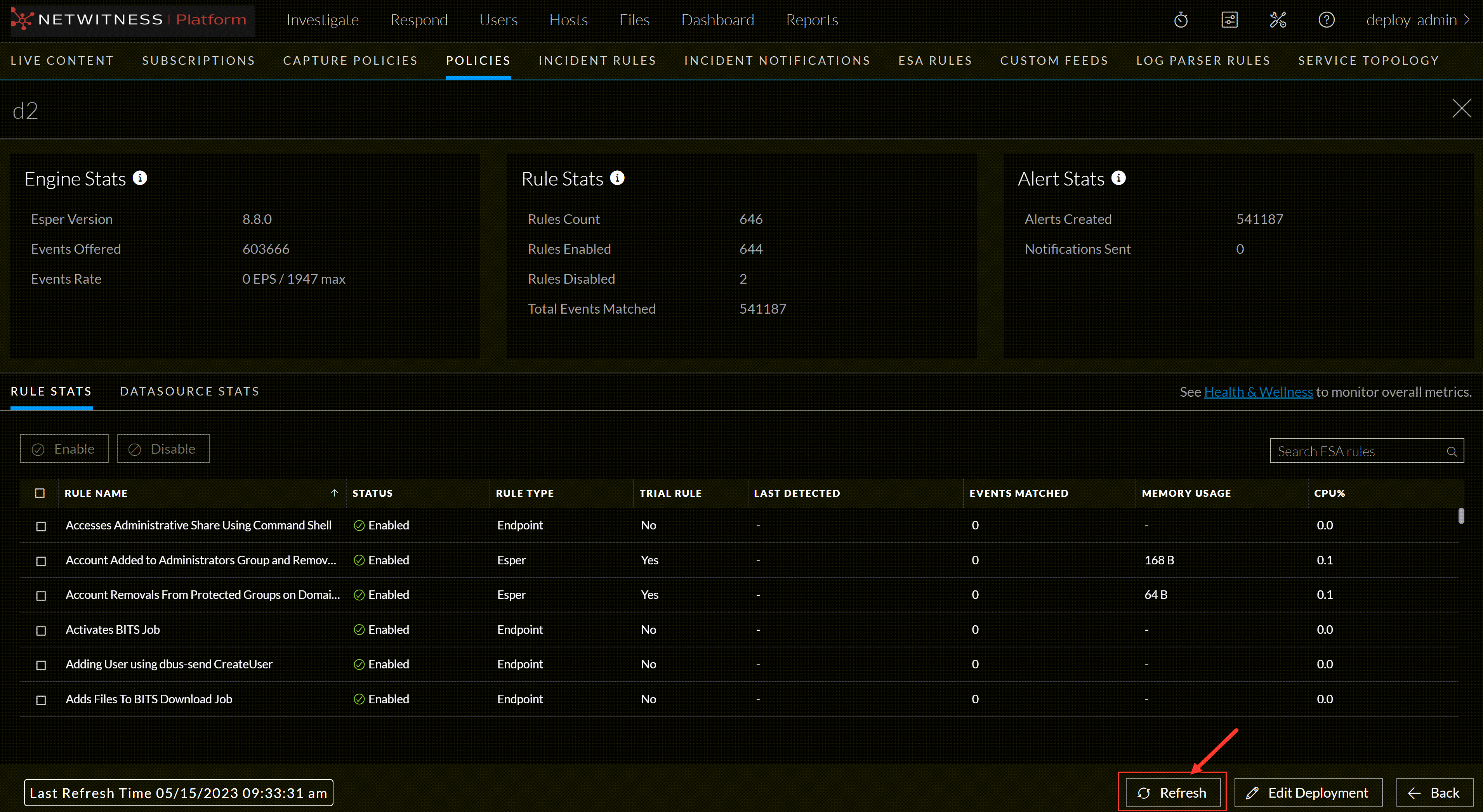
Review the following sections of selected Deployment Stats. For a complete description of each statistic in each section, see the Deployment Stats Information.

  • Engine Stats
  • Rule Stats
  • Alert Stats

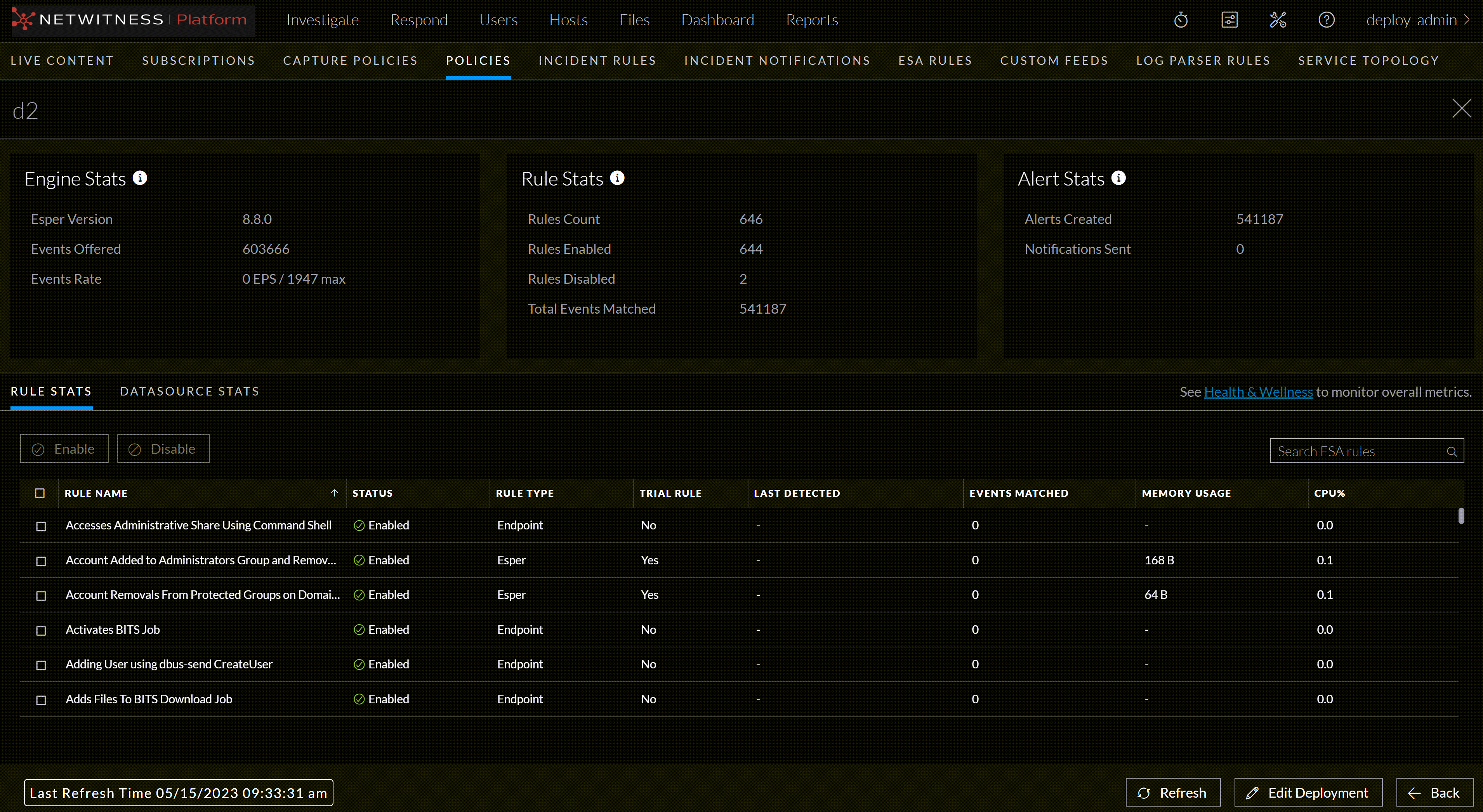
The following figure shows the Deployment Stats panel.

DeploymentStats3_12.3_1435x284.png

  1. Review the list of details about the rules deployed on the ESA.

  • If the rule is enabled or disabled
  • Rule name
  • Rule type
  • Rule trial mode
  • Last detected
  • Events matched
  • Rule memory usage
  • Deployment CPU percentage used by the rule.

    For a complete description of each column in each section, see Deployment Stats Information.

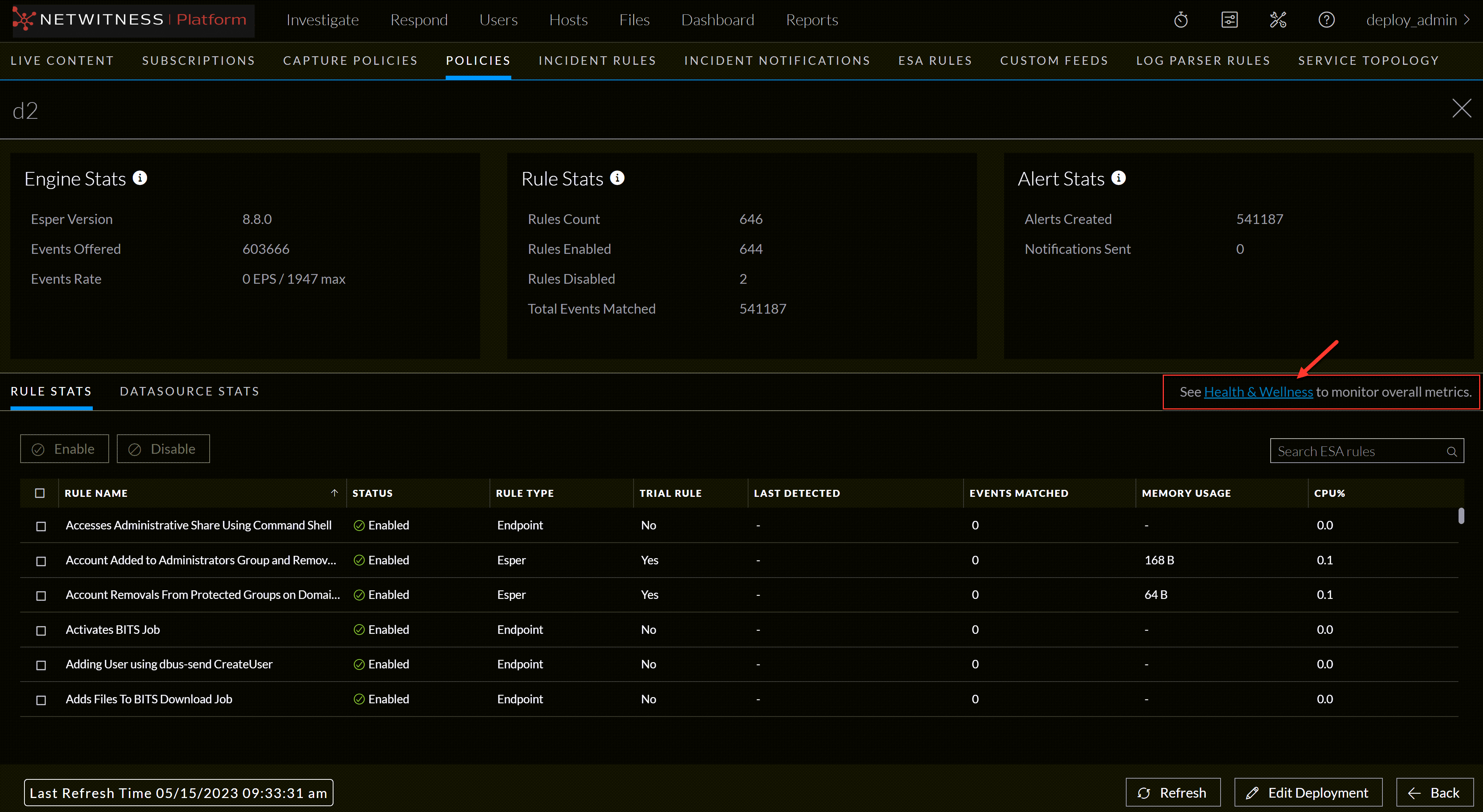
Check Health and Wellness

To monitor your ESA Correlation service's overall memory usage and health, click Health & Wellness.
DeploymentStats4_12.3.png

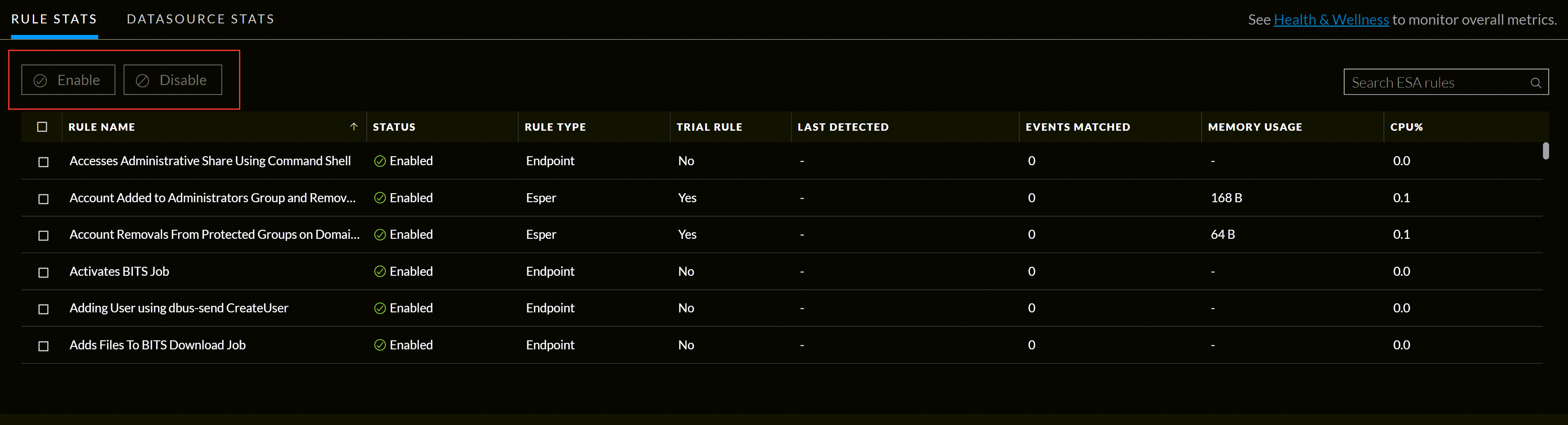
To Enable or Disable Rules

  1. Select a rule from the Rule Stats panel grid.

  2. Click Enable to enable the rule or click Disable to disable the rule.
    DeploymentStats5_12.3.png

To Refresh the Statistics

The Services tab does not update statistics automatically unless you enable or disable a rule.

  1. Click the Refresh tab in the bottom right corner to refresh the information.

    The Services tab is refreshed to show the changes which take effect immediately.

  2. View the updated information.

    DeploymentStats6_12.3.png

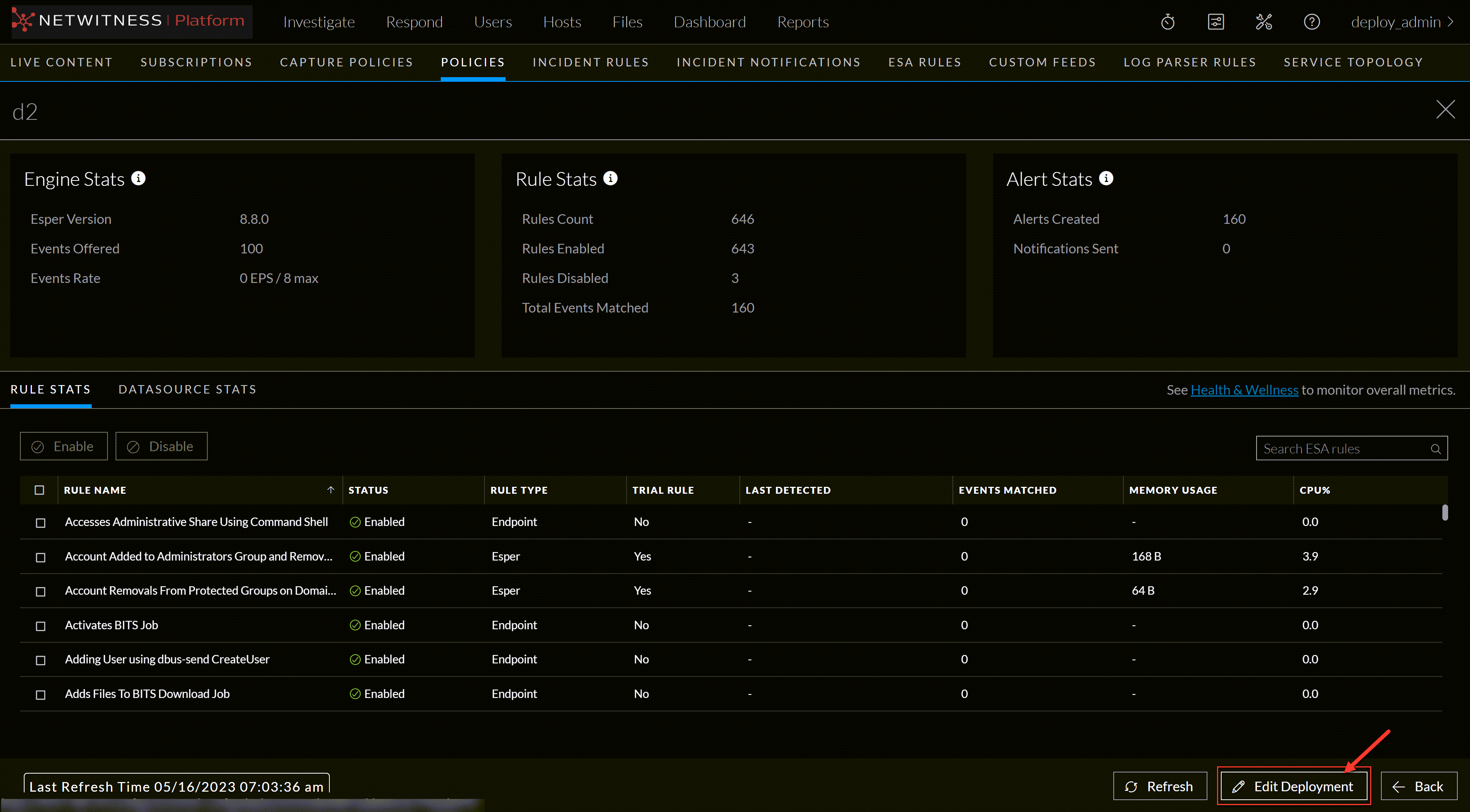
Edit the Deployment

To edit the deployment, Click the Edit Deployment tab in the bottom right corner of the page.
DeploymentStats11_12.3.png

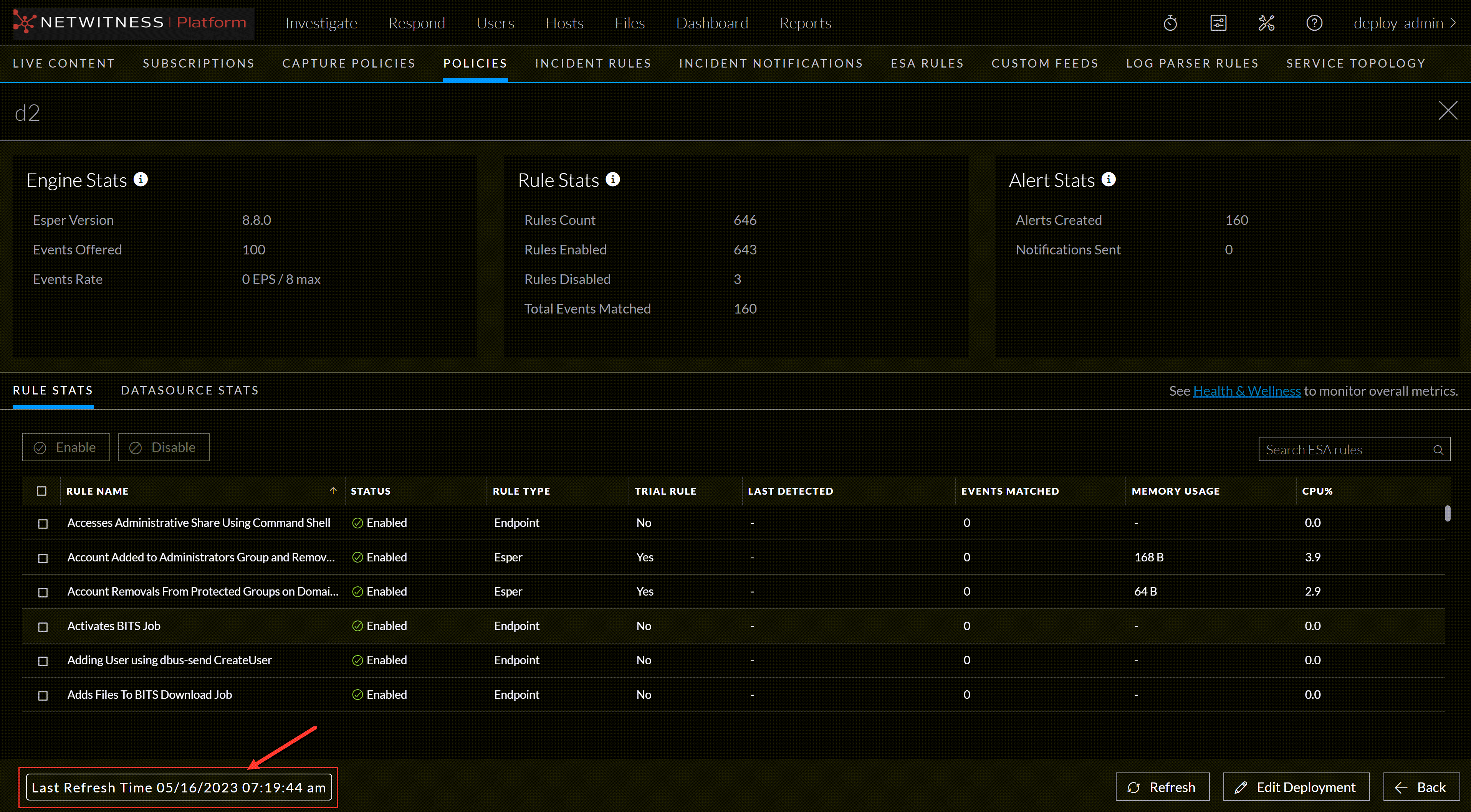
Last Refresh Time

This information indicates the last time when the deployment stats page was refreshed.
DeploymentStats12_12.3.png

  • Sections: Engine Stats
  • Parameter: Esper Version
  • Description: Esper version running on the ESA service

  • Sections: Events Offered
  • Parameter: Number of events processed by the ESA service since the last service started.

  • Sections: Events Rate
  • Parameter: The rate that the ESA service processes current events / The maximum rate that the ESA service processed events.

  • Sections: Rule Stats
  • Parameter: Rules Enabled
  • Description: The number of rules enabled.

  • Sections: Rules Disabled
  • Parameter: The number of rules disabled.

  • Sections: Rules Count
  • Parameter: The number of rules inside a deployment.

  • Sections: Total Events Matched
  • Parameter: Total number of events matched to all rules on the ESA service.

  • Sections: Alert Stats
  • Parameter: Notifications
  • Description: The total number of notifications sent by email, SNMP, syslog, or script for the deployment. (ESA SNMP notifications are not supported in NetWitness Platform version 11.3 and later.)

  • Sections: Alerts Created
  • Parameter:

    The total number of alerts sent to Respond for the deployment.


The Rule Stats panel details:

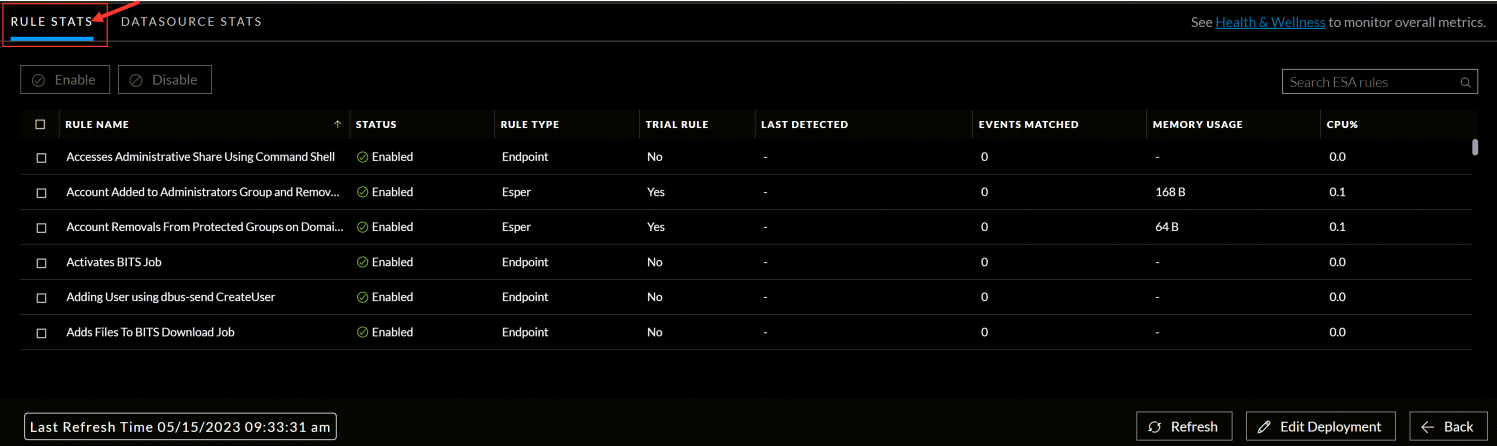
The Rules Stats provides details on the rules that are deployed on the ESA service. The following figure shows the Rule Stats panel.
DeploymentStats7_12.3_1497x446.png

The table below lists the various parameters in the Rules Stats view and their description.

  • Parameters: DeploymentStats13_12.3.png
  • Description: Enables a rule that was disabled.

  • Parameters: DeploymentStats14_12.3.png
  • Description: Disables a rule that was enabled.

  • Parameters: Health & Wellness link
  • Description: Enables you to monitor overall memory usage and health of your ESA Correlation service.

  • Parameters: Status
  • Description:

    Indicates whether the rule is enabled or disabled.
    A green circle icon DeploymentStats13_12.3.png indicates that the rule is enabled.
    A white circle icon DeploymentStats14_12.3.png indicates that the rule is disabled.

    Note: If a rule has an error on deployment, it shows up as ‘Failed’. Hover over the Failed icon to view the error message in the tooltip.


  • Parameters: Rule Name
  • Description: Name of the ESA rule.

  • Parameters: Rule Type
  • Description: Endpoint indicates a rule from the Endpoint Risk Scoring Bundle and Esper indicates Esper-specific rules, such as Rule Builder and Advanced EPL rules.

  • Parameters: Trial Rule
  • Description: Indicates if the rule is running in trial rule mode.

  • Parameters: Last Detected
  • Description: The last time alert was triggered for the rule.

  • Parameters: Events Matched
  • Description: The total number of events that matched the rule.

  • Parameters: Memory Usage
  • Description: The total amount of memory used by the rule.

    Note: The Endpoint Risk Scoring Rules Bundle rules do not show memory usage.


  • Parameters: CPU %
  • Description:

    The percentage of the deployment CPU used by the rule. For example, a deployment with 1 rule shows 100% CPU usage for that rule and a deployment with two equally CPU heavy rules show 50% each.

    Note: The Endpoint Risk Scoring Rules Bundle rules do not show CPU usage.


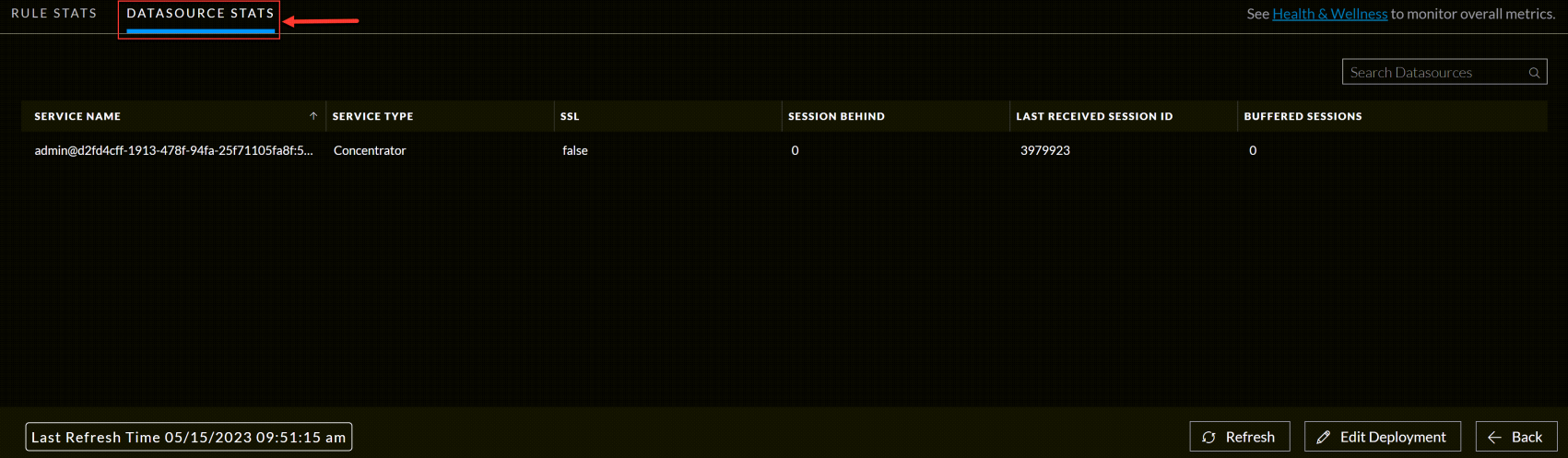
The Data Source Stats panel details:

DeploymentStats8_12.3_1701x497.png

  • Parameters: Service Name
  • Description: Identity of the service.

  • Parameters: Service Type
  • Description: Type of the service.

  • Parameters: SSL
  • Description: Data Source connected to ESA deployment over an SSL connection using SSL port (For example, for the concentrator, it is 56005).

  • Parameters: Session Behind
  • Description:

    Difference between the last latest session id on the concentrator and the currently processed session id on ESA.


  • Parameters: Last Received Session ID
  • Description: The latest session id received by the deployment from the data source.

  • Parameters: Buffered Sessions
  • Description: Number of sessions in the ESA buffer to be consumed by the Esper engine.

                                                    Previous Page                                            Next Page