.png?width=180&height=32&name=NW%20Logo%20(2).png)
The NetWitness Platform version 12.5.0.0 supports all Audit Rules in the DISA STIG Control Group. The supported version for DISA STIG is Red Hat Enterprise Linux 8 V1R11. NetWitness will expand its support of STIG rules in future NetWitness Platform versions.
IMPORTANT: All rules are enabled by default except for control goup 1-ssh-prevent-root an control group 3-fips-kernel. You can enable or disable rules by control group using the manage-stig-controls script.
How STIG Limits Account Access
The STIG hardening RPM helps to lock down information, systems, and software, which might otherwise be vulnerable to a malicious computer attack by limiting account access to a system. For example, the STIG script:
- Ensures that the account password has a length, complexity, expiration period, and lockout period that are in accordance with DISA best practices.
- Applies auditing and logging of user actions on the host.
NetWitness Passwords
NetWitness Platform requires passwords that are STIG compliant.
Generate the OpenSCAP Report
Security Content Automation Protocol (SCAP) is a line of standards or rules managed by the National Institute of Standards and Technology (NIST). It was created to provide a standardized approach to maintaining the security of enterprise systems, such as automatically verifying the presence of patches, checking system security configuration settings, and examining systems for signs of compromise.
The OpenSCAP report evaluates your environment against the SCAP rules. The results are sent to the HOSTNAME-ssg-results. (XML|HTML) depending on the output format you select.
Install OpenSCAP
You must
- SSH to the host
- Execute the following command:
yum install scap-security-guide
Sample Report
The following report is a sample section from an OpenSCAP report.
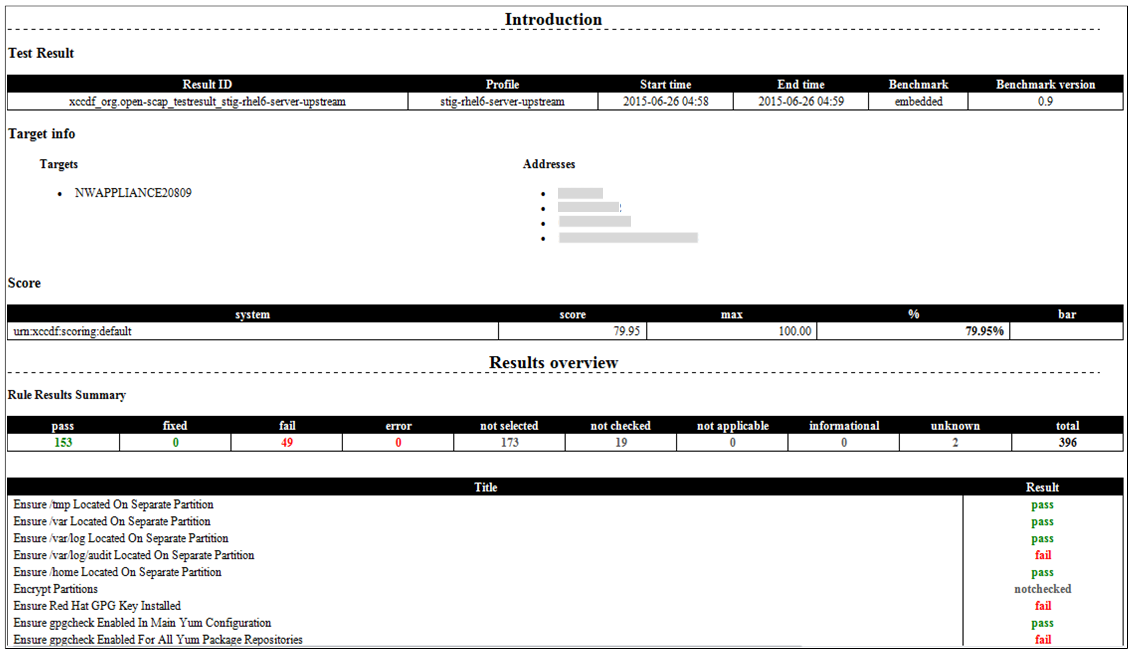
Report Fields
- Section: Introduction - Test Result
- Field: Result ID
- Description: The Extensible Configuration Checklist Description Format (XCCDF) identifier of the report results.
- Section: Profile
- Field: XCCDF profile under which the report results are categorized.
- Section: Start time
- Field: When the report started.
- Section: End time
- Field: When the report ended.
- Section: Benchmark
- Field: XCCDF benchmark
- Section: Benchmark version
- Field: Version number of the benchmark.
- Section: Introduction - Score
- Field: system
- Description: XCCDF scoring method.
- Section: score
- Field: Score attained after running the report.
- Section: max
- Field: Highest score attainable.
- Section: %
- Field: Score attained after running the report as a percentage.
- Section: bar
- Field: Not Applicable.
- Section: Results overview - Rule Results Summary
- Field: pass
- Description: Passed rule check.
- Section: fixed
- Field: Rule check that failed previously is now fixed.
- Section: fail
- Field: Failed rule check.
- Section: error
- Field: Could not perform rule check.
- Section: not selected
- Field: This check was not applicable to your NetWitness Platform deployment.
- Section: not checked
- Field: Rule could not be checked. There are several reasons why a rule cannot be checked. For example, the rule check requires a check engine not supported by the OpenSCAP report.
- Section: not applicable
- Field: Rule check does not apply to your NetWitness Platform deployment.
- Section: informational
- Field: Rule checks for informational purposes only (no action required for fail).
- Section: unknown
- Field: Report was able to check the rule. Run steps manually as described in the report to check the rule.
- Section: total
- Field: Total number of rules checked.
- Section: Exceptions
- Field: Title
- Description: Name of rule being checked.
- Section: Result
- Field: Valid values are pass, fixed, fail, error, not selected, not checked, not applicable, informational, or unknown.
Note: Results values are defined the Results overview - Rule Results Summary.
Create the OpenSCAP Report
The following tasks show you how to create the OpenSCAP Report :
- SSH to the host.
- Submit the following commands to make a directory:
a. mkdir -p /opt/rsa/openscap
b. cd /opt/rsa/openscap - Install the SCAP-security-guide packages:
yum install scap-security-guide - Generate reports using the “profile stig”:
- For 12.4 and later versions, do the following:
oscap xccdf eval --profile stig --results /opt/rsa/openscap/`hostname`-ssg-results.xml --report /opt/rsa/openscap/`hostname`-ssg-results.html --cpe
/usr/share/xml/scap/ssg/content/ssg-almalinux8-cpe-dictionary.xml
/usr/share/xml/scap/ssg/content/ssg-almalinux8-xccdf.xml - For NetWitness Platform 12.3.1 and previous versions, do the following:
oscap xccdf eval --profile "xccdf_org.ssgproject.content_profile_stig" --results /opt/rsa/openscap/`hostname`-ssg-results.xml --report /opt/rsa/openscap/`hostname`-ssg-results.html --cpe /usr/share/xml/scap/ssg/content/ssg-rhel7-cpe-dictionary.xml /usr/share/xml/scap/ssg/content/ssg-centos7-xccdf.xml - Note: This will create reports in both xml and html format.
- For 12.4 and later versions, do the following:
- The reports will be available in the following location:
/opt/rsa/openscap/
Note : For NetWitness Platform 12.3.1 and previous versions, detailed information regarding STIG will be available in the respective system maintenance guide.
Manage STIG Controls Script (manage-stig-controls)
You can use the manage-stig-controls script and its arguments to enable or disable STIG Control groups for which you want to apply STIG configuration. You can specify all hosts or individual hosts as arguments and you can enable or disable all control groups or individual control groups. This script is available in /usr/bin/ directory.
To manage STIG controls for a host:
- SSH to the NW Server host or use the Console from the NetWitness Platform User Interface.
- Submit the manage-stig-controls script with the commands, control groups, and other arguments you want to apply.
- Reboot the host.
CommandDescription--enable-all-controls, , , , , , , 2, 3', , , , 2, 3', ,>Control Groups
,>You use the ID as an argument for the control group or groups.,>IDGroupDescriptionSpecifiedby Default, , , , , , , , , , , , , , , , , , , , , , , , , , , , , , , , ,> Other Arguments,>ArgumentDescription--host-all, , , , , , , , , , , --verbose, , , , , ,