.png?width=180&height=32&name=NW%20Logo%20(2).png)
Edit Properties of Timeline ChartsEdit Properties of Timeline Charts
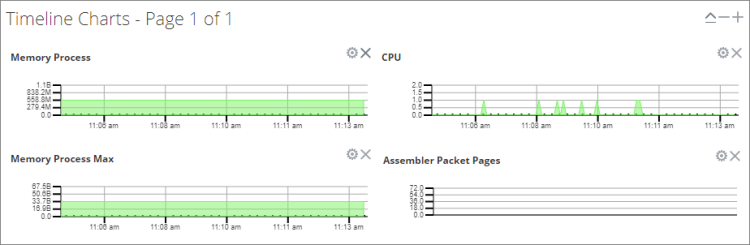
Timeline charts display statistics in a running timeline. The Service Stats view includes two types of timelines; current time and historical. You can drag any statistic available in the Chart Stats Tray to the Timeline Charts section. Only statistics for session size, sessions, and packets are viewable in historical timeline charts. The properties of an individual timeline chart are editable; all timeline charts have an editable title and some have additional editable properties.
To access the charts:
- Go to
 (Admin) > Services.
 -
Select a service and click Stats.
The Services Stats view is displayed. The charts are in this view.
Edit Properties of a TimelineEdit Properties of a Timeline
To edit properties of a timeline chart:
-
Go to the timeline chart for which you want to edit properties (for example, Memory Process).
- Click the Properties icon (
 ) to display the parameter names and values.
 -
Double-click on a value (for example, the Display Name field) to make the value editable.
Note: Clicking the other two values does nothing because the properties are not editable in the chart.
-
Type a new value and click the Properties icon.
The timeline chart is displayed with new values.
Edit Properties of a Historical TimelineEdit Properties of a Historical Timeline
To edit properties of a historical timeline chart:
- Go to Historical Timeline Charts.
- Click the Properties icon () to display the parameter names and values.
-
Click on a value (for example, 01/27/2019 for the Begin Date field) to make the value editable.
- Type a new value.
- Edit the End Date and Display Name if required.
- Click the Properties icon ().
The historical timeline is displayed with new values.
Note: To return the properties of the historical timeline chart back to the default so that the values dynamically update, remove the Begin Date and the End Date, place your cursor in the Begin Date field, and refresh your browser.
Add Stats to Timeline ChartsAdd Stats to Timeline Charts
You can add timeline charts by dragging a statistic from the Chart Stats Tray into the Timelines section.
- To expand the Chart Stats Tray, click
 .
. - Scroll down and select a statistic; for example, Session Rate (maximum).
- Drag the statistic to the Timelines Section.
The new timeline is displayed in the Timelines section.