Skip to content
  • There are no suggestions because the search field is empty.

Endpoint Sources - Policies

Endpoint Sources - PoliciesEndpoint Sources - Policies

Note: The information in this topic applies to NetWitness Version 11.3 and later.

The netwitness_adminicon_25x22.png (Admin) > Endpoint Sources view contains two tabs: Groups and Policies.

Workflow
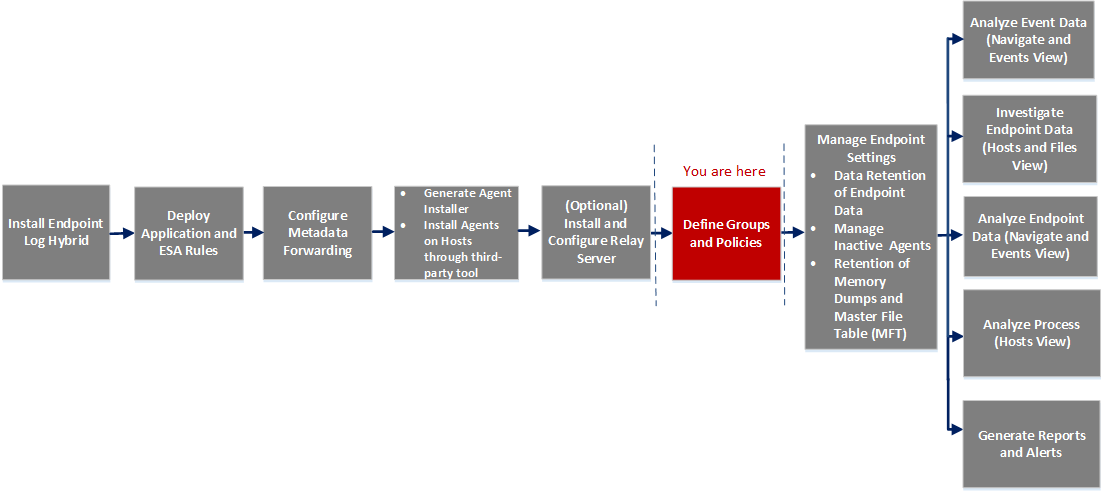
netwitness_eppolicies.png

What do you want to do?

  • User Role: Administrator
  • I want to ...:

    create new groups

  • Show me how:

    Create a Group


  • User Role: Administrator
  • I want to ...: edit groups
  • Show me how:

    Edit a Group


  • User Role: Administrator
  • I want to ...: edit ranking
  • Show me how:

    Managing Groups


  • User Role: Administrator
  • I want to ...: delete groups
  • Show me how:

    Delete a Group


  • User Role: Administrator
  • I want to ...:

    edit policies*

  • Show me how: Edit a Policy

  • User Role: Administrator
  • I want to ...:

    delete policies*

  • Show me how: Delete a Policy

*You can perform this task in the current view

Related Topics

Quick Look

Below is an example of the Policies tab:
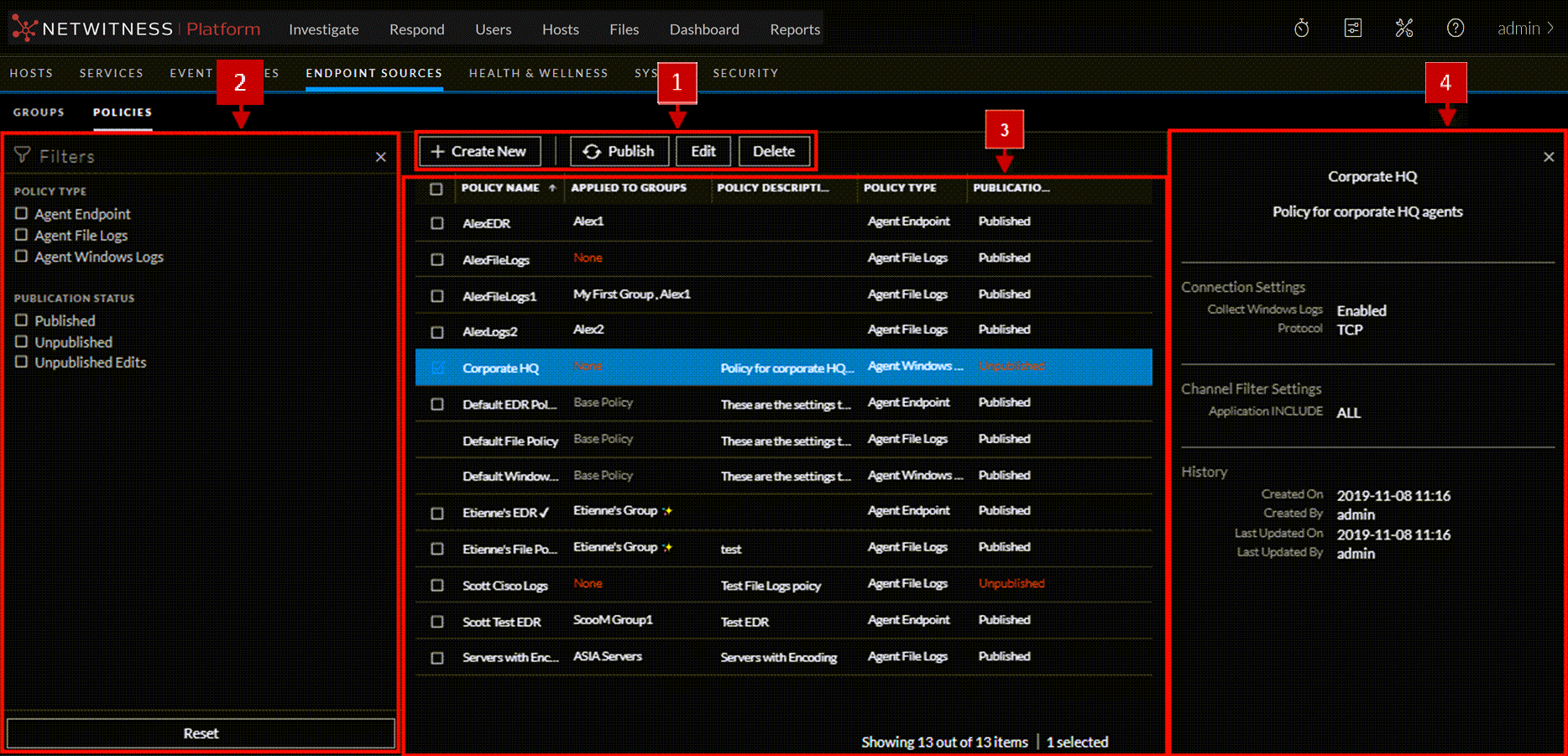
policy_hlp.png

  • Column 1: 1
  • Column 2:

    Toolbar

    • Create New: Lets you create a new policy. For more information, see Managing Policies.
    • Publish: Publishes the selected policy.
    • Edit: Lets you edit the details of an existing policy. For more information, see Edit a Policy.
    • Delete: Deletes the selected policies permanently. For more information, see Delete a Policy.

  • Column 1: 2
  • Column 2:

    Filter Panel

    • Filters: You can filter policies based on Policy Type and Publication Status.

      To hide, click the netwitness_icon-close.png icon at the top-right of the panel. To display if hidden, click the netwitness_ic-filter4.png icon in the toolbar.

    • Reset: Removes the currently applied filter criteria.

    For more information, see Filter Policies.


  • Column 1:

    3

  • Column 2:

    Policies List Panel

    Policy View. Displays the policy details:

    • Policy name: Name of the policy.
    • Applied to groups: Lists the group to which this policy is applied.
    • Policy description: Displays the first portion of the description.
    • Policy type: Displays the policy type: Agent Endpoint, Agent File Logs, or Agent Windows Logs.
    • Publication Status: Status of the policy: Published or Unpublished.

    You can also sort on any column. If you mouse over a column header, a sort icon is displayed: netwitness_ic-colsortasc2.png. Click the icon to sort by the selected column.


  • Column 1:

    4

  • Column 2:

    Policy Details Panel

    Displays the properties of the selected policy.

    Note: To view the Properties panel for a policy, click the Policy Name.


Create Policy

Below is an example of the Create Policy dialog. The table describes the information and options in the Create Policy dialog.
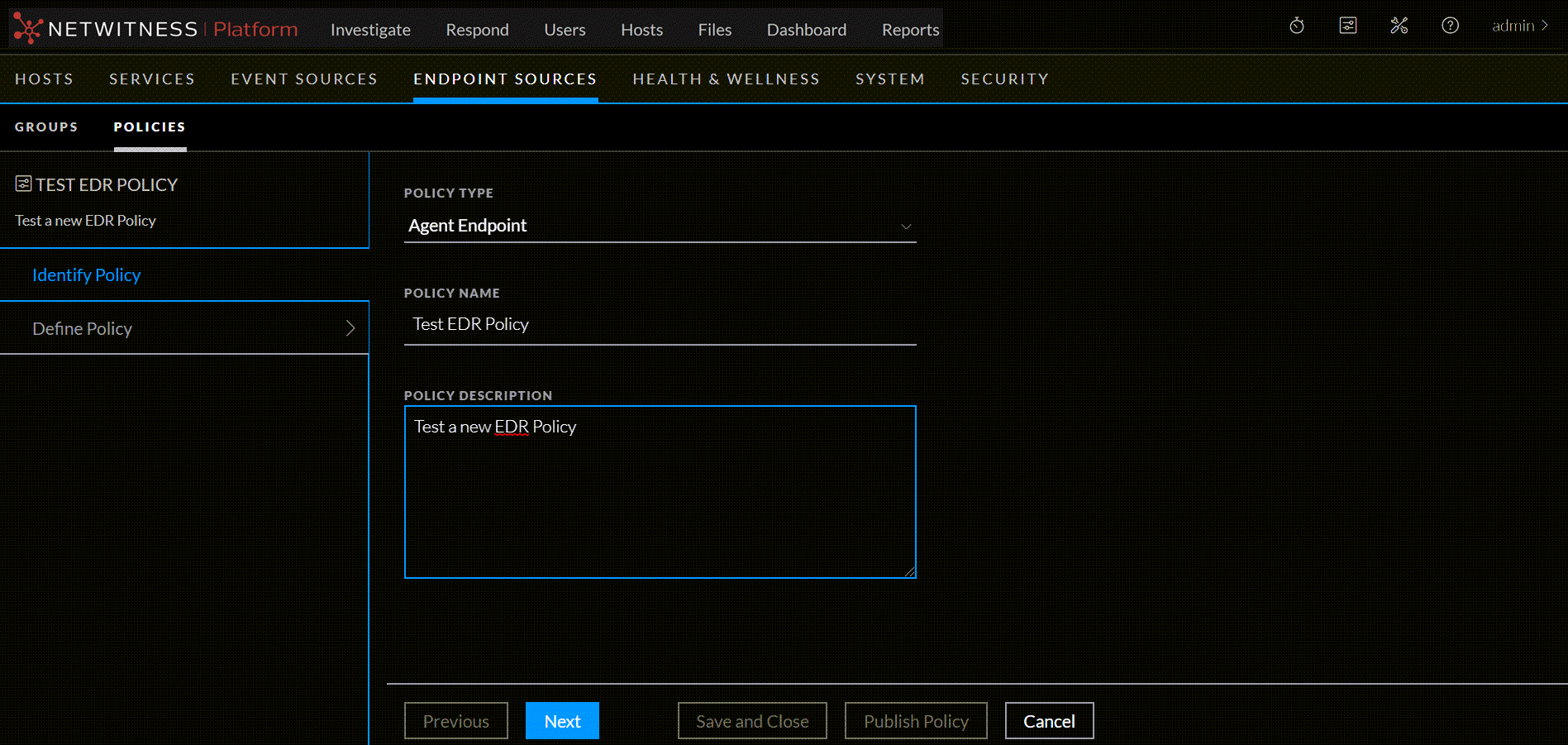
identifypolicy.png

  • Field:

    Policy Type

  • Description:

    Displays the type for the policy. Available options are Agent Endpoint, Agent File Logs, and Agent Windows Logs.


  • Field:

    Policy Name

  • Description:

    Name of the policy. The name should be unique.


  • Field:

    Policy Description

  • Description:

    Description of the policy. Description should not exceed 8000 characters.


Panels for Log File PolicyPanels for Log File Policy

There are two panels for defining the parameters for an Agent Log File Policy: Define Connection Settings and Define File Policy Settings.

Define Connection Settings

Below is an example of Define Connection Settings panel. The table describes the information and available options.
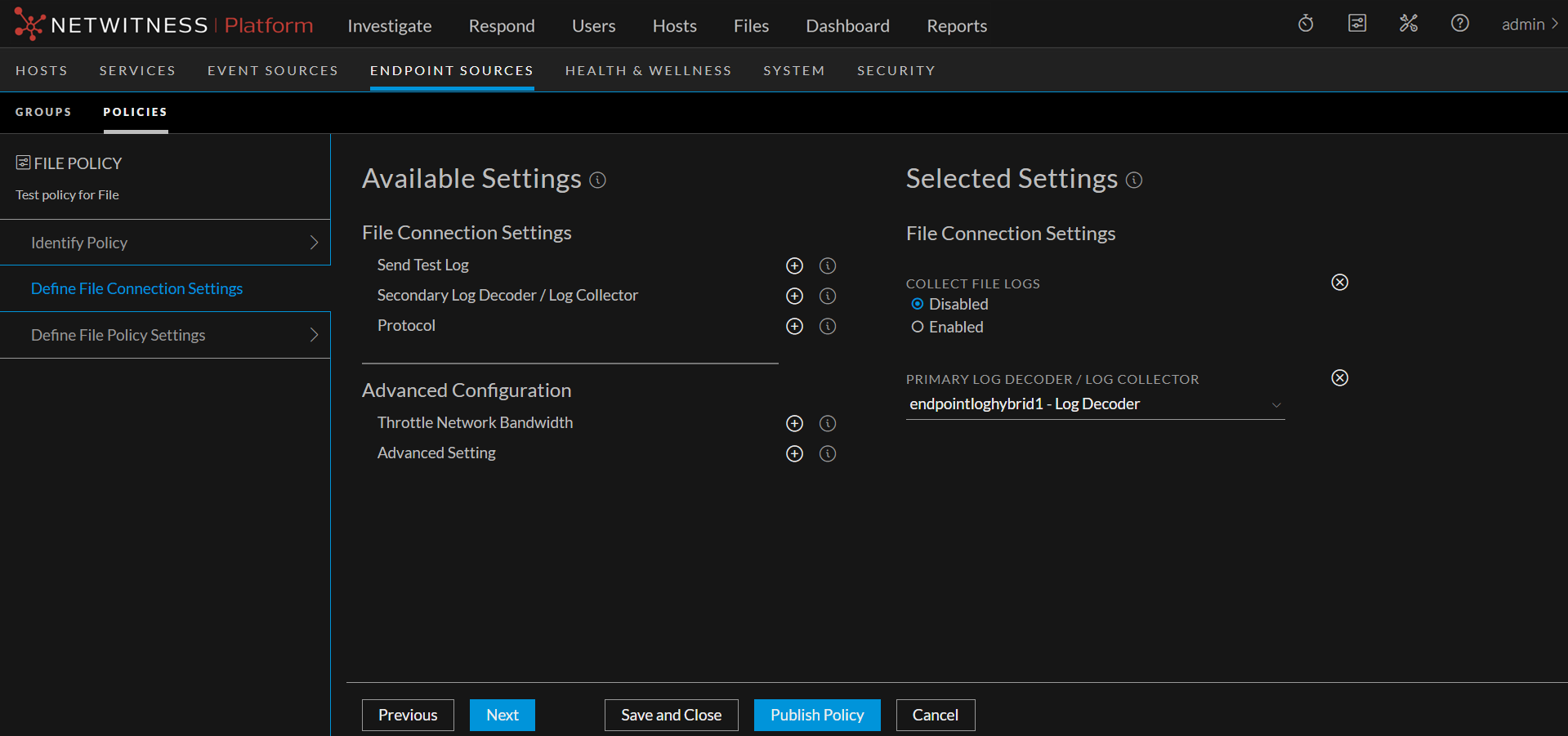
defineLogPolicy.png

  • Field:

    Collect File Logs

  • Description:

    If enabled, the log file collection capability of the agent is activated. Logs are collected and forwarded to the NetWitness as they are generated. If disabled, no defined event source logs are collected.

    Note: This option must be enabled for any file event sources to be collected.


  • Field:

    Send Test Log

  • Description:

    If enabled, a sample log is sent to the configured server when the policy is loaded to test connectivity. This allows to test the configuration before standard logs are available. By default, this option is disabled.


  • Field:

    Primary Log Decoder / Log Collector

  • Description:

    The primary Log Decoder or Log Collector to which the collected file logs will be forwarded.


  • Field:

    Secondary Log Decoder / Log Collector

  • Description:

    If the primary Log Decoder or Log Collector is not reachable, collected file logs are forwarded to the secondary Log Decoder or Log Collector.

    Note: The NetWitness cannot detect failures when UDP protocol is used.


  • Field:

    Protocol

  • Description:

    Select the transport protocol that is used to forward the collected file logs to the NetWitness servers. The following options are available:

    • SSL: Recommended, but also the most resource-intensive option.
    • TCP: Sends the logs in clear text over a reliable TCP connection. May be acceptable within a corporate network.
    • UDP: Sends the log in clear text over a non-guaranteed UDP connection. This is the least resource intensive option.

    Note: Resource intensity is dependent upon the Log Decoder, since there is only a single connection per agent.


  • Field:

    Advanced Configuration


  • Field:

    Throttle Network Bandwidth

  • Description:

    Use this setting to limit network bandwidth that the Agent uses to connect to NetWitness. This setting is disabled by default: click Enabled to turn it on, and then enter a value in kilobits per second.If not set, Agent does not do any network throttling.If set to a positive value x, agent limits network bandwidth to x kbps.netwitness_throttlebandwitdh.png


  • Field:

    Advanced Setting

  • Description:

    Caution: It is strongly recommended not to use this setting unless advised to do so by NetWitness.


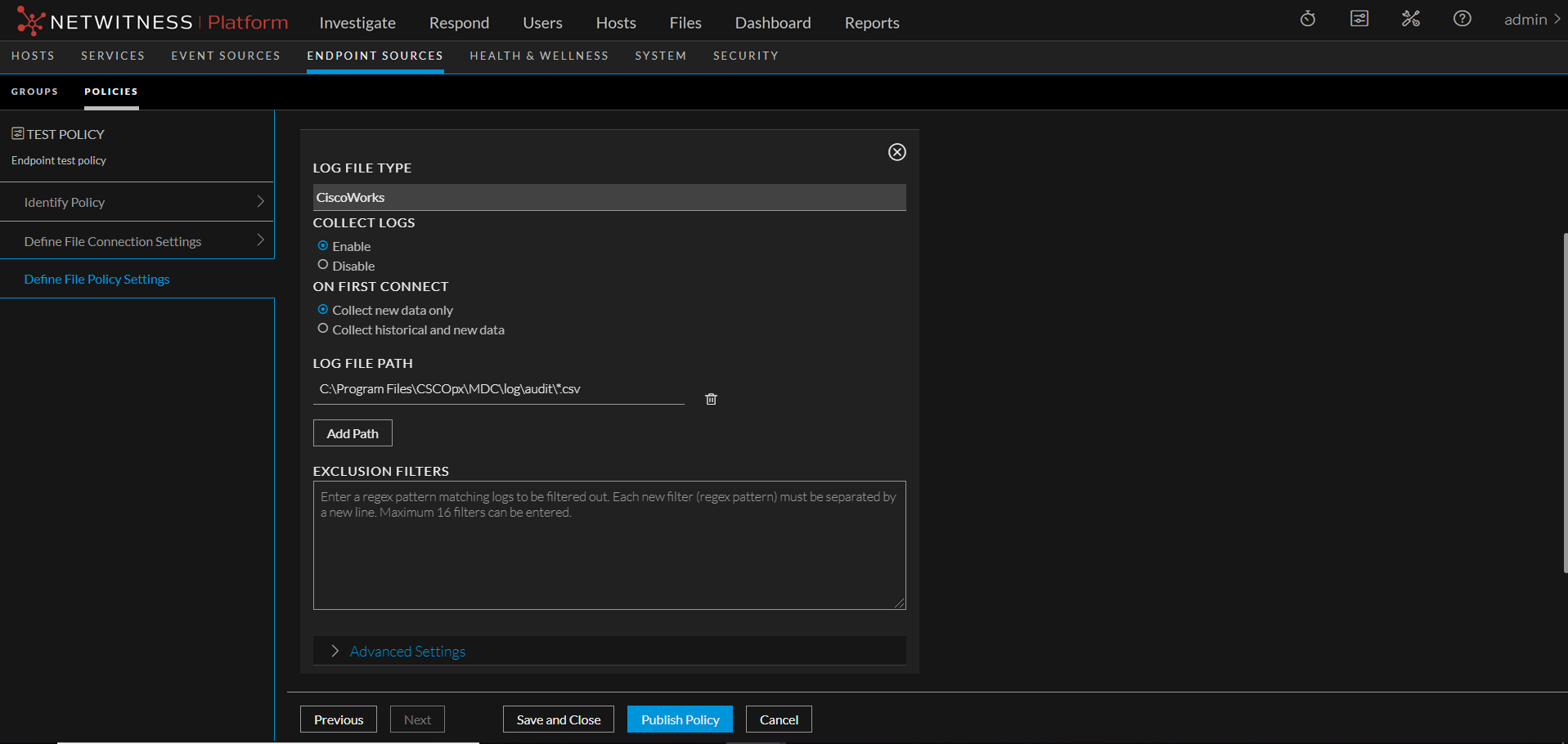
Define File Policy Settings

filePolicyType2.png

  • Field:

    Log File Type

  • Description:

    From the drop-down menu, select the type of event source to be monitored.

    The list of available event source is based on all the event source types defined on your NetWitness. You can add event source types using the Live Services module. For details, see "Find and Deploy Live Resources" in the Live Services Management Guide.


  • Field:

    Collect Logs

  • Description:

    If enabled, log files for this file type instance are collected and forwarded to the NetWitness. File collection must be enabled on each source applying this policy for these specific logs to be collected.


  • Field:

    On First Connect

  • Description:

    Determines whether the NetWitness Agent collects all logs or only newly created logs located in the specified paths upon initial collection. In both cases, new logs are collected.

    Note: Historical logs cannot be collected after an agent has begun collecting logs.


  • Field:

    Log File Path

  • Description:

    One or more paths to be used by the agent to locate the log files. Represents the location of the log files to be read.

    Note: The Path value cannot end at a directory—the final portion of the path must represent a file name or set of files (using wildcard characters). You can use wildcards for both files and directories.

    Each source is limited to entry of 16 paths. This setting must include a path and a file spec. For example: C:\Program Files\apache-tomcat-*\logs\*.log. In this case, the file spec is all files with a ".log" extension in the specified path.

    If you cannot use wildcards to specify multiple files, you can add additional paths to accommodate the differences in path locations on a specific endpoint agent. This might be due to installation locations or version information. Only the paths with valid locations and files on the specific endpoint agent are used, and the others are ignored.

    For many event source types, there is a default path. If so, you only need to enter a path if the log files are not stored in the standard directory for that event source type.

    Note: This can be a standard Windows pathname (such as C:\Program Files\Apache\error_logs\logfile.log) or a UNC (Universal Naming Convention) pathname (\\host-name\share-name\file-path). For more details about UNC paths, see Endpoint Sources - Policies below.


  • Field:

    Exclusion Filters

  • Description:

    An optional list of regex patterns which can be used to filter out any logs that match the patterns. Each separate filter should be entered on a new line. Each source is limited to 16 exclusion filters.

    Note: Each filter needs to be entered as a valid regex string, or the system does not allow you to save it.


  • Field:

    Advanced Settings


  • Field:

    Source Alias

  • Description:

    Optionally, enter a hostname, IPv4 or IPv6 address to identify individual sources. This is recommended when there are two or more sources of the same type on the same server: For example, a server that runs two instances of Apache web server.

    Note: This value only rarely needs to be entered. One example is if you have more than one Web Server, and they are running different Apache servers.

    Note the following:

    • If you enter a value for this parameter, the event source is applicable to a single Endpoint server.
    • This optional address or hostname is included in the meta for any logs originating from this source. This can be used by analysts to assist in identifying the source.
    • Set a value for this parameter if two sources of the same event source type are configured in the same policy.
    • This setting is not commonly needed: it is only useful if the policy is only applied to a single endpoint.

  • Field:

    File Encoding

  • Description:

    Specifies the type of character encoding of the log files. If Local Encoding is selected, the NetWitness Agent uses the default encoding of the Windows machine upon which it is running.

    This setting must match the encoding of the log files, or they will not be processed correctly.

    Note: UTF-8/ASCII is recommended (and the default). UTF-8 is a super-set of ASCII

    Note that all logs are re-encoded to UTF-8 before being sent to the NetWitness.


For a list of the currently supported types, see Currently Supported File Log Event Source Types.

Define Policy Panel for Agent Endpoint PolicyDefine Policy Panel for Agent Endpoint Policy

Below is an example of Define policy panel. The table describes the information and options for Agent Endpoint policy:
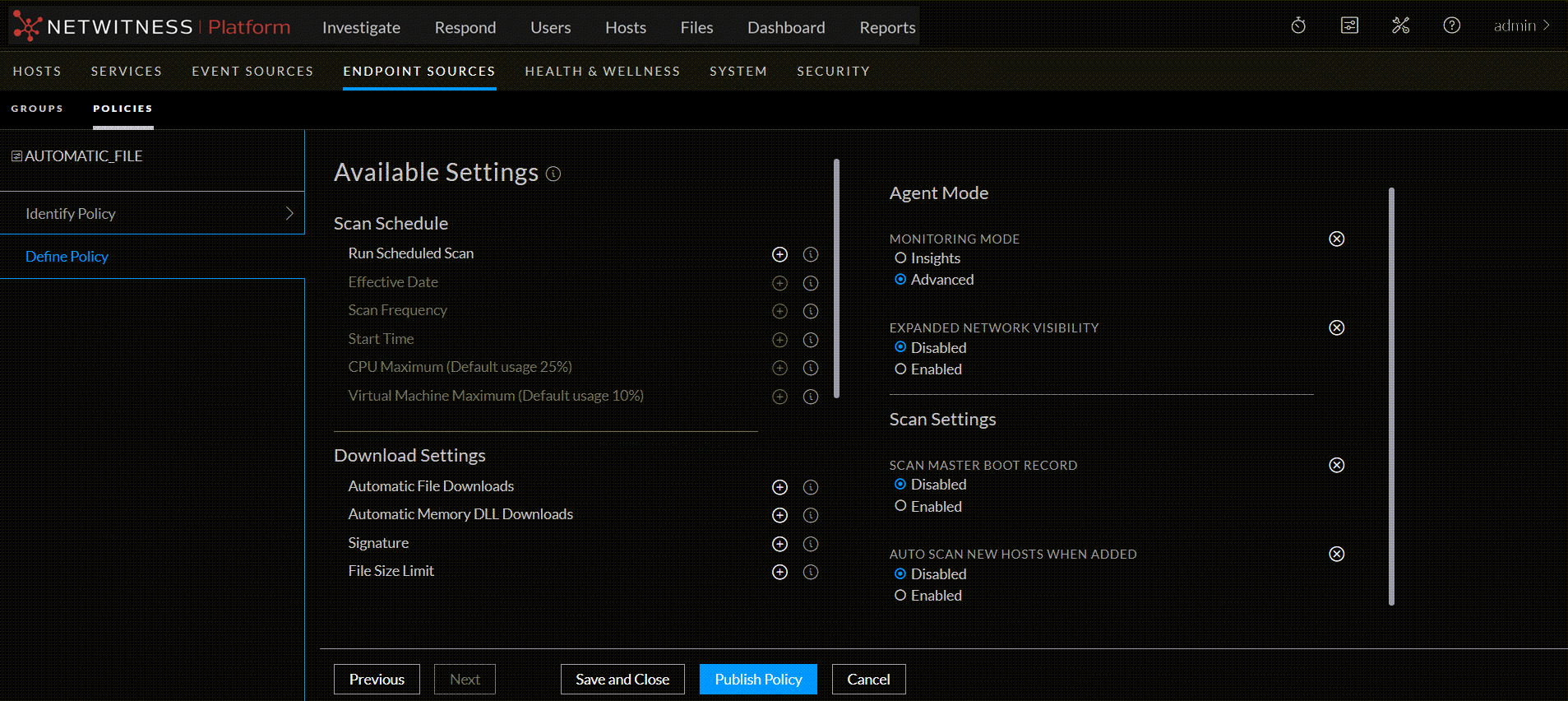
MemDLLAuto2.png

  • Settings:

    Scan Schedule


  • Settings: Run Scheduled Scan
  • Description:

    Run a scheduled scan if you want to receive regular snapshots from a host. Scan snapshots provide detailed information about processes and files loaded on the memory. By default, this option is disabled.
    You can also run a manual scan from the Hosts view.

    Note: The following scan schedule options are available only when the scan schedule is enabled.
    The values entered are specific to the agent time zone.


  • Settings:

    Effective Date

  • Description:

    Date when the policy takes effect. If you do not want this policy to take effect as soon as it is applied to a group and published, set an effective date that is in the future. By default, this is set to the current date.


  • Settings: Scan Frequency
  • Description:

    Determines how often the scheduled scan runs on a host. By default, this is set to every week. Every network is different and the frequency should balance the needs of the analysts for current data, availability to review the data, and how systems deal with the load of the generated data.

    Select Days or Weeks:

    • Days: Select the number of days of the scan frequency. You can set a schedule to scan every n days, where n is 1, 2, 3, 4, 5, 6, 10, 15, or 20. For example, to scan every third day, select 3.
    • Weeks: Select after how many weeks the policy scan should be initiated and on which day of the week the policy scan should initiate. For example, to scan every other Wednesday, choose 2 and W.

  • Settings:

    Start Time

  • Description:

    Time when the scheduled scan starts to run on a host. By default, this is set to 9:00. This is the local host time, meaning that scans across a global ,,,,,,, ,,,,,,, select 19:30.

    ,,,,,,, ,,,,,,, the value is set at 25%. Increasing the CPU maximum increases the speed of scan snapshot retrieval.,,,,,,, the less CPU is available for other tasks on the host.,,,,,,, ,,,,,,, the value is set at 10%. Increasing the virtual machine maximum value increases the speed of scan snapshot retrieval.,,,,,,, the less CPU is available for other tasks running on the virtual machine.,,,,,,, ,,,,,,, ,,,,,,, ,,,,,,, ,,,,,,, ,,,,,,, it is set to Advanced.,,,,,,, ,,,,,,, ,,,,,,, verify that the Windows Management Instrumentation (WMI) service should be enabled.,,,,,,, this option is disabled.,,,,,,, ,,,,,,, ,,,,,,, ,,,,,,, ,,,,,,, ,,,,,,, this option is disabled. This can help to identify when an operating system boot sequence is compromised. However, not all modifications to the MBR are malicious, as they could be made to provide encryption or enforce licensing of certain legitimate software.,,,,, ,,,,,,, ,,,,,,, ,,,,,,, this option is disabled. If this option is disabled, no snapshot data is displayed in the Hosts view until a manual or scheduled scan is run on these hosts. Existing hosts will not be affected.,,,,,, ,,,,,,, ,,,,,,, ,,,,,,, only one instance of the file is downloaded. By default this option is enabled.

  • Settings: Automatic Memory DLL Downloads
  • Description: From version 11.6.1 and higher, all memory DLLs that are detected during a scan, will be automatically downloaded regardless of the file size. This option is enabled by default.

  • Settings: ,,,,, ,,,,,,, ,,,,,,, ,,,,,,, ,,,,,,, Exclude all signed and Exclude Microsoft and Apple signed options will download the files that are not part of any installed RPMs or files which are part of RPM but the hashes does not match with RPM. ,,,,,,, file size lesser than or equal to 1 MB are downloaded automatically.

  • Settings: ,,,,,,, ,,,,,,, ,,,,,,, ,,,,,,, ,,,,,,, this option is disabled. File blocking will not be enforced if it is disabled by policy, which might be desirable to ensure that there are no performance side effects on systems where CPU or IO performance is critical.,,,,,, ,,,,,,, ,,,,,,, ,,,,,,, ,,,,,,, this option is disabled.,,,,,,, ,,,,,,, ,,,,,,, ,,,,,,, ,,,,,,, ,,,,,,, the agent uses the default Endpoint Server that is configured during packager generation.,,,,,,, ,,,,,,, ,,,,,,, ,,,,,,, ,,,,,,, ,,,,,,, the port is set to 443.,,,,,,, make sure that it matches the server configuration. If you enter the wrong port, the agents can no longer communicate with the Endpoint server and the system will be non-functional.,,,,,, ,,,,,,, the value is set to 15 minutes. The default method of beaconing is UDP. Beaconing is used as a method of keep-alive to know if a host is online and to allow hosts to respond faster than the fallback HTTPS beacon time.,,,,,,, ,,,,,,, the port is set to 444.,,,,,,, make sure that it matches the server configuration. Entering the wrong port results in loss of functionality and effects performance.,,,,,,, ,,,,,,, the value is set to 30 seconds.,,,,,,, ,,,,,,, ,,,,,,, ,,,,,,, ,,,,,,, ,,,,,,, ,,,,,,, ,,,,,,, logs from the Windows hosts are collected and forwarded to the NetWitness Platform. By default, this option is disabled.,,,,,, a sample log is sent to the configured server when the policy is loaded to test connectivity. This allows to test the configuration before standard logs are available. By default, this option is disabled.

  • Settings: Primary Log Decoder / Log collector
  • Description: Primary NetWitness Log Decoder or Log Collector to which the collected Windows logs are forwarded.

  • Settings: (Optional) Secondary Log Decoder / Log collector
  • Description: ,,,,,, the collected Windows logs are forwarded to the secondary Log Decoder or Log Collector.,,,,,,, ,,,,,,, TCP, or UDP transport protocol is used to forward the collected Windows logs to the NetWitness Platform servers. By default, the protocol is TCP.

  • Settings: ,,,,, ,,,,,,, ,,,,,,, filter condition, and the relevant event IDs. You can either select common channels, such as Security or System from the drop-down list, or create custom channels by entering the channel name. By default, all events are collected from a selected channel.,,, ,,,,,,, ,,,,,,, ,,,,,,, ,,,,,,, ,,,,,,, ,,,,,,, and then enter a value in kilobits per second.,,,,,,, Agent does not do any network throttling.
  • If set to a positive value x, agent limits network bandwidth to x kbps.
  • ,,,,,, ,,,,,,, ,,,,,,, ,,,,,,, ,,,,,,, ,,,,,,, ,,,,,,, ,,,,,,, ,,,,,,, ,,,,,,, ,,,,,,, ,,,,,,, ,,,,,,, ,,,,,,, ,,,,,,, ,,,,,,,