.png?width=180&height=32&name=NW%20Logo%20(2).png)
Escalate or Remediate the IncidentEscalate or Remediate the Incident
You may want to escalate an incident, assign incidents to another Analyst, or change the status and priority of an incident as you gather more information about it. This is useful if, for example, you upgrade the priority of an incident from high to critical after determining that the incident is a major breach. You may also want to send the incident to Archer Cyber Incident & Breach Response for additional analysis and action.
You can perform the following procedures to escalate or remediate an incident:
- Send an Incident to Archer
- View All Incidents Sent to Archer
- Update an Incident
- Change Incident Status
- Change Events Retention
- Obtain Retention Usage Details
- Export Incident Data
- Export Alerts Data
- Change Incident Priority
- Assign Incidents to Other Analysts
- Rename an Incident
- View All Incident Tasks
- Filter the Tasks List
- Remove My Filters from the Tasks List
- Create a Task
- Find a Task
- Modify a Task
- Delete a Task
- Close an Incident
Send an Incident to ArcherSend an Incident to Archer
Note: This option is available in NetWitness Version 11.2 and later. If Archer is configured as a data source in Context Hub, you can send incidents to Archer and you can see the Send to Archer option and Sent to Archer Status in NetWitness Respond.
When you send an incident to Archer, a Sent to Archer notification appears within the incident. When configured, the NetWitness Platform can start additional business processes in Archer Cyber Incident & Breach Response. You can view all of the incidents that were sent to Archer Cyber Incident & Breach Response using the filter in the Incident Lists view.
You send an incident to Archer by clicking the Send to Archer button in the Overview panel in the Incident Lists view or the Incident Details view.
Caution: The Send to Archer action is not reversible.
- Go to Respond > Incidents.
- From the Incidents List view, click the incident that you want to send to Archer Cyber Incident & Breach Response.
The Overview panel appears on the right.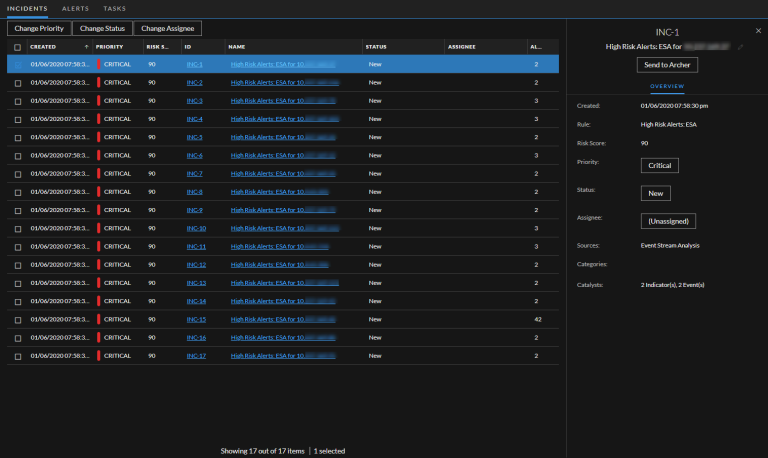
-
In the Overview panel, click Send to Archer.
-
Read the Confirm Send to Archer dialog and then click Yes to confirm sending the incident to Archer Cyber Incident & Breach Response. This action is not reversible.
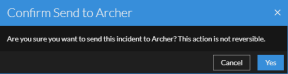
You will receive a confirmation that the incident was sent to Archer along with an Archer incident ID. In the Overview panel, the Send to Archer button changes to Sent to Archer.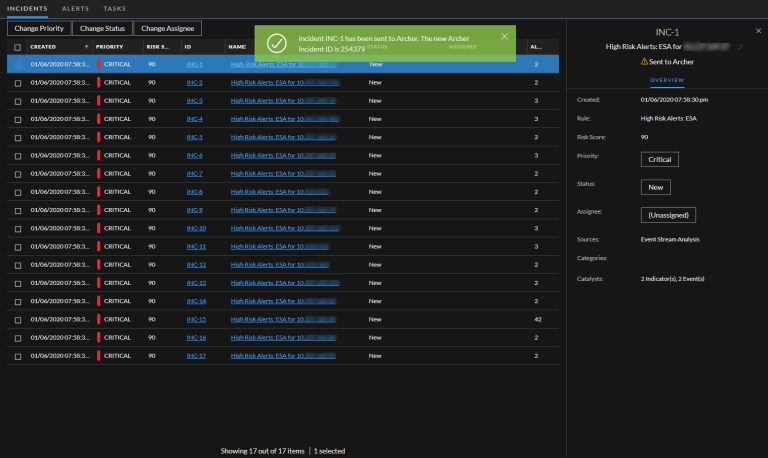
In the Incident Details view (click the link in the ID or NAME field of the incident sent to Archer) you can see the Sent to Archer notification above the Overview and Indicators panels. If you open the Journal, you can see a system journal entry that shows that the incident was sent to Archer and it now has an Archer ID number.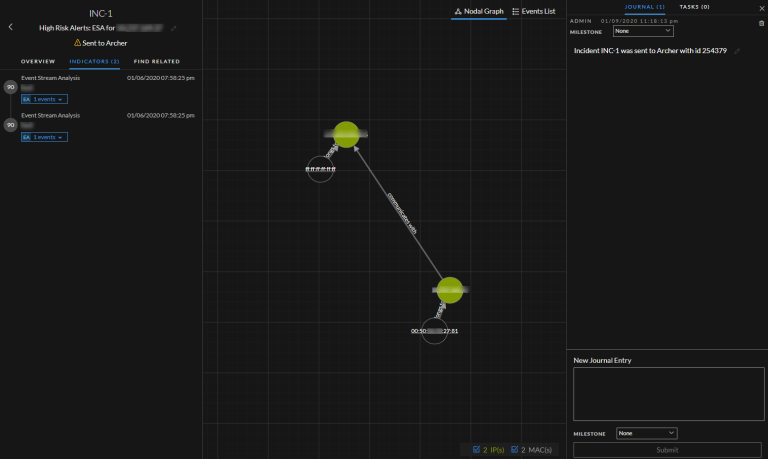
View All Incidents Sent to ArcherView All Incidents Sent to Archer
Note: This option is available in NetWitness Version 11.2 and later. If Archer is configured as a data source in Context Hub, you can send incidents to Archer and you will be able to see the Sent to Archer option and Sent to Archer Status in NetWitness Respond.
You can view incidents sent to Archer Cyber Incident & Breach Response using the Filter.
- Go to Respond > Incidents. The Incidents List is displayed.
- If you cannot see the Filters panel, in the Incident List view toolbar, click
 .
. - In the Filters panel, under Sent To Archer, select Yes.
The incidents list will be filtered to show incidents that were sent to Archer Cyber Incident & Breach Response.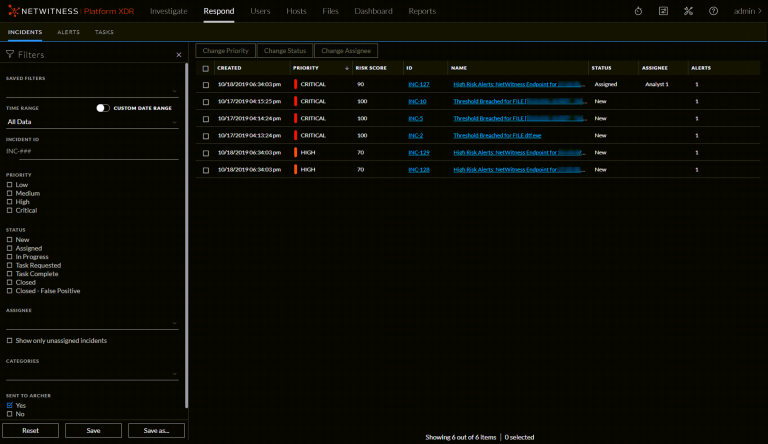
Update an IncidentUpdate an Incident
You can update an incident from several places. You can change the priority, status, or assignee from the Incident List view and the Incident Details view. For example, if you are an Analyst, you may want to assign yourself a case from the Incident List view if you see that it is related to another case you are working on. If you are an SOC Manager or an Administrator, you may want to view unassigned incidents from the Incident List view and assign the incidents as they come in. SOC Managers and Administrators can do bulk updates of the priority, status, or assignee instead of updating them one incident at a time.
From the Details view, you might want to change the status to In Progress once you begin working on an incident, and then update it to Closed or Closed - False Positive after you resolve the issue. Or you might change the priority of the incident to Medium or High as you determine the details of the case.
Change Incident StatusChange Incident Status
When an incident first appears in the incident list, it has an initial status of New. You can update the status as you complete your work on the incident. The following statuses are available:
- Reopen
- In Progress
- Task Requested
- Task Complete
- Closed
-
Closed - False Positive
Note: New and Assigned statuses under the Change Status drop-down list are removed in the version 12.0 and later.
Status Change Workflow
The table below lists all the statuses and provides information about specific Status Change Workflow.
- Status: New
- New: No
- Reopen: No
- Assigned: Yes
- In Progress: Yes
- Task Requested: No
- Task Complete: No
- Closed / Closed - False Positive: Yes
- Status: Reopen
- New: No
- Reopen: No
- Assigned: Yes
- In Progress: Yes
- Task Requested: No
- Task Complete: No
- Closed / Closed - False Positive: Yes
- Status: Assigned
- New: No
- Reopen: No
- Assigned: No
- In Progress: Yes
- Task Requested: No
- Task Complete: No
- Closed / Closed - False Positive: Yes
- Status: In Progress
- New: No
- Reopen: No
- Assigned: No
- In Progress: No
- Task Requested: Yes
- Task Complete: Yes
- Closed / Closed - False Positive: Yes
- Status: Task Requested
- New: No
- Reopen: No
- Assigned: No
- In Progress: Yes
- Task Requested: No
- Task Complete: Yes
- Closed / Closed - False Positive: Yes
- Status: Task Complete
- New: No
- Reopen: No
- Assigned: No
- In Progress: Yes
- Task Requested: Yes
- Task Complete: No
- Closed / Closed - False Positive: Yes
- Status: Closed / Closed - False Positive
- New: No
- Reopen: Yes
- Assigned: No
- In Progress: No
- Task Requested: No
- Task Complete: No
- Closed / Closed - False Positive: No
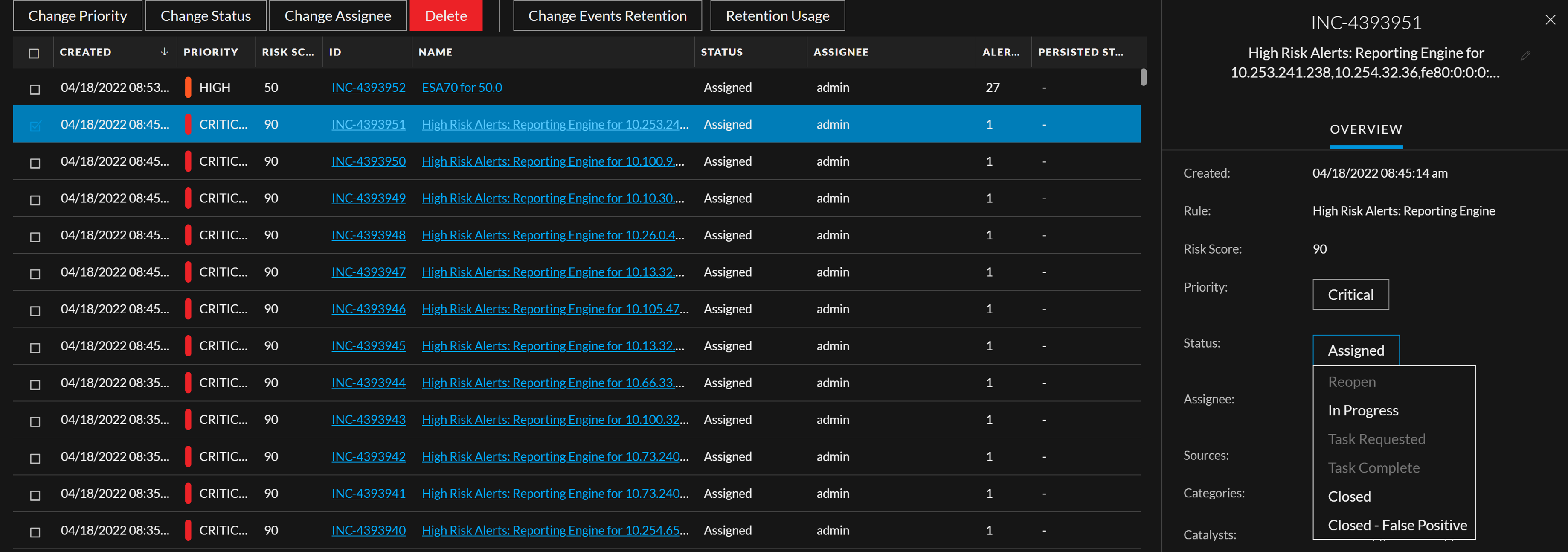
Note: When you select an incident and click Change Status, all the invalid statuses are grayed out under the Change Status drop-down list. This is not applicable for multi-select of incidents. Refer the following figure.
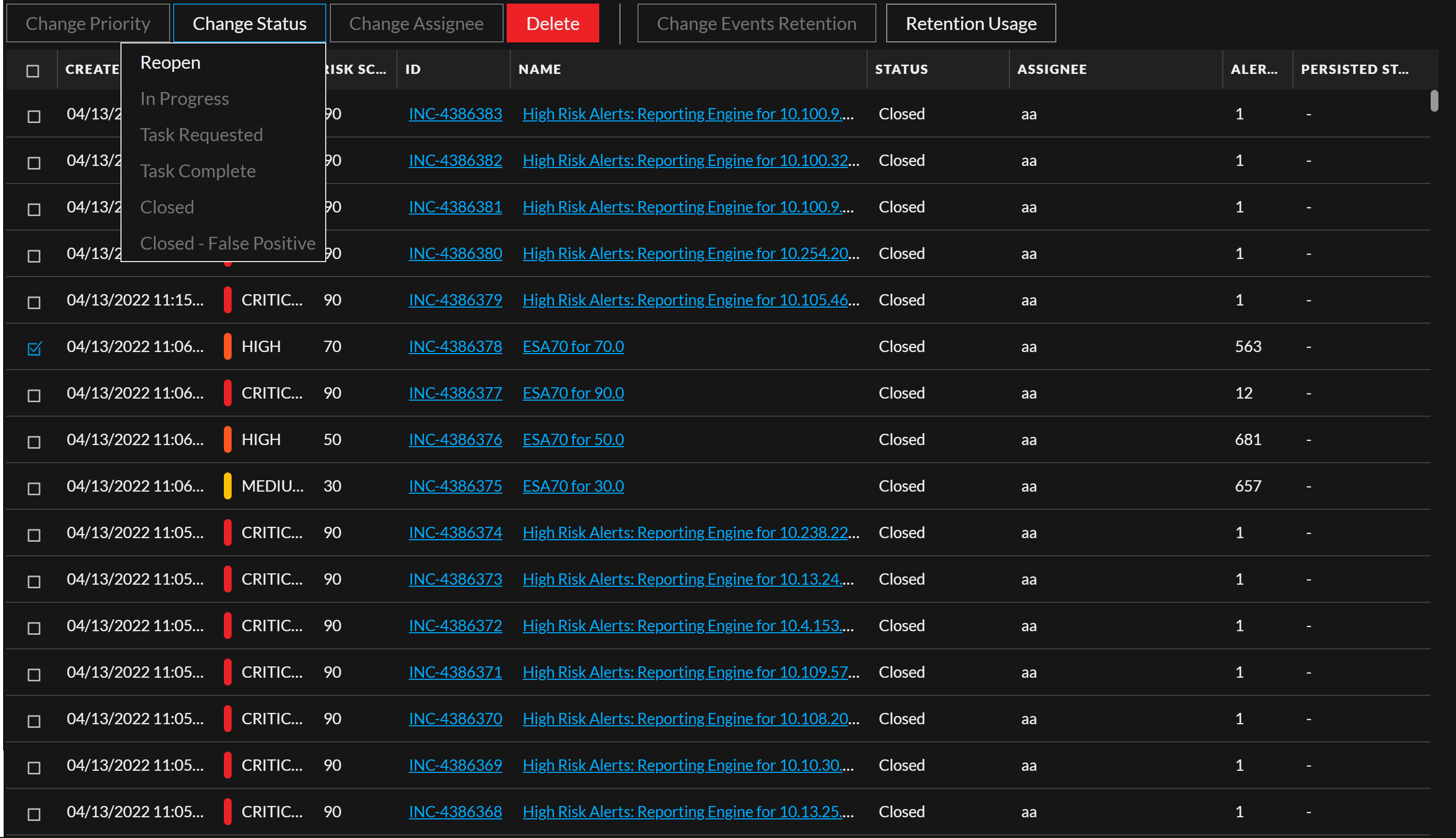
To update the status of multiple incidents:
- In the Incidents List view, select one or more incidents that you would like to change. To select all of the incidents on the page, select the box in the incidents list header row. The number of incidents selected appears in the incidents list footer.
-
Click Change Status and select a status from the drop-down list. In this example, the current status is Assigned, but the Assignee would like to change it to In Progress for the selected incidents.

Note: The incident status can be changed to Reopen only if the current status of the incident is Closed or Closed - False Positive. This is also applicable when multiple incidents are selected. Even if one of the multiple incidents selected has the status other than Closed or Closed - False Positive, the error message One or more incidents status cannot be changed, Please select a valid status!. For example, INC-x is displayed. Refer the following figure.
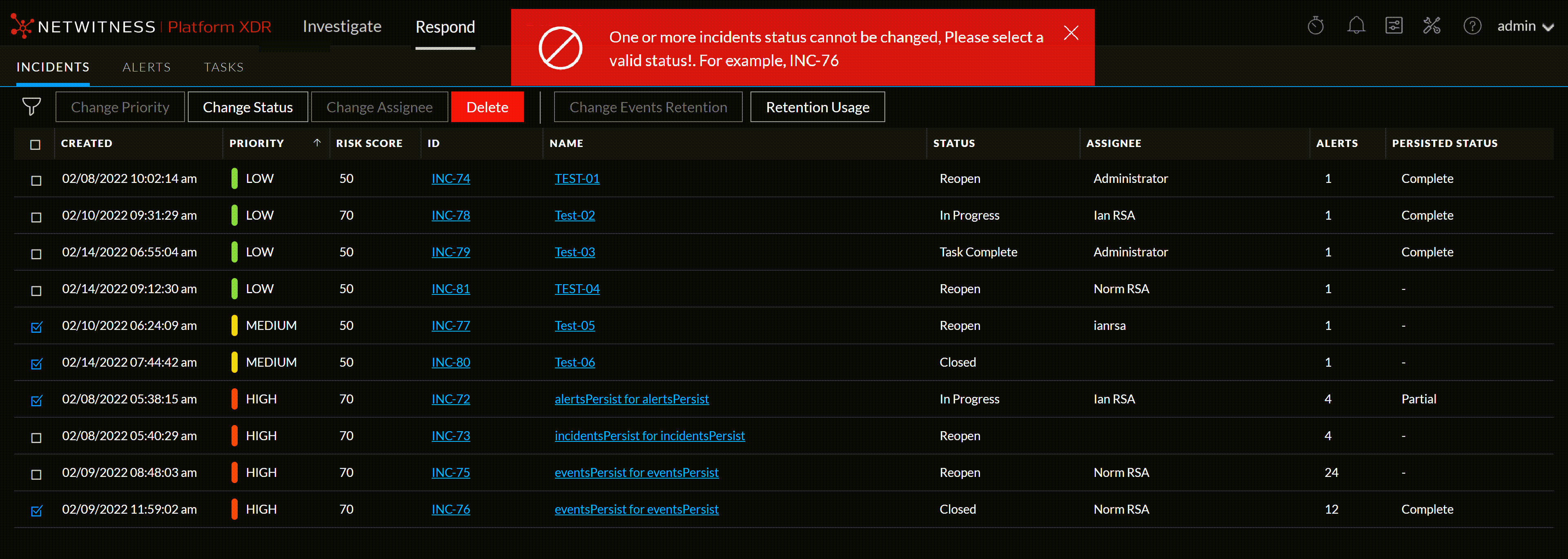
-
If you select more than one incident, in the Confirm Update dialog, click OK.
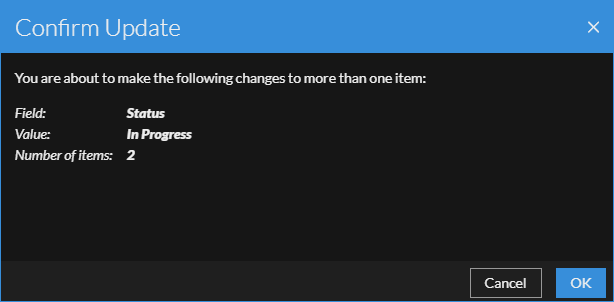
You can see a successful change notification. In this example, the status of the updated incidents now show In Progress.
Note: If you select any incident and click Change Status, the current status of the incident is grayed out in the drop-down list. This is not applicable if you select multiple incidents. Refer the following figure.
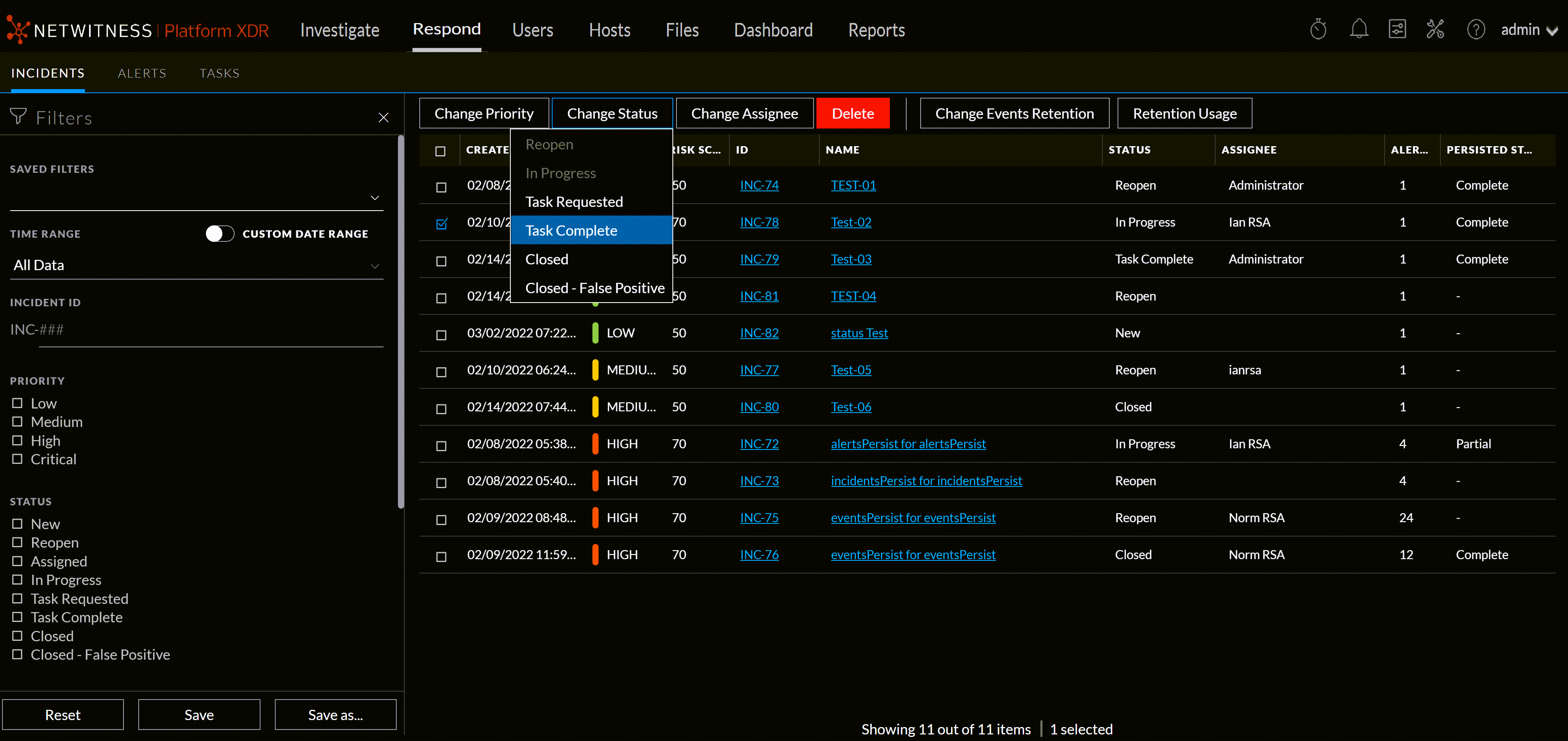
To change the status of a single incident from the Overview panel:
- To open the Overview panel, do one of the following:
-
From the Incidents List view, click the row of an incident that needs a status update.
- From the Incident Details view, click the OVERVIEW tab.
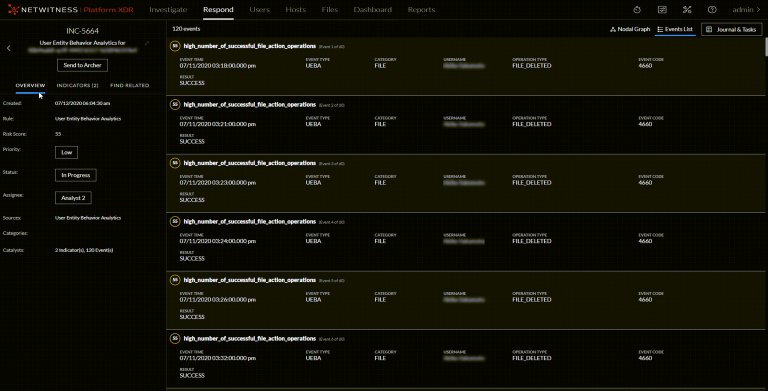
In the Overview panel, the Status button shows the current status of the incident. -
Click the Status button and select a status from the drop-down list.
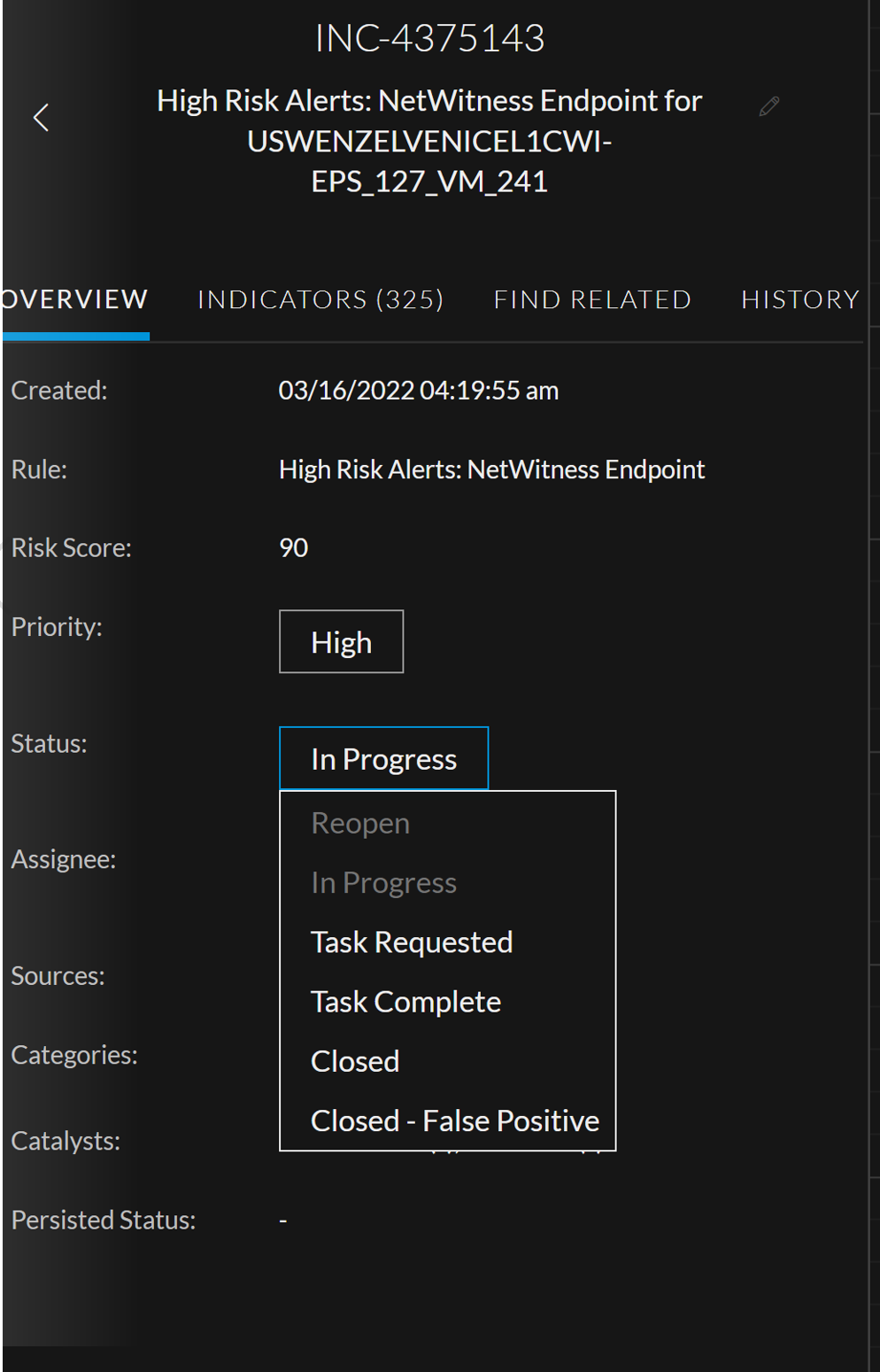
You can see a successful change notification.
Note: The incident status can be changed to Reopen only if the current status of the incident is Closed or Closed - False Positive.
Change Events Retention Change Events Retention
Events retention enables you to persist events that are associated with particular incidents, thereby enabling you to view the incident related events in the future, regardless of its age. The event data will always be available for viewing and reconstruction as long as the event is persisted, enabling you to easily refer back to details, even if the original event has rolled over from the NetWitness database. You can perform the following functions:
- Persist all events
- Suspend persisting all events
To change event retention:
- Select the incidents for which you want to change the event retention plan.
- Select Persist all events from the Change Events Retention tab to persist all the events that are associated with the selected incidents.
- The confirmation message appears. Click OK to persist all events.
Persisting all events in an incident in NetWitness will save the events data in the long term cache of the source.
- The confirmation message appears. Click OK to persist all events.
- Select Suspend Persisting all events from the Change Events Retention tab to stop persisting the events that are associated with the selected incidents.
- The confirmation message appears. Click OK to suspend persist all events.
Suspending persist of events in an incident from NetWitness will delete it from the long term cache of the source only. This may not be reversible if the original event data has rolled out in the source database.
- The confirmation message appears. Click OK to suspend persist all events.
Note: You cannot change the event retention for incidents that are in New or Closed state.
Obtain Retention Usage DetailsObtain Retention Usage Details
The Retention Usage tab allows an analyst to fetch all the persisted data disc usage stats of all the configured services and the percentage used by the pinned cache directories. This will enable the analyst to determine if the disk is running out of space and if additional space needs to be added or suspend persist on the existing events in an incident.
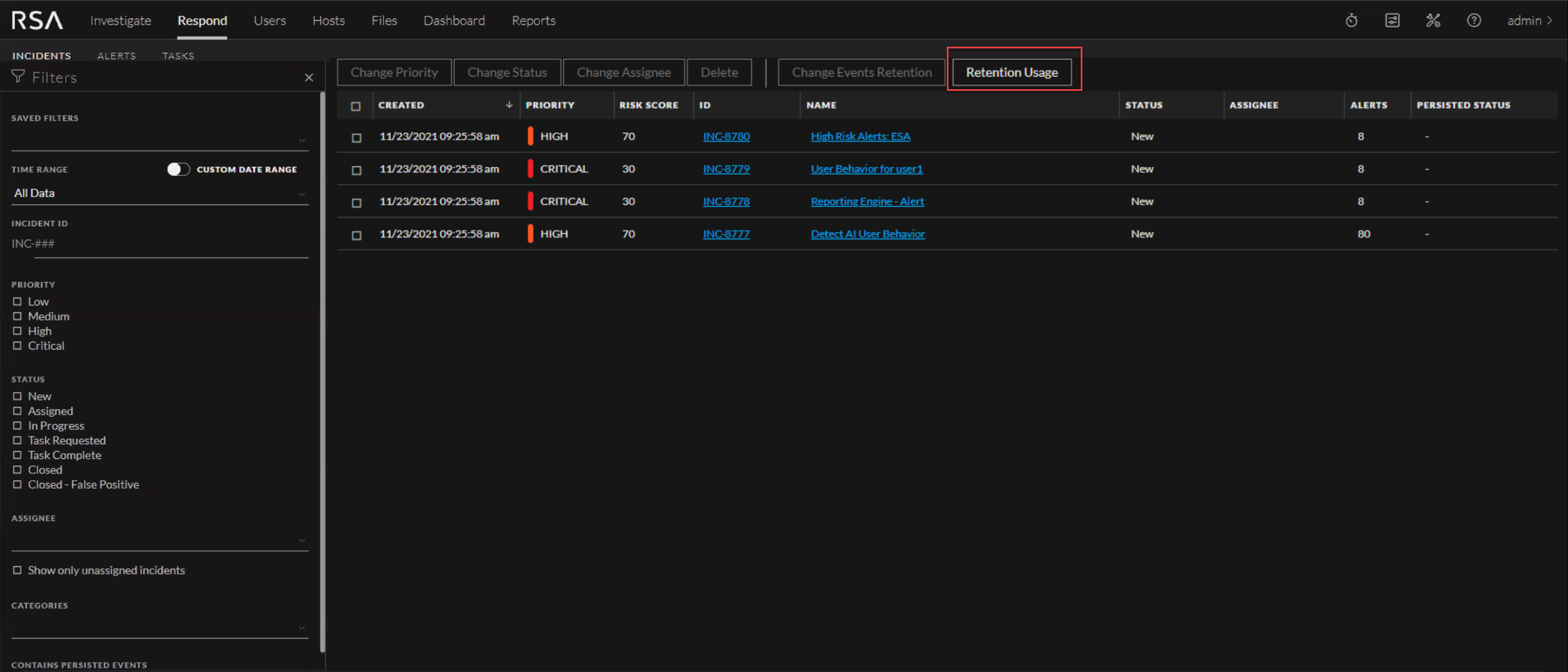
After the analyst clicks on the Retention Usage tab, a Retention Information panel is displayed with the following status:
- Percentage of the disk used when data is persisted
- Cache directory is configured or not. In case it is not configured it is explicitly indicated.
- List of all the status of a configured service. In case the service is not available it is explicitly indicated.
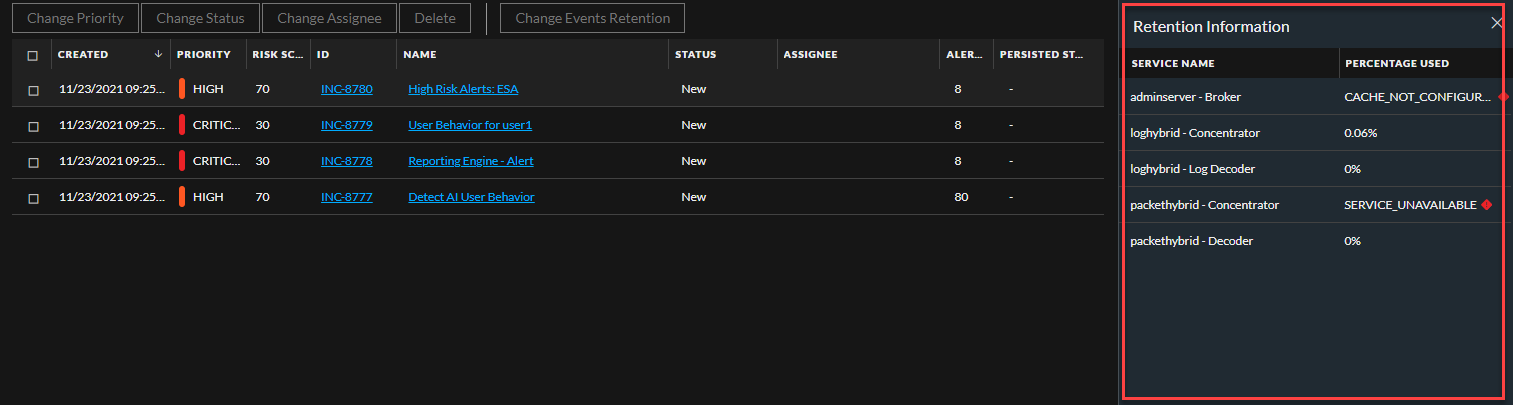
Note: In case the disk space exceeds the usage, a warning message displayed. The service threshold can be configured by navigating to Respond > Services > respond/core/properties > warning-threshold field.
Export Incident DataExport Incident Data
The NetWitness Platform XDR enables the analysts to export and store the Incidents with Alerts and Events in JSON format for offline investigation. The Export drop-down allows you to export and download the data (such as fields or attributes) associated with Alerts and Events of the selected Incidents. The data can only be downloaded in JSON format.
Schema Files for Incident Export
The NetWitness Platform XDR provides Schema files (Default and Custom) located at /var/netwitness/respond-server/export-schema to allow you to export only a subset of attributes among the many list of attributes available in Mongo DB for Incidents and Alerts. Default schema files cannot be modified, but the Custom schema files can be modified to add the attributes as required. For more information, see Schema Files for Incidents and Schema Files for Alerts.
Schema Files for IncidentsSchema Files for Incidents
The Incident Schema files contain various fields or attributes associated with an Incident. Based on the requirement, you can modify these Schema files and download additional fields. The Schema files are categorized into two types:
-
Default Incident Schema File (default_incident_export.json) : This file contains a default list of attributes associated with the Incidents (in Mongo DB) that are used to export. This pre-populated out-of-the-box file provided by NetWitness Platform XDR must not be modified.
-
Custom Incident Schema File (custom_incident_export.json) : This is an empty file provided by NetWitness Platform XDR to allow users to download the attributes unavailable in the Default Incident Schema File, but listed in the incident collection in Mongo DB.
To download the required attributes using Custom Incident Schema File:
-
Edit the custom_incident_export.json file located at /var/netwitness/respond-server/export-schema to add the required attributes.
-
Restart the Respond Service.
-
Export the Incidents data from UI.
Note:
- The attributes downloaded using the Custom Incident Schema File include the attributes already listed in the Default Incident Schema File and the newly added attributes.
- By default, URL of an incident is added to the exported report that can be used to route to the incident directly in the
incident view page.
-
Schema Files for AlertsSchema Files for Alerts
The NetWitness Platform XDR allows you to download various fields or attributes associated with the Original and Normalized alerts.
Original AlertsOriginal Alerts
The alerts triggered and received through different sources such as Endpoint, User Entity Behavior Analytics (UEBA), Event Stream Analysis (ESA), Malware Analysis, NetWitness Investigate, Reporting Engine, Risk Scoring, Web Threat Detection, and Detect AI are Original Alerts.
Normalized AlertsNormalized Alerts
The structure or pattern of the Original Alerts varies based on the source from which the alerts are triggered. These alerts are normalized and standardized in the Respond service to unify their structure.
Based on the attributes (associated with the Original and Normalized Alerts) downloaded, the Alerts Schema files are categorized into:
-
Default Original Alerts Schema File (default_alert_original_export.json) : This file contains a default list of attributes associated with the Original Alerts (in Mongo DB) that are used to export. This pre-populated out-of-the-box file provided by NetWitness Platform XDR must not be modified.
-
Custom Original Alerts Schema File (custom_alert_original_export.json) : This is an empty file provided by NetWitness Platform XDR to allow you to download the attributes unavailable in the Default Original Alerts Schema File, but listed in the originalAlert (alert > originalAlert) collection in Mongo DB.
-
Default Normalized Alerts Schema File (default_alert_normalized_export.json) : This file contains a default list of attributes associated with the Normalized Alerts (in Mongo DB) that are used to export. This pre-populated out-of-the-box file provided by NetWitness Platform XDR must not be modified.
-
Custom Normalized Alerts Schema File (custom_alert_normalized_export.json) : This is an empty file provided by ,,,,,,, ,,,,,,, ,,,,,,, but listed in the alert (alert > alert) collection in Mongo DB.
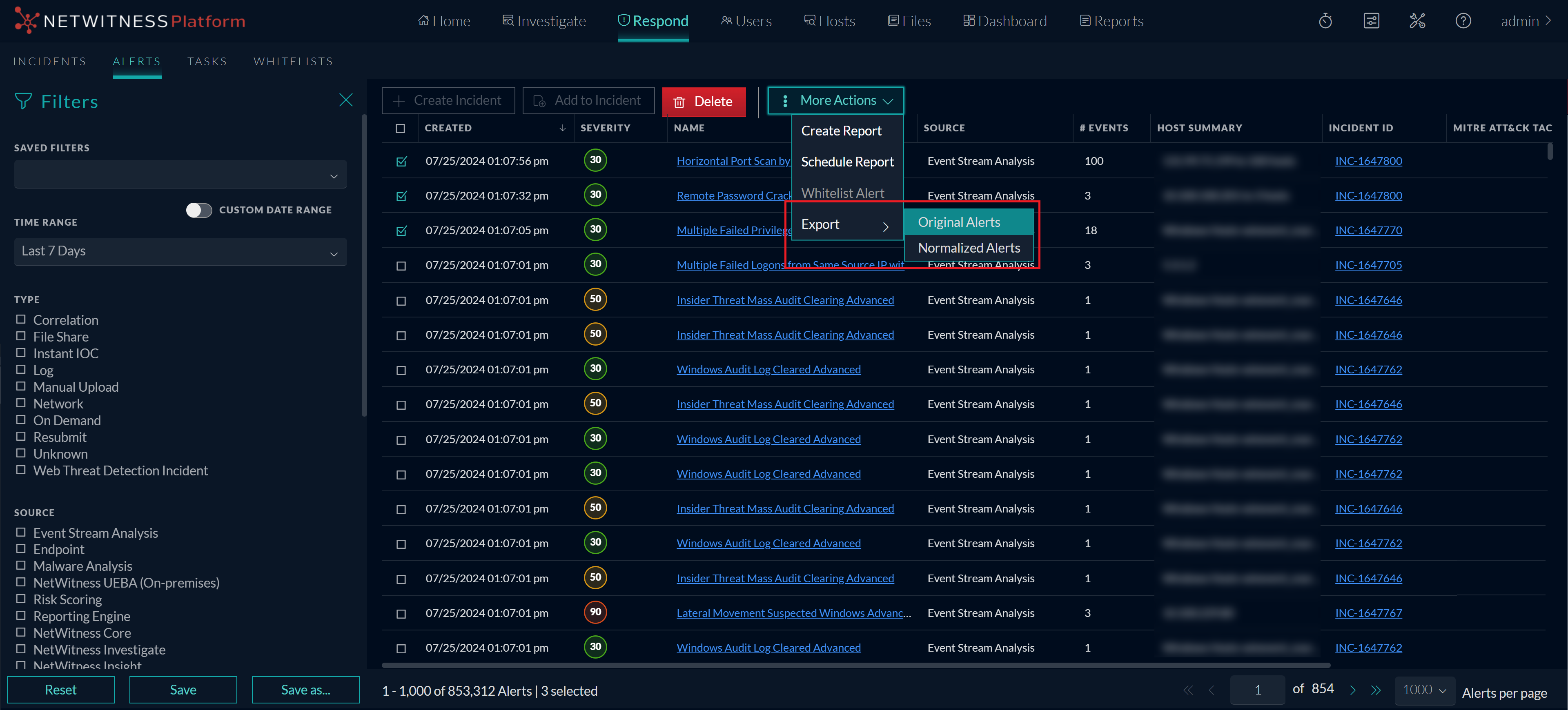
,,,,,,, ,,,,,,, ,,,,,,, ,,,,,,, ,,,,,,, ,,,,,,, select one or more incident and click the Export drop-down.,,,,,,, ,,,,,,, you must have access to escalate or remediate the incident.,,,,,,, ,,,,,,, you can select a different set of incidents (ten incidents) and export their data simultaneously. You can repeat this action until the condition max-user-tasks ( a maximum limit set for exporting the incidents data in the Respond service under rsa.respond.incident.exports) is met.,,,,,,, ,,,,,,, ,,,,,,, ,,,,,,, see Original Alerts.,,,,,,, ,,,,,,, see Normalized Alerts.,,,,,,, ,,,,,,, a notification message is displayed.,,,,,,, ,,,,,,, ,,,,,,, ,,,,,,, ,,,,,,, ,,,,,,, ,,,,,,, ,,,,,,, ,,,,,,, ,,,,,,, ,,,,,,, ,,,,,,, ,,,,,,, but the Custom schema files can be modified to add the attributes as required. For more information, see Schema Files for Alerts.,,,,,, ,,,,,,, select one or more alerts. - Go to More Actions > Export and select one of the following types of Alert to be exported.,,,,,,, see Original Alerts.
- Normalized Alerts: Select this option to export the Normalized Alerts and their event data. For more information on the Normalized Alerts, see Normalized Alerts
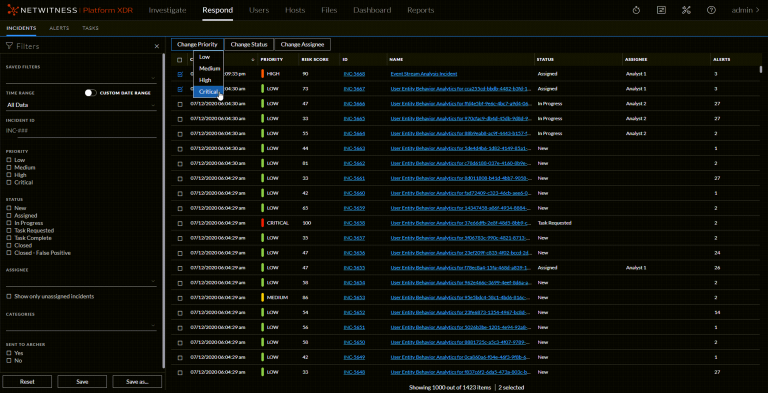
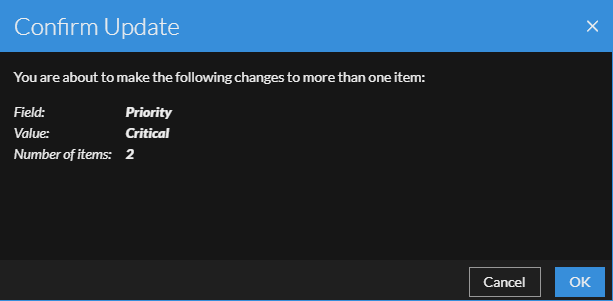
You can see a successful change notification. In this example, the status of the updated incidents now show Critical.
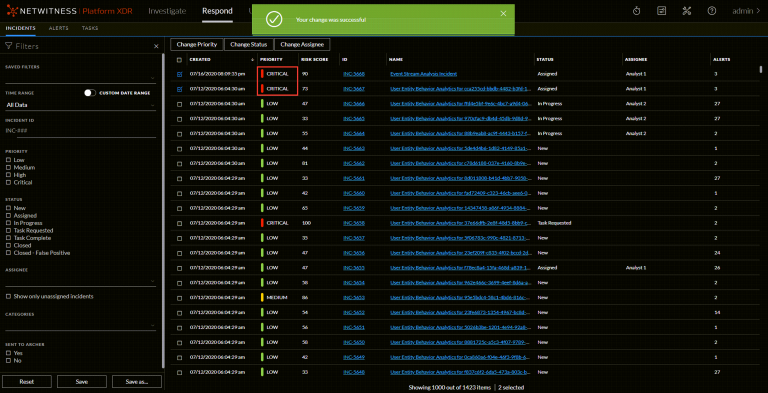
- From the Incidents List view, click the row of an incident that needs a priority update.
- From the Incident Details view, click the Overview tab in the left panel.
In the Overview panel, the Priority button shows the current priority of the incident.
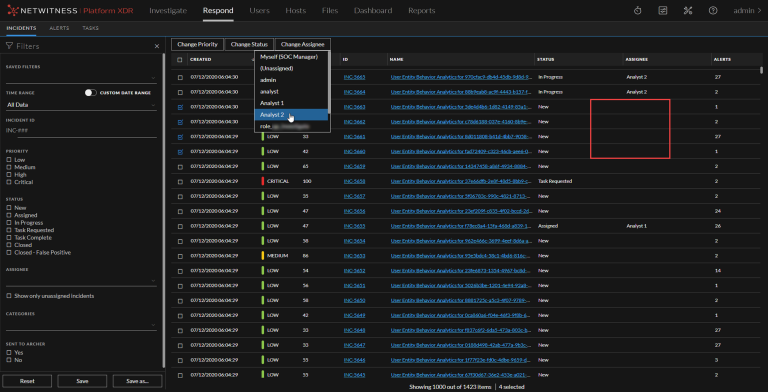
You can see a successful change notification. The assignee changes to the selected user.
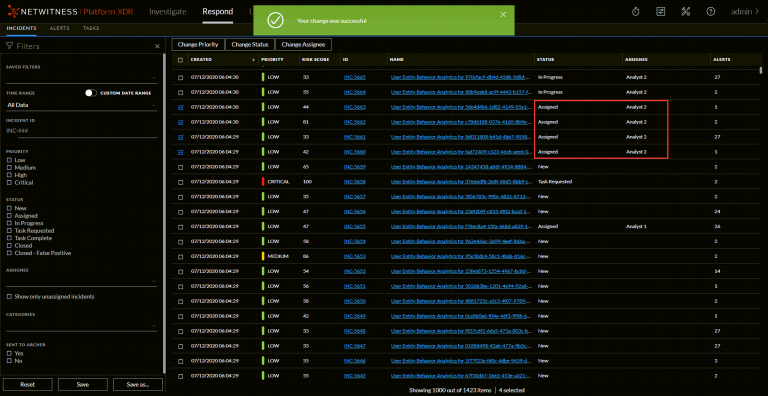
- From the Incidents List view, click the row of an incident that you would like to assign to a user.
- From the Incident Details view, click the Overview tab in the left panel.
In the Overview panel, the Assignee button shows the current assignee of the incident. In the following example, the Assignee button has a current status of Unassigned.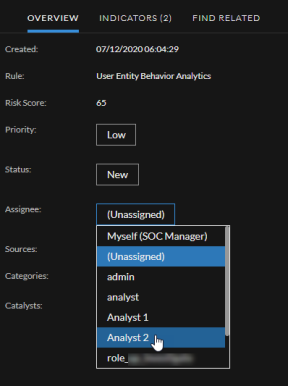
- From the Incidents List view, click the row of an incident that needs a name change.
The Overview panel opens. - From the Incident Details view, click the OVERVIEW tab in the left panel.
In the header above the Overview panel, you can see the incident ID and the incident name.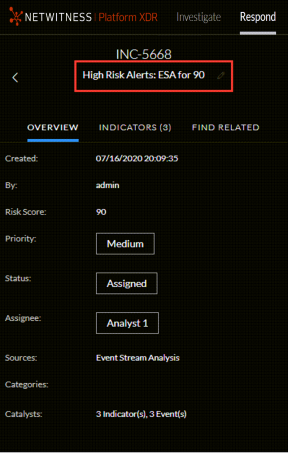
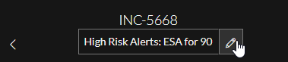
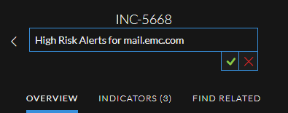
For example, you can change "High Risk Alerts: ESA for 90.0" to "High Risk Alerts for mail.emc.com" for more clarification.
You can see a successful change noti