Events View
Events View
In the Events view analysts can view a sequential list of network, log and endpoint events, select an event for reconstruction and analysis, and view the raw event and metadata with interactive features that enhance the ability to see meaningful patterns in the data. In Version 11.5 and later, you can drill into metadata for the listed events. The Events view offers packet, file, host, text, log, and email reconstruction. When you open a web reconstruction of an event, the same web reconstruction used in the Legacy Events view is displayed.
Workflow
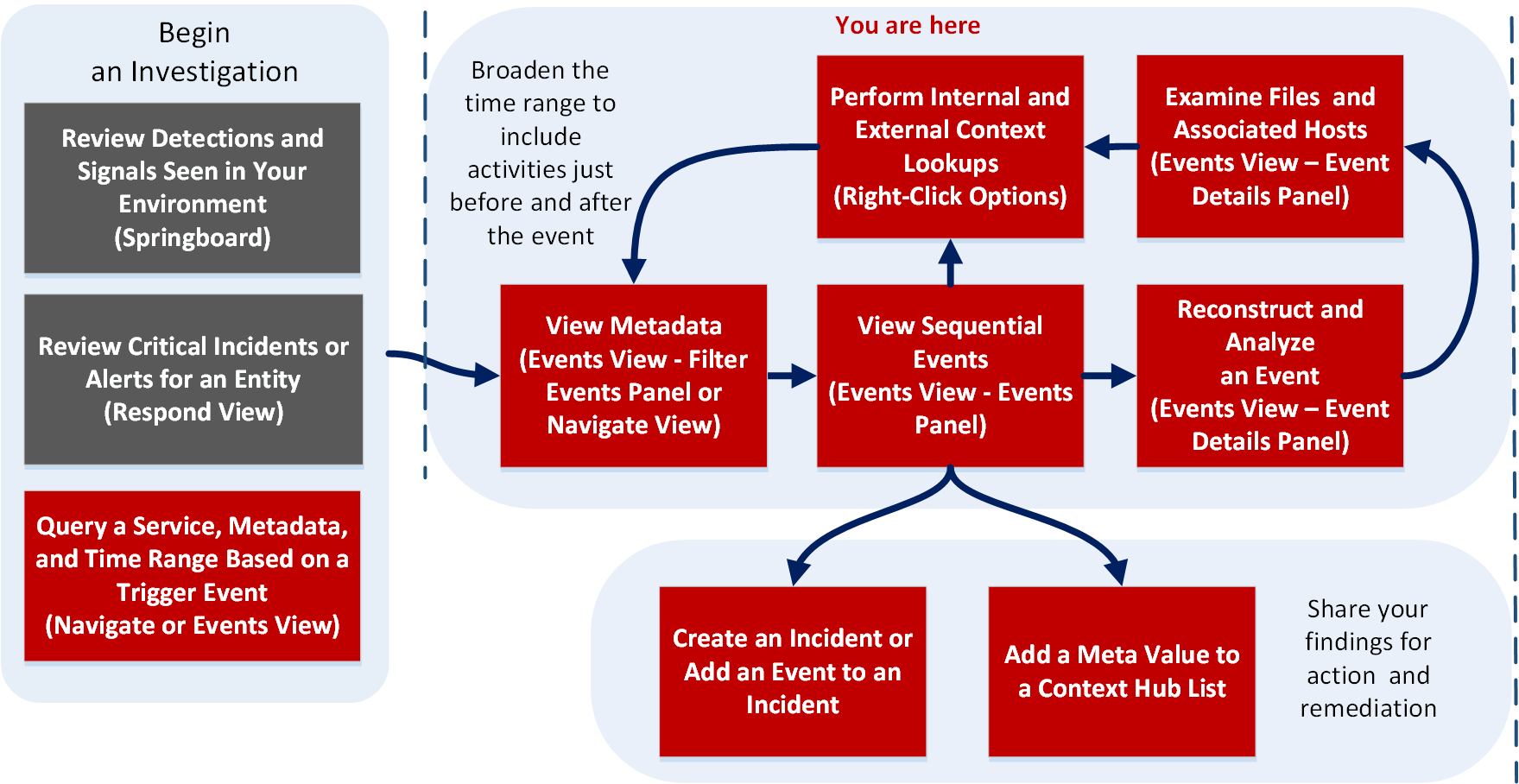
The following figure is a high-level workflow illustrating the tasks you can do in NetWitness Investigate, with the Events view tasks highlighted in red.
What do you want to do?
- User Role:
Incident Responder or Threat Hunter
- I want to ...:
review detections and signals seen in my environment
- Show me how:
NetWitness Platform Getting Started Guide
- User Role: Incident Responder
- I want to ...:
review critical incidents or alerts
- Show me how:
NetWitness Respond User Guide
- User Role: Threat Hunter
- I want to ...: query a service, metadata, and time range*
- Show me how:
Begin an Investigation in the Events View
Begin an Investigation in the Navigate or Legacy Events View
- User Role: Threat Hunter
- I want to ...:
view metadata*
- Show me how:
- User Role: Threat Hunter
- I want to ...:
view sequential events*
- Show me how:
- User Role:
Threat Hunter
- I want to ...:
reconstruct and analyze an event*
- Show me how:
- User Role: Threat Hunter
- I want to ...: examine files and associated hosts*
- Show me how:
Download Data in the Events View
- User Role: Threat Hunter
- I want to ...: perform lookups*
- Show me how:
- User Role: Threat Hunter
- I want to ...: create an incident or add to an incident*
- Show me how:
- User Role:
Threat Hunter
- I want to ...:
add a meta value to a Context Hub list*
- Show me how:
*You can perform this task in the current view.
Related Topics
- How NetWitness Investigate Works
- Events View - Packet Tab
- Events View - Text Tab
- Events View - File Tab
- Events View - Email Tab
- Events View - Host Tab
Quick Look
There are multiple access points to this view, which are described in Begin an Investigation in the Events View. If you access the Events view from the Respond view, you can see the analysis for a selected event in an incident. The options are a subset of the options available when you open an event from within the Investigate view. To get complete functionality and examine other events, you can go to the Event view directly (INVESTIGATE > Event ).
The Events view lists events in ascending order by time in the Events panel. The events displayed can be results for the drill point in the Navigate view or Legacy Events view, or results for a query entered in the Events view query bar.
Input fields for a query are displayed so that you can select a service and time range, and type an optional query. When you submit a query, the service being investigated counts the results up to a limit of 10,000 events, and 10,000 network, log, and endpoint events are loaded in the Events panel. Different columns are displayed, depending on the selected column group. You can rearrange and resize the columns, choose a built-in or custom column group, and choose individual columns that you want to see. When you find an event of interest, clicking the event opens the reconstruction in a new panel (Packet, Text , or File).
Note: For versions earlier than 11.3, the first 100 events are loaded. You can scroll through the list and click Show Next 100 Events at the bottom of the list. If the next page contains fewer than 100 events, the button changes to reflect the number of remaining events.
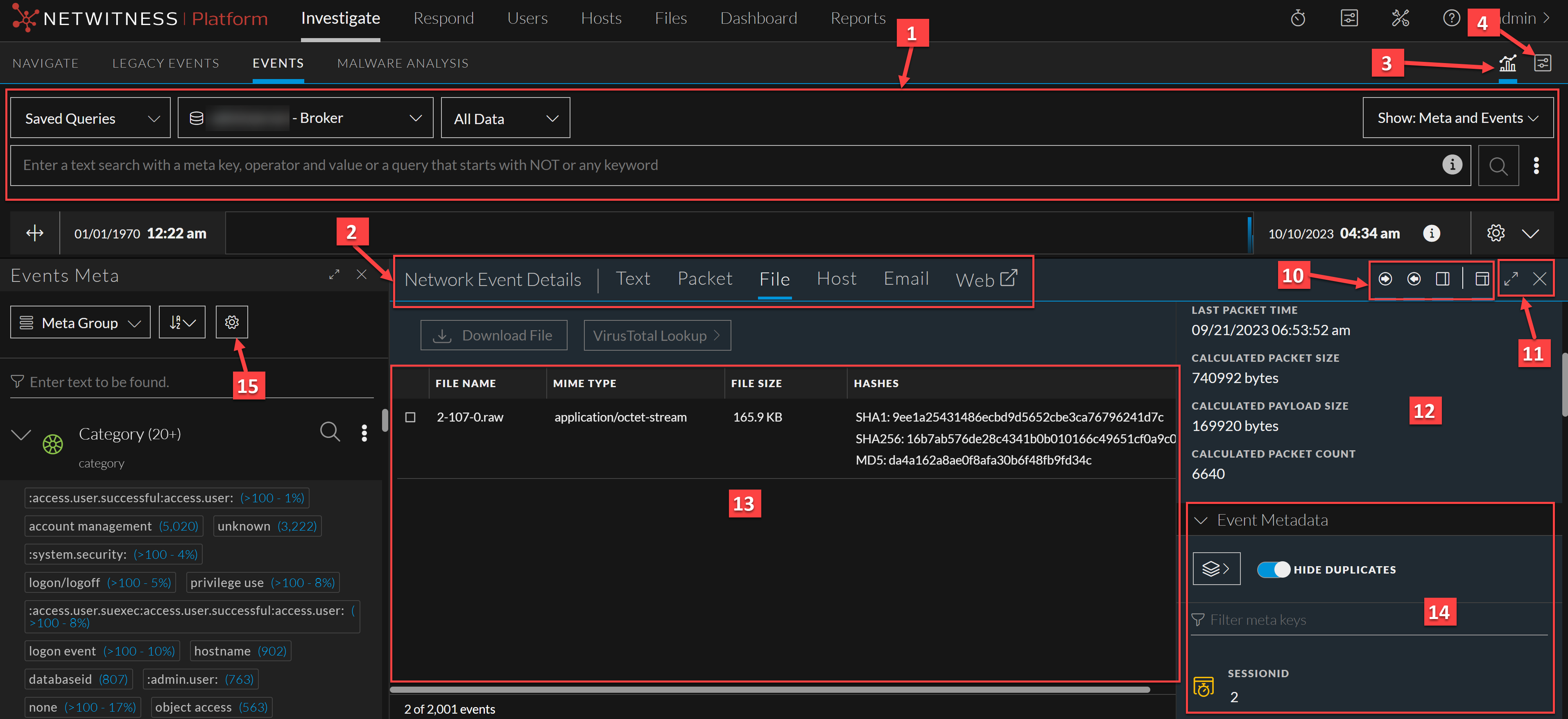
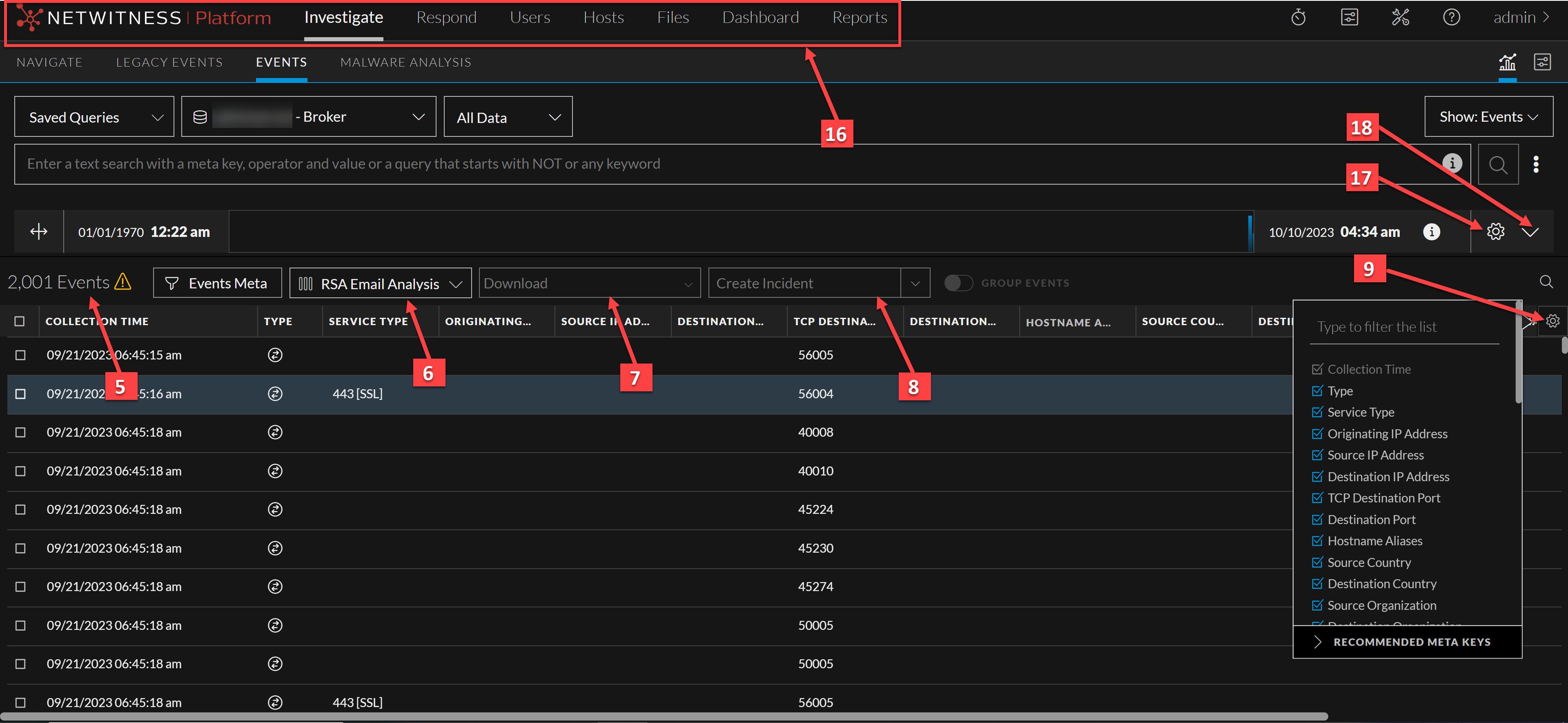
The following figure highlights the major features of the Events view.
- Column 1: 1
- Column 2: Query Bar: When a service is selected, displays the service selector, time range selector, and the queries you have entered. You can select a service as described in Begin an Investigation in the Events View and refine the query as described in Filter Results in the Events View. Clicking
submits the query and sends a request to the selected service to load the data. In Version 11.3 and later, clicking the
(console icon) opens the query console, where detailed status of the query is provided (see Events View below). In Version 12.3 and later, clicking the
(Query Console) > Current Query tab, the detailed status of the current query is provided (see Events View below).
- Column 1: 2
- Column 2:
The type of event being analyzed and the type of reconstruction are reflected in the heading.
- These are the event types: Network Event Details, Log Event Details, or Endpoint Event Details.
- The types of analysis available for the event type are Text, Packet, File, Host, Email, and Web. Network events can use all types of analysis: text, packet, file, and email (Version 11.4.1 and later). Log and endpoint events use only text analysis. The email (Version 11.4.0.x and earlier) type and web type open the current event as an email or web reconstruction in the Events view. For details, see Examine Event Details in the Events View.
- Column 1: 3
- Column 2: Reopens the Events panel if you have closed it. For details, see Analyze Events in the Events View.
- Column 1: 4
- Column 2: Sets preferences for the Event view (see Configure the Events View).
- Column 1: 5
- Column 2:
The Events panel title.
- In Version 11.3 and later, the Events panel title is slightly different than the title in prior versions, and a row number indicator has been added. The title lists the number of events and sort order; for example, 40,000 Events (Asc) means that 40,000 events were found and they are listed in ascending order by time. If more than 10,000 events are found, only the oldest 10,000 events are displayed in ascending order, and an amber triangle highlights the fact that not all events were loaded. This may indicate that you need to refine the query. For more information about refining the events listed here, see Filter Results in the Events View.
- Versions prior to 11.3 simply list the number of events found, and you can load 100 of them at a time. In Version 11.4 and later, clicking
opens the Find Text in Table dialog.
- Column 1: 6
- Column 2: The Column Group drop-down lists built-in and custom column groups that you can apply to the Events panel. Built-in column groups are sometimes updated between one version and the next. Some examples of built-in column groups are Email, Endpoint Analysis, Malware Analysis, Outbound HTTP, Outbound SSL/TLS, and Summary List. Summary List is the default column group. For details, see Use Columns and Column Groups in the Events List.
- Column 1: 7
- Column 2: The Download drop-down menu lists the available options for downloading event data. The options are Log, Visible Meta, and Network (see Downloading and Acting Upon Results. You can change the preferred format of the event type data in the Event Preferences dialog (see Configure the Events View).
- Column 1: 8
- Column 2:
The Create Incident button enables you to create incidents from events. The Add to Incident button enables you to add selected events to an open and existing incident (see Add Events to an Incident in the Events View and Add Events to an Incident in the Legacy Events View).
- Column 1: 9
- Column 2: Displays the column selection settings to select the individual columns displayed in the Events panel. For details, see Use Columns and Column Groups in the Events List.
- Column 1: 10
- Column 2:
Controls to show or hide the Overview panel, show or hide requests and responses, and open the Event Meta panel. For details, see Analyze Events in the Events View.
- Column 1: 11
- Column 2: Controls to change the size of the panel and close the panel. For details, see Analyze Events in the Events View.
- Column 1: 12
- Column 2:
The Overview panel provides summary information about the event you are currently analyzing. The selected event is highlighted in the Events panel with a blue background. The summary information is different for the different event types (packet, log, and endpoint). In Version 11.5, the redundant NW Service is removed.
- Column 1: 13
- Column 2:
The event data for the event you are currently analyzing.
- Column 1: 14
- Column 2:
The Event Meta panel is redesigned in Version 11.5, but has the same functions as in Version 11.4. The Event Meta panel lists the meta keys and values found in the data. This data can be sorted in two ways - Alphabets or Sequence. Some metadata are searchable; they have a binoculars icon, which you can click to see the associated data highlighted in the event data (see Analyze Events in the Events View).
- For a packet, the data is called a payload and is displayed in the form of a request and response.
- For a log event, the data is a line of text from the raw log.
- For an endpoint event, the event data is relevant to data from the NetWitness Endpoint agents running on hosts in the network. It may be a single process, driver, DLL, file (executable), service, or autorun, and information related to logged-in users. (See the NetWitness Endpoint User Guide for complete information about endpoint event data.)
- Column 1: 15
- Column 2: The Version 12.3 introduces new Meta Settings panel. This panel allows analysts to configure the number of sessions required for the specific meta key value within the Events view.
- Column 1: 16
- Column 2: The Version 11.5 main menu for NetWitness Platform has relocated Hosts, Files, and Users (Entities) options for easier access.
- Column 1: 17
- Column 2: The Version 12.3 introduces new Timeline Settings panel. Analysts can use the Timeline Settings option to change the Y-axis data dimension (Count or Size) and view the data presented on the timeline.
Click the (info) button to the right of the Mini Timeline to know the representation of the timeline's event data (like what information is shown on the Y-axis).
- Column 1: 18
- Column 2: The Expand Timeline feature helps you interact with the event’s result based on your search query. The expanded timeline view shows the total number of events for the selected date and time range. On the expanded timeline, X-axis shows the Time and the Y-axis shows either the Total number of events that occurred or the File Size recorded by the services at a specific time on the timeline.
Events Meta Panel
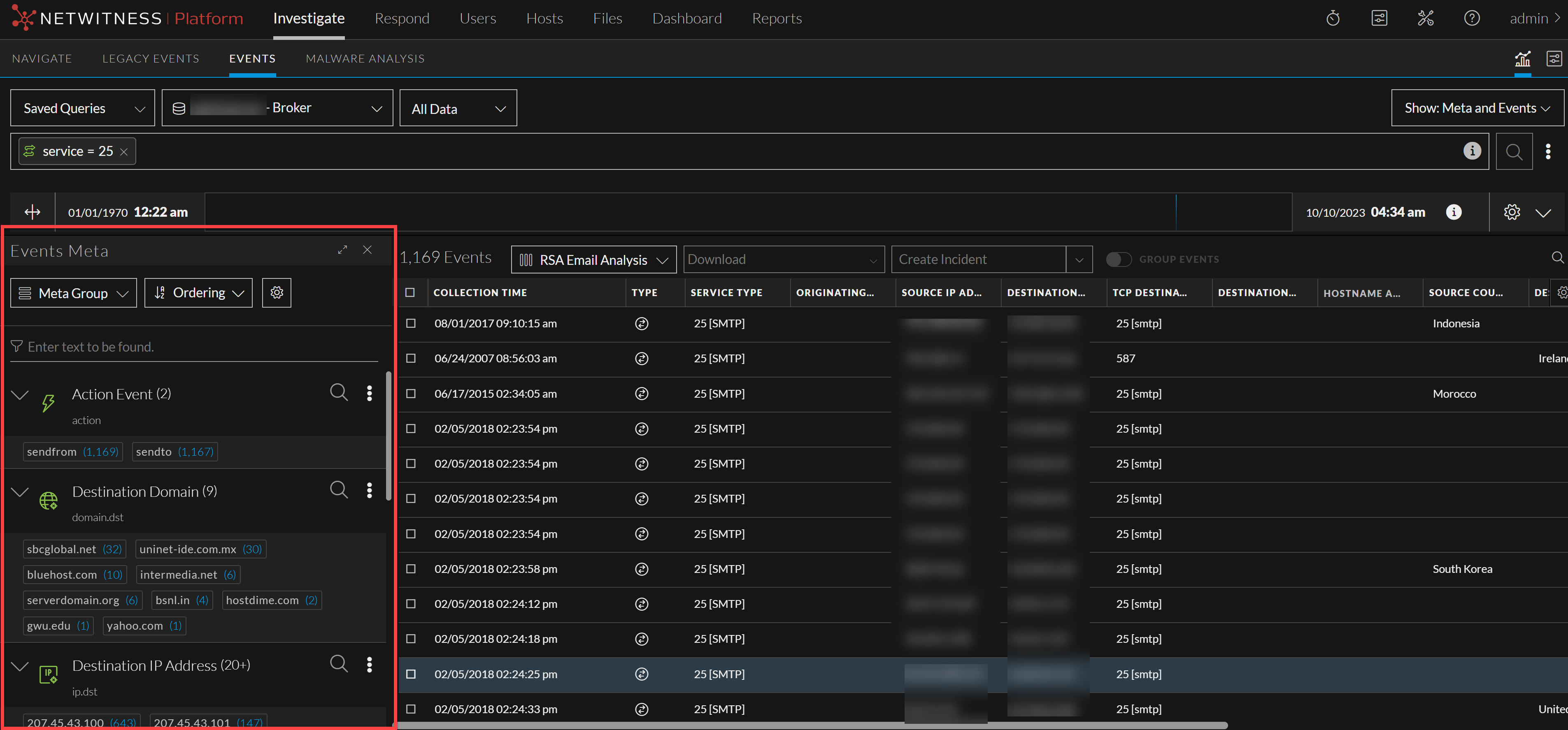
The Events Meta panel is a beta feature added from Version 11.5. Clicking the Filter button (
) in the Events panel, opens the panel to provide a view of meta keys and meta values found in the data set. (Version 11.6) By default, the Events Meta panel is open in the Events view. The user preference (open, closed, or fully expanded) is saved across sessions and logins. See Drill into Metadata in the Events View for more information about drilling into metadata.
Note: (Version 11.6) By default, the Events Meta panel is open in the Events view. The last used state of the panel (narrow or fully expanded) is saved throughout the session and across logins. Also, the Filter Events panel provides additional contrast between meta keys, meta values, and meta counts to improve readability.
- Column 1: Meta Groups Menu
- Column 2:
With the Filter Events panel open, you can select a meta group to define the meta keys displayed in the Filter Events panel.The Default Meta Keys meta group is in effect the first time you log in. If you selected a different meta group the last time you logged in, it remains in effect until browser cache is cleared. See Use Meta Groups to Focus on Relevant Meta Keys for details about meta groups.
- Column 1: Ordering Menu
- Column 2:
With the Filter Events panel open, you can look at two parameters for each value: the event count or the event size. Each meta key entry includes either the event count or the event size in parentheses after the value. In both cases, there are four options for ordering:
- By default, the meta keys are displayed using the Event Count > Descending by Total Count method. When showing the event count for each value, you can order by Descending by Total Count, Ascending by Total Count, Ascending by Value, and Descending by Value.
- When you prefer to see the size of the event that contains the value, you can use one of the four Event Size ordering options: Descending by Total Size, Ascending by Total Size, Ascending by Value, and Descending by Value.
- Column 1: Meta Key options button
(
) - Column 2:
The Meta Key options button offers actions that you can take on an individual meta key. In Version 11.5, the only action is to copy all of the visible meta values for a meta key.
- Column 1: Meta Key List
- Column 2:
An icon before each meta key name identifies the indexing method for the key. The indexing method determines the types of interactions and queries possible using that meta key.
- This meta key is indexed by value:
. The green color indicates that the all available interactions and queries are supported. You can see the available interactions in the context menu by right-clicking the meta value. - This meta key is indexed by meta key:
. The yellow color is a clue that a subset of available interactions is supported, and queries on this meta key may take longer than meta keys that are indexed by value. You can see the available interactions in the context menu by right-clicking the meta value. - This meta key is not indexed:
. Values for non-indexed meta keys cannot be used to query. If you want to query a meta key that is not indexed, your administrator needs to edit the index file for the service to index the meta key by value or meta key.
- This meta key is indexed by value:
Query Console
Clicking
(the console icon) opens the query console, where Query Examples, Current query, and Recent Query details are provided.
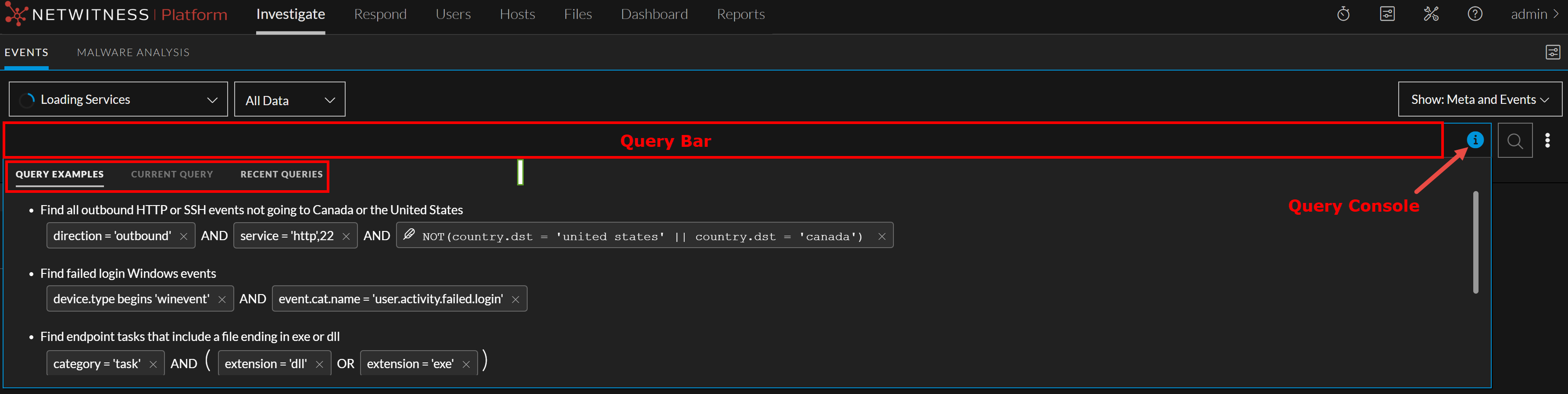
Query Examples
In the Query Console > Query Examples tab, you can see the example query list to help you understand the query construction.
Current Query
In the Query Console > Current Query tab, you can see which service, time range, and metadata was queried as well as real-time information about the status of the que ,,,,,,, ,,,,,,, you can tell when the query is executing, queued, reading the index file for the queried service, retrieving events, and complete. All statuses and non-fatal messages are displayed as they come in, and the border color changes if a non-fatal error occurs. View Status of a Query provides additional details on this subject.
,, ,,,,,,, ,,,,,,, the statement below from the index file states the meta key called client has a limit of 250,000 values by default.,,,,,, ,,,,,,, ,,,,,,, and the requested operation exceeded the limit. To avoid this error, split the operation into smaller pieces, such as smaller time ranges.,,,,, controlled by setting max.query.memory,,,,,,, and the requested operation exceeded the limit. The limit is related to the amount of memory in the server, which an administrator can adjust in
(Admin)
Admin > Services > [Service Name] > sdk > config. To avoid this error, split the operation into smaller pieces, such as smaller time ranges.,,,, ,,,,,,, up to 100 recent queries are displayed. Use the scroll wheel on the mouse to move through the recent query list. You can click on
to initiate the selected query.,,,,,,, ,,,,,,, ,,,,,,, ,,,,,,, ,,,,,,, ,,,,,,, ,,,,,,, ,,,,,,, the entire timeline is highlighted. Also, if the data is not sorted in a specific order, it might highlight the individual bars in the timeline as events are not ordered using time.,,,,, ,,,,,,, the threshold highlight shifts from left (ascending) to right (descending) depending on your sort preference.,,,,,,, ,,,,,,, ,,,,,,, ,,,,,,, the timeline does not refresh. You must run the query again to refresh the timeline.,,,,,,, ,,,,,,, ,,,,,,, ,,,,,,, see
Investigate on Timeline topic in Begin an Investigation in the Events View.,,,,,,, ,,,,,,, ,,,,,,, NetWitness introduces the new
Meta Settings panel under the
Investigate >
Events view. This panel allows analysts to configure the number of sessions required for the specific meta key value within the Events view.,,,,,,, ,,,,,,, ,,,,,,, ,,,,,,, ,,,,,,, and also causes longer load times. The Max Threshold Value should be between
1-2147483647. The default value is
100,000.Max Value ResultsSets the maximum number of values to load in the Navigate view when the Max Results option is selected in the Meta Key menu for an open meta key. The Max Value Results should be between
100-100000. The default value is
1000.,,,,,, ,,,,,,, ,,,,,,, ,,,,,,, leaving the settings unchanged.XCloses the Meta Settings dialog.,,,,,,, ,,,,,,, ,,,,,,, ,,,,,,, ,,,,,,, ,,,,,,, ,,,,,,, ,,,,,,, ,,,,,,,