Execution History Panel
Execution History PanelExecution History Panel
The Execution History panel allows you to fetch and display history details.
Workflow
This workflow shows the procedure to view report or report groups.
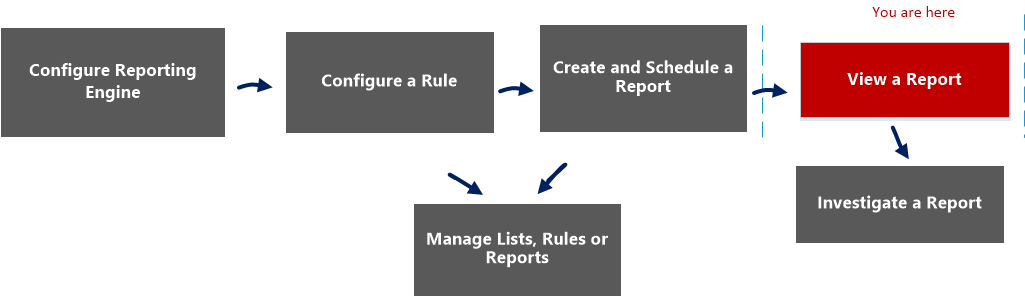
What do you want to do?
- Role: Administrator / Analyst
- I want to ...:
Configure Reporting Engine
- Show me how:
For more information, see "Step 3: Configure Reporting Engine Data Sources" topic in the Reporting Engine Configuration Guide
- Role: Administrator / Analyst
- I want to ...: Create a List or List Group/Create or Deploy a Rule/Test a Rule
- Show me how: Configure a Rule
- Role:
Administrator / Analyst
- I want to ...:
Create and Schedule a Report
- Show me how:
- Role: Administrator / Analyst
- I want to ...: View a report or list of all reports*
- Show me how: View a Report
- Role: Administrator / Analyst
- I want to ...: Investigate a Report
- Show me how: Investigate a Report
- Role: Administrator / Analyst
- I want to ...: Manage/Access control for lists, rules or Reports
- Show me how: Manage Lists, Rules or Reports
*You can complete these tasks here.
Related Topics
Quick View
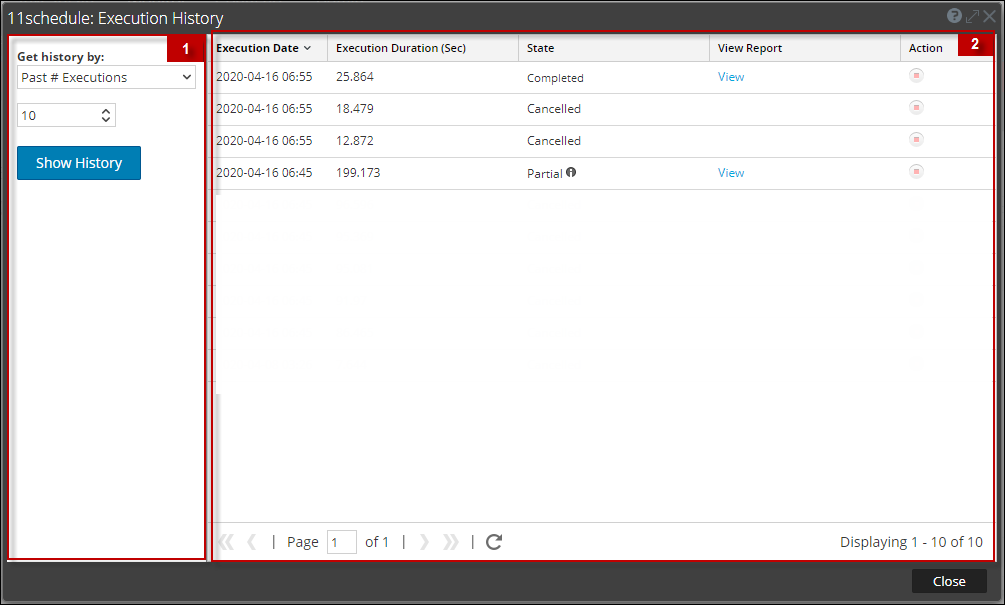
The following figure is an example of the Execution History view.
Features
The View Execution History has the following panels:
- Column 1: 1
- Column 2: Execution History Options panel
- Column 1: 2
- Column 2: Execution History Output panel
To access this view:
-
Go to Reports.
The Manage tab is displayed.
- Click Reports.
The Report view is displayed. -
In the Reports panel, do one of the following:
- Hover the mouse over a report and click
> View Scheduled Reports. - Click #Schedules column.
The Schedule Reports view is displayed with the status of each of the scheduled report.
- Hover the mouse over a report and click
-
Select a scheduled report and do one of the following:
- Click
> Execution History. - Click
from the Scheduled Reports Toolbar Panel.
- Click
Execution History Options Panel
The Execution History Options panel allows you to fetch the history details based on either past n number of scheduled reports or a specific date range.
The following table lists the operations in the Execution History Options panel:
- Operation: Get history by:
- Description:
This is the criteria to view the execution history:
- Past # Executions: The past n number of scheduled reports. By default this option is displayed.
- Range (specific): The start date and end date for the date range.
Note: The From and To field is populated in the NetWitness UI only when you select 'Range (Specific)' from the Get history by list.
- Operation: From
- Description: The start date for the date range.
- Operation: To
- Description: The end date for the date range.
- Operation: Count
- Description: The number of execution history of the scheduled report to be displayed.
- Operation:

- Description: Shows the history details based on the selected criteria.
Execution History Output Panel
The Execution History Output panel displays the history details with the execution date, execution duration (seconds), state of the scheduled report, and a link to view the report.
The following table lists the various columns in the Execution History Output panel:
- Column: Execution Date
- Description: The date on which the scheduled report was executed. By default, the execution date is in descending order.
- Column: Execution Duration (Sec)
- Description: The time duration taken to execute the scheduled report.
- Column: State
- Description:
The state of the scheduled report:
- Scheduled: If a report is scheduled to run on an hourly, daily, weekly, monthly, or later time, the state of the report is displayed as scheduled, for the first run.
- Queued: If a report is still waiting to get executed, the state of the report is displayed as queued.
- Running: If the report schedule is in progress, the state of the report is displayed as running.
- Partial: If in a report with several rules, a single rule execution failed or an output action failed or creation of PDF/CSV failed, the state of the report is displayed as partial. For example, consider a report with five rules and
four rules are executed successfully and one fails, then the state is displayed as Partial. - Failed: If in a report with several rules, all the rule schedule executions failed, the state of the report is displayed as failed.
- Completed: If a report schedule is successfully executed, the state of the report is displayed as completed.
- Canceled: When cancel request is completed, the state of the report is displayed as canceled.
- Inactive: If a report schedule is disabled, the state of the report is displayed as Inactive.
- Not available: If the report schedule executed information is not available, the state of the report is displayed as not available.
- Column: View Report
- Description: The hyperlink to View a Report on full screen.
- Column: Action
- Description: Displays the icon to stop the execution schedule.
- Column: Close
- Description: Closes the execution history view.