.png?width=180&height=32&name=NW%20Logo%20(2).png)
Issue
The SA GUI, Administration -> Services, shows yellow exclamation mark error in Licensed column.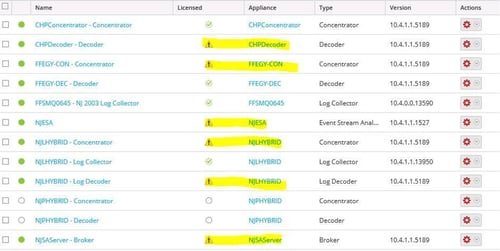
- Trying to select the problem service and choose Licenses -> Entitle Service returns an error like, "feature is not available for service with computer id xxx-xxx-xxx".
-
Trying to switch from a Trial license to Permanent license, and the Entitle Service is getting the same error like, "feature is not available for service with computer id xxx-xxx-xxx".
Cause
License expiration.License information lost from appliance due to buildstick.
Workaround
Should the problem still persist, it may be necessary to Reset all Licensing details in the Entitlements tab. Or if the problem is not occurring due to an expired license, and the above hasn’t worked.Follow the steps above to delAll the license(s) from the problem service(s), restart the problem service(s) to show as un-licensed in the Services screen.
In the SA GUI, System -> Licensing, Entitlements tab, click the Reset button,
Choose to backup the Entitlements configuration before reset.
Once you have the backup, click Reset button again, and chose to not backup the Entitlements configuration, Confirm the reset of all licenses.
Wait a minute for the reset to complete.
Then click the Refresh button.
Note all the Available Entitlements should be returned.
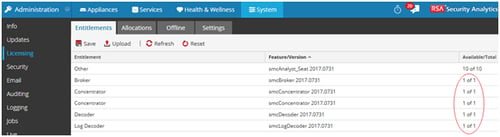
In the SA GUI, Administration -> Services, select the problem service, and choose Licenses -> Entitle Service.
Confirm the problem service now shows as Licensed in the Services screen.
Confirm in the System -> Licensing, Entitlements tab that the right number of available entitlements exist for all services.
However the reset may have caused the Entitlements tab to still show available entitlements for previously fine services, when it has already been allocated (see Allocations tab).
To fix this discrepancy, in the SA GUI, Administration -> Services, select each of the services with the extra entitlement display discrepancy, and choose Licenses -> Reset, Confirm.
Once they all become un-licensed, Restart each of these services.
Then back in the SA GUI, Administration -> Services, select each of the services that are now un-licensed, and choose Licenses -> Entitle Service.
Confirm in the System -> Licensing, Entitlements tab that the right number of available entitlements exist for all services.
Confirm in the System -> Licensing, Allocations tab that all services have the Permanent license, and it is Reserved By (yes) the SA Server.
Resolution
Check the License EntitlementsIn the SA GUI, Administration -> System
Licensing, Entitlements tab
Check for any available entitlements for the problem Service. Where “0 of n” means there is no free license entitlements left.
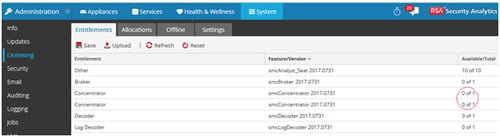
In the Licensing, Allocations tab
Check for the problem Service what sort of allocation appears for it.
In particular note the Type of license and if the license is Reserved By the SA Server.
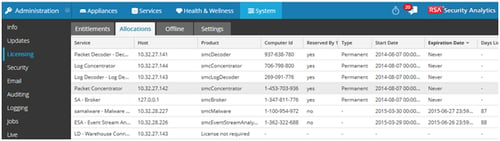
Check the License Information
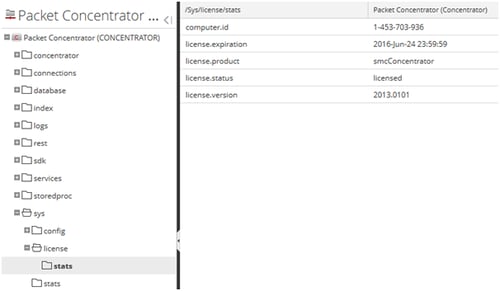
In the SA GUI, Administration -> Services, select a problem service and choose, View -> Explore
Open on the left, sys -> license -> stats
Check the license.expiration and the license.status values.
Additional License Information to check
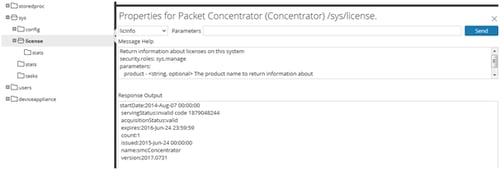
In the SA GUI, Administration -> Services, select a problem service and choose, View -> Explore
Open on the left, sys -> license
Right-click license and choose Properties
For the Properties for ... /sys/license, choose licInfo in the dropdown commands, and click Send
Check the expires: value.
If the problem Service has an expired license in either the license.expiration or the expires: fields, and license Entitlements shows an available entitlement, or the Allocations shows a Permanent license, then try delete the license from the appliance, and re-entitle with the below steps.
In the SA GUI, Administration -> Services, select the problem service and choose, View -> Explore
Open on the left, sys -> license
Right-click license and choose Properties
For the Properties for ... /sys/license, choose delAll in the dropdown commands, and click Send
Confirm ResponseOutput shows Success.
Note: You can try to delete the license via the SA GUI, Administration -> Services, select the problem service, and choose License -> Reset, but this won’t work with a Trial license, need to do the delAll.
Note: the delALL will delete all license details on the selected appliance, which is notable for AIO and Hybrid appliances. So all services requiring a license will need to be re-entitled.
Choose the dropdown command licInfo, and confirm there is now, “No license information found”.
- In the SA GUI, Administration -> Services, select the problem service, and choose Restart
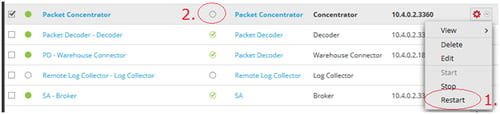
Re-select the problem service, and choose License -> Entitle Service.
Confirm the problem service now shows as Licensed in the Services screen.
Confirm in the System -> Licensing, Entitlements tab that the right number of available entitlements exist for the problem service.
Confirm in the System -> Licensing, Allocations tab that the problem service has the Permanent license, and it is Reserved By the SA Server.
Product Details
RSA Security Analytics 10.4.x
Summary
Yellow exclamation mark error in Licensed column of Services. Entitle Service returns an error like, feature is not available for service with computer id xxx-xxx-xxx.
Approval Reviewer Queue
ASOC Approval Group