.png?width=180&height=32&name=NW%20Logo%20(2).png)
Issue
The Feed and Parser metrics from the Network/Log Decoders are not available in the New Health & Wellness area. The metrics for Feeds and Parsers are disabled by default to keep the Health & Wellness system from hitting its default index field limit.
Resolution
This document is divided into several sections. Perform the following actions to enable the Feed and Parser metrics within the Network and Log Decoders using the New Health & Wellness system.- Retrieving the Core Service UUID
- Retrieving the Include/Exclude Metrics Criteria for a Network/Log Decoder
- Updating the Include/Exclude Metrics Criteria for a Network/Log Decoder
- Adjusting Index Field Limits in the Health & Wellness UI
Note: The following steps must be performed for each Network Decoder or Log Decoder where the Parser and Feed metrics are required.
Retrieving the Core Service UUID
This article requires the retrieval of a Network or Log Decoder's Service ID within the NetWitness system. The following steps will show how to retrieve the Service ID for use in this document.- Log into the NetWitness UI and go to
 (Admin Area) > Service and select a Network or Log Decoder.
 - Go to the Action icon for the service and click View > Explore.
- Expand the sys node, and select the stats node.
- In the left-hand panel look for UUID (uuid) and copy the id for later use. Ex UUID: 0089b3dd-715d-43ed-932b-e9e1777e3625
Retrieving the Include/Exclude Metrics Criteria for a Network/Log Decoder
- SSH into the Admin Server (generally the server containing the UI).
- Access the nw-shell program, by typing nw-shell at the prompt.
# nw-shell
- Connect to the metrics-server using connect --service metrics-server.
offline >> connect --service metrics-server
- Type login to log into the metrics-server and use the NetWitness administrator account credentials.
metrics-server:Folder:/rsa >> login
user: admin
password: ***********
admin@metrics-server:Folder:/rsa >>
user: admin
password: ***********
admin@metrics-server:Folder:/rsa >>
- Retrieve the current configuration for the Network Decoder or Log Decoder being adjusted and output it to a custom file on /root.
admin@metrics-server:Folder:/rsa >> cd /rsa/metrics/elastic/get-config
admin@metrics-server:Folder:/rsa/metrics/elastic/get-config >> invoke <Service-ID> outputFile /root/serviceConfig.json
admin@metrics-server:Folder:/rsa/metrics/elastic/get-config >> invoke <Service-ID> outputFile /root/serviceConfig.json
Note: To retrieve the
Service-ID used by this step, see
Retrieving the Core Service UUID section in this article.
Updating the Include/Exclude Metrics Criteria for a Network/Log Decoder
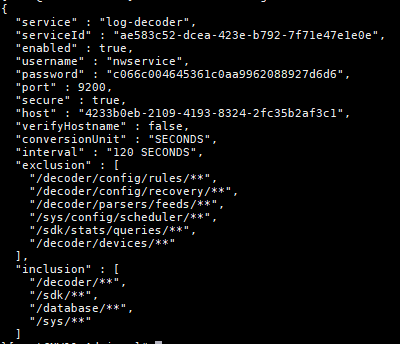
Before proceeding with this section the Metrics-Server configuration for a Network/Log Decoder needs to be saved to a JSON file. See Retrieving the Include/Exclude Metrics Criteria for a Network/Log Decoder in this article before continuing. This section of the article will focus on adjustments to the Inclusion and Exclusion sections from the JSON file that was created earlier.See the screenshot for an example of the output file that will be used.
- Create a backup of the output file. Since the original file will be edited manually, it is important to have a clean backup should the original configuration need to be reapplied.
- Edit the original output file in /root with vi.
# vi /root/serviceConfig.json
- Once editing the JSON file, to allow the New Health & Wellness to retrieve feed and parser statistics, remove the "/decoder/parsers/feeds/**" entry under the "exclusion" section. The ending coma for the line should also be removed.
Original Exclusion Section
"exclusion" : [
"/decoder/config/rules/**",
"/decoder/config/recovery/**",
"/decoder/parsers/feeds/**", <--- This is the line in question
"/sys/config/scheduler/**",
"/sdk/stats/queries/**",
"/decoder/devices/**"
],
Adjusted Exclusion Section
"exclusion" : [
"/decoder/config/rules/**",
"/decoder/config/recovery/**",
"/sys/config/scheduler/**",
"/sdk/stats/queries/**",
"/decoder/devices/**"
],Note: When working with Core Services Inclusion/Exclusion rules, such as Network/Log Decoders, it is important to remember that the exclusion rules take precedence over the inclusion rules. In the JSON file output under the Inclusion section, it can be seen that /decoder/* is included, yet /decoder/parsers/feeds* is excluded which causes the parser and feeds to not provide statistics to the New Health and Wellness. - Save serviceConfig.json file in vi with :wq!
- Access the nw-shell program, by typing nw-shell at the prompt.
# nw-shell
- Connect to the metrics-server using connect --service metrics-server.
offline >> connect --service metrics-server
- Type login to log into the metrics-server and use the NetWitness administrator account credentials.
metrics-server:Folder:/rsa >> login
user: admin
password: ***********
admin@metrics-server:Folder:/rsa >> - Set the configuration for the Network Decoder or Log Decoder to the new settings using the custom file in /root.
admin@metrics-server:Folder:/rsa >> cd /rsa/metrics/elastic/set-config
admin@metrics-server:Folder:/rsa/metrics/elastic/get-config >> invoke file /root/serviceConfig.json - The specific UUID referenced Network/Log Decoder is now updated to provide parser and feed statistics to the New Health & Wellness.
Adjusting Index Field Limits in the Health & Wellness UI
This section is designed to help adjust Indexing Field limits, via the nw-index-template, that can be reached after enabling additional statics on the Network/Log Decoders. The default index field limit in the New Health & Wellness is set to 20,000 fields. If there are errors in the /var/log/messages or elasticsearch.log, then the index field will need to be adjusted.See the following log error example:
Telemetry server responded with error code '400':
{"error":{"root_cause":[{"type":"illegal_argument_exception","reason":"Limit of total fields [20000] in index [nw-decoder]
has been exceeded"}],"type":"illegal_argument_exception","reason":"Limit of total fields [20000] in index [nw-decoder]
has been exceeded"},"status":400}
To update the nw-index-template, follow these steps:
{"error":{"root_cause":[{"type":"illegal_argument_exception","reason":"Limit of total fields [20000] in index [nw-decoder]
has been exceeded"}],"type":"illegal_argument_exception","reason":"Limit of total fields [20000] in index [nw-decoder]
has been exceeded"},"status":400}
- Log into the NetWitness UI.
- Click the
 (Admin Area) icon, then click Health and Wellness.
 - Click the New Health & Wellness tab and click on the Pivot to Dashboard button. This will open the new Deployment Health Overview
- Click on the
 Dev Tools icon, which opens the browser-based Dev Tools Console.
 - Clear all content in the left panel and type in GET _template/nw-index-template and click the
 small right arrow (Run) to retrieve the existing nw-index-template.
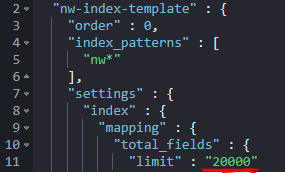
 - Check the existing index limit from the right-hand panel. See the screenshot for and example where it is set to 20000. Make an external copy of the complete template for later use.
- Click on
 Management, then click on Index-Patterns.
 - Click the nw* under the Index Pattern list.
- At the top of the page will be Fields (#####) where the ##### represents the number of fields currently being indexed.
- If the number from the Fields (####) is larger than the index limit retrieved in step 6, an index template adjustment will be required.
- Go to the
 Dev Tools area.
 - Update the index limit in the nw-index-template that was copied in step 6. For example, changing the limit from 20000 to 28000.
- Copy the template into the right-hand panel in the Dev Tools Console area.
- In the left-hand panel type the following, PUT _template/nw-index-template and click the
 small right arrow (Run) to update the nw-index-template on the system.
Warning: Ensure that the whole template is copied into the right panel and the limit is updated before running the PUT command. If the whole template is not used, it will break Health & Wellness.
Note: For more information concerning mapping limits within the new Health and Wellness, please see
Elastic Mapping (Non-RSA Site)
- Go to
 Management, then Index Patterns.
 - Click on the nw-decoder* pattern. Once it opens, click the
 Refresh icon and then the Refresh button.
 - Go back to Index Patterns, click nw-logdecoder*. Once open, click the
 Refresh icon and then the Refresh button.
Product Details
RSA Product Set: NetWitness PlatformRSA Product/Service Type: Health & Wellness/Metrics Server
RSA Version/Condition: 11.5
Platform: CentOS
O/S Version: 7
Approval Reviewer Queue
RSA NetWitness Suite Approval Queue