Files View
Files ViewFiles View
Note: The information in this topic applies to NetWitness Version 11.1 and later.
The Files view provides a holistic view of all files in your deployment. To access this view, go to Files. By default, the Files view displays 100 files. To display more files, click Load More at the bottom of the page.
You can either view files specific to an Endpoint server or view all files from multiple Endpoint servers by selecting the Endpoint Broker.
Workflow
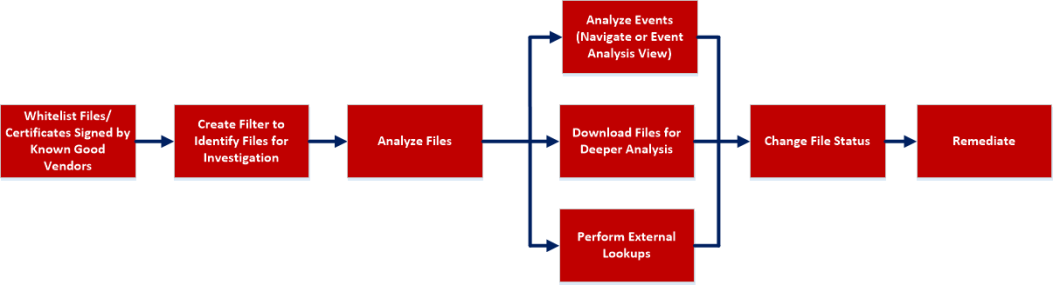
What do you want to do?
- User Role:
Threat Hunter
- I want to ...:
whitelist files and certificates signed by known good vendors*
- Show me how:
- User Role:
Threat Hunter
- I want to ...:
create filter to identify files for investigation*
- Show me how:
- User Role: Threat Hunter
- I want to ...: analyze files*
- Show me how:
- User Role:
Threat Hunter
- I want to ...:
analyze events*
- Show me how:
- User Role: Threat Hunter
- I want to ...: download files for deeper analysis*
- Show me how: Analyzing Downloaded Files
- User Role: Threat Hunter
- I want to ...: perform external lookups*
- Show me how: Launch an External Lookup for a File
- User Role: Threat Hunter
- I want to ...: change file status or remediate*
- Show me how: Changing File Status or Remediate
*You can perform this task in the current view
Related Topics
- Focusing on Endpoint Analysis
- Investigating Hosts
- Analyzing Downloaded Files
- Analyzing Events
- Analyze Certificates
- Manage Blocked File Hashes
- Changing File Status or Remediate
Quick Look
Below is an example of the Files view:
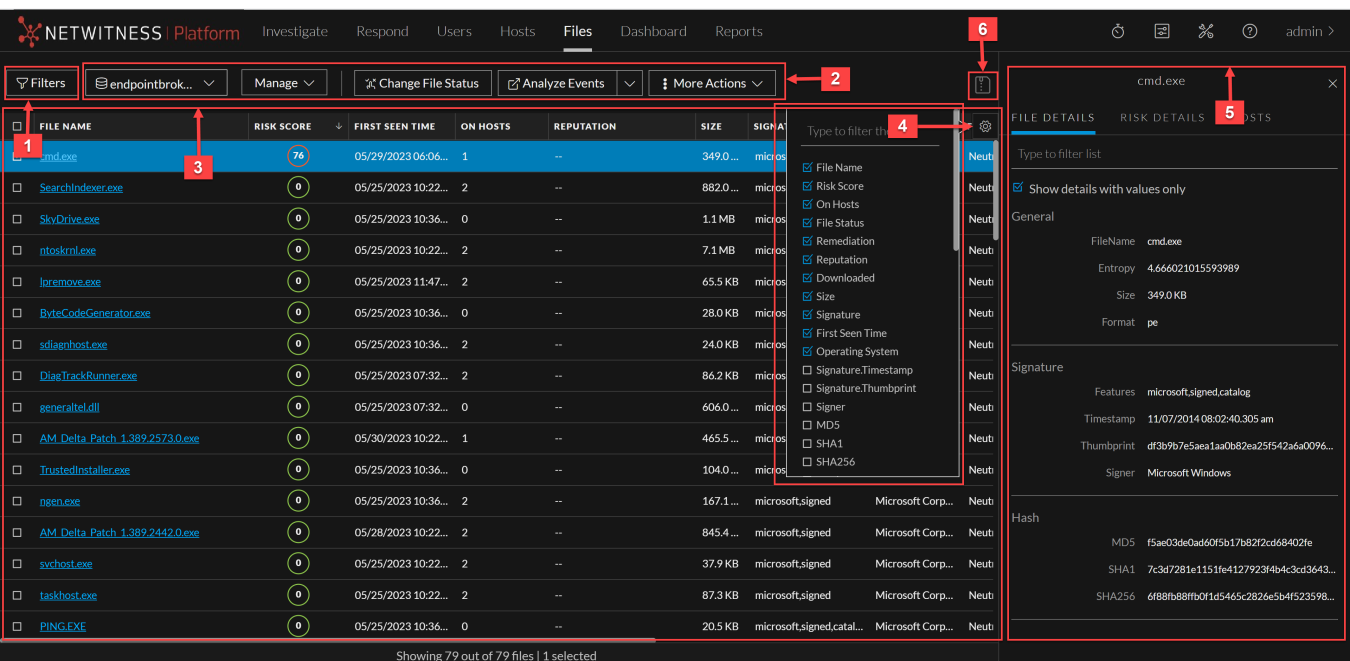
- Column 1: 1
- Column 2: Filter Files. You can filter the files by selecting the options in the Filters panel and create filters. For more information, see Filter Files.
- Column 1: 2
- Column 2: Actions in the toolbar:
Server drop-down list - You can select the Endpoint server or Endpoint Broker server to view the hosts.
Manage - You can select any of the following drop-down options in the Manage drop-down list.
-
Certificates - Allows you to view a list of code-signing certificates reported by hosts found in your deployment and their associated properties. For more information, see Analyze Certificates section in https://community.netwitness.com/s/article/InvestigateFiles.
-
Blocked File Hashes - Allows you to add or import new file hashes and manage the existing blocked file hashes.
Change File Status - Provides capabilities to manage suspect and legitimate files and block malicious or infected files to prevent future execution of the file on any host. For more information, see Changing File Status or Remediate.
Analyze Events - Lets you investigate a particular host, IP address, username, filename, or hash to get the entire context of the activity. For more information, see Analyzing Events.
More Actions - Provides options to:
- Perform external lookups.
- Download files to server, save a local copy, and analyze files for deeper analysis.
- Reset risk score.
Note: You can perform the above actions from the right-click context menu.
-
- Column 1: 3
- Column 2:
Sort Columns. Lets you sort on column titles.
- Column 1: 4
- Column 2: Settings Menu. You can set Files view preferences by selecting columns from the Settings menu. For more information, see Set Files Preference.
- Column 1: 5
- Column 2:
Show/Hide File Properties Panel. Click a row to show or hide the File Properties panel. It displays the following tabs:
File Details - Displays the file information.
Risk details - Displays the distinct alerts associated with the risk score.
Hosts - Displays the top 100 hosts based on the risk score on which the file is present. For more information, see Analyze Hosts with File Activity.
- Column 1: 6
- Column 2: Export to CSV - Extracts global files to a CSV file. For more information, see Export Global Files.
File Details View
To access this view, go to Files, and select a file. Below is an example of the File Details view:
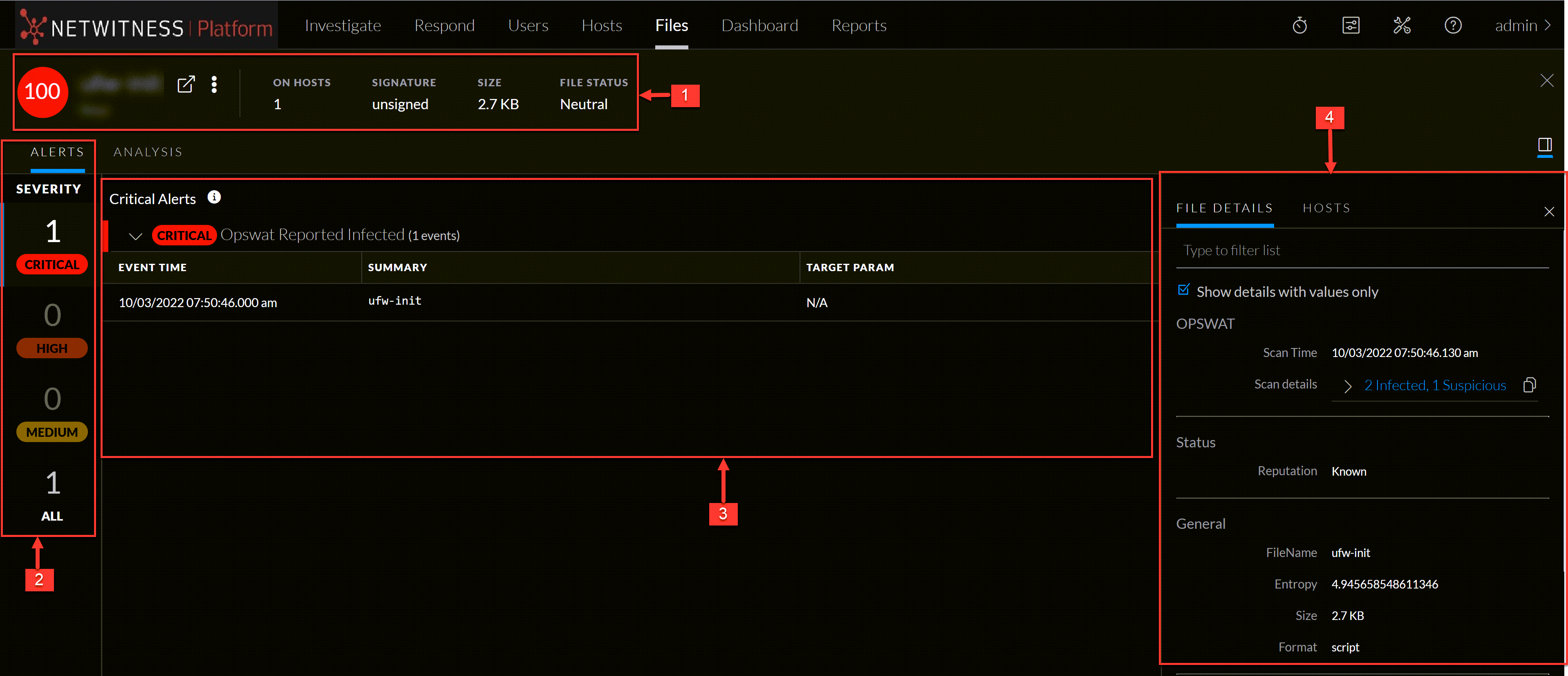
- Column 1: 1
- Column 2:
Agent and Scan Details. You can view the following agent and scan details of the selected host:
Host name - Name of the host. For example, WIN-ABC.
Risk score - Risk score of the host.
Operating System - Operating system on which the agent is running (Linux, Windows, or Mac).
Analyze Events - Lets you investigate a particular host, IP address, username, filename, or hash to get the entire context of the activity. For more information, see Analyzing Events.
More - Provides options to perform external lookups.
On Hosts - Indicates the number of hosts on which a file exist.
Signature - Provides signatory information.
Size - Size of the file.
File Status - Status of the file. For example, Neutral.
- Column 1: 2
- Column 2:
Alerts Severity tab - Displays list of distinct alerts, such as Critical, High, Medium and All, along with the total number of events associated with the alert.
Analysis tab - Provides detailed information about a downloaded file. For more information, see Analyzing Downloaded Files.
- Column 1: 3
- Column 2: Displays events for an alert and metadata associated with a specific event.
- Column 1: 4
- Column 2:
Show/Hide File Properties Panel. Click a row to show or hide the File Properties panel. It displays the following tabs:
File Details - Displays the file information.
Hosts - Displays the hosts on which file activities are present. For more information, see Analyze Hosts with File Activity.