Skip to content
  • There are no suggestions because the search field is empty.

Hosts View - Anomalies Tab

Hosts View - Anomalies TabHosts View - Anomalies Tab

Note: The information in this topic applies to NetWitness Version 11.3 and later.

The Anomalies panel provides a list of image hooks, suspicious threads, kernel hooks, and registry discrepancies running on the host. To access this tab, select a host from the Hosts view and click the Anomalies tab.

Workflow
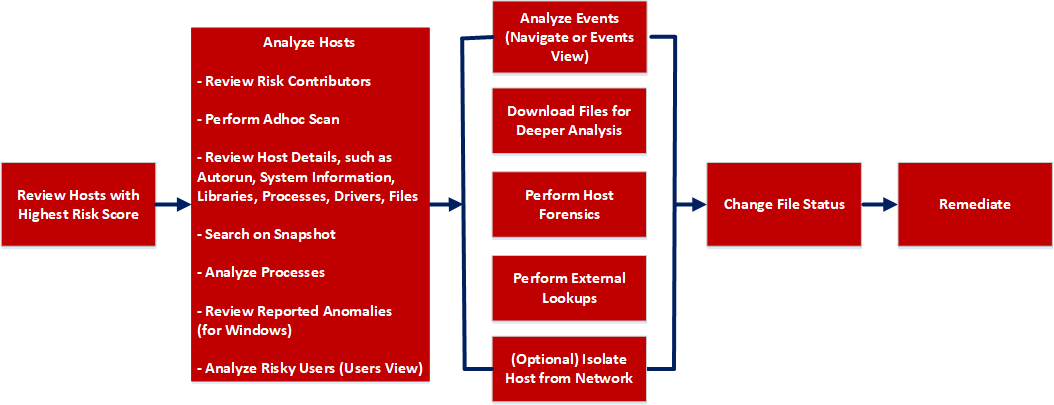
netwitness_workflowhosts.png

What do you want to do?


  • User Role: Threat Hunter
  • I want to ...: perform adhoc scan*
  • Show me how:

    Scan Hosts


  • User Role: Threat Hunter
  • I want to ...: review reported anomalies*
  • Show me how:

    Analyze Anomalies


  • User Role:

    Threat Hunter

  • I want to ...:

    analyze events*

  • Show me how:

    Analyzing Events


*You can perform this task in the current view.

Related Topics

Quick Look

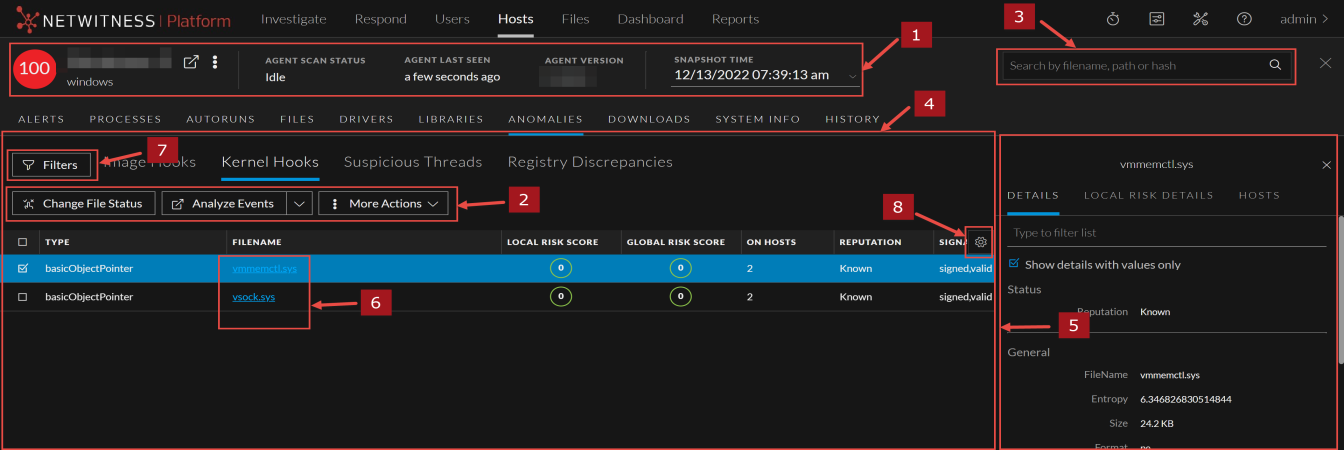
Below is an example of the Anomalies tab:
anomalies_hosts_view_1344x450.png

  • Column 1: 1
  • Column 2:

    Agent and Scan Details. You can view the following agent and scan details of the selected host:

    Host name - Name of the host. For example, WIN-ABC.

    Risk score - Risk score of the host.

    Operating System - Operating system on which the agent is running (Linux, Windows, or Mac).

    Agent Scan Status - Current status of the scan - Idle, Scanning, Starting Scan, or Stopping Scan. For more information, see Scan Hosts.

    Agent Last Seen - Time when the agent last communicated with the Endpoint server.

    Agent Version - Version of the agent. For example, 11.3.0.0.

    More - Provides options to:

    Snapshot Time - Lists scanned time stamps. To view the scan history, you can select the snapshot time from the drop-down menu.


  • Column 1: 2
  • Column 2:

    Actions in the toolbar:

    Change File Status - Provides capabilities to manage suspect and legitimate files and block malicious or infected file to prevent future execution of the file on any host. For more information, see Changing File Status or Remediate.

    Analyze Events - Lets you investigate a particular host, IP address, username, filename, or hash to get the entire context of the activity. For more information, see Analyzing Events.

    More - Provides options to:

    • Perform external lookups.
    • Download process dump to server.
    • Download files to server, save a local copy, and analyze files for deeper analysis.

    Note: You can perform some of the above actions from the right-click context menu.


  • Column 1: 3
  • Column 2: Search on Snapshots. Lets you search on all snapshots (file name, file path, and SHA-256 checksum). For more information, see Search Files on Host.


  • Column 1: 5
  • Column 2: Show/Hide Right Panel - Displays the following properties in the right panel:
    • File Details - Displays all properties of the selected process. It is grouped as follows:

      General - General information about the file, such as file name, entropy, size, and format.

      Signature - Provides signatory information.

      Hash - Hash type of the file (MD5, SHA1, and SHA256).

      Time - Time when the file was created, modified, or accessed.

      Location - Location of the file.

      Image Hooks/Kernel Hooks/Suspicious Threads/Registry Discrepancies - Details related to image hooks, kernel hooks, suspicious threads, or registry discrepancies.

    • Local Risk Details - Displays the alerts associated with the local risk score, such as Critical, High, Medium and All.
    • Hosts - Displays the top 100 hosts based on the risk score on which the file is present.

  • Column 1: 6
  • Column 2: Clicking a filename lets you navigate to the Files view for further analysis.

  • Column 1: 7
  • Column 2: Filter Files. You can filter files by selecting the options in the Filters panel and create filters. For more information, see Filter Host Details.

  • Column 1: 8
  • Column 2: Settings Menu. You can set Hosts view preferences by selecting columns from the Settings menu. For more information, see Set Hosts Preference.

Image HooksImage Hooks

Image hooks found in executable image are displayed in the following columns.

  • Columns: Type
  • Description:

    Type of the hook . Possible values are - inline, iat, eat, or exception Handler.


  • Columns: Local Risk Score
  • Description: Risk score of suspicious or malicious activities performed by the file on a specific host.

  • Columns: Global Risk Score
  • Description: Aggregated score of all suspicious and malicious activities performed by the file across all hosts.

  • Columns: Reputation
  • Description: Reputation of a file hash. The statuses are - Malicious, Suspicious, Unknown, Known, Known Good, and Invalid.

  • Columns: Signature
  • Description: Provides signatory information.

  • Columns: Downloaded
  • Description: Indicates the status of the downloaded file - Downloaded, Not Downloaded, and Error.

  • Columns: Hooked Process
  • Description: Process in which hooks are placed.

  • Columns: Hooked Filename
  • Description: Name of the file that was modified by the hook.

  • Columns: Hooked Symbol
  • Description: Symbol in which the hook is performed.

Kernel HooksKernel Hooks

Hooks found on kernel objects are displayed in the following columns.

  • Category: Type
  • Description: Type of kernel object which was modified. Possible values are: objectInitializer,basicObjectPointer, majorFunction, invalidObject, fastIO, notifyRoutine, attachedDevice, device, miniPort, sdt, sysEnter, or type.idt.

  • Category: Driver name
  • Description: Name of the driver which placed the hooks.

  • Category: Local Risk Score
  • Description: Risk score of suspicious or malicious activities performed by the file on a specific host.

  • Category: Global Risk Score
  • Description: Aggregated score of all suspicious and malicious activities performed by the file across all hosts.

  • Category: Reputation
  • Description: Reputation of a file hash. The statuses are - Malicious, Suspicious, Unknown, Known, Known Good, and Invalid.

  • Category: Signature
  • Description: Provides signatory information.

  • Category: Downloaded
  • Description: Indicates the status of the downloaded file - Downloaded, Not Downloaded, and Error.

  • Category: Object Function
  • Description: Name of the object function hooked into.

  • Category: Hooked File Name
  • Description: Name of the file that was modified by the hook.

Suspicious ThreadsSuspicious Threads

Threads whose service table was hooked are displayed in the following columns.

  • Category: Start Address
  • Description: Start Address - Start address of the thread.

  • Category: DLL Name
  • Description: Name of the DLL.

  • Category: Local Risk Score
  • Description: Risk score of suspicious or malicious activities performed by the file on a specific host.

  • Category: Global Risk Score
  • Description: Aggregated score of all suspicious and malicious activities performed by the file across all hosts.

  • Category: Reputation
  • Description: Reputation of a file hash. The statuses are - Malicious, Suspicious, Unknown, Known, Known Good, and Invalid.

  • Category: Process
  • Description: File name and PID of the process in which thread is running.

  • Category: Downloaded
  • Description: Indicates the status of the downloaded file - Downloaded, Not Downloaded, and Error.

  • Category: Signature
  • Description: Provides signatory information.

  • Category: Thread ID
  • Description: ID of the running thread.

  • Category: Thread Environment Block
  • Description: Address of the thread environment block.

Registry DiscrepanciesRegistry Discrepancies

Configuration settings and options on Microsoft Windows operating systems that are stored are displayed in the following columns.

  • Category: Hive
  • Description: Name of the registry hive when possible, otherwise it displays the hive ID. Possible values are: hkeyClassesRoot, hkeyCurrentUser, hkeyLocalMachine, hkeyUsers, or hkeyPerformanceData.

  • Category: Reason
  • Description: Type of registry discrepancy. Possible values are: notFound, embeddedNull, accessDenied, parentIsHidden, or dataMismatch.

  • Category: Registry Path
  • Description: Registry path that is affected. The value is separated by a @ character.

  • Category: Raw Type
  • Description: Value type found in the low-level parsing.

  • Category: Raw Data
  • Description:

    Value data extracted from the low-level parsing.


  • Category: API Type
  • Description: Value type from the Win32 registry API.

  • Category: API Data
  • Description: Value data from the Win32 registry API.