Skip to content
  • There are no suggestions because the search field is empty.

Hosts View - Downloads Tab

Hosts View - Downloads TabHosts View - Downloads Tab

Note: The information in this topic applies to NetWitness Version 11.4 and later.

The Downloads tab provides information about all downloads (MFT, files, system dump, and process dump) performed on the host. To access this tab, select a host from the Hosts view and click the Downloads tab.

Workflow
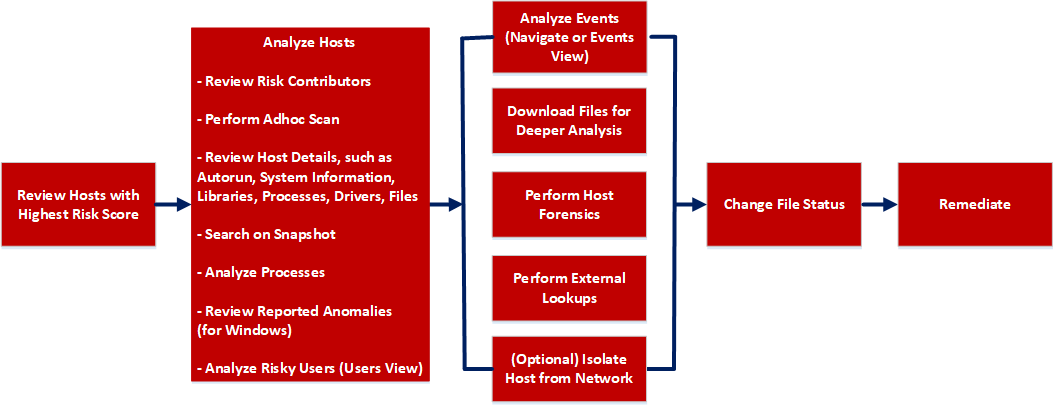
netwitness_workflowhosts.png

What do you want to do?


  • User Role: Threat Hunter
  • I want to ...: perform adhoc scan
  • Show me how:

    Scan Hosts


  • User Role: Threat Hunter
  • I want to ...: review reported anomalies
  • Show me how:

    Analyze Anomalies


  • User Role:

    Threat Hunter

  • I want to ...:

    analyze events

  • Show me how:

    Analyzing Events


  • User Role: Threat Hunter
  • I want to ...: download MFT, download files, system dump, or process dump*
  • Show me how: Performing Host Forensics

*You can perform this task in the current view.

Related Topics

Quick Look

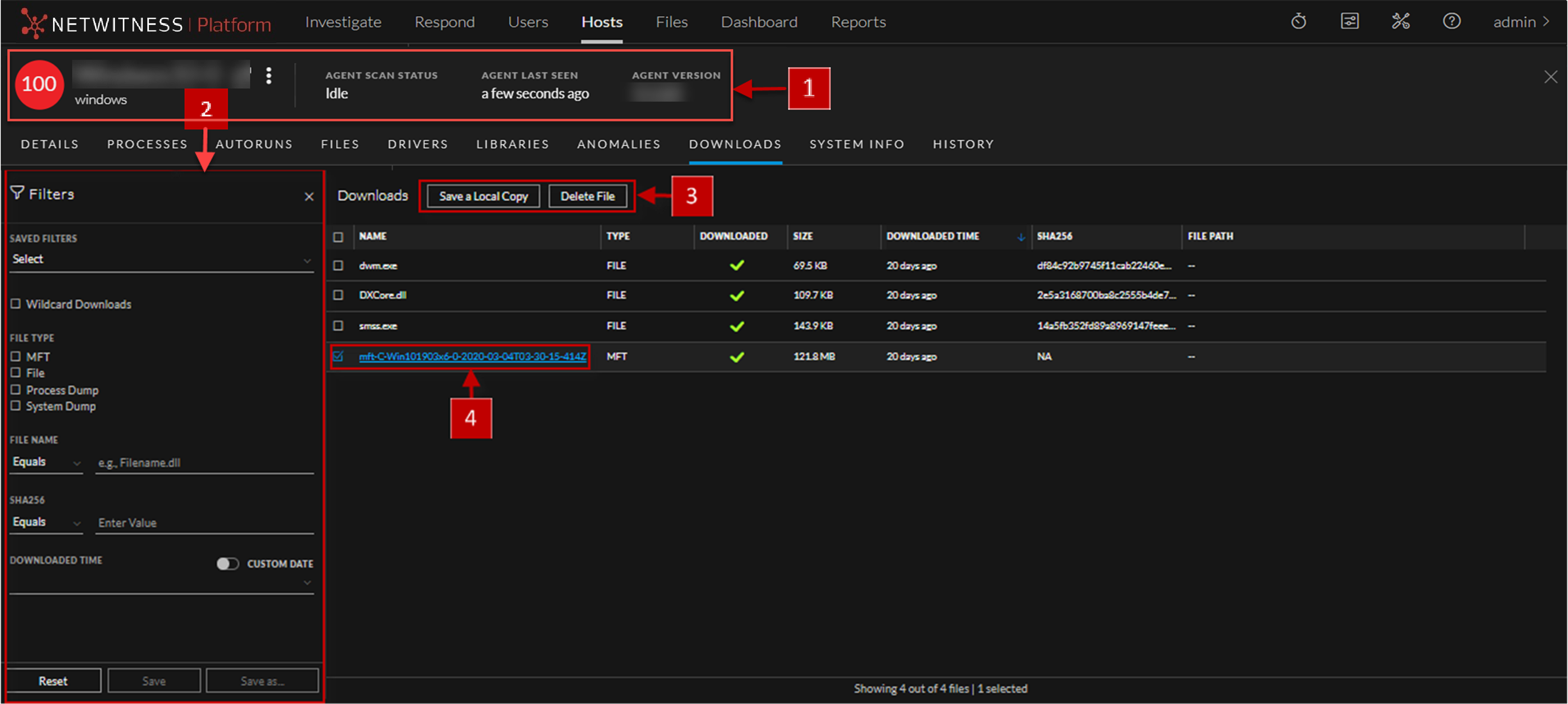
Below is an example of the Downloads tab:
downloadtab_ref.png

  • Column 1: 1
  • Column 2:

    Agent and Scan Details. You can view the following agent and scan details of the selected host:

    Host name - Name of the host. For example, WIN-ABC.

    Risk score - Risk score of the host.

    Operating System - Operating system on which the agent is running (Linux, Windows, or Mac).

    Agent Scan Status - Current status of the scan - Idle, Scanning, Starting Scan, or Stopping Scan. For more information, see Scan Hosts.

    Agent Last Seen - Time when the agent last communicated with the Endpoint server.

    Agent Version - Version of the agent. For example, 11.3.0.0.

    More - Provides options to:


  • Column 1: 2
  • Column 2: Filter Files. You can filter downloaded files by selecting the options in the Filters panel and create filters. For more information, see Performing Host Forensics.

  • Column 1: 3
  • Column 2:

    Actions in the toolbar:
    Save a Local Copy - Lets you retrieve the downloaded MFT and save it to your local file system for further analysis.

    Delete File - Deletes the downloaded MFT from the server.

    For more information, see Performing Host Forensics.


  • Column 1: 4
  • Column 2: View MFT Details. Click the filename to view the MFT details. For more information, see MFT Viewer.

The table displays the following information:

  • Column: File Name
  • Description: Name of the file that is downloaded. For example, VGAuthService.exe.

  • Column: Type
  • Description: Type of file downloaded - MFT, file, memory dump.

  • Column: Downloaded
  • Description:

    Status of the download:

    netwitness_dwnlsuccess.png - Download successful

    netwitness_dwnlprocessing.png - Processing the downloaded file

    netwitness_dwnlerror.png - Errors including download failed

    netwitness_wildcardfail_23x22.png - Errors downloading one or more files in the group.


  • Column: Size
  • Description: Size of the downloaded file.

  • Column: Downloaded Time
  • Description: Time when the MFT was downloaded.

  • Column: SHA256
  • Description:

    SHA256 of the file.

    Note: This is applicable only for files.


MFT ViewerMFT Viewer

You can analyze the downloaded MFT using the MFT Viewer. For more information, see Analyze Downloaded MFT.

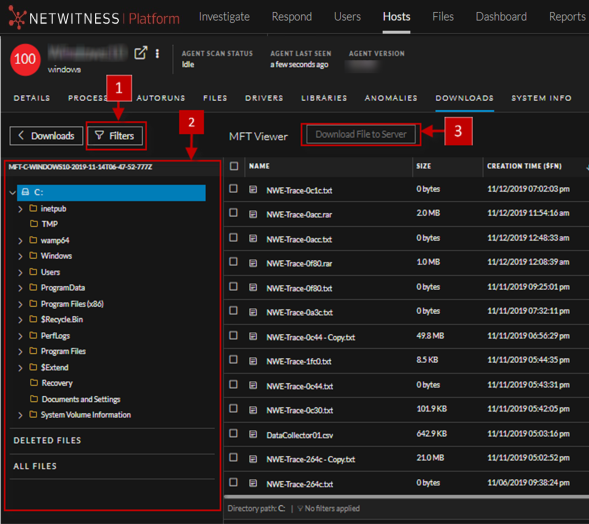
Below is an example of the MFT Viewer:
treeview_ref_589x524.png

  • Column 1: 1
  • Column 2: Filter Files. You can filter files by selecting the options in the Filters panel and create filters. For more information, see Filter MFT.

  • Column 1: 2
  • Column 2:

    Folder Details. Lets you view the content of the MFT.


  • Column 1: 3
  • Column 2: Download File to Server. Downloads files to the server.

The table displays the following information:

  • Column: Name
  • Description: Name of the file. For example, dtf.exe.

  • Column: Size
  • Description: Size of the file.

  • Column: Creation Time ($FN)
  • Description: File Name ($FN) creation time.

  • Column: Creation Time ($SI)
  • Description: Standard Information ($SI) creation time.

  • Column:

    Modification time ($FN)

  • Description: $FN modified time.

  • Column: Modification time ($SI)
  • Description: $SI modified time.

  • Column:

    Access time ($FN)

  • Description: $FN access time.

  • Column: Access time ($SI)
  • Description: $SI access time.

  • Column:

    Update time ($FN)

  • Description: $FN updated time.

  • Column: Update time ($SI)
  • Description: $SI updated time.

  • Column: Full Path
  • Description:

    Path of the file.


  • Column: Allocated Size
  • Description: File size on the disk.

  • Column:

    Archive

  • Description:

    Indicates if a file is archived.


  • Column: Compressed
  • Description: Indicates if a file is compressed.

  • Column:

    Encrypted

  • Description:

    Indicates if a file is encrypted.


  • Column: Hidden
  • Description: Indicates if a file is hidden.

  • Column:

    Directory

  • Description:

    Indicates if it is a directory.


  • Column: Extension
  • Description: Type of the file. For example, exe, pdf, txt.