Hosts View - Files Tab
Hosts View - Files TabHosts View - Files Tab
Note: The information in this topic applies to NetWitness Version 11.1 and later.
The Files tab displays all files on the host including the files deleted within last 30 days. To access this tab, select a host from the Hosts view and click the Files tab. By default, it displays 100 files. To display more files, click Load More at the bottom of the page.
Workflow
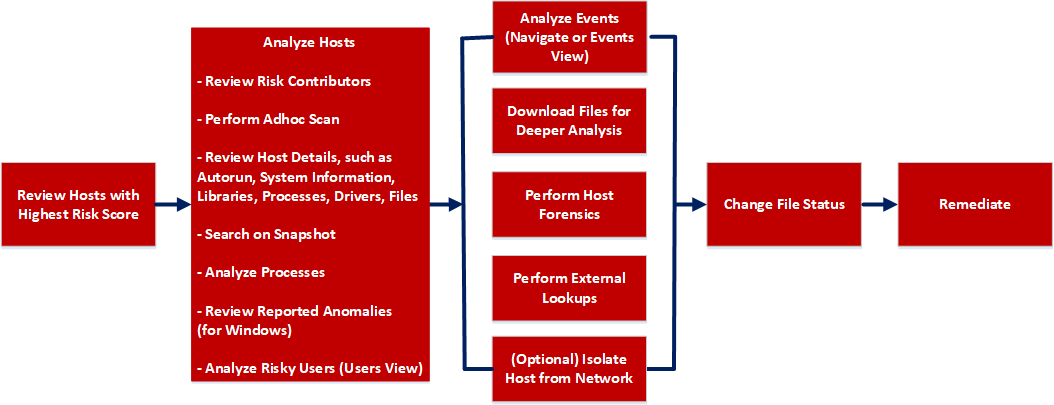
What do you want to do?
- User Role: Threat Hunter
- I want to ...: review hosts with highest risk score*
- Show me how:
- User Role: Threat Hunter
- I want to ...: analyze hosts*
- Show me how: Investigating Hosts
- User Role: Threat Hunter
- I want to ...: perform adhoc scan*
- Show me how:
- User Role: Threat Hunter
- I want to ...: review host details
- Show me how:
- User Role: Threat Hunter
- I want to ...: search files on host*
- Show me how: Search Files on Host
- User Role: Threat Hunter
- I want to ...: analyze processes
- Show me how:
- User Role: Threat Hunter
- I want to ...: review reported anomalies
- Show me how:
- User Role: Threat Hunter
- I want to ...: analyze risky users
- Show me how: Analyzing Risky Users
- User Role:
Threat Hunter
- I want to ...:
analyze events*
- Show me how:
- User Role: Threat Hunter
- I want to ...: download files for deeper analysis*
- Show me how: Analyzing Downloaded Files
- User Role: Threat Hunter
- I want to ...: perform external lookups*
- Show me how: Launch an External Lookup for a File
- User Role: Threat Hunter
- I want to ...: change file status or remediate*
- Show me how: Changing File Status or Remediate
- User Role:
Threat Hunter
- I want to ...:
filter files*
- Show me how:
- User Role: Threat Hunter
- I want to ...: isolate host from network*
- Show me how: Isolating Hosts from Network
- User Role: Threat Hunter
- I want to ...: download MFT*, system dump, or process dump*
- Show me how: Performing Host Forensics
*You can perform this task in the current view.
Related Topics
- Focusing on Endpoint Analysis
- Investigating Hosts
- Analyzing Downloaded Files
- Changing File Status or Remediate
- Analyzing Events
- Performing Host Forensics
- Isolating Hosts from Network
Quick Look
Below is an example of the Files tab:
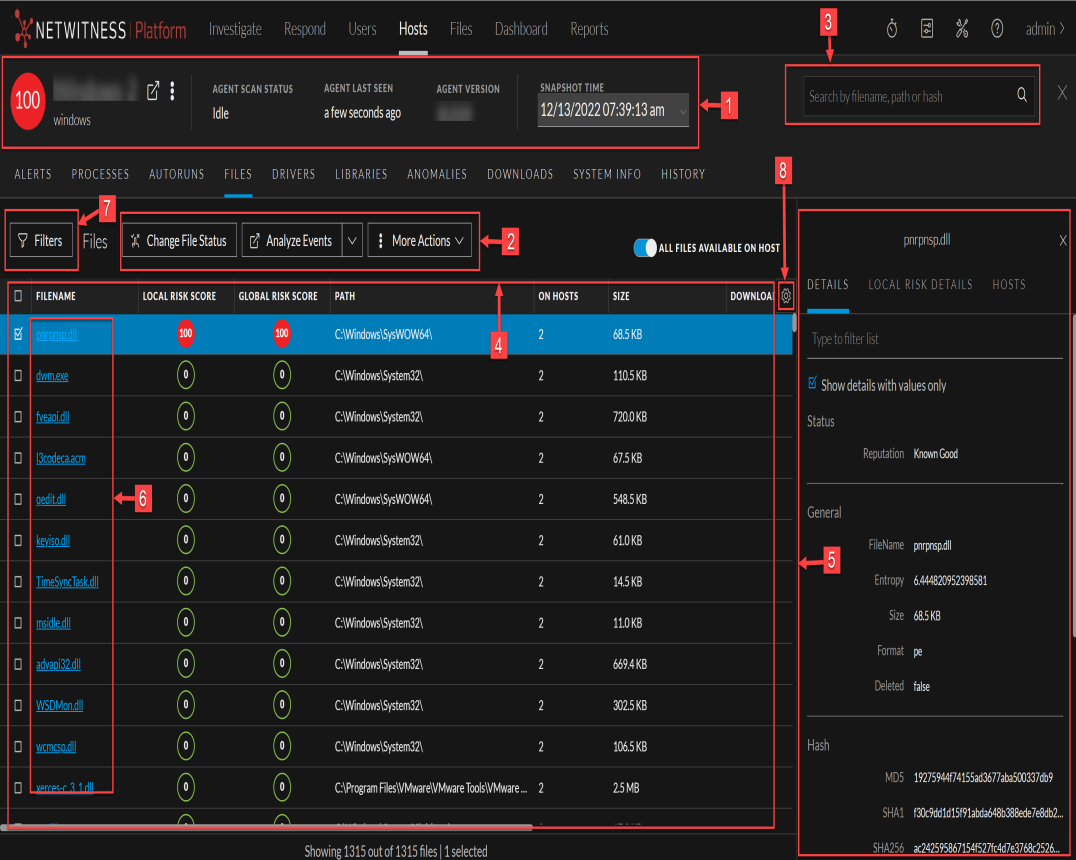
- Column 1: 1
- Column 2:
Agent and Scan Details. You can view the following agent and scan details of the selected host:
Host name - Name of the host. For example, WIN-ABC.
Risk score - Risk score of the host.
Operating System - Operating system on which the agent is running (Linux, Windows, or Mac).
Agent Scan Status - Current status of the scan - Idle, Scanning, Starting Scan, or Stopping Scan. For more information, see Scan Hosts.
Agent Last Seen - Time when the agent last communicated with the Endpoint server.
Agent Version - Version of the agent. For example, 11.3.0.0.
More - Provides options to:
- Start a scan for the selected hosts. For more information, see Scan Hosts.
- Extracts host attributes and endpoint data to a JSON file of the selected snapshot. For more information, see Export Host Attributes.
- Isolation host from the network. For more information, see Isolating Hosts from Network.
- Download MFT to the server. For more information, see Performing Host Forensics.
- Download System Dump to the server. For more information, see System and Process Memory Dump.
-
Perform remediation actions using the Remote Shell option. For more information, see Performing Host Forensics.
Snapshot Time - Lists scanned time stamps. To view the scan history, you can select the snapshot time from the drop-down menu.
- Column 1: 2
- Column 2:
Actions in the toolbar:
Change File Status - Provides capabilities to manage suspect and legitimate files and block malicious or infected file to prevent future execution of the file on any host. For more information, see Changing File Status or Remediate.
Analyze Events - Lets you investigate a particular host, IP address, username, filename, or hash to get the entire context of the activity. For more information, see Analyzing Events.
More Actions - Provides options to:
- Perform external lookups.
- Download files to server, save a local copy, and analyze files for deeper analysis.
Note: You can perform some of the above actions from the right-click context menu.
- Column 1: 3
- Column 2: Search files on host. Lets you search the files on the host (file name, file path, and SHA-256 checksum). For more information, see Search Files on Host.
- Column 1: 4
- Column 2: All Files Available on Host - Lists all files (reported as part of scan and tracking) on the host. By default, All Files Available on Host toggle is enabled for Windows and Mac.
- Column 1: 5
- Column 2: Details Panel - Displays information, such as filename, local risk score, global risk score, on hosts, reputation status, file status, package details and others.
- Column 1: 6
- Column 2: Show/Hide Right Panel - Displays the following properties in the right panel:
-
File Details - Displays all properties of the selected process. It is grouped as follows:
General - General information about the file, such as file name, entropy, size, and format.
Signature - Provides signatory information.
Hash - Hash type of the file (MD5, SHA1, and SHA256).
Time - Time when the file was created, modified, or accessed.
Location - Location of the file.
- Local Risk Details - Displays the alerts associated with the local risk score, such as Critical, High, Medium and All.
- Hosts - Displays the top 100 hosts based on the risk score on which the file is present.
-
- Column 1: 7
- Column 2: Clicking a filename lets you navigate to the Files view for further analysis.
- Column 1: 8
- Column 2:
Filter Files. You can filter files by selecting the options in the Filters panel and create filters.
Note: In the Deleted column, a trash icon appears next to the deleted file. The Deleted column is not displayed if you disable All Files Available On Host.
For more information, see Filter Host Details.
- Column 1: 9
- Column 2: Settings Menu. You can set Hosts view preferences by selecting columns from the Settings menu. For more information, see Set Hosts Preference.