.png?width=180&height=32&name=NW%20Logo%20(2).png)
Hosts View - System Information TabHosts View - System Information Tab
Note: The information in this topic applies to NetWitness Version 11.1 and later.
The System Information tab lists the agent system information. To access this tab, select a host from the Hosts view and click the System Information tab.
Workflow
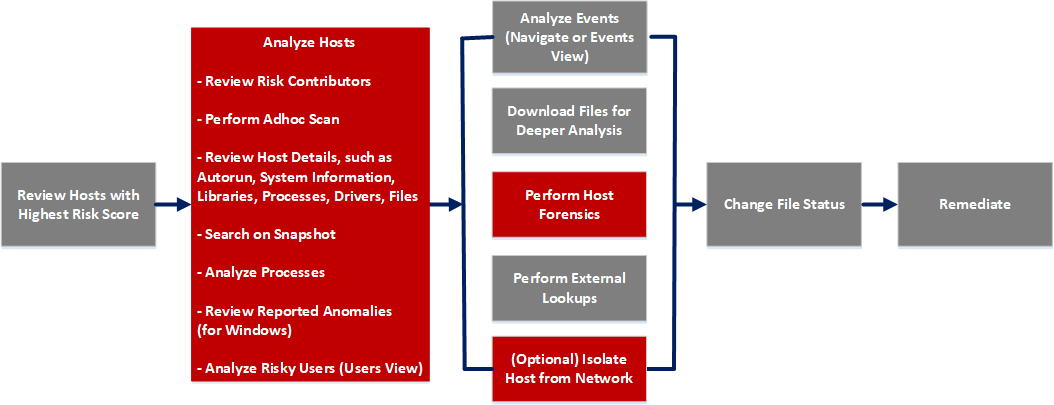
What do you want to do?
- User Role: Threat Hunter
- I want to ...: review hosts with highest risk score
- Show me how:
- User Role: Threat Hunter
- I want to ...: analyze hosts*
- Show me how: Investigating Hosts
- User Role: Threat Hunter
- I want to ...: perform adhoc scan*
- Show me how:
- User Role: Threat Hunter
- I want to ...: review host details
- Show me how:
- User Role: Threat Hunter
- I want to ...: search on snapshot*
- Show me how:
- User Role: Threat Hunter
- I want to ...: analyze processes
- Show me how:
- User Role: Threat Hunter
- I want to ...: review reported anomalies
- Show me how:
- User Role: Threat Hunter
- I want to ...: analyze risky users
- Show me how: Analyzing Risky Users
- User Role:
Threat Hunter
- I want to ...:
analyze events
- Show me how:
- User Role: Threat Hunter
- I want to ...: download files for deeper analysis
- Show me how: Analyzing Downloaded Files
- User Role: Threat Hunter
- I want to ...: perform external lookups
- Show me how: Launch an External Lookup for a File
- User Role: Threat Hunter
- I want to ...: change file status or remediate
- Show me how: Changing File Status or Remediate
- User Role: Threat Hunter
- I want to ...: isolate host from network*
- Show me how: Isolating Hosts from Network
- User Role: Threat Hunter
- I want to ...: download MFT, system dump, or process dump*
- Show me how: Performing Host Forensics
*You can perform this task in the current view.
Related Topics
Quick Look
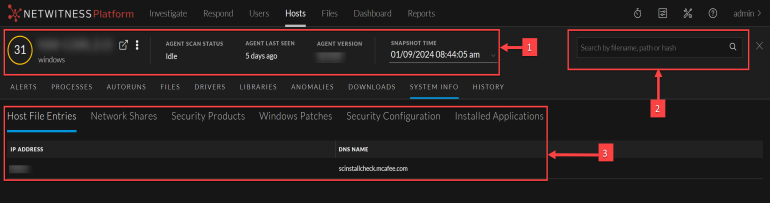
Below is an example of the System Information tab:
- Column 1: 1
- Column 2:
Agent and Scan Details. You can view the following agent and scan details of the selected host:
Host name - Name of the host. For example, WIN-ABC.
Risk score - Risk score of the host.
Operating System - Operating system on which the agent is running (Linux, Windows, or Mac).
Agent Scan Status - Current status of the scan - Idle, Scanning, Starting Scan, or Stopping Scan. For more information, see Scan Hosts.
Agent Last Seen - Time when the agent last communicated with the Endpoint server.
Agent Version - Version of the agent. For example, 11.3.0.0.
More - Provides options to:
- Start a scan for the selected hosts. For more information, see Scan Hosts.
- Extracts host attributes and endpoint data to a JSON file of the selected snapshot. For more information, see Export Host Attributes.
- Isolation host from the network. For more information, see Isolating Hosts from Network.
- Download MFT to the server. For more information, see Performing Host Forensics.
- Download System Dump to the server. For more information, see System and Process Memory Dump.
-
Perform remediation actions using the Remote Shell option. For more information, see Performing Host Forensics.
Snapshot Time - Lists scanned time stamps. To view the scan history, you can select the snapshot time from the drop-down menu.
- Column 1: 2
- Column 2: Search on Snapshots. Lets you search on all snapshots (file name, file path, and SHA-256 checksum). For more information, see Search Files on Host.
- Column 1: 3
- Column 2:
System Information Panel - See System Information Panel.
System Information PanelSystem Information Panel
The System Information panel displays the following tabs:
- Tabs: Host File Entries
- Description: All network redirections written in the host file. For example, IP Address - 10.10.10.3 and DNS Name - localhost,localhost.localdomain,localhost4,localhost4.localdomain4
- Tabs: Network Shares
- Description: Network name of the shared resource (for Windows only). For example, Name - Admin$, Description - Remote Admin, Path - C:\, Permissions - None, Type - disk, special, Max Users - 4294967295, Current Users - 0.
- Tabs: Security Products
- Description: Installed security products (for Windows only). For example, Display Name - Windows Defender, Instance - D68DDC3A-831F-4FAE-9E44-DA132C1ACF46, Features - Enabled, Type - antiVirus.
- Tabs: Windows Patches
- Description: List of patches applied by Windows update (for Windows only). For example, KB2959936.
- Tabs: Security Configuration
- Description: Security configuration details on the host. For example, firewall disabled or enabled, smart screen filter disabled or enabled. This field is only applicable for Windows and Mac.
- Tabs: Installed Applications
- Description: Displays the information about the various applications installed on a Windows machine.