Hosts View - YARA Rules Tab | NetWitness
Hosts View - YARA Rules Tab
Note: The information in this topic applies to NetWitness Version 12.0 and later.
The YARA Rules tab lists the various YARA rules used for the scan and their status. To access this tab, select a host from the Hosts view and click the YARA Rules tab.
Workflow
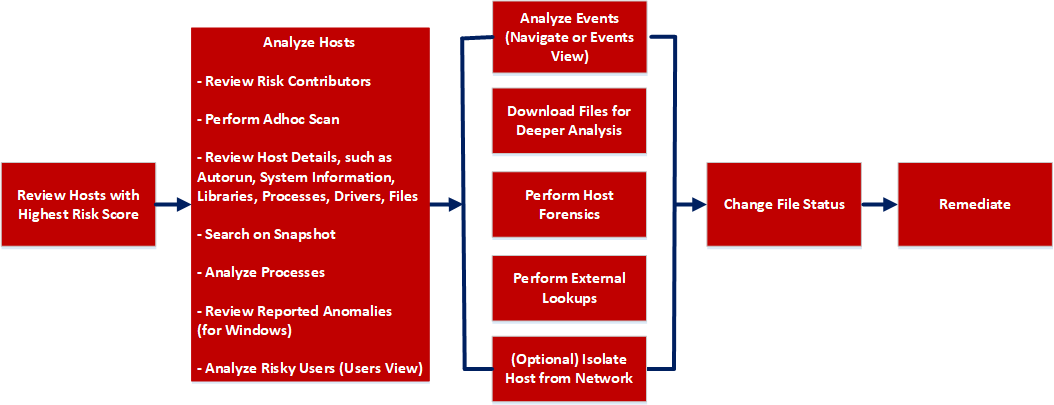
What do you want to do?
- User Role: Threat Hunter
- I want to ...: review hosts with highest risk score
- Show me how:
- User Role: Threat Hunter
- I want to ...: analyze hosts*
- Show me how: Investigating Hosts
- User Role: Threat Hunter
- I want to ...: perform adhoc scan*
- Show me how:
- User Role: Threat Hunter
- I want to ...: review host details
- Show me how:
- User Role: Threat Hunter
- I want to ...: search on snapshot*
- Show me how:
- User Role: Threat Hunter
- I want to ...: analyze processes
- Show me how:
- User Role: Threat Hunter
- I want to ...: review reported anomalies
- Show me how:
- User Role: Threat Hunter
- I want to ...: analyze risky users
- Show me how: Analyzing Risky Users
- User Role:
Threat Hunter
- I want to ...:
analyze events
- Show me how:
- User Role: Threat Hunter
- I want to ...: download files for deeper analysis
- Show me how: Analyzing Downloaded Files
- User Role: Threat Hunter
- I want to ...: perform external lookups
- Show me how: Launch an External Lookup for a File
- User Role: Threat Hunter
- I want to ...: change file status or remediate
- Show me how: Changing File Status or Remediate
- User Role: Threat Hunter
- I want to ...: isolate host from network*
- Show me how: Isolating Hosts from Network
- User Role: Threat Hunter
- I want to ...: download MFT, system dump, or process dump*
- Show me how: Performing Host Forensics
*You can perform this task in the current view.
Related Topics
Quick Look
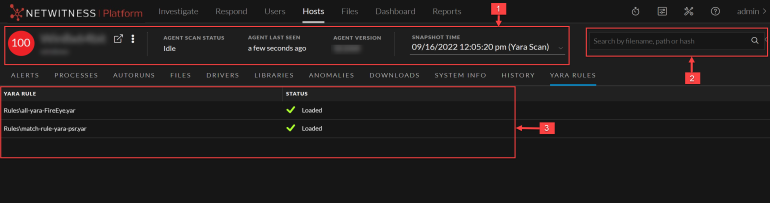
Below is an example of the YARA Rules tab:
- Column 1: 1
- Column 2:
Agent and Scan Details. You can view the following agent and scan details of the selected host:
Host name - Name of the host. For example, WIN-ABC.
Risk score - Risk score of the host.
Operating System - Operating system on which the agent is running (Linux, Windows, or Mac).
Agent Scan Status - Current status of the scan - Idle, Scanning, Starting Scan, or Stopping Scan. For more information, see Scan Hosts.
Agent Last Seen - Time when the agent last communicated with the Endpoint server.
Agent Version - Version of the agent. For example, 12.0.0.0.
More - Provides options to:
- Start a scan for the selected hosts. For more information, see Scan Hosts.
- Extracts host attributes and endpoint data to a JSON file of the selected snapshot. For more information, see Export Host Attributes.
- Isolation host from the network. For more information, see Isolating Hosts from Network.
- Download MFT to the server. For more information, see Performing Host Forensics.
- Download System Dump to the server. For more information, see System and Process Memory Dump.
-
Perform remediation actions using the Remote Shell option. For more information, see Performing Host Forensics.
Snapshot Time - Lists scanned time stamps. To view the scan history, you can select the snapshot time from the drop-down menu.
- Column 1: 2
- Column 2: Search on Snapshots. Lets you search on all snapshots (file name, file path, and SHA-256 checksum). For more information, see Search Files on Host.
- Column 1: 3
- Column 2:
YARA Rules Panel - Displays the following tabs:
-
YARA Rule: This tab lists all the YARA rules used for the scan.
-
Status: This tab displays the status of the YARA rules.
For Example: If the YARA rule is successfully loaded, the status is displayed as Loaded.
For more information on YARA Scans, see Analyze Files Using YARA section in Investigating Files topic.
-