.png?width=180&height=32&name=NW%20Logo%20(2).png)
Issue
I want to change my On-Demand Authentication (ODA) PIN to be something that is easier for me to remember.
Resolution
You can easily update your On-Demand Authentication (ODA) PIN within the RSA Self-Service Console by performing the steps below.
- Navigate to the RSA Self-Service Console here: https://auth.rsasecurity.com
- Enter the email address associated with your account in the User ID field and press Enter or click OK.

- Select Password as the Authentication Method and then click the Log On button.

- Enter your password and press Enter or click the Log On button.

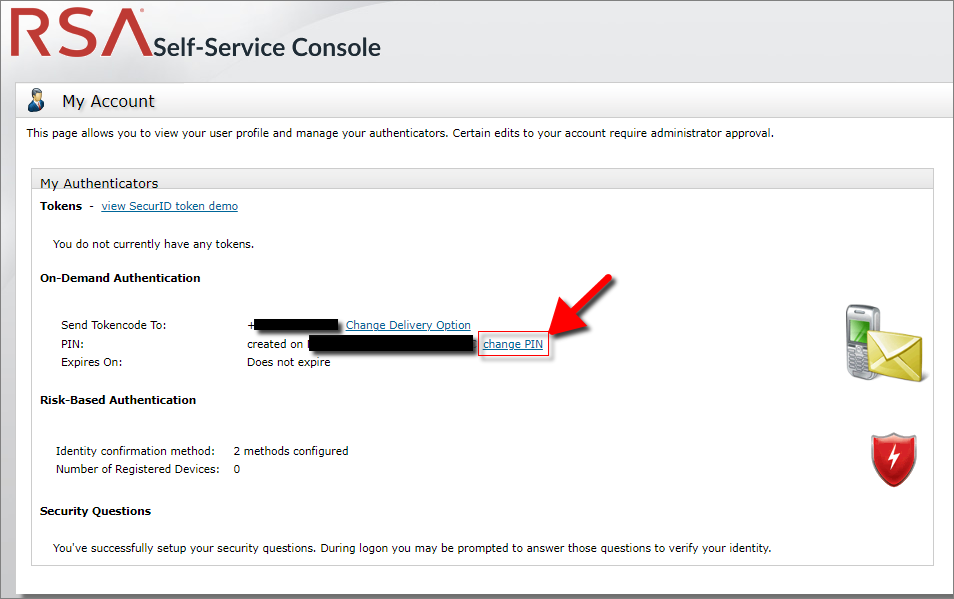
- Once logged in to the RSA Self-Service Console, click on the change PIN hyperlink under the On-Demand Authentication section.
- Enter your current PIN and then enter the new PIN you wish to use in the following two fields, then click the OK button.

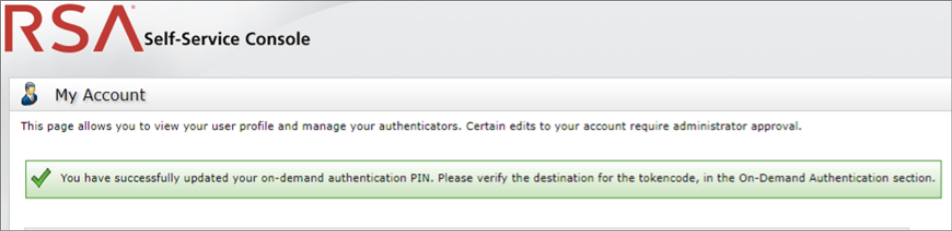
- If the operation was successful you will see a green banner displayed when returned to the RSA Self-Service Console landing page.
If you experience any issues with the steps above, please contact NetWitness Customer Support by submitting the form at https://netwitness.my.salesforce-sites.com/contactrsa/.
Notes
Additional information can be found in the resources below.
- NetWitness Community Frequently Asked Questions
- Why am I being asked to provide an On-Demand Authentication (ODA) PIN when logging in to NetWitness Community?
- How can I set up On-Demand Authentication (ODA) for my NetWitness Community account?
- How do I reset the On-Demand Authentication (ODA) PIN for my NetWitness Community account?
Internal Comments
Customer Relations Desk
Follow the steps below to reset a user's On-Demand Authentication (ODA) PIN.
- Log in to the AM Console and look up the user by their User ID. (This will be the email address for non-employees and for employees.)
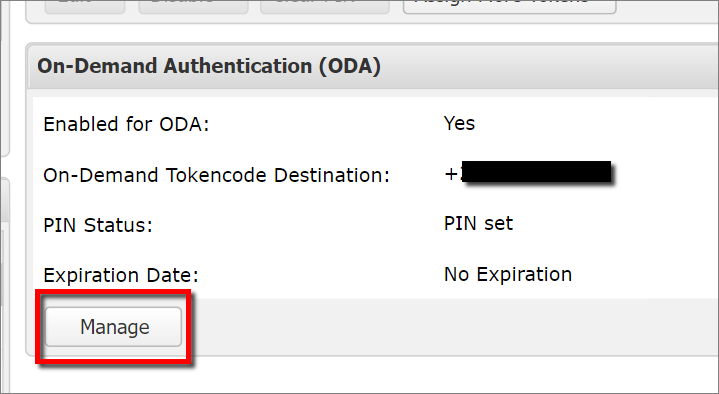
- Underneath the On-Demand Authentication (ODA) section, click on the Manage button.
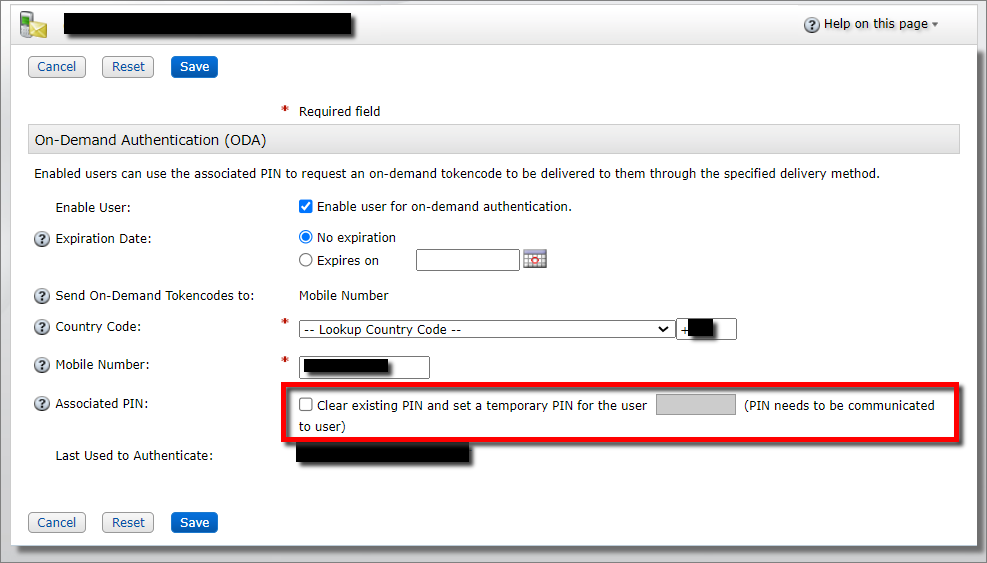
- From the Associated PIN check the box labeled Clear existing PIN, set a temporary PIN (between 4 to 6 digits) and then click on the blue Save button at the bottom of the window.
Product Details
All NetWitness Community users
Approval Reviewer Queue
Non-Product Approval Queue