.png?width=180&height=32&name=NW%20Logo%20(2).png)
Issue
I configured security questions as my step-up authentication method but would also like to configure On-Demand Authentication (ODA) as an alternate method for my RSA Link account.
Resolution
Follow the steps below to configure your On-Demand Authentication (ODA) settings for the first time.- Navigate to the RSA Link Self-Service Console here: https://community.rsa.com/selfservice
- Log in with your RSA Link User ID, which for most users is their email address.

- Select Password as your authentication method and click the Log On button.

- Enter the password for your RSA Link account and click the Log On button.
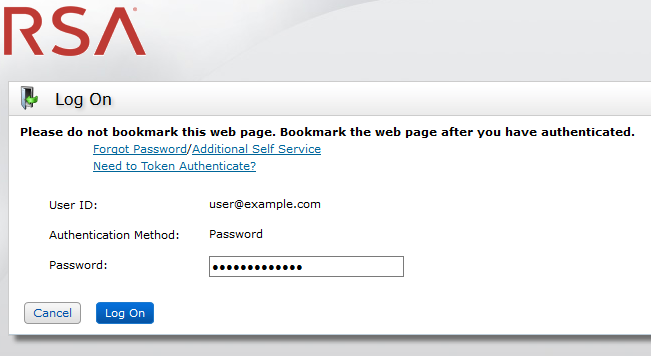
- You will then be prompted to set up your On-Demand Authentication (ODA) settings, which includes providing your mobile phone number and setting up a PIN. Click the Save button when finished.

- After setting up your ODA settings you will see a green confirmation message at the top of the RSA Link Self-Service Console, as shown below.

You will also receive an email notification similar to the example below to verify that your On-Demand Authentication (ODA) settings have been configured.

Notes
Refer to the RSA Link Frequently Asked Questions for more information on how On-Demand Authentication (ODA) works.For instructions on changing your PIN after the On-Demand Authentication (ODA) settings have been configured, refer to the following knowledge base article: How do I reset the On-Demand Authentication (ODA) PIN for my RSA Link account?
Product Details
RSA Link Users
Approval Reviewer Queue
Non-Product Approval Queue