.png?width=180&height=32&name=NW%20Logo%20(2).png)
Issue
After logging in to NetWitness Community, I am being asked to verify my credentials by entering a PIN.
Resolution
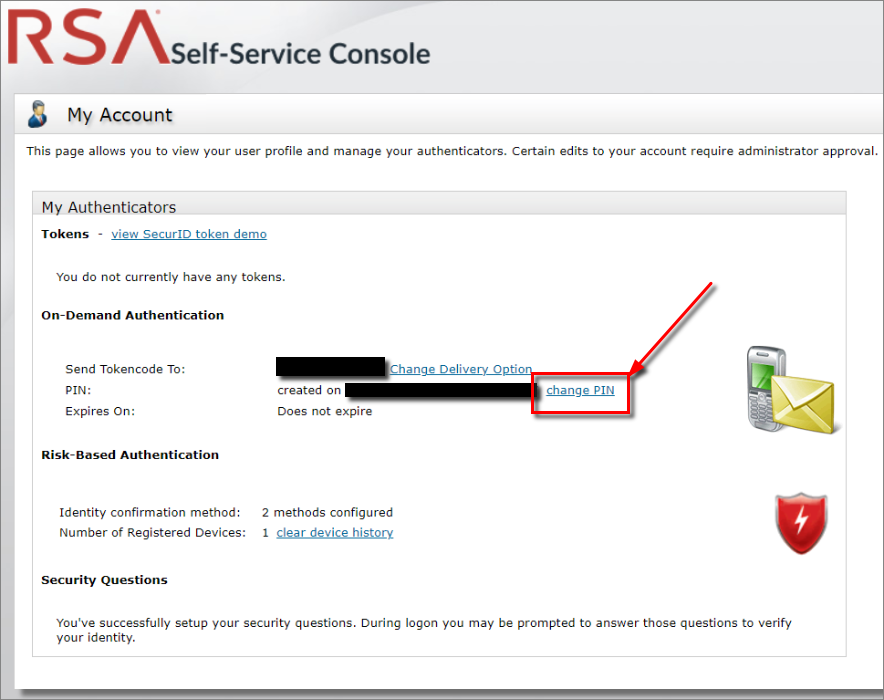
When registering for a NetWitness Community account, users are required to set up risk-based authentication in the form of security questions and/or On-Demand Authentication (ODA). When selecting the latter, the user must create a PIN and provide their mobile phone number. When prompted in the future to authenticate using this method, the user will enter the PIN and a tokencode will then be sent via text message (SMS) that can be entered to allow access.A user's On-Demand Authentication (ODA) PIN can be changed at any time by logging in to the RSA Self-Service Console for the Community.
After logging in, the PIN can be changed by clicking on the change PIN link as shown in the screenshot below.
Notes
If you cannot remember your On-Demand Authentication (ODA) PIN, please contact NetWitnes Customer Support and they will be able to reset your PIN.Internal Comments
Customer Relations DeskFollow the steps below to reset a user's On-Demand Authentication (ODA) PIN.
- Log in to the AM Console and look up the user by their User ID. (This will be the email address for non-employees and for employees.)
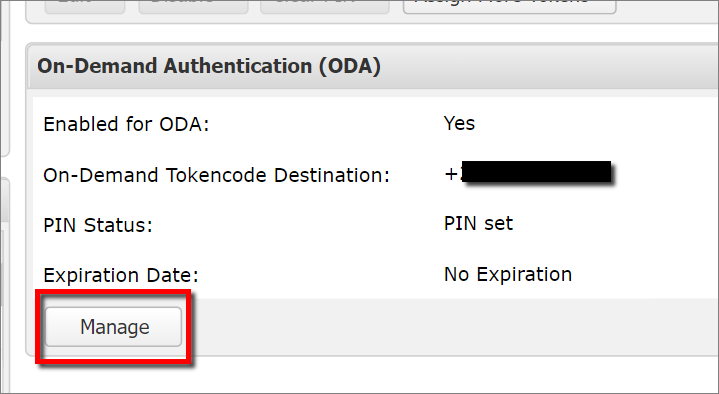
- Underneath the On-Demand Authentication (ODA) section, click on the Manage button.
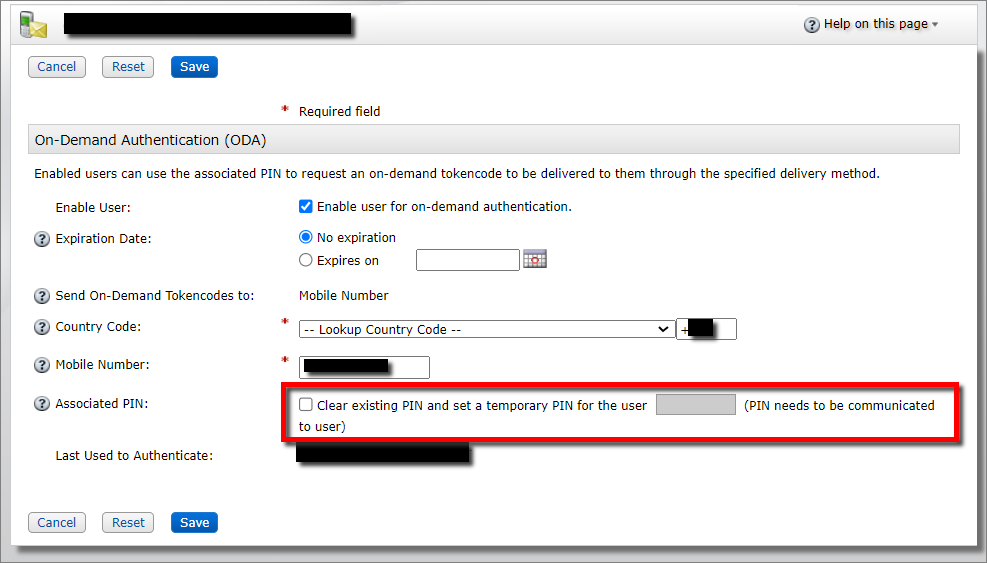
- From the Associated PIN check the box labeled Clear existing PIN, set a temporary PIN (between 4 to 6 digits) and then click on the blue Save button at the bottom of the window.
Product Details
All NetWitness Community Users.RSA Product Set: NetWitness Community (community.netwitness.com)
Platform: RSA Self-Service Console (auth.rsasecurity.com)
Approval Reviewer Queue
Technical approval queue