.png?width=180&height=32&name=NW%20Logo%20(2).png)
Issue
I want to know how I can send a direct message (DM) to another user within the RSA Link website.
Resolution
You can send direct messages in RSA Link from four separate locations.- Spotlight Search
- User Profile
- Hover Card
- Inbox
Spotlight Search
The Spotlight Search, which is accessed by clicking on the magnifying glass icon in the top-right corner of the website, is not only useful for locating content but can also be used to find other users. By typing in a user's name, they will appear in the search results as shown below and a Message link will be present under their name.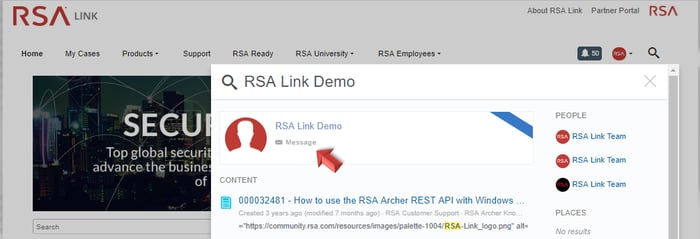
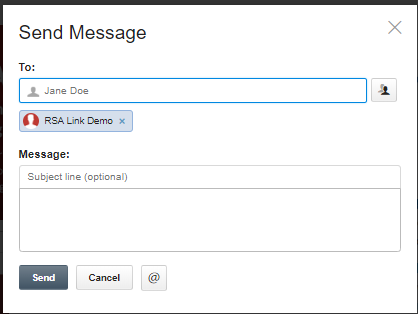
Clicking on the Message link will cause a Direct Message window to appear, which will allow you to send a message to that user.
User Profile
By clicking on a user's name anywhere on the website--such as in the Spotlight Search, in a reply within a discussion thread, or when they are @mentioned in a comment--you will be taken to their user profile. Within the profile, you can send a direct message by clicking on the Actions drop down on the right side and selecting the Send direct message option.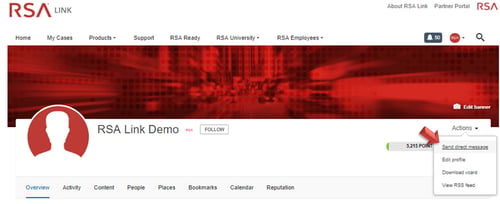
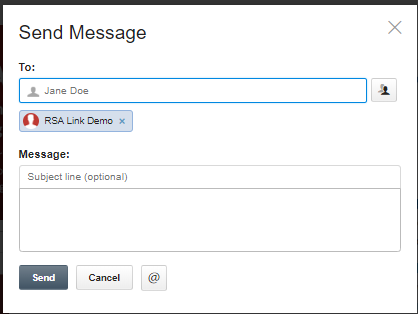
Clicking this option will cause a Direct Message window to appear where you can write and send your message.
Hover Card
Whenever you hover over a user's name within RSA Link, their hover card will appear on the screen. This hover card will display the user's avatar, their name, the date they joined RSA Link and will also provide buttons that allow you to subscribe to (aka "follow") them and send them a direct message.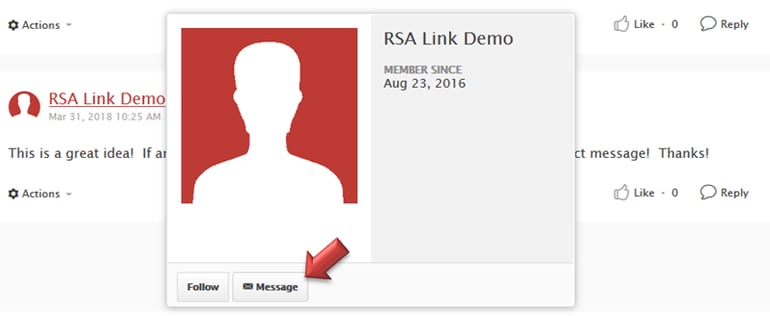
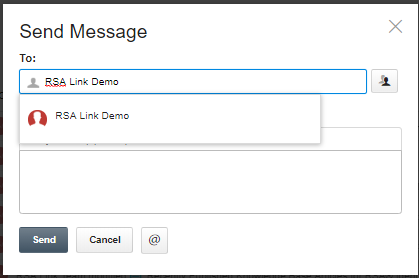
Clicking on the Message button will cause a Direct Message window to appear where you can write and send your message.
Inbox
The inbox is where you can view any direct messages (which will also be delivered via email notification) and any other notifications from content, spaces and/or people you follow on RSA Link. From within the inbox, which can be accessed by clicking on the blue notifications icon next to your avatar in the top-right corner of the website, you also have the ability to send a direct message to other users by clicking on the Send Message option.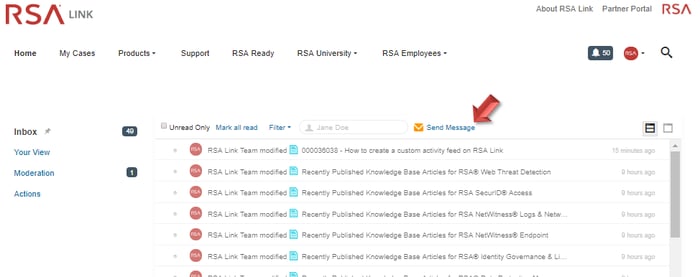
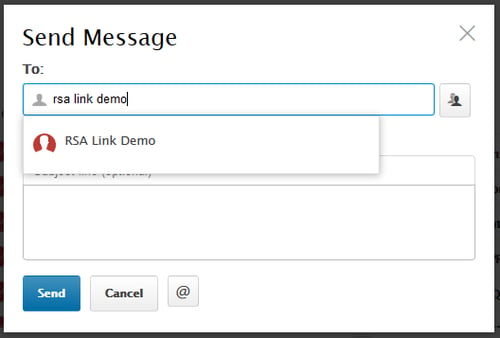
Clicking on the Send Message option will display the Direct Message window, similar to the scenarios mentioned above, but in this situation there will not be a recipient selected by default. Simply start typing in the name of the user to whom you wish to send a message and then click on that person when they appear.
If you have any questions about sending direct messages or experience any issues, post a question on the RSA Customer Support community on RSA Link for assistance.
Notes
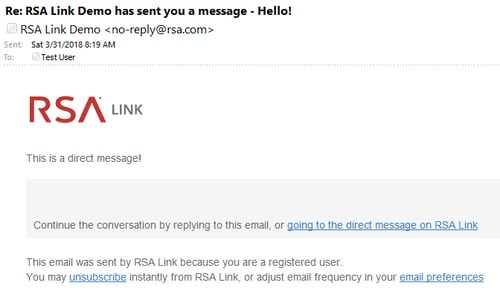
When you receive a direct message, you can find it within your inbox as mentioned above. Clicking on the message will display its contents, and you can reply directly to the message by typing into the text box at the bottom of the message and clicking the Reply button. You can also reply directly to the email notification you receive which will also reply to the direct message.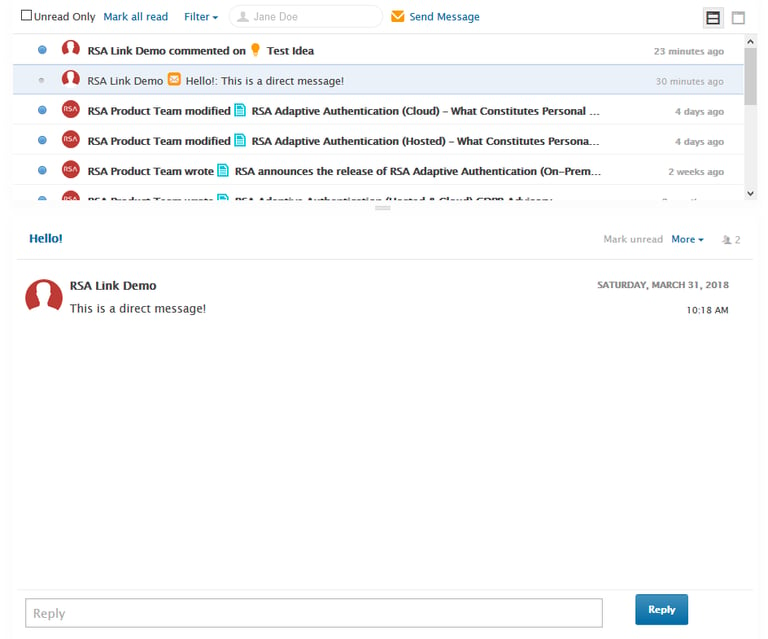
You can view the message in full-screen mode by clicking on the hyperlinked subject line for the message.
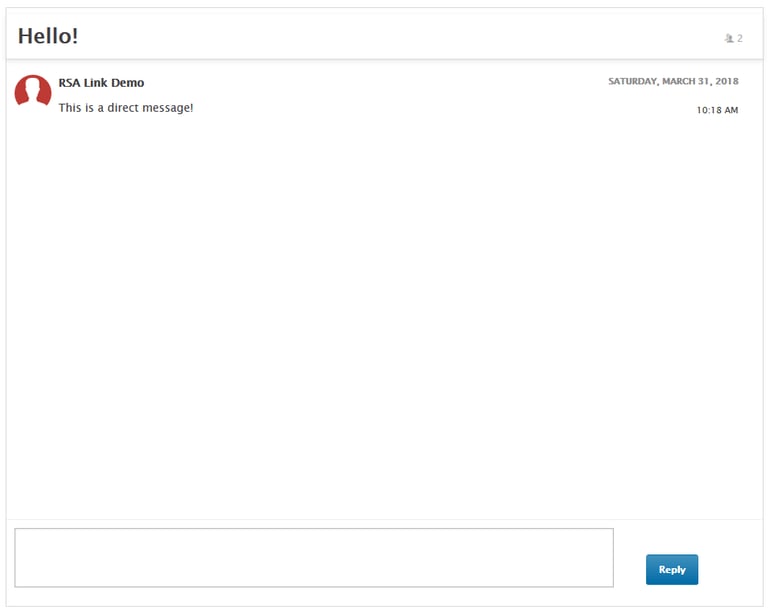
Clicking on the hyperlink within the email notification will also take you to the full-screen view of the message if you prefer to view the conversation thread and/or add additional users to the conversation.
Please note that sending direct messages is not a supported method for contacting RSA Customer Support and that the proper channels must still be used.
Product Details
RSA Product Set: RSA Link (community.rsa.com)Platform: Lithium JX, Jive-x Cloud
Platform (Other): Web Browser
Approval Reviewer Queue
Non-Product Approval Queue