.png?width=180&height=32&name=NW%20Logo%20(2).png)
Issue
Occasionally when a user is experiencing a browser issue relating to the RSA Link website, the RSA Customer Support and/or RSA Link teams will ask that user to collect a network trace in the form of a .HAR file so that it can be analyzed.
Resolution
The steps below explain how to capture a network trace from within the Microsoft Internet Explorer web browser.- Open the Microsoft Internet Explorer browser and navigate to the specific page that is experiencing the issue.
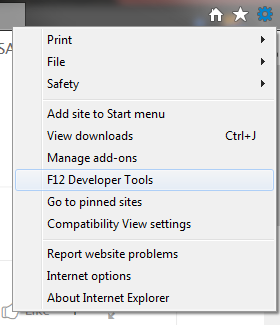
- Open the F12 Developer Tools by clicking the Settings button in the top-right corner and selecting F12 Developer Tools.
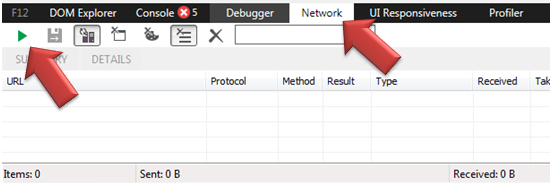
- Click on the network tab within the Developer Tools pane and then click on the green Play button in the top-left corner of the play to begin capturing the web traffic.
- Reload the page by pressing F5 or Ctrl+R, or by clicking on the Refresh icon in the browser toolbar.
- Perform any other activity relating to the issue, such as clicking on certain links or buttons, so that the activity can be captured in the trace.
- Click on the red Stop button in the Developer Tools pane or press Shift+F5 to stop capturing traffic.

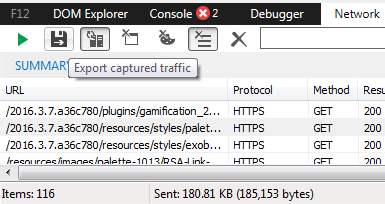
- Click on the Export button (gray disk icon with an arrow) to save the captured web traffic.
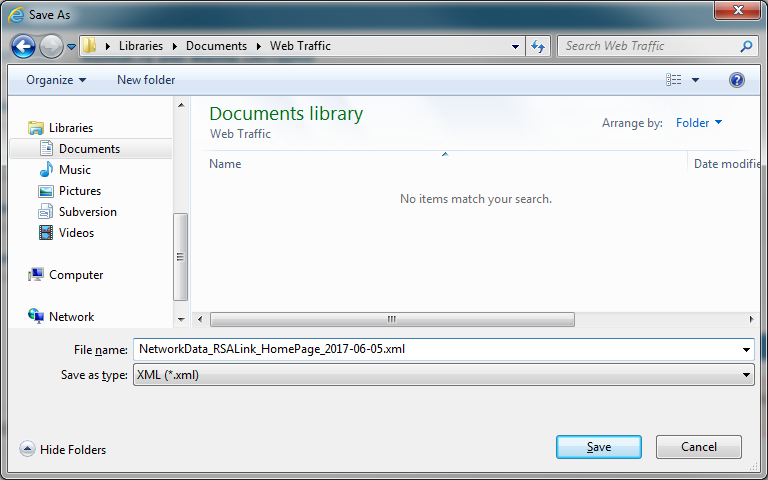
- Save the XML file with a descriptive name that includes the date and provide it to RSA Customer Support via the support case for it to be analyzed.
Internal Comments
I recommend we unify all of these in a single KB, which is already present: 000002696 . That would eliminate the need for : 000001150 , 000001375 , 000002731 & 000002740
Product Details
RSA Product Set: RSA Link (community.rsa.com)Platform: Microsoft Internet Explorer 11.x
Approval Reviewer Queue
Technical approval queue