.png?width=180&height=32&name=NW%20Logo%20(2).png)
Issue
In some circumstances, it may be necessary to create a new lockbox password for the Windows Legacy Collector in NetWitness. An example of this would be when Event Sources cannot be added and the user is getting the error "Can't open lockbox."
Resolution
Please note that all stored passwords for the event sources will need to be re-entered after the new lockbox is created.
- Login as administrator to the Windows workstation where the Windows Legacy Collector is installed.
- Make sure you can view the hidden folders in the system.
- Create a new Directory on any specific location.
- Move the files in C:\ProgramData\netwitness\ng\vault to the Directory created in step 3.
- Log in to the NetWitness UI and navigate to Admin -> Services.
- Select the Log Collector service and under the Actions column click on the gear dropdown box and go to View>Config
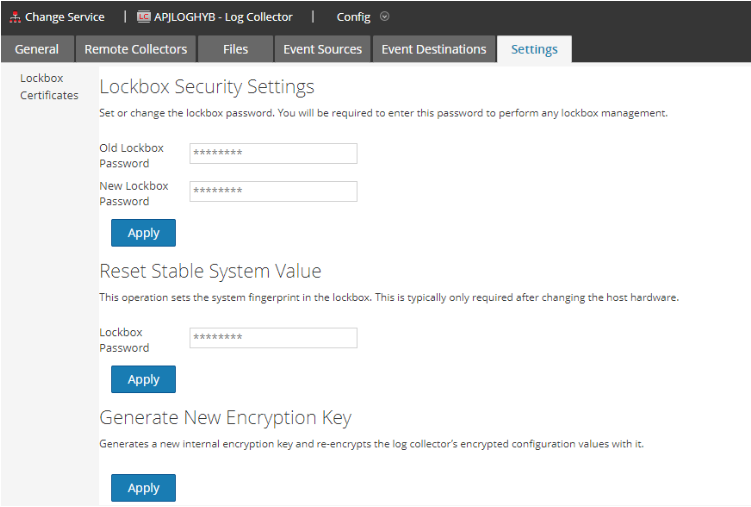
- Click on the Settings tab.
- Leave the "Old Lockbox Password" field blank and enter a new password in the "New Lockbox Password" field.
- Click Apply.
Notes
To create a new lockbox on a Local Log Collector refer to the knowledgebase article : https://community.netwitness.com/t5/netwitness-knowledge-base/how-to-create-a-new-log-collector-lockbox-within-rsa-security/ta-p/677273
Product Details
NetWitness Product Set: Security Analytics, NetWitness Logs & NetworkNetWitness Product/Service Type: Windows Legacy Collector
NetWitness Version/Condition: 11.x, 12.x
Platform: CentOS 7, Alma linux
Approval Reviewer Queue
Technical approval queue