.png?width=180&height=32&name=NW%20Logo%20(2).png)
Issue
When appliance not up, Looking at iDRAC Virtual Console shows that the booting stuck with below screen.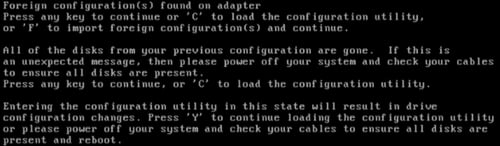
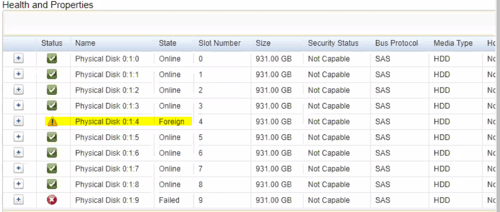
In iDRAC interface, Physical disk status shows that one disk is in Foreign state as below.
Cause
The appliance will not boot until Foreign disk imported to bring the disk online.Resolution
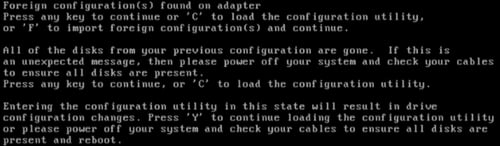
Follow the below steps to import the Foreign configuration of the disk.- Press C at below screen to enter Configuration Utility.
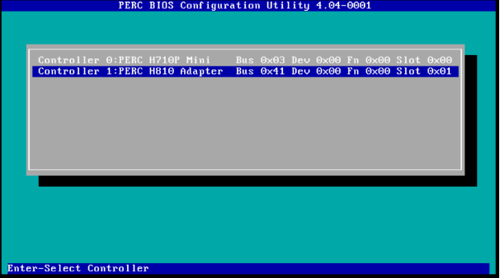
- Select the Controller on which the Foreign disk available. This can be identified by pressing + button In iDRAC interface screenshot that is highlighted above.
Note:
PERC H710P has onboard disks.
PERC H810P has on external disks of DAC.
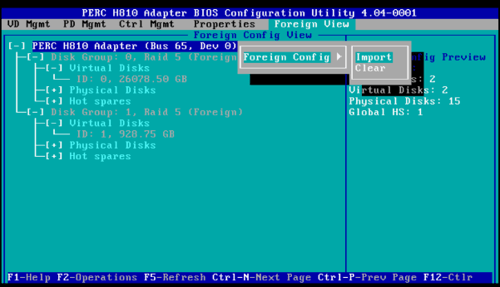
- Select Foreign View by pressing Ctrl-N or Ctrl-P. Then Press F2 to get Foreign Config, Click Right Arrow to get import option as below.
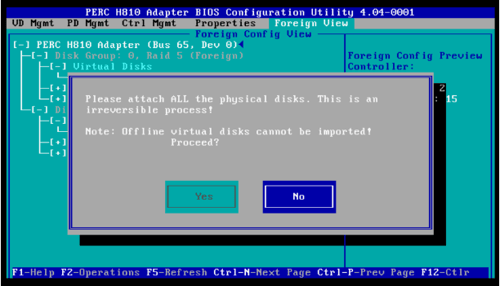
- Press Enter to show below pop-up. Choose Yes. This would make disk Foreign state to go away.
- Press ESC to exit. Then press OK to exit from Configuration Utility.
- Then Press Ctrl-Alt-Delete to restart the appliance.
This makes the appliance to be up and use /opt/rsa/saTools/nwraidutil.pl command to view the latest disk status.
Please use Import Foreign Config for Series 4 Appliance with External Storage for Community document.
Product Details
RSA Product Set: RSA NetWitness PlatformRSA Product/Service Type: Core Appliance
RSA Version/Condition: 11.X
Platform: CentOS
O/S Version: 7
Summary
This document outlines the procedure to import foreign configuration when appliance not booting.
Approval Reviewer Queue
RSA NetWitness Suite Approval Queue