.png?width=180&height=32&name=NW%20Logo%20(2).png)
Issue
I need to open a technical support case for my RSA product and want to know how to do so online using the Case portal on RSA Link.Resolution
Opening support cases online is a very useful feature for several reasons. For example:- Opening cases online allows you to give a verbatim description of your issue and immediately provide any supporting information, as opposed to having your information transcribed over the phone or via email by a non-technical Customer Service Technician.
- Your case is placed directly in the incoming queue for the appropriate technical support team when created and doesn't first need to be triaged by a Customer Service Technician (CST) or a Customer Relations Desk (CRD) employee before getting assigned to the appropriate queue, as is the situation with cases opened via phone or email.
- Log in to the RSA Link website and click on the Support option in the main menu at the top
- Click the "Case Portal" and then the "Open a New Case" link.
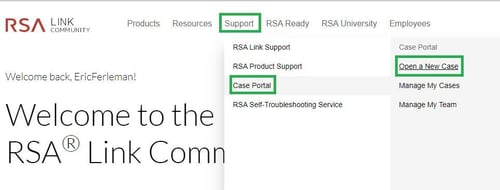
- From within the Case Portal, select the Technical Support option from the dropdown and click the Proceed button.

Use Technical Support for any technical issue you are having with your RSA product. For example, installation questions, integration, errors, etc.
- Ensure that your information is correct in the Contact Details pane on the right, as this is the information that will be used to contact you.
If you select Phone as your preferred communication method in a later step, you must provide a valid phone number in the Phone Number in order to open the case.
- Enter a short outline or quick description for your case in the Subject field. You will have a field to provide more detailed information in a later step. As you begin typing the subject, a Suggested Articles section will appear containing knowledge base articles that may address your issue. Clicking on an article title will redirect you to the article on RSA Link.
- Select whether or not the system or application for which you are opening the case is in Production or not and then select your product in the RSA Product Set drop-down list.

- After selecting your product in the previous step, select the product component that most accurately reflects your case in the Request For field.
These options may vary depending on the product you selected in the previous step.
- Select the product version that applies to the case you are opening using the RSA Version/Condition drop-down list.
- In the Description field, provide a detailed description of your issue so that the Technical Support Engineer will have a starting point for assisting you, including error logs or other important messages.
The field allows for rich text, which means that you can add formatted text, images, hyperlinks, etc.

- Select an appropriate severity level for your support case, using the recommended guidelines on the New Case page.
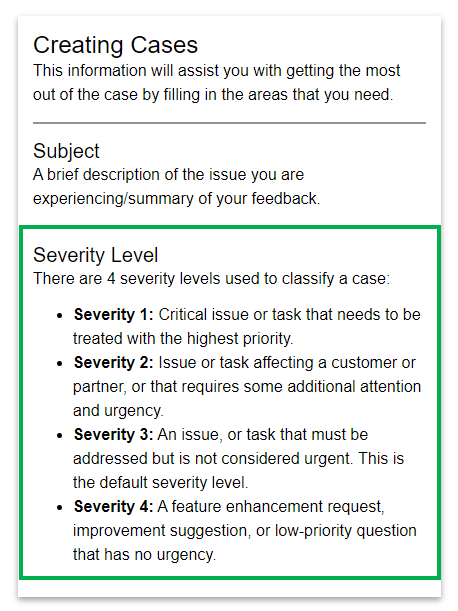
- Please select the appropriate Priority for the issue you are submitting. This is useful if you are submitting cases on various issues, and know one may be more important than the other.
- Please select your Preferred Communications method for being contacted about this case. Phone (if applicable), Email, or Case Comments). Typically Phone or Email is selected.
- You may upload up to five relevant attachments (such as log files, screenshots, etc.) under the Attachments section.
-
There is a file upload limit of 75MB when attaching files to support cases.

- Click on the Save button at the bottom of the page to submit your support case.
- Once you have created your case, you will be taken to the case screen confirming the submission.
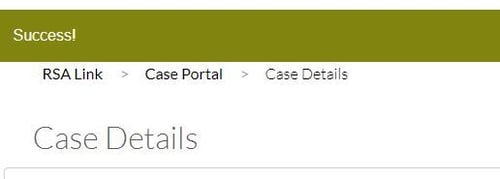
You can access the case at any time by clicking on the Case Portal link. For more information, refer to the How do I manage my open support cases? section in the RSA Link Frequently Asked Questions.
Notes
For information on all methods of opening customer support cases, refer to the document entitled How to Contact RSA Customer Support.If you need to open a support case against a specific Site ID, asset or maintenance contract, refer to the following article: The support case I opened via the Case Management portal on RSA Link is associated with the wrong site
Product Details
RSA Product Set: RSA Link (community.rsa.com)RSA Product/Service Type: Case Management (community.rsa.com/cases)
Platform: Web Browser
Platform (Other): RSA Link
Summary
Instructions for opening a technical support case online via the updated Case portal on RSA Link.
Approval Reviewer Queue
Non-Product Approval Queue