.png?width=180&height=32&name=NW%20Logo%20(2).png)
Issue
Re-imaging or build-sticking a RSA NetWitness appliance remotely via the iDRAC.How to remotely re-image a RSA NetWitness appliance by utilizing the iDRAC for data transfer?
How do I re-image a NetWitness appliance through the iDRAC?
How do I use a build stick through the iDRAC on a NetWitness appliance?
Tasks
- Obtain the latest NetWitness ISO file:
For NetWitness 10.6.x: sa-upgrade-10.6.5.2-26-dvd.iso or sa-upgrade-10.6.0.0.22075-5229E-dvd.iso
For NetWitness 11.x: rsa-nw-11.3.*.iso or rsa-11.2.*.iso
Please also compare the provided md5 sum value with that of the downloaded ISO file to ensure you have the complete file.
If the ISO file is incomplete then the re-imaging of the appliance can fail partway through.
Put the ISO file in a location that the RSA NetWitness iDRAC can browse to, preferably somewhere "close" on the network.
- The iDRAC card on the appliance must be configured and accessible.
The iDRAC card should be configured with a network speed of 1Gbps and not the default 100Mbps.
To configure the iDRAC refer to RSA Knowledgebase article, How to configure iDRAC 8 on Dell R630/R730 RSA NetWitness appliance
Resolution
-
Screenshots from an iDRAC 8 on a NetWitness Series 5 (Dell R630/R730) appliance
Log into RSA Netwitness appliance's iDRAC console and bring up the virtual console.
Power off the appliance, if it is not already powered off.
The iDRAC virtual console when it is in a powered off state will look like the below image:

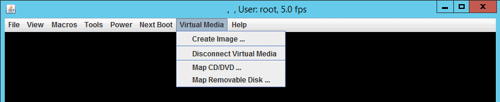
From this screen select, Virtual Media > Connect Virtual Media.

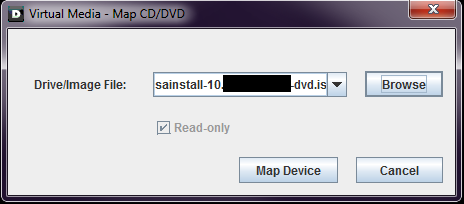
After this process completes select, Virtual Media > Map CD/DVD.
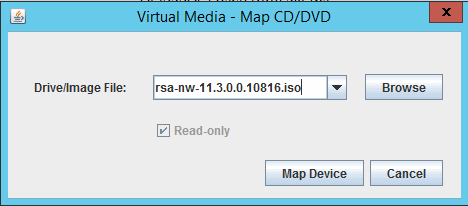
Browse to the location of the NetWitness ISO file that was downloaded and select Map Device.
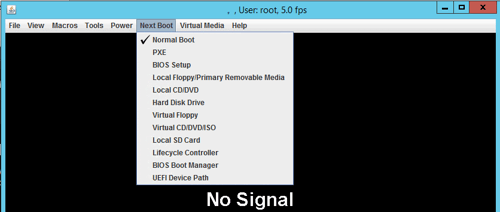
Set the appliance to boot from the Virtual Media on next startup by selecting, Next Boot > Virtual CD/DVD/ISO.
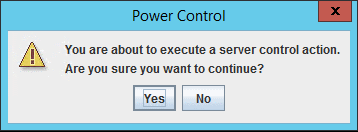
Confirm the Next Boot selection by clicking OK.

Power on the NetWitness appliance with Power > Power On System.

Click OK to continue.
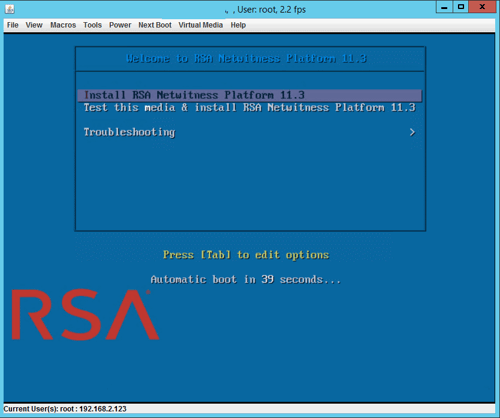
During the NetWitness appliance boot, there is a message that confirms it boots from the Virtual Media.

The NetWitness re-image appliance menu will display after an initial read of the Virtual Media.
-
Alternative Screenshots from an iDRAC 7 on a NetWitness Series 4S (Dell R620) appliance
Similar steps as above.
You must first log into your device's iDRAC console and bring up the virtual console. If you have not already done so, you will also need to power off the appliance.
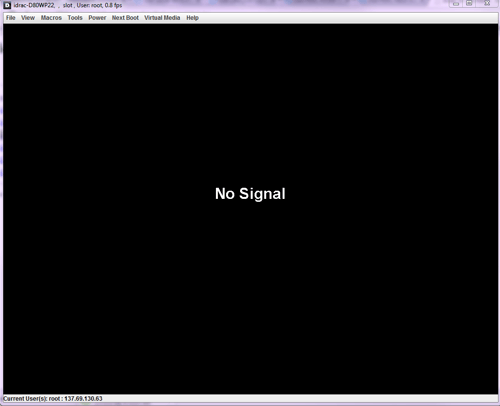
When you bring up the virtual console and the device is in a powered-off state it will look like this:
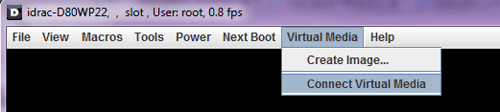
From this screen, you will need to select Virtual Media > Connect Virtual Media.
Once that process has completed you will need to go back to Virtual Media > Map CD/DVD.
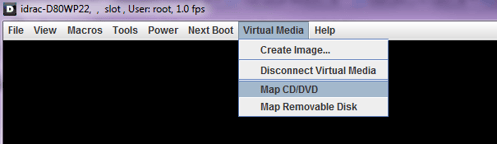
From the menu that appears you will need to select the DVD ISO file that you downloaded. Click Map Device.
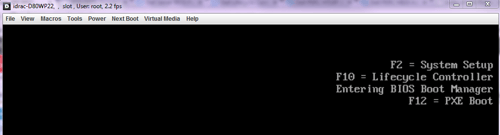
After you have done this power on the device and pressed F11 to enter the BIOS Boot Manager.
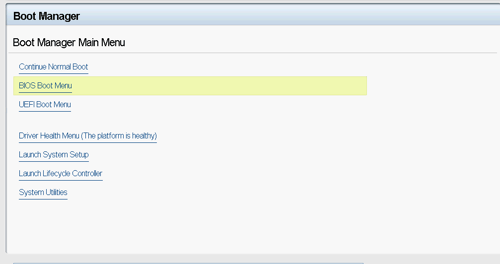
From here you will need to select the BIOS Boot Menu.
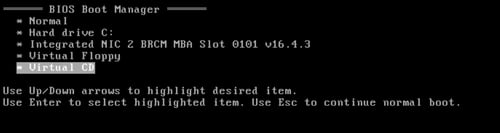
Select the DVD ISO you just mapped.
Notes
Please note: This process may take some time depending on the network connection quality and speed to the NetWitness appliance.A symptom of poor network connection quality or an incomplete ISO file would result in the re-imaging failing part way through.
On a slow network it may be necessary to try the re-imaging the NetWitness appliance 2 -3 times to get it to complete.
Consider using a physical device to re-image the NetWitness appliance (USB Stick or USB DVD ROM) as it is much faster.
Product Details
RSA Product Set: NetWitness Logs & NetworkRSA Product/Service Type: NetWitness Core appliance
RSA Version/Condition: 10.6.x, 11.x
Platform: Dell iDRAC
Summary
This document describes how to re-image or buildstick a RSA NetWitness Dell appliance via the iDRAC.
Approval Reviewer Queue
RSA NetWitness Suite Approval Queue