.png?width=180&height=32&name=NW%20Logo%20(2).png)
Issue
How to recover root password in Centos7 NW version 11.2?
Resolution
- Power up / reboot
The first step is to power up or reboot the system and edit the grub2 parameters. Timing here is critical. You must press ‘e’ before the menu times out and boots normally.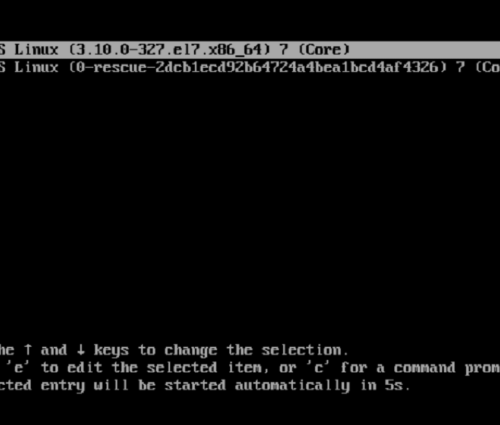
- Linux16
Look for a line that mentions linux16 (or linuxefi if you are using UEFI bios). You may need to use the arrow keys to scroll down. At the end of the linux16 or linuxefi line, find and replace the rhgb quiet parameters with rd.break enforcing=0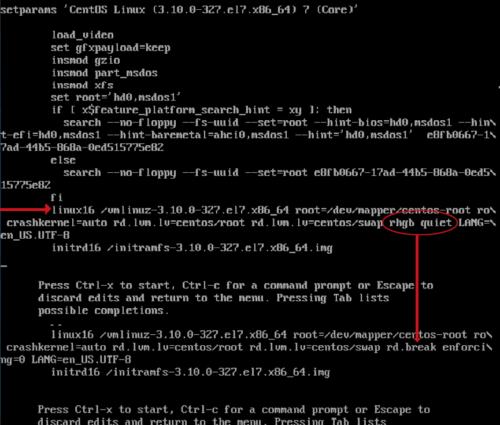
-
Start boot process
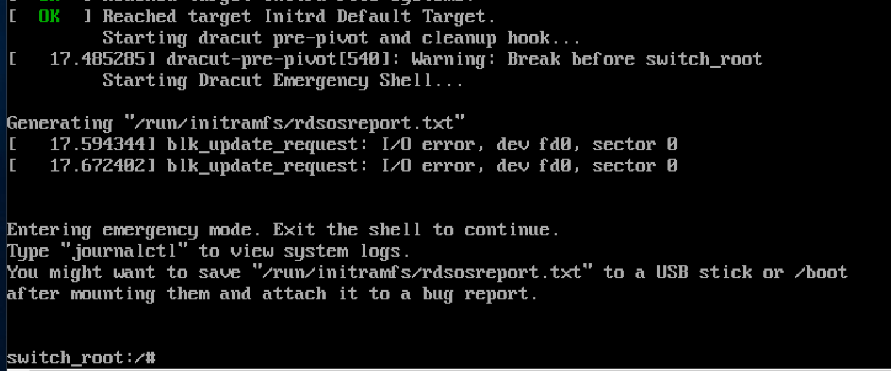
Once you have edited the parameters accordingly, hit CTRL-X to start the boot process with the new parameters. The system should boot into the root system.
-
Remount as read/write
Enter the following command to remount the sysroot filesystem as read/write: mount -o remount,rw /sysroot

-
chroot into sysroot
Now we chroot into the sysroot, using the following command: chroot /sysroot

-
Change the password
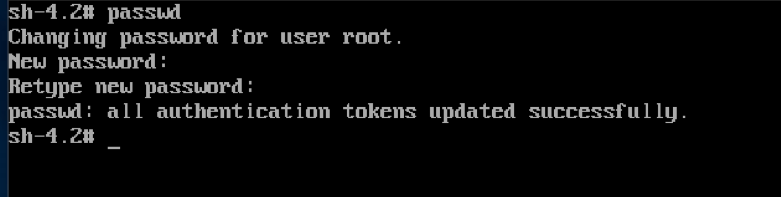
We can use the passwd command to change the root password.
-
Return to switch_root
Issue the following command to bring us back to the switch_root:/# prompt: exit

-
Remount to read-only
Enter the following command to remount the sysroot filesystem as read-only once again: mount -o remount,ro /sysroot
-
Exit the session
Now we can exit the session and allow the system to reboot using the following command: exit

-
Boot and login
Allow the system to boot normally and login as root using the new password that you set in step 6.

-
Clean up
We must clean things up a bit before rebooting again or doing anything else with the system. First, let’s update the /etc/shadow file by issuing the following command: restorecon /etc/shadow

-
Set SELINUX
Finally, we set our SELINUX back to enforcing mode by issuing the following command: setenforce 1

Product Details
RSA Product Set: NetWitness Logs & NetworkRSA Product/Service Type: Security Analytics Server
RSA Version/Condition: 11.2.0.1
Platform: CentOS
O/S Version: 7
Approval Reviewer Queue
RSA NetWitness Suite Approval Queue