.png?width=180&height=32&name=NW%20Logo%20(2).png)
Issue
These steps may be used when it is perceived that rendered information in iDRAC is not accurate (such as the case of a false positive alert), or when the iDRAC is sluggish or not performing as expected.Note resetting (or rebooting) the iDRAC through the WebUI does not impact SA appliance operation. It has no bearing or impact on the appliances' underlying OS, or SA software operation, and is not production impacting.
Tasks
- Open the WebUI of the iDRAC using a supported web browser.
- Logon using the iDRAC credentials. Note the RSA default credentials are different from the Dell default credentials.
- Locate the "Reset iDRAC" link in the bottom, right-hand frame of the screen under the Quick Launch Tasks.

- Click "Reset iDRAC".
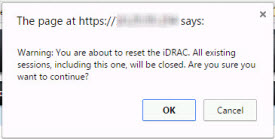
- Click "OK" in the confirmation dialog box.
- Verify the reset notice has appeared and wait for the iDRAC to reset.

8. Wait approximately 5 minutes, then reconnect to the iDRAC WebUI to confirm the iDRAC is now available.
Notes
Note: It is possible to reset the iDRAC from the command line providing the RACADM toolset is installed.See the article How to install and Use the Dell RACADM tool on Windows Workstations in conjunction with RSA Security Analytics appliances for additional details.
See the Dell site for additional details on iDRAC 7
http://www.dell.com/support/manuals/us/en/19/Topic/integrated-dell-remote-access-cntrllr-7-v1.50.50/iDRAC7UG1.50.50-v1/en-us/GUID-5B8DE7B7-879F-45A4-88E0-732155904029
Product Details
RSA Product Set: Netwitness, Security Analytics,RSA Product/Service Type: NextGen, Security Analytics,
RSA Version/Condition: 9.8.5.x, 10.3.x, 10.4.x, 10.5.x
Platform: CentOS
O/S Version: 5, 6
Product Name: iDRAC 7
Summary
This article provides information on how to reset (or reboot) the iDRAC 7 card found in a Security Analytics appliance from the iDRAC webUI.
Approval Reviewer Queue
ASOC Approval Group