Skip to content
  • There are no suggestions because the search field is empty.

Import Alert Dialog

Import Alert Dialog

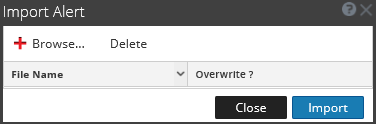
The Import Alert dialog allows you to import an alerts archive and specify whether to overwrite existing rules, lists, and alerts.

Workflow
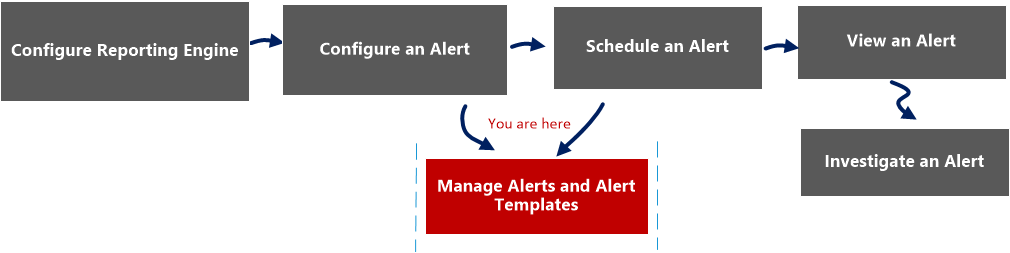
netwitness_alertlist_view_workflow.png

What do you want to do?


  • Role:

    Administrator/ Analyst

  • I want to...:

    Configure an alert

  • Documentation:

    Configure an Alert


  • Role:

    Administrator/ Analyst

  • I want to...: Schedule an alert
  • Documentation: Schedule an Alert

  • Role:

    Administrator/ Analyst

  • I want to...:

    View an alert

  • Documentation:

    View an Alert


  • Role: Administrator/ Analyst
  • I want to...: Investigate an alert
  • Documentation: Investigate an Alert


*You can complete these tasks here.

Related Topics

Alerting Overview

Quick View

The following figure is an example with the important features labeled.
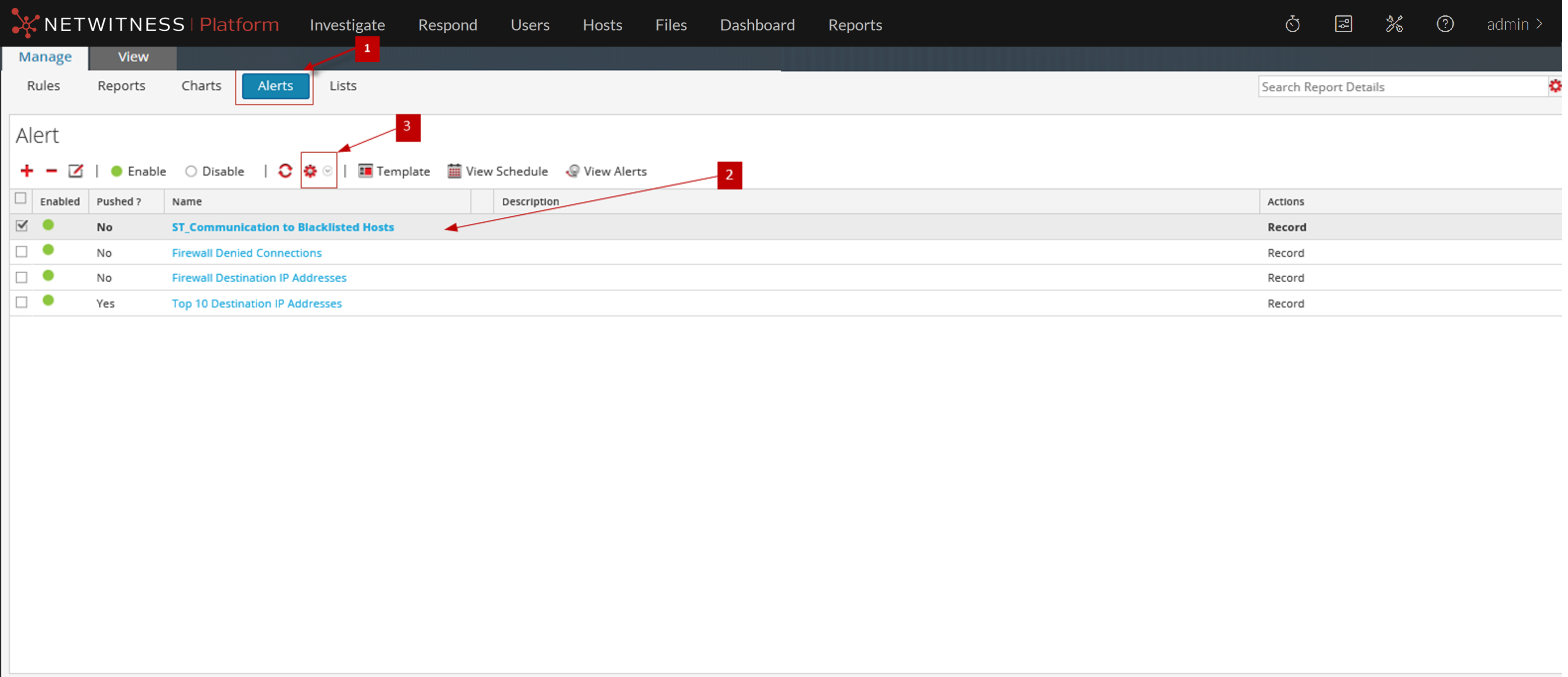
122_import_alert_workflow_1222.png

netwitness_import_alert_dialog.png

  • Column 1: 1
  • Column 2: Click Alerts to open the Alert view.

  • Column 1: 2
  • Column 2: In the Alert panel, select a folder to import the file.

  • Column 1: 3
  • Column 2:

    In the Alert toolbar, click netwitness_options_button.png > Import to import an alert.


The following table lists the actions in the Import Alert dialog and their description.

  • Actions: netwitness_browse_icon.png
  • Description: Displays a view of the local zip file system so that you can select the alert to be imported.

  • Actions: netwitness_delete_icon.png
  • Description: Deletes the selected alert from the Import Alert dialog.

  • Actions: File Name
  • Description: Name of the imported binary file.

  • Actions: Overwrite?
  • Description: Selects the option to overwrite an existing version of the alert you are importing. If you do not select the Overwrite option, a duplicate file is imported and no error message is displayed.

  • Actions: Close
  • Description: Closes the Import Alert dialog.

  • Actions: Import
  • Description: Imports the alert with a confirmation message.