Import Report Dialog
Import Report DialogImport Report Dialog
In Import Report dialog, you can import groups containing subgroups and reports from other instances of NetWitness into Report Groups panel. Reports must be in a valid binary file that was exported from another NetWitness instance.
Workflow
This workflow shows the procedure to manage reports or report groups.
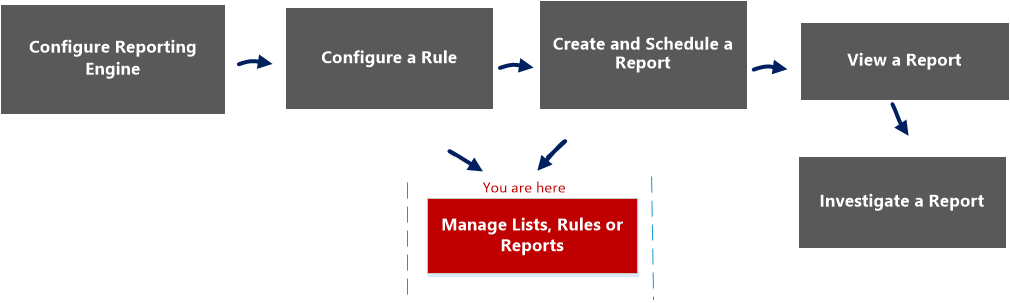
What do you want to do?
- Role: Administrator / Analyst
- I want to ...:
Configure Reporting Engine
- Show me how:
For more information, see "Step 3: Configure Reporting Engine Data Sources" topic in the Reporting Engine Configuration Guide
- Role: Administrator / Analyst
- I want to ...: Create a List or List Group/Create or Deploy a Rule/Test a Rule
- Show me how: Configure a Rule
- Role:
Administrator / Analyst
- I want to ...:
Create and Schedule a Report
- Show me how:
- Role: Administrator / Analyst
- I want to ...: View a report or list of all reports
- Show me how: View a Report
- Role: Administrator / Analyst
- I want to ...: Investigate a Report
- Show me how: Investigate a Report
- Role: Administrator / Analyst
- I want to ...: Manage/Access Control for lists, Rules or Reports*
- Show me how: Manage Lists, Rules or Reports
*You can complete these tasks here.
Related Topics
Quick View
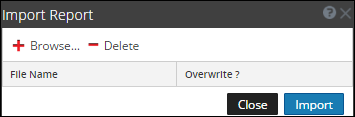
To access the Import Report dialog:
-
Go to Reports.
The Manage tab is displayed.
-
Click Reports.
The Report view is displayed.
- In the Reports Groups panel, select a folder to import the file.
-
Do one of the following:
- In the Reports Groups panel, click
> Import to import a group. - In the Reports toolbar, click
> Import to import a report.
- In the Reports Groups panel, click
The following table lists the features of the Import Report dialog.
- Feature: Browse
- Description: This option displays a view of the local file system so that you can select the report to be imported.
- Feature: Delete
- Description: This option deletes an imported report from the list of imported reports.
- Feature: File Name
- Description: Displays a list of report files that will be imported to your Reports module when you click Import.
- Feature: Overwrite?
- Description: Allows you to select the option to overwrite an existing version of the report you are importing. If you do not select the Overwrite option, a duplicate file is imported and no error message is displayed.
- Feature: Close
- Description: This option closes the dialog. If you select a report and not clicked Import. The reports are not imported, and are not saved in this dialog.
- Feature: Import
- Description: This option imports the selected reports to your Reports module.