Incident Rule Details View
Incident Rule Details ViewIncident Rule Details View
The Incident Rule Details view enables you to create and edit incident rules for creating incidents from alerts. This topic describes the information required when creating or editing a new rule.
Note: The information in this topic applies to NetWitness Version 11.1 and later.
What do you want to do?What do you want to do?
- Role: Administrator
- I want to ...: Configure alert sources for the Respond view.
- Show me how:
Step 1. Configure Alert Sources to Display Alerts in the Respond View
- Role: Administrator
- I want to ...: Assign Respond view permissions.
- Show me how:
- Role: Analyst, Content Expert, SOC Manager
- I want to ...: Enable, create, or edit an incident rule.
- Show me how: Step 3. Enable and Create Incident Rules for Alerts
- Role: Analyst, Content Expert, SOC Manager
- I want to ...: Set up and use the User Behavior default rule.
Set up or verify the preconfigured (default) incident rules. - Show me how: Set Up and Verify Default Incident Rules
- Role: Incident Responders, Analysts, Content Experts, SOC Manager
- I want to ...: View the results of my incident rule (View Detected Threats).
- Show me how: See "Responding to Incidents" in the NetWitness Respond User Guide.
Go to the NetWitness All Versions Documents page and find NetWitness Platform guides to troubleshoot issues.
Related TopicsRelated Topics
Quick LookQuick Look
To access the Incident Rule Details view, do one of the following:
-
To create a rule, go to
(Configure) > Incident Rules and click Create Rule. -
To edit a rule, go to
(Configure) > Incident Rules and click the link in the Name column for the rule that you want to update.The Incident Rule Details view is displayed. The following figure shows the Incident Rule Details view in Rule Builder query mode.
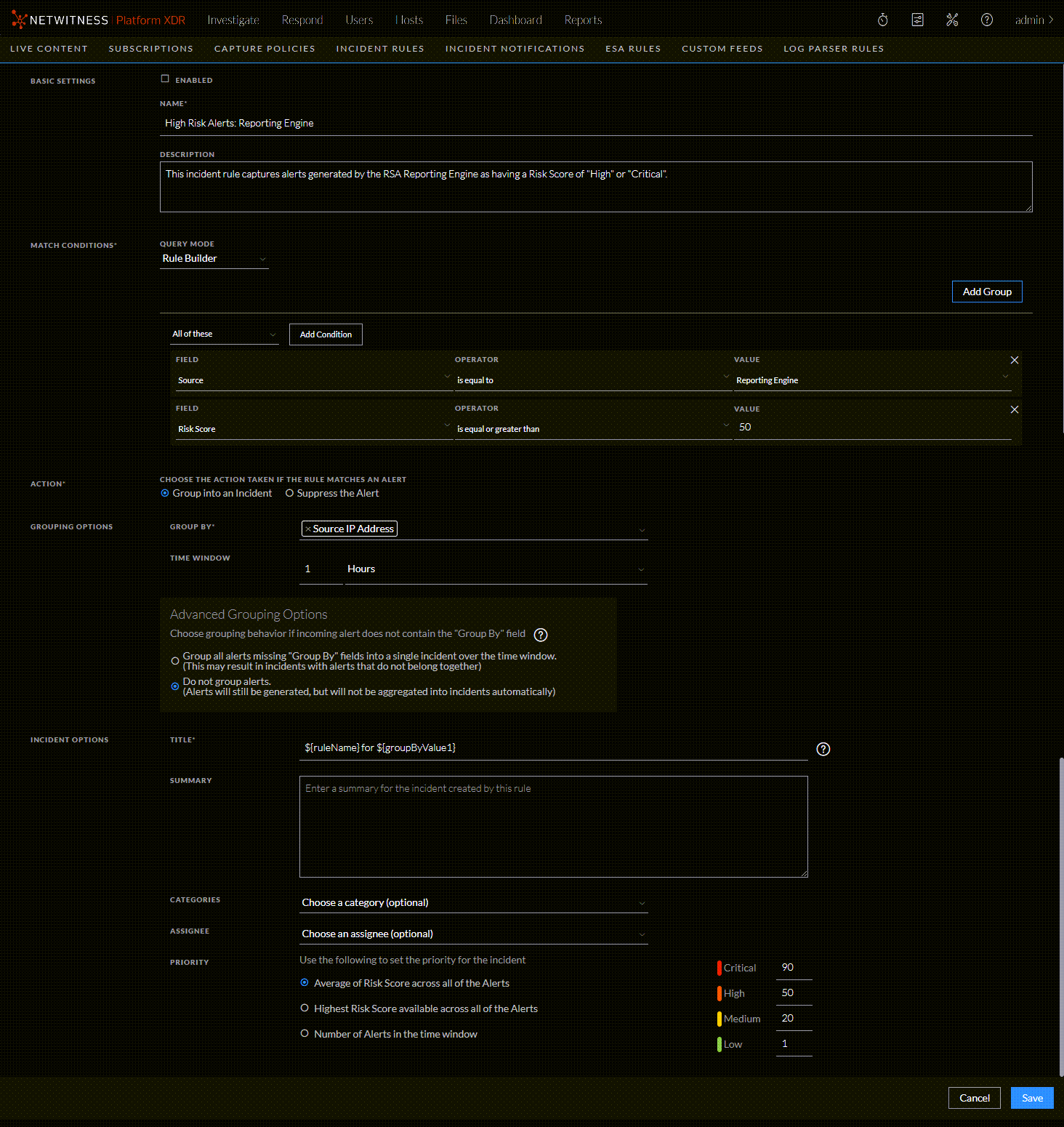
In the Match Conditions section, if you select Advanced query mode, a field to enter advanced queries is available as shown in the following figure.
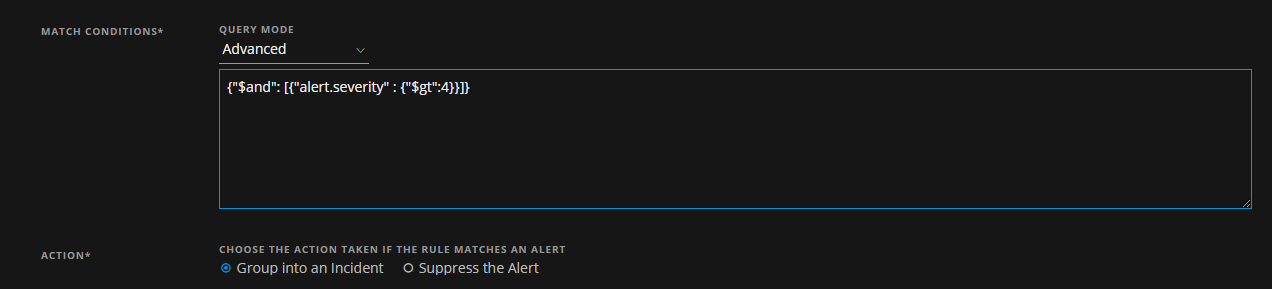
The following table describes the options available when creating or editing incident rules.
- Section:
Basic
Settings
Basic Settings
- Field: Enabled
- Description:
Select to enable the rule.
- Section:
Name*
- Field:
Name of the rule. *This is a required field.
- Section:
Description
- Field: A description of the rule to indicate which alerts get aggregated.
- Section:
Match Conditions*
- Field:
Query Mode
- Description:
Rule Builder: Select the Rule Builder option if you want to build a query with various conditions that can be grouped. You can also have nested groups of conditions.
In the Match Conditions, you can set the value to All of these, Any of these, or None of these. Depending on what you select, the criteria types specified in the Conditions and Group of conditions are matched to group the alerts.
For example, if you set the match condition to All of these, alerts that match the criteria mentioned in the Conditions and Group Conditions are grouped into one incident.
- Add a Condition to be matched by clicking the Add Condition button.
- Add a Group of Conditions by clicking the Add Group button and add conditions by clicking the Add Condition button.
You can include multiple Conditions and Groups of Conditions that can be matched as per criteria set and group the incoming alerts into incidents.
Advanced: Select the Advanced query option if you want to use the advanced query builder. You can add a specific condition that needs to be matched as per the matching option selected.
For example, you can type the criteria builder format {"$and": [{"alert.severity" : {"$gt":4}}]} to group alerts that have severity greater than 4.
For advanced syntax, refer to http://docs.mongodb.org/manual/reference/operator/query/ or http://docs.mongodb.org/manual/reference/method/db.collection.find/
- Section:
Action*
- Field: Choose the Action Taken if the Rule Matches the Alert
- Description:
Group into an Incident: If enabled, the alerts that match the criteria set are grouped into an alert.
Suppress the Alert: If enabled, the alerts that match the criteria are suppressed.
- Section:
Grouping Options
- Field:
Group By*
- Description:
The criteria to group the alerts in accordance with the specified alert fields. You can use a maximum of two fields to group the alerts. You cannot group alerts with fields that do not have values.
When alerts are grouped on an alert field, all matching alerts containing the same meta key value for that field are grouped together in the same incident. (See the following Group By Meta Key Mappings table.)
- Section:
Time Window
- Field:
The time range for grouping alerts.
For example, if the time window is set to 1 hour, all alerts that match the criteria set in the Group By field and that arrive within an hour of each other are grouped into an incident.
- Section:
- Field:
Advanced Grouping Options
- Description:
Alerts may sometimes come into Respond missing fields that are expected and used for aggregation into incidents (as defined by incident aggregation rules). This can be due to missing parsers, overly generic matching conditions, unexpected data sources, or log sources with unexpected formats. Choose how to handle alerts missing the fields required by the configured incident aggregation rules:
- Automatically group them into a single incident over the configured time window.
- Do not group them and manually include these orphaned alerts into an incident when required.
- Section:
Incident
Options
Incident Options
- Field: Title*
- Description:
Title of the incident. You can optionally include placeholders in your title. Placeholders enable you to have different titles based on the attributes you grouped. If you do not use placeholders, all incidents created by the rule will have the same title.
For example, if you grouped them according to the source, you can name the resulting Incident as Alerts for ${groupByValue1}, and the incident for all alerts from NetWitness Endpoint would be named Alerts for NetWitness Endpoint.
- Section:
Summary
- Field: (Optional) Summary of the incident created by this rule.
- Section:
Categories
- Field: (Optional) Category of the incident created. An incident can be classified using more than one category.
- Section:
Assignee
- Field: (Optional) Name of the user assigned to the incident.
- Section: Priority
- Field:
Average of Risk Score across all of the Alerts: Takes the average of the risk scores across all the alerts to set the priority of the incident created.
Highest Risk Score available across all of the Alerts: Takes the highest score available across all the alerts to set the priority of the incident created.
Number of Alerts in the time window: Takes the count of the number of alerts in the time window selected to set the priority of the incident created.
Critical, High, Medium, and Low: Specify the incident priority threshold of the matched incidents. The defaults are:
- Critical: 90
- High: 50
- Medium: 20
- Low: 1
For example, with the Critical priority set to 90, incidents with a risk score of 90 or higher are assigned a Critical priority for this rule.
Group By Meta Key MappingsGroup By Meta Key Mappings
When alerts are grouped on an alert field, all matching alerts containing the same meta key value for that field are grouped together in the same incident. For example, if you select the Group By field value Destination Host, it uses the mapped meta key alert.groupby_host_dst. All alerts with the same meta key value for alert.groupby_host_dst are grouped together in the same incident.
The following table shows the mapped meta keys for the Group By field selections.
- Group By Field Value: Alert Name
- Mapped Meta Key: alert.name
- Group By Field Value: Alert Rule Id
- Mapped Meta Key: alert.signature_id
- Group By Field Value: Alert Type
- Mapped Meta Key: alert.groupby_type
- Group By Field Value: Date Created
- Mapped Meta Key: alert.timestamp
- Group By Field Value: Destination Country
- Mapped Meta Key: alert.groupby_destination_country
- Group By Field Value: Destination Domain
- Mapped Meta Key: alert.groupby_domain_dst
- Group By Field Value: Destination Host
- Mapped Meta Key: alert.groupby_host_dst
- Group By Field Value: Destination IP Address
- Mapped Meta Key: alert.groupby_destination_ip
- Group By Field Value: Destination Port
- Mapped Meta Key: alert.groupby_destination_port
- Group By Field Value: Destination User Account
- Mapped Meta Key: alert.groupby_user_dst
- Group By Field Value: Detector IP Address
- Mapped Meta Key: alert.groupby_detector_ip
- Group By Field Value: Domain
- Mapped Meta Key: alert.groupby_domain
- Group By Field Value: Domain for Suspected C&C
- Mapped Meta Key: alert.groupby_c2domain
- Group By Field Value: File Analysis
- Mapped Meta Key: alert.groupby_analysis_file
- Group By Field Value: Filename
- Mapped Meta Key: alert.groupby_filename
- Group By Field Value: File MD5 Hash
- Mapped Meta Key: alert.groupby_data_hash
- Group By Field Value: Risk Score
- Mapped Meta Key: alert.risk_score
- Group By Field Value: Service Analysis
- Mapped Meta Key: alert.groupby_analysis_service
- Group By Field Value: Session Analysis
- Mapped Meta Key: alert.groupby_analysis_session
- Group By Field Value: Severity
- Mapped Meta Key: alert.severity
- Group By Field Value: Source
- Mapped Meta Key: alert.source
- Group By Field Value: Source Country
- Mapped Meta Key: alert.groupby_source_country
- Group By Field Value: Source Domain
- Mapped Meta Key: alert.groupby_domain_src
- Group By Field Value: Source Host
- Mapped Meta Key: alert.groupby_host_src
- Group By Field Value: Source IP Address
- Mapped Meta Key: alert.groupby_source_ip
- Group By Field Value: Source User Account
- Mapped Meta Key: alert.groupby_user_src
- Group By Field Value: Source Username
- Mapped Meta Key: alert.groupby_source_username
- Group By Field Value: User Account
- Mapped Meta Key: alert.groupby_username