Skip to content
  • There are no suggestions because the search field is empty.

Investigate an Alert View

Investigate an Alert ViewInvestigate an Alert View

In the Investigate an Alert view, you can view and investigate alert details. When investigating an alert, you can open the sessions in the Investigation module for further investigation.

Workflow
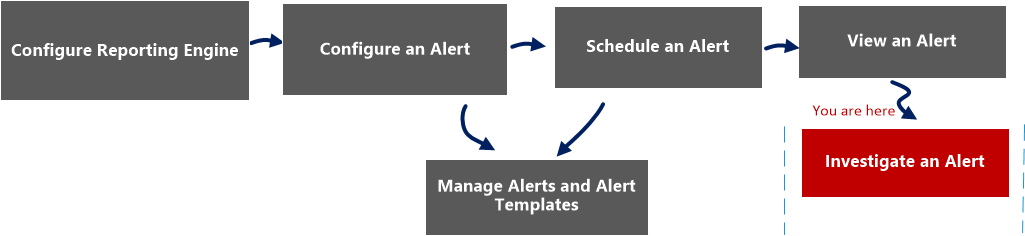
netwitness_investigate_alert_workflow.png

What do you want to do?


  • Role:

    Administrator/ Analyst

  • I want to...:

    Configure an alert

  • Documentation:

    Configure an Alert


  • Role:

    Administrator/ Analyst

  • I want to...: Schedule an alert
  • Documentation: Schedule an Alert

  • Role:

    Administrator/ Analyst

  • I want to...:

    View an alert

  • Documentation:

    View an Alert


  • Role: Administrator/ Analyst
  • I want to...: Investigate an alert*
  • Documentation: Investigate an Alert


*You can complete these tasks here.

Related Topics

Alerting Overview

Quick View

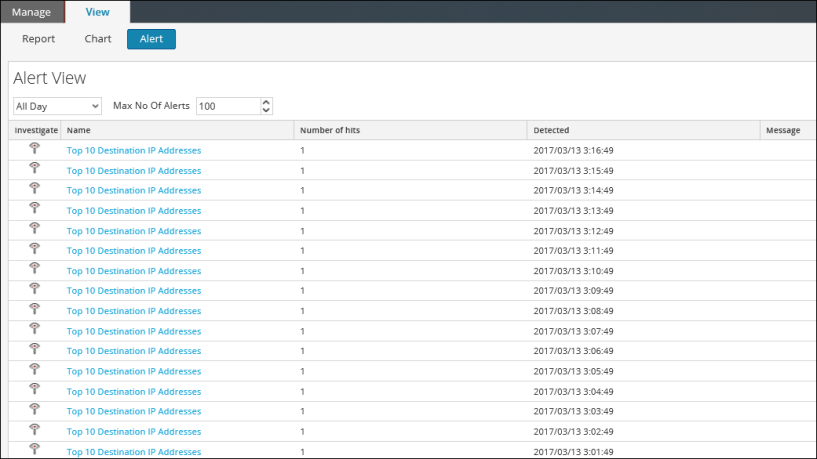
The following figure is an example with the important features labeled.
netwitness_110_view_alerts_tabbd_817x459.png

The View an Alert view has the following panels:

  • View Alerts Toolbar
  • View Alerts List

View Alerts List

The following table lists the columns in the View Alerts List panel.

  • Column: netwitness_investigation_icon.png
  • Description:

    The icon that opens the Investigation module, where the details of the first session that registered the match for the given alert is displayed for immediate analysis.

    Note: You are not redirected to the Investigation module when:
    -You reconfigure a data source for an existing alert and run an alert on the new data source.
    -You enter a host name instead of an IP address in the data source field.


  • Column: Name
  • Description:

    The name of the alert that registered the match. The hyperlink on the name opens the Investigation module to view all matches for that particular alert for the hour surrounding the registered alert.


  • Column: Number of hits
  • Description:

    The number of times the alert is generated.


  • Column: Detected
  • Description:

    The date and time at which the alert generates.


  • Column: Message
  • Description:

    The alert message.