.png?width=180&height=32&name=NW%20Logo%20(2).png)
Investigating FilesInvestigating Files
Note: The information in this topic applies to NetWitness Version 11.3 and later.
The Files view provides a holistic view of all files in your NetWitness platform. You can apply various filters, sort, and categorize files into different status to reduce the number of files for analysis and identify suspicious or malicious files.
Best Practices
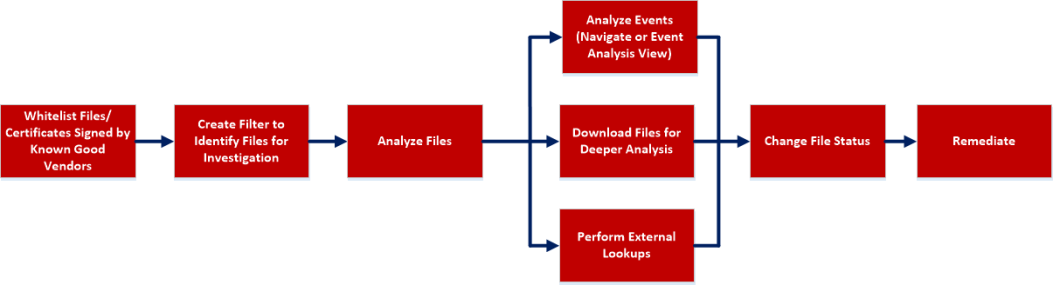
The following are some best practices and tips that may help you investigate efficiently to identify and isolate threats or attacks:
-
Whitelist all files signed by RSA, Microsoft, and any other known good vendors. Use the filters to list the files and change the status of all these files to whitelist. For more information, see Filter Files and Changing File Status or Remediate.
Note: Some Microsoft signed files are restricted from whitelisting as there is a potential risk of them being used for malicious purposes. To view the list, see Files Restricted from Whitelisting.
- Change the status of certificate and the associated files automatically. For more information, see Analyze Certificates.
- Filter to exclude whitelisted, files with valid signature, known good files based on reputation status. For more information, see Filter Files.
- Lookup Google or VirusTotal with the filename or hash to get more information about a suspected file. For more information, see Launch an External Lookup for a File.
-
Analyze the files using one or more of these indicators:
- Risk score - Displays the risk score for a file. Analysts can view the associated alerts and events for further investigation. For more information, see Analyze Files Using the Risk Score.
-
On Hosts - Indicates the number of hosts on which a file exist. If a file is present on fewer hosts with a high risk score, it may require further investigation. You can also sort or filter using On Hosts column to narrow down the search during investigation. For more information, see Analyze Hosts with File Activity.
- File status - To manage suspected and legitimate files, analysts can use the file status to manage. For more information on the various file status, see Changing File Status or Remediate.
- Reputation status - Indicates the reputation of a file hash for analyst to narrow-down the files to investigate. For more information, see File Reputation.
- Signature - A valid signature on a file signed by a trusted vendor, such as Microsoft and Apple indicates that the file is not a risk. If a file is unsigned, it may be malicious, and needs investigation.
- File name - Many trojans write random file names when dropping their payloads to prevent an easy search across the hosts in the network based on the filename. For example, if a file is named svch0st.exe, scvhost.exe, or svchosts.exe, it indicates that the legitimate Windows file named svchost.exe is being mimicked.
- Investigate a particular file name or hash by pivoting to Navigate or Events view to view context, file activity on different hosts, and any file transfers across the network through packet data. For more information, see Analyzing Events.
-
Investigate files using a rule-based detection technique. YARA helps to identify threats effectively using easy-to-create malware descriptions called YARA rules. For more information, see Analyze Files Using YARA.
- Download suspicious files to the server for deeper analysis. For more information, see Analyzing Downloaded Files.
- Change the status of the file (blacklist or graylist), and block an infected or malicious file. For more information, see Changing File Status or Remediate.
View Files
You can view all files present on a specific Endpoint server or consolidated list of all files on multiple Endpoint servers using the Endpoint Broker for analysis. To view files:
-
Go to Files.
-
Select one of the following:
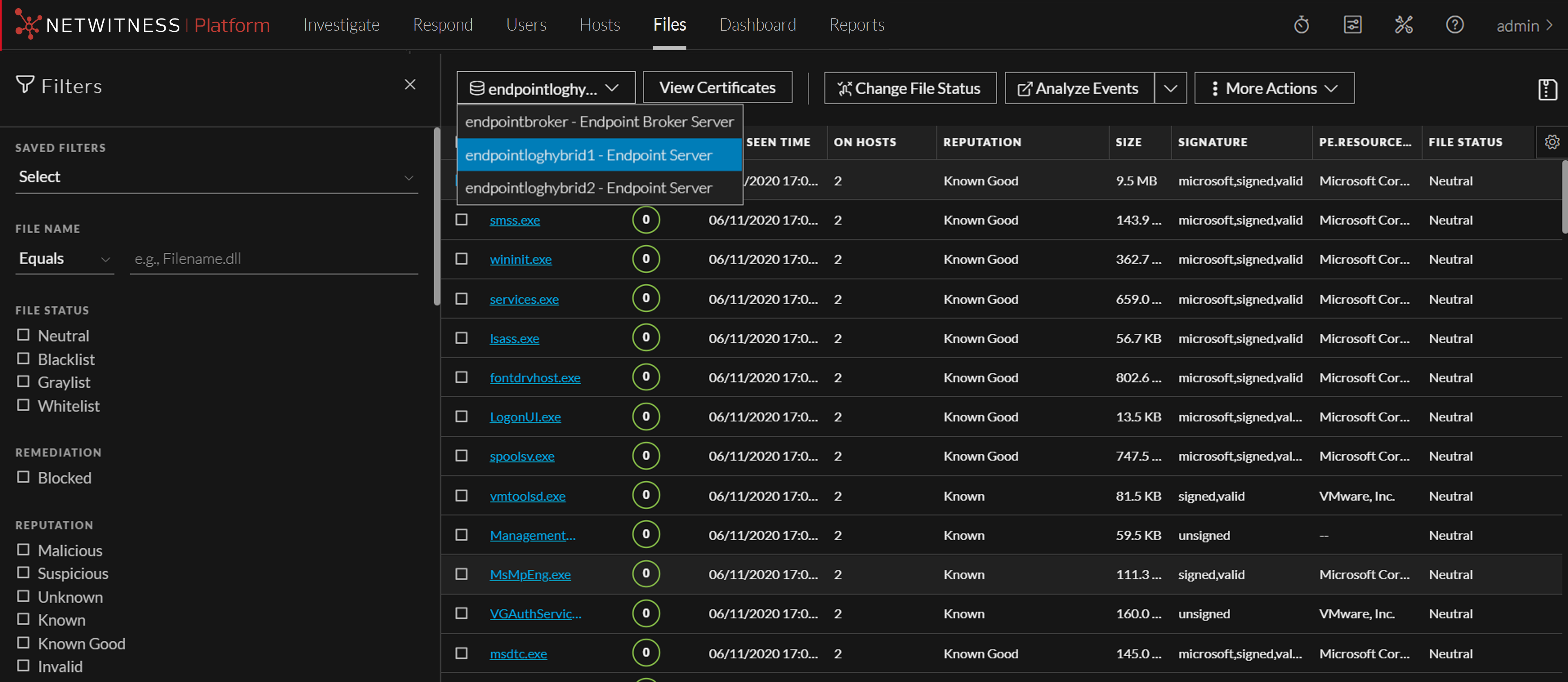
- Endpoint Broker Server to view all files across all Endpoint servers.
-
Endpoint Server to view files on a specific Endpoint server.
- Select the file that you want to analyze.
-
Click a row to view the following details:
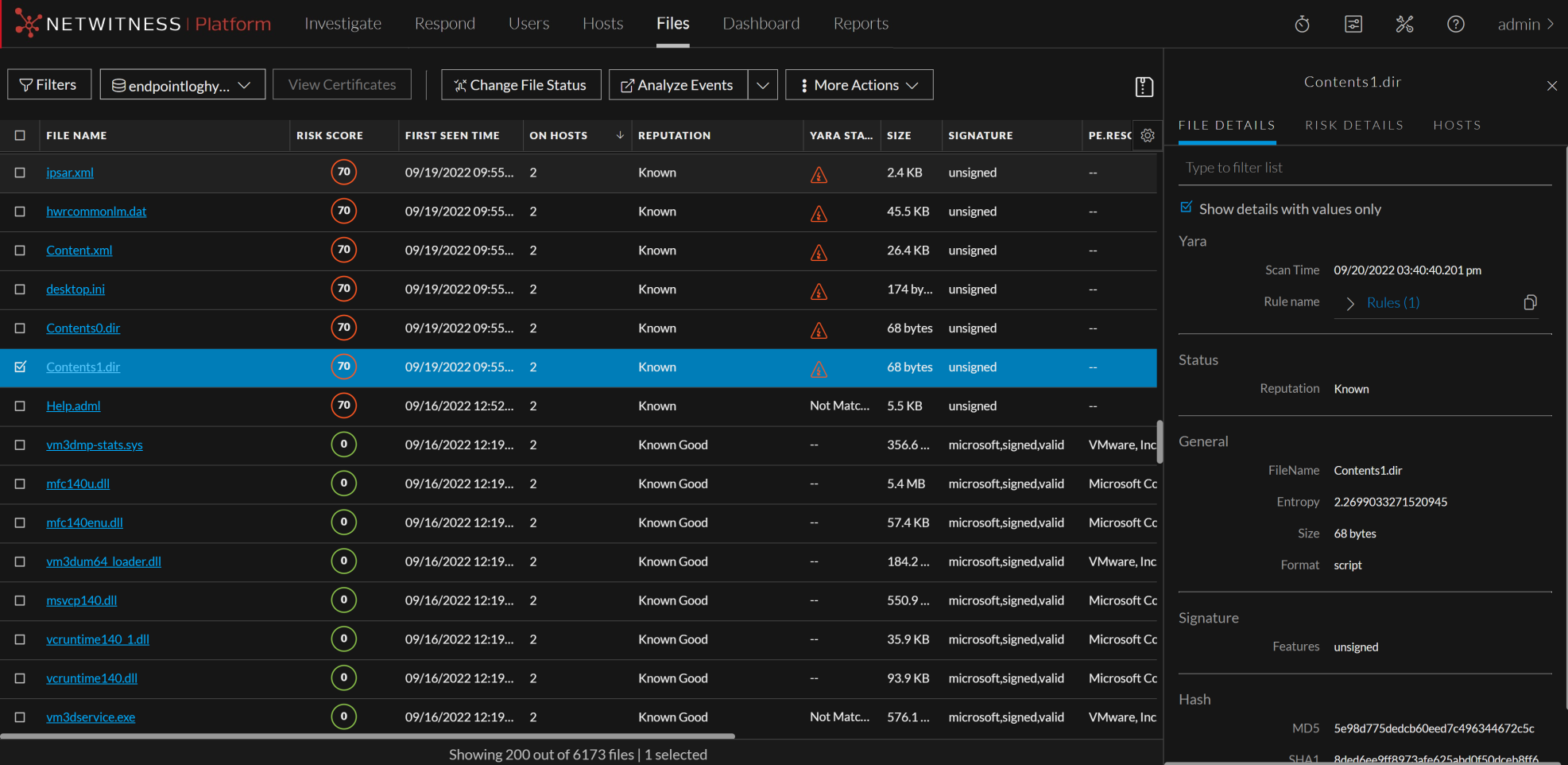
- File Details displays the file information. For more information, see Launch an External Lookup for a File.
- Risk Details displays the distinct alerts associated with the risk score. For more information, see Analyze Files Using the Risk Score.
- Hosts displays the number of hosts on which file activities are present. For more information, see Analyze Hosts with File Activity.
Filter FilesFilter Files
You can narrow down the investigation by filtering files using file name, on hosts, file status, risk score, remediation, reputation status, operating system, size, entropy, format, signature, company name, checksum (MD5 and SHA256), downloaded status, and YARA rules.
Note: While filtering on a large data set, use at least one indexed field with the Equals operator for better performance. The following fields are indexed in the database - Filename, MD5, SHA256, Operating System, First Seen Time, Format, File Status, On Host, and Reputation Status.
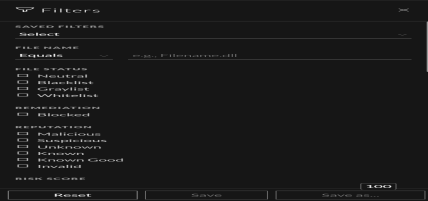
Select the parameters in the Filters tab. Click Save to save the search and provide a name (up to 250 alphanumeric characters). The filter is added to the Saved Filters list. To delete a filter, hover over the name and click  .
.
Note: Special characters are not allowed in the filter name except underscore ( _ ) and hyphen (-) while saving the filter.
For example, to filter the files based on file reputation, select the reputation status in the Filter panel.
Note: For the file size, 1 KB is calculated as 1024 bytes. For example, if the actual size of the file is 8421 bytes, the UI will display it as 8.2 KB instead of 8.22 KB. It is recommended to search using the bytes format when using the Equals operator.
Add and Sort Columns in the Table
By default, the Files view displays a few columns, and files are sorted based on the risk score. To add or remove columns:
-
Go to Files.
-
Select the columns by clicking
 in the right-hand corner.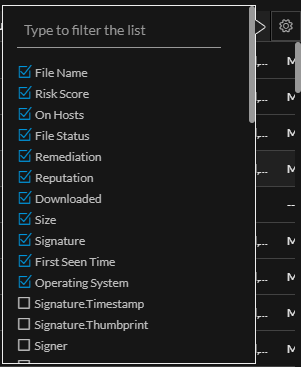
-
Scroll down or enter the keyword to search and select the required columns.
-
To sort the column in ascending or descending order, click the arrow on the column header.
Analyze Files Using the Risk ScoreAnalyze Files Using the Risk Score
Based on the Alert severity, the files can be analyzed using the following options:
-
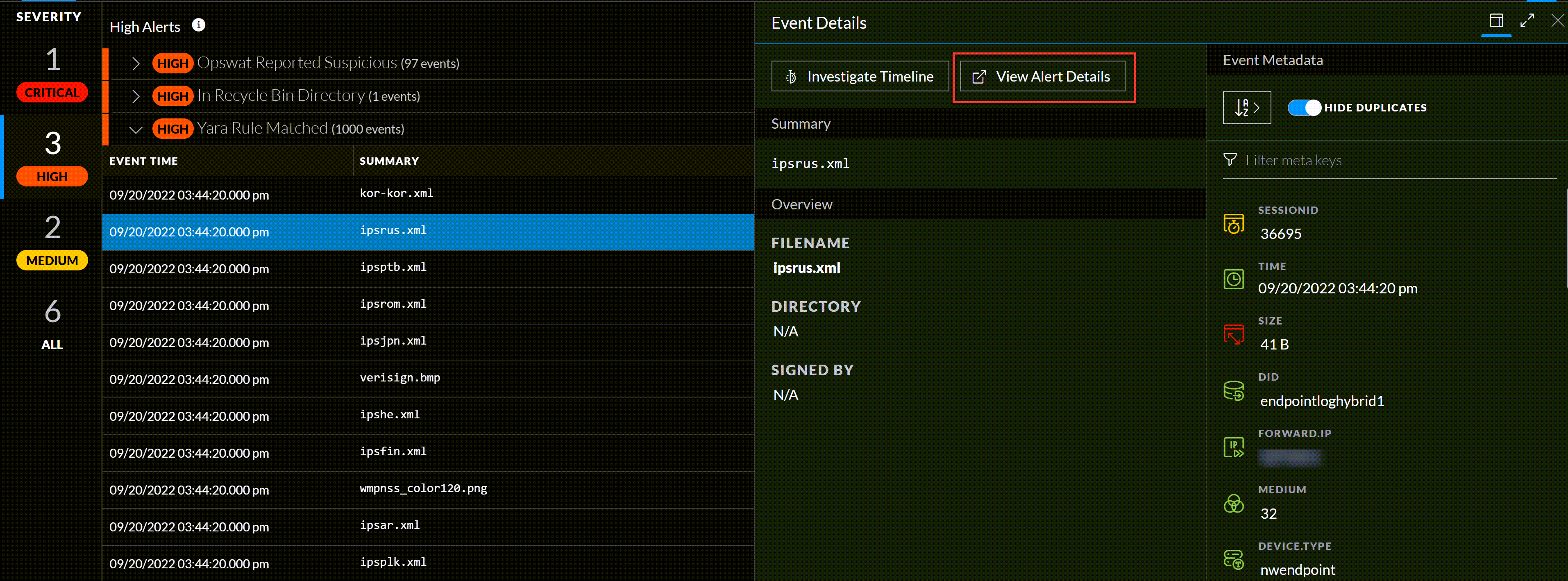
View Alert Details: This option allows you to analyze the files associated with Critical and High alerts. For more information, see Investigating a Process.
-
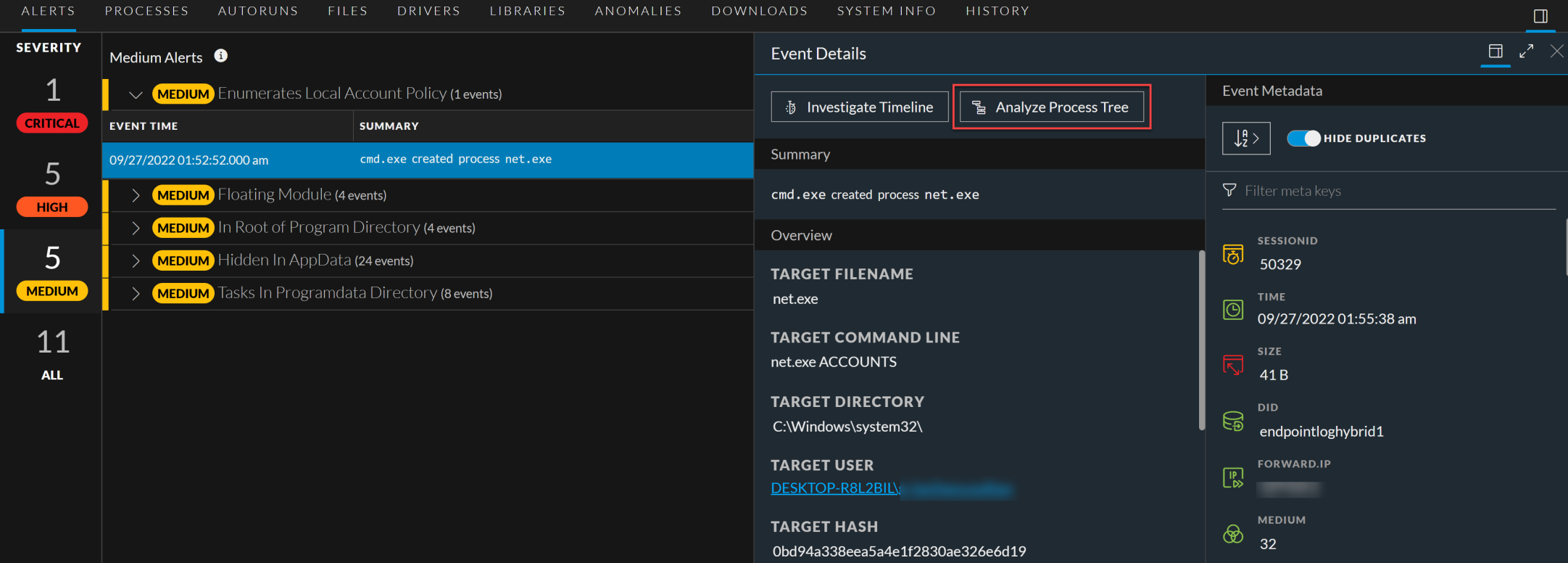
Analyze Process Tree: This option allows you to analyze the files associated with Medium alerts. For more information, see Investigating a Process.
To analyze files associated with Critical and High alerts using the risk score:
-
Go to Files.
The Files view is displayed.
-
In the Server drop-down list, select the Endpoint server or Endpoint Broker server to view the files.
- Select the file and do any of the following.
-
Click a row to view the risk associated with the file in the Risk Details panel.
-
Click the filename to view the associated alerts and events.
The Alerts tab is displayed.
-
-
In the Alerts > Severity panel, click the alert severity, such as Critical or High.
The list of distinct alerts is displayed along with the total number of events associated with the alert. -
Click an alert to view the associated events.
Note: For each alert, only the latest 1000 events are displayed.
-
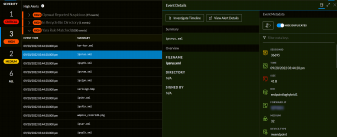
To view all the details associated with a specific event, click on an event. The Event Details panel is displayed with the summary and overview information associated with the event.
-
You can also view the Event Metadata such as IP, Filename, File hash, and Category in the Event Details panel.
-
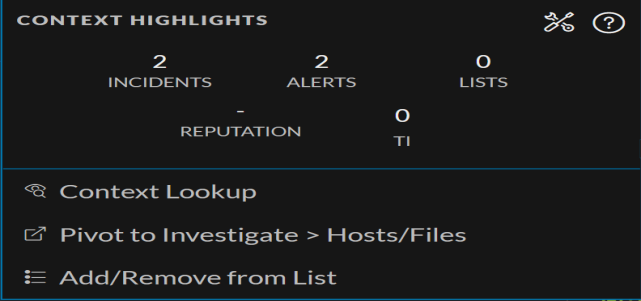
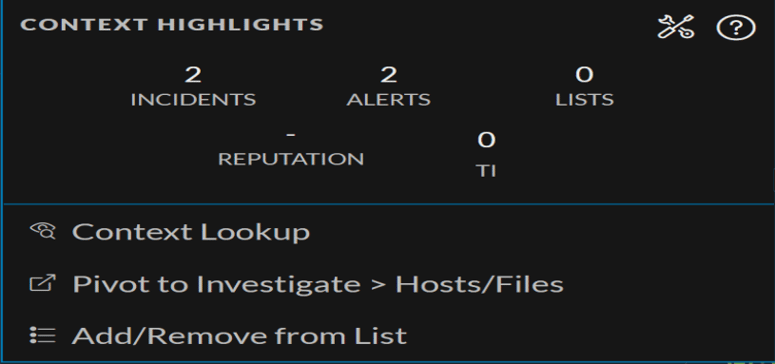
Click the drop-down option besides the metadata value to view additional information about the specific metadata. The Context Highlights dialog displays a list of the data sources that have context data available for meta value. These are the possible data sources: NetWitness Endpoint, Incidents, Alerts, Hosts, Files, and Feeds.
-
To investigate the original event and destination domain of the event, do any of the following:
-
To investigate the events in a specific time frame, click Investigate Timeline on the Event Details panel. For more information, see the NetWitness Investigate User Guide.
-
To investigate a particular process, click View Alert Details on the Event Details panel. For more information on process analysis, see Investigating a Process.
-
To analyze files associated with Medium alerts using the risk score:
-
Go to Files.
The Files view is displayed.
-
In the Server drop-down list, select the Endpoint server or Endpoint Broker server to view the files.
- Select the file and do any of the following.
-
Click a row to view the risk associated with the file in the Risk Details panel.
-
Click the filename to view the associated alerts and events.
The Alerts tab is displayed.
-
-
In the Alerts > Severity panel, click the Medium alert severity.
The list of distinct alerts is displayed along with the total number of events associated with the alert. -
Click an alert to view the associated events.
Note: For each alert, only the latest 1000 events are displayed.
-
To view all the details associated with a specific event, click on an event. The Event Details panel is displayed with the summary and overview information associated with the event.
-
You can also view the Event Metadata such as IP, Filename, File hash, and Category in the Event Details panel.
-
Click the drop-down option besides the metadata value to view additional information about the specific metadata. The Context Highlights dialog displays a list of the data sources that have context data available for meta value. These are the possible data sources: NetWitness Endpoint, Incidents, Alerts, Hosts, Files, and Feeds.
-
To investigate the original event and destination domain of the event, do any of the following:
-
To investigate the events in a specific time frame, click Investigate Timeline on the Event Details panel. For more information, see the NetWitness Investigate User Guide.
-
To investigate a particular process, click Analyze Process Tree on the Event Details panel. For more information on process analysis, see Investigating a Process.
-
Analyze Hosts with File ActivityAnalyze Hosts with File Activity
To view the list of hosts on which a file exist, do the following:
Note: By default, the system detects the best data source for the On Hosts aggregation. To change the data source, in the Explore view, modify the investigate service ID under endpoint/investigate.
-
In the Files tab, click the row for the file you want to analyze.
-
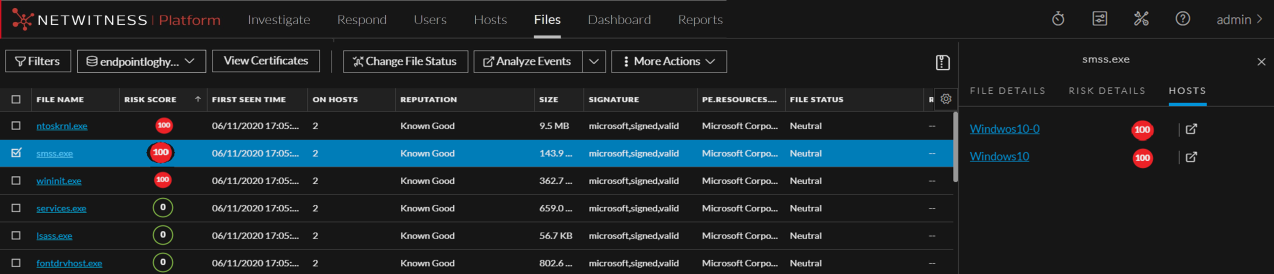
In the right panel, click the Hosts tab. The list of hosts along with the risk score are displayed.
-
Click the host name to open the host details.
-
Click
 to analyze events on the host in the Events view. For more information, see Analyzing Events.
Analyze Files Using YARAAnalyze Files Using YARA
YARA helps analysts with rule-based detection capabilities in identifying and classifying malware. You can easily create malware descriptions using YARA rules. YARA scans can be performed at the Endpoint server level and Endpoint agent level.
Analyze Files at the Endpoint Server Level
Administrators must enable and configure YARA on the Endpoint server. To learn more about enabling and configuring YARA, refer to NetWitness Endpoint Configuration Guide.
Files must be downloaded to the Endpoint server and YARA scans the downloaded files automatically. The scan results are displayed under YARA STATUS on the Files tab.
To analyze the scanned files,
- Go to Files.
- Select the Endpoint server from the server drop-down , to view files.
- Select a file that is downloaded to the Endpoint server and do any of the following:
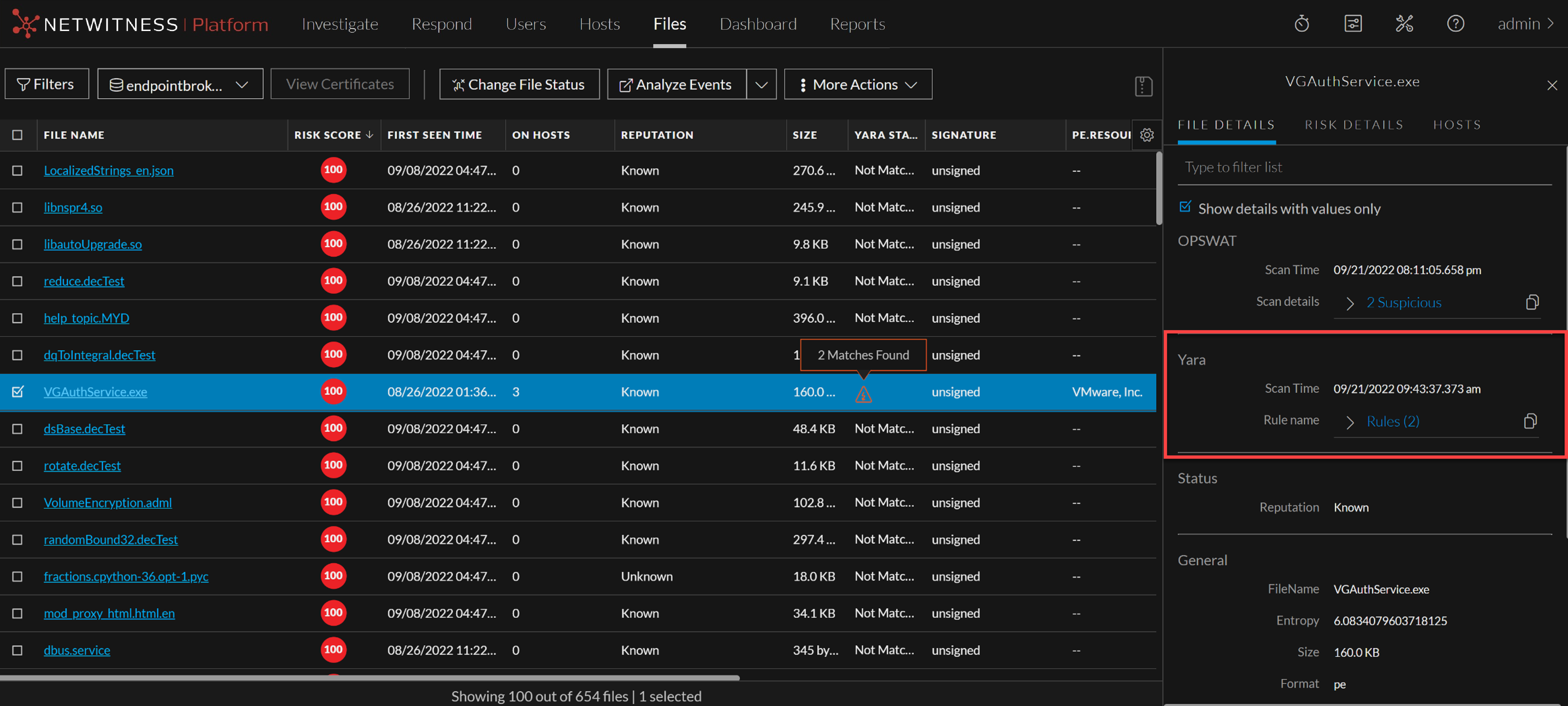
- Click a row to view the YARA scan details associated with the file in the File Details panel.
- If any file matches one or more YARA rules, the File Details panel displays the matching rule names besides scan time.
- YARA STATUS field displays the status of the YARA scan. Following are the available statuses and their definitions
- Matched - The file matches with one or more YARA rules
- Not Matched - The file does not match with any of the YARA rules
- Not Yet Scanned - There is no scan performed for this file. Files will be scanned automatically once they have been downloaded. After the scan YARA status will be updated to either Matched or Not Matched
Note: When a file matches with a YARA rule, high severity alerts are triggered and, the file's risk score is updated. In the subsequent scans, If the same file doesn't match with a YARA rule, the risk score will be reset.
Note: If a downloaded file has an error, it will not be scanned by YARA and, the Downloaded column will display the file download status as Error.
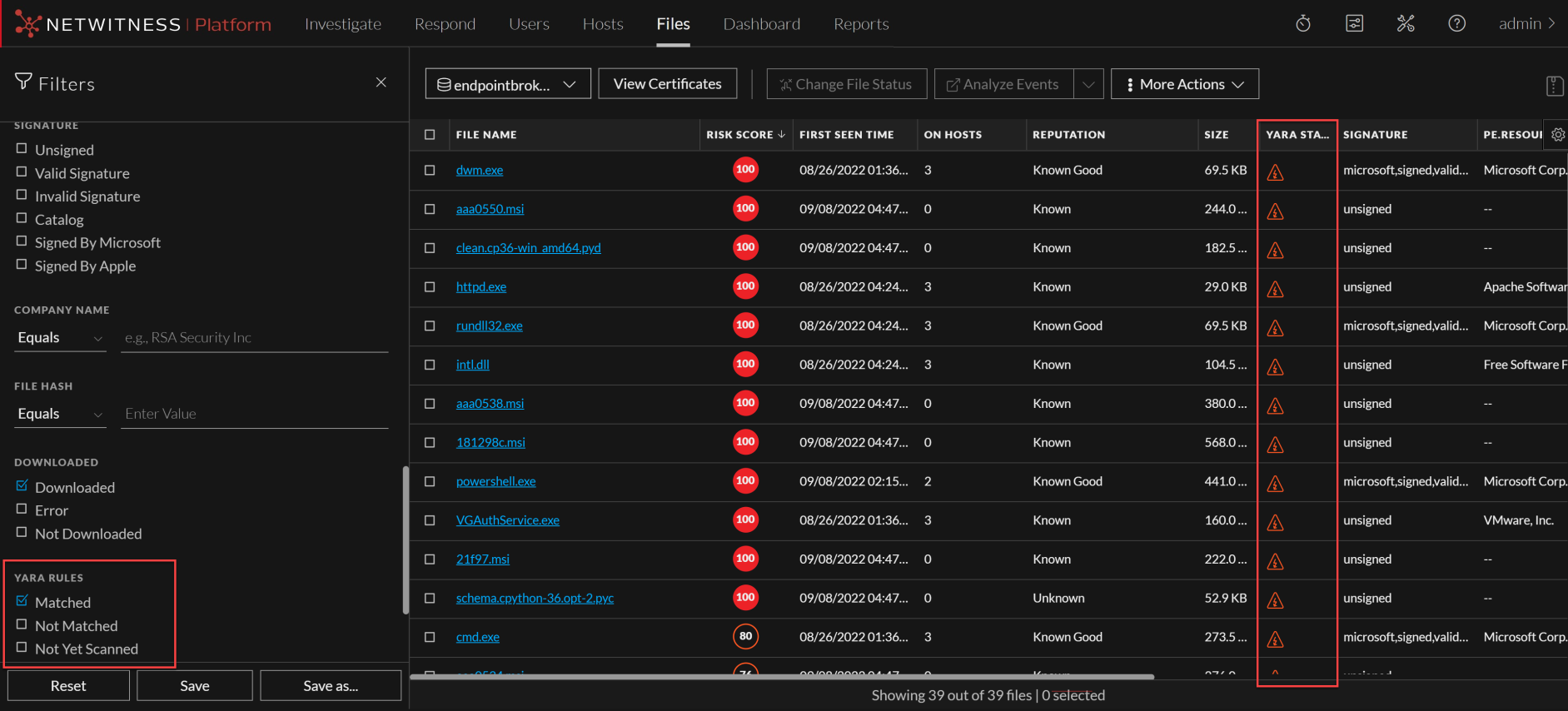
- On the Filters pane, scroll to the YARA RULES section. This section provides options to filter the files based on YARA scan status:
- Select Matched to view the files that match YARA rules.
- You can also view the files that do not match YARA rules or not yet scanned against YARA rules, by selecting Not Matched or Not Yet Scanned from the YARA RULES section.
For more information on investigating with YARA, see NetWitness Investigate User Guide.
Yara Scan at the Endpoint Agent Level
The NetWitness Platform allows you to quickly perform YARA scan at the Endpoint Agent level. A snapshot of the YARA scan shall be available on the Endpoint server with the details such as:
-
List of files matching the YARA rules.
-
List of YARA rules ran during the scan and the YARA rules status such as Loaded or Failed to load.
Note: To perform Yara scan at the Endpoint agent level, the agent version must be higher than or equal to 12.1. This is applicable for the Advanced mode Windows Agents.
-
YARA version associated with the agent.
To initiate YARA scan on the Endpoint Agent,
-
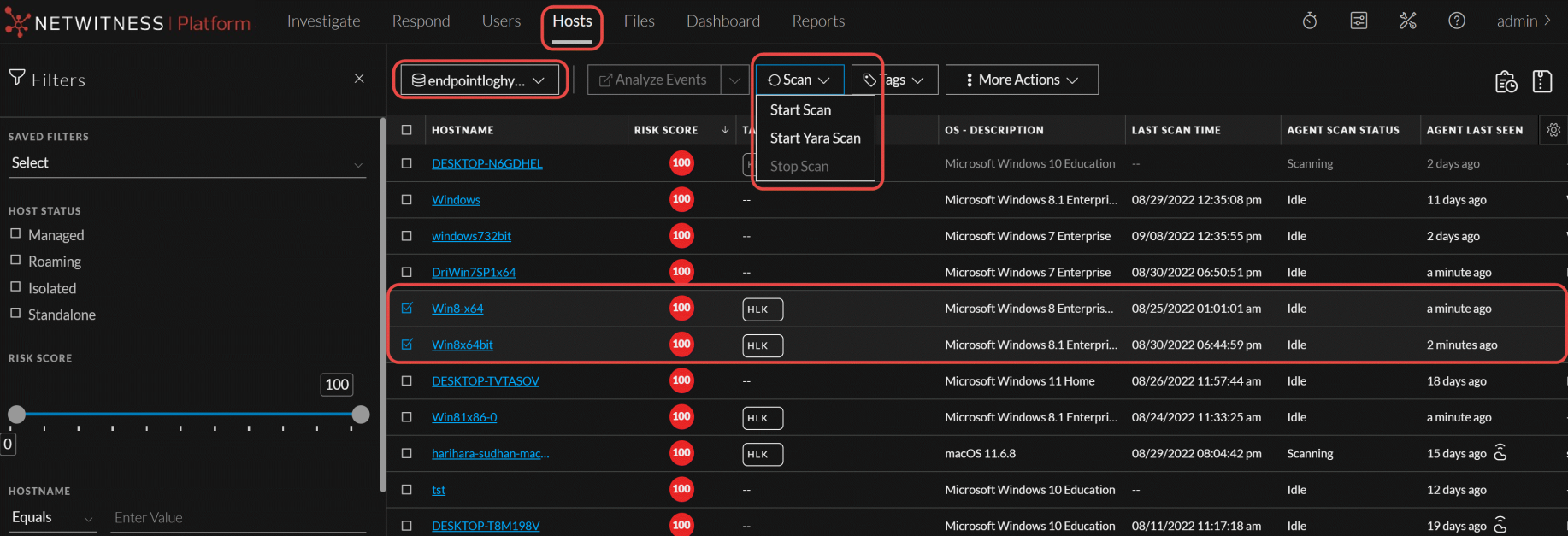
Click Hosts.
-
Select the Endpoint server from the server drop-down, to view hosts.
-
Select one or multiple hosts and click Scan > Start Yara Scan.
-
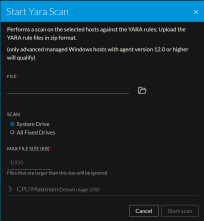
On Start Yara Scan pop-up,
-
Click
 and upload the YARA rule zip file.
 -
Select System Drive (Default selection) or All Fixed Drives.
-
Enter the Max File Size in Kilo Bites (KB).
-
Select CPU Maximum.
-
-
Click Start scan. See the command status In the Host > History tab.
To analyze the scanned hosts and files:
-
Log in to the NetWitness Platform.
-
Click Hosts.
-
Select the Endpoint server from the server drop-down to view hosts.
-
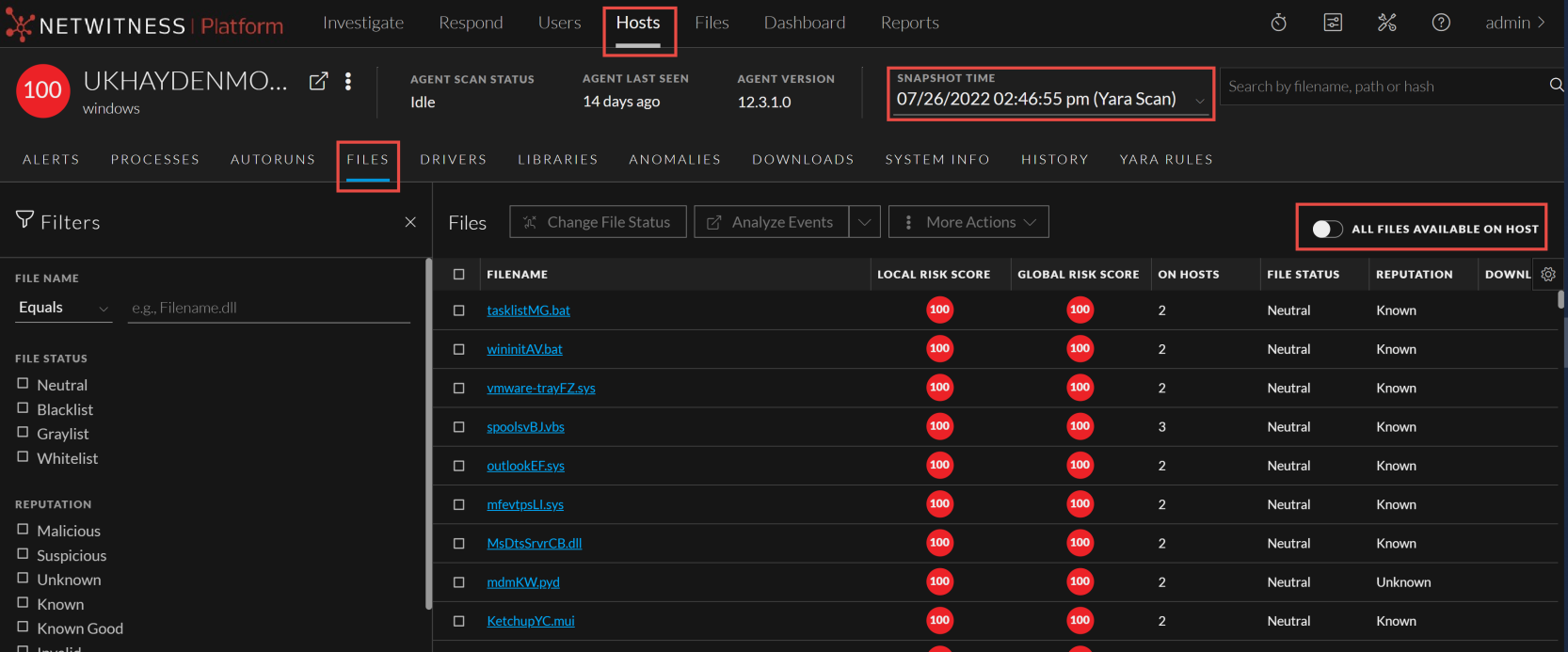
Select the Host and YARA Snapshot Time, and do any of the following:
-
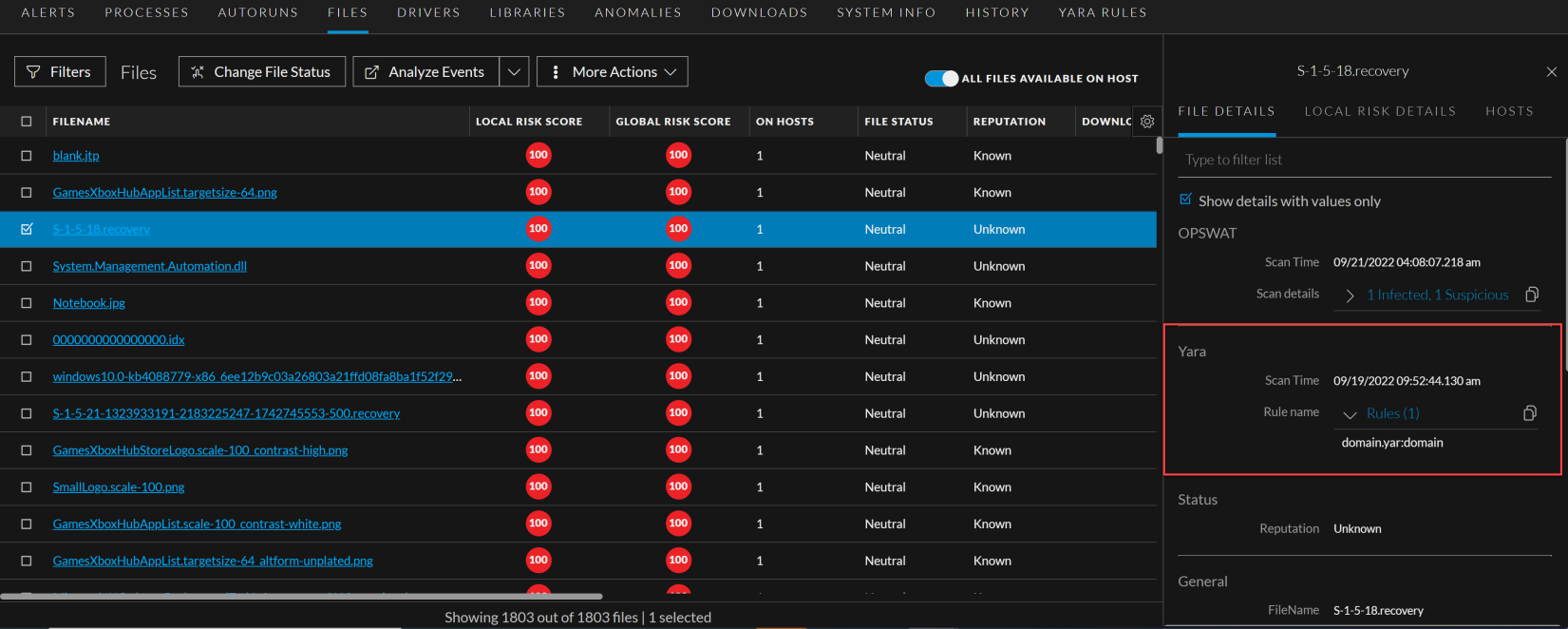
In the Host details view, click Files and select a row to view the YARA scan details associated with the file in the File Details panel.
If any file matches with one or more YARA rules, the File Details panel displays the matching rule names besides scan time.
-
Toggle the All Files Available on Host to view all the files irrespective of the snapshot selected.
Note: When a file matches with a YARA rule, high severity alerts are triggered and the file's risk score is updated.
-
-
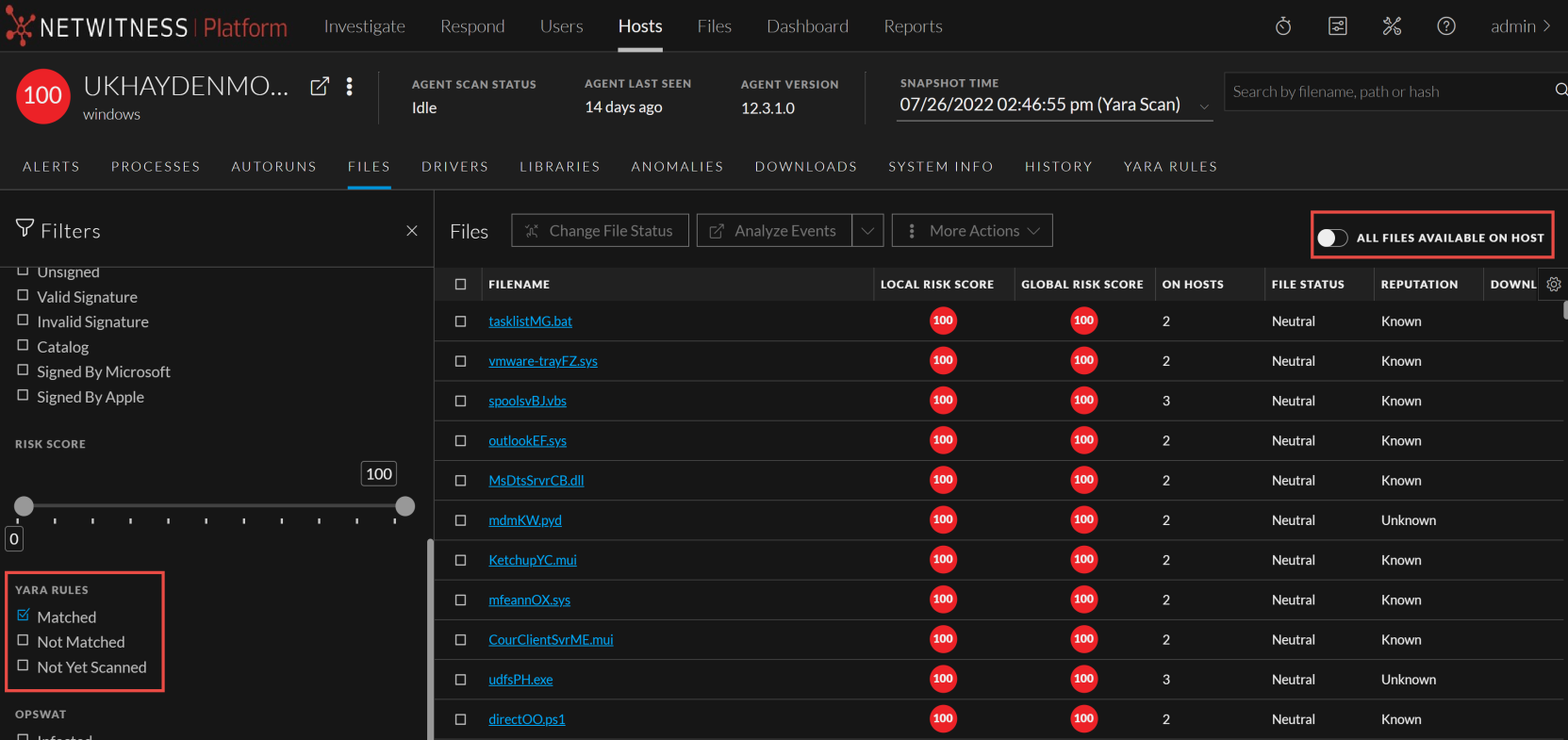
On the Filters pane, scroll to the YARA Rules section. This section provides options to filter the files based on YARA scan status: Select Matched to view the files that match YARA rules.
-
You can also view the files that do not match YARA rules or not yet scanned against YARA rules, by selecting Not Matched or Not Yet Scanned from the YARA rules section.
-
-
In the Host details view, click the YARA Rules tab to know if the YARA rules used for the scan are successfully loaded or failed to load. If any of the YARA rules are failed to load, hover over
 icon (Failed to load) to know the reason for failure.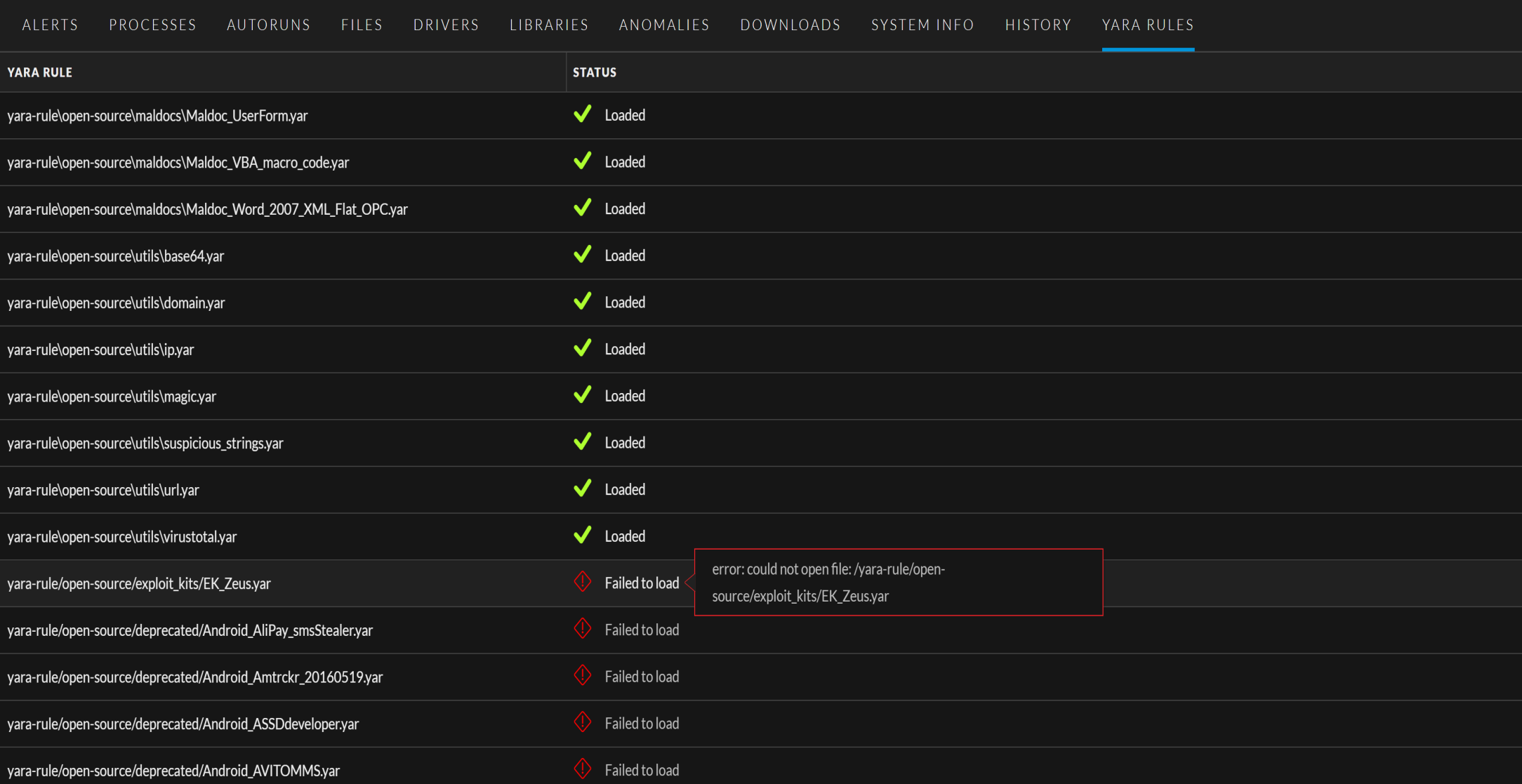
-
In the Host details view, click the History tab to view the command history.
-
Analyze Files Using OPSWAT
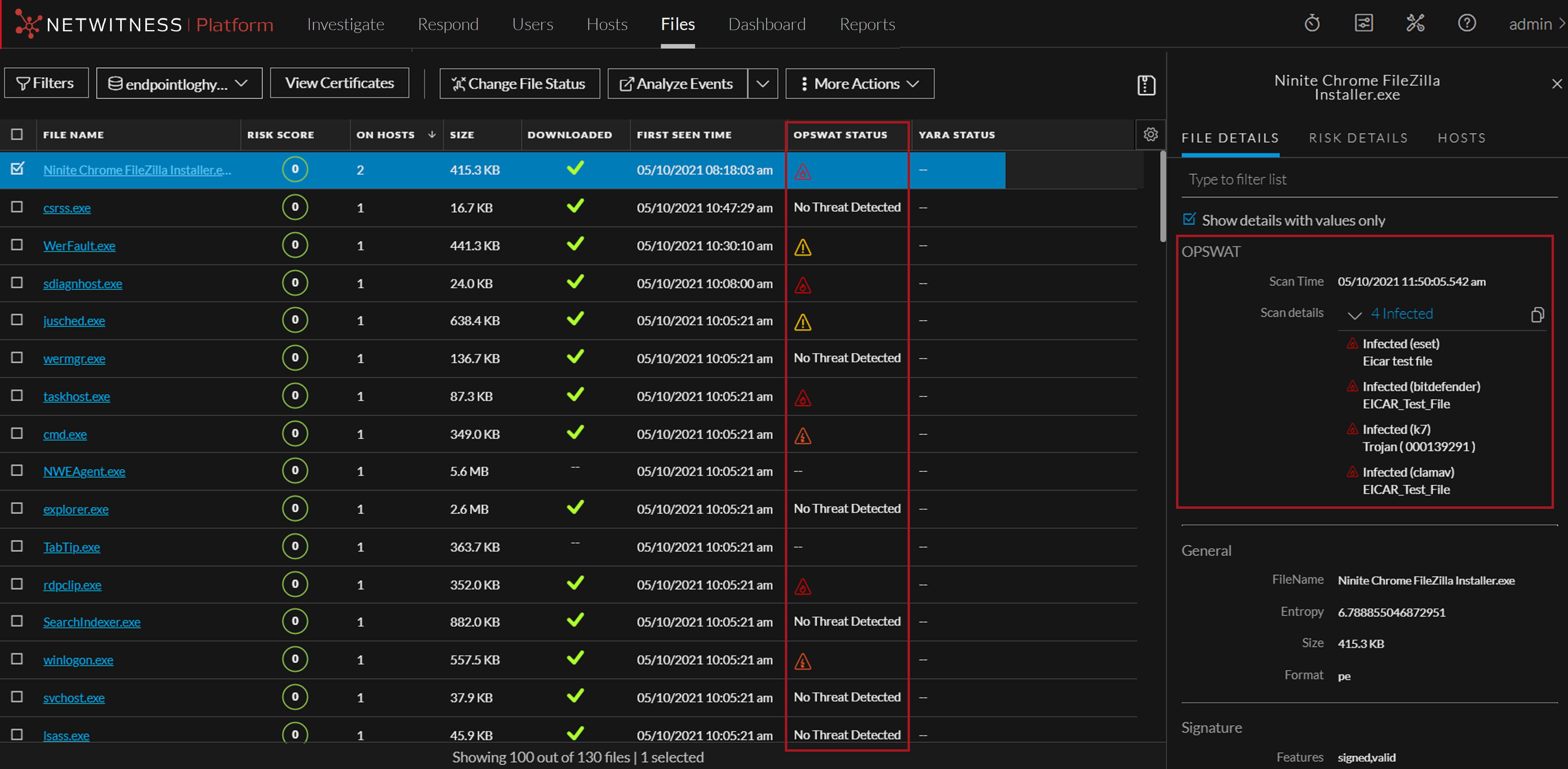
OPSWAT (MetaDefender Core) provides advanced malware detection capabilities by scanning files with multiple anti-malware engines simultaneously. Administrators need to enable and configure OPSWAT on the Endpoint server. To learn more about enabling and configuring OPSWAT, see NetWitness Endpoint Configuration Guide.
All downloaded files (executable) will automatically be sent to OPSWAT server for scanning once OPSWAT is enabled and configured on the endpoint servers.