.png?width=180&height=32&name=NW%20Logo%20(2).png)
Investigating Hosts
Note: The information in this topic applies to NetWitness Version 11.3 and later.
The Hosts view allows you to investigate on a host, which includes scan details, tracking events related to alerts, anomalies, and process details.
Best Practices
The following are some best practices and tips that may help you investigate efficiently to identify and isolate threats or attacks:
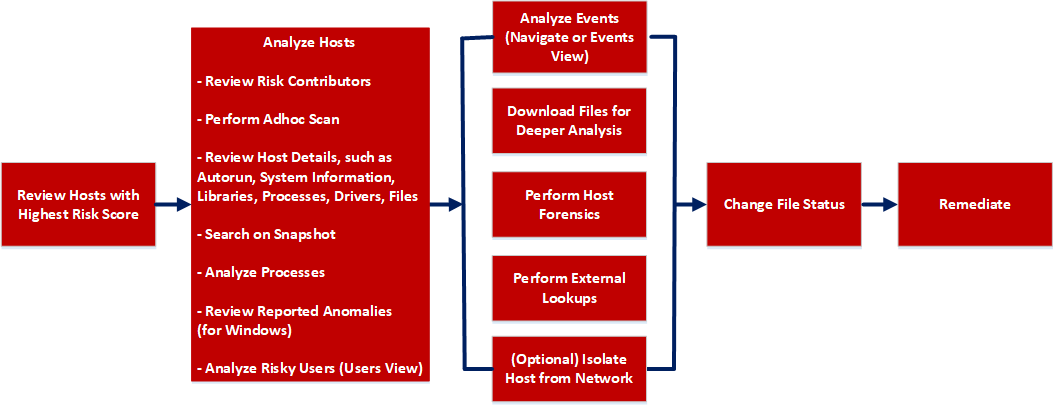
- Review hosts with highest risk score and analyze the alerts contributing to the risk. Review the entities, such as file name, processes involved in the alerts. For more information, see Analyze Hosts Using the Risk Score.
- Review files or processes that created this suspected file, and check if any other files are accessed or created in the Events view. For more information, see Analyzing Events.
- Review hosts for rare files in the On Hosts column. If a file is present on 100 hosts, it can be legitimate. If a file is present on fewer hosts with a high risk score, it may be malicious and needs further investigation.
-
Filter to exclude hosts on host status, risk score, hostname, and so on. For more information, see Filter Hosts.
- Search Google or VirusTotal with the file hash and review any reported activities. For more information, see Launch an External Lookup for a File.
- Review the processes, autoruns, files, libraries, drivers, and system information. For example,
- Search for files in known malware locations. For example,
- C:\Windows\.
- C:\Users\
\AppData\ . - C:\Users\
\AppData\Local\Temp. - C:\Windows\Temp\.
-
Search for a particular file name or hash and review the snapshot to check when the file was first seen.
- Review any network connections established by the process, such as:
- Domain or IP address.
- Ports used (common (80 and 443) versus uncommon ports (8080 , 8888, and 3465)) and check if the ports are listening actively.
- Check the file compile time. If the date is recent, it could be malicious.
- Check the file creation time on the host.
- Search for files in known malware locations. For example,
- Review reported anomalies, such as suspicious threads, kernel hooks, image hooks, and registry discrepancies. For more information, see Analyze Anomalies.
- Launch Process Analysis to view the sequence of activities performed on the host by the file or process. For more information, see Analyze Processes.
- Download suspicious files to the server for deeper analysis. For more information, see Analyzing Downloaded Files.
- Download MFT, process, or system dump to the server for forensic investigation. For more information, see Performing Host Forensics.
- After investigation if a file is found to be malicious you change the status of the file (blacklist or graylist) and block infected or malicious file. For more information, see Changing File Status or Remediate.
- (Optional) If you suspect that a host is potentially compromised with the threat still being active, you can isolate the host from the network and safely investigate possible threats within the host. For more information, see Isolating Hosts from Network.
View Hosts
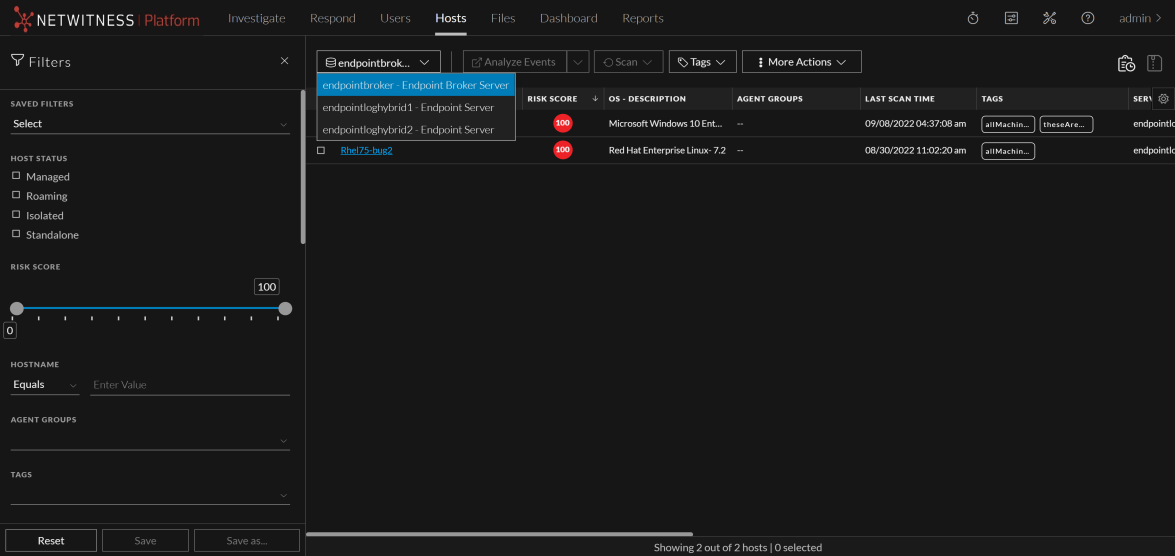
You can view all hosts present on a specific Endpoint server or consolidated list of all hosts on multiple Endpoint servers using the Endpoint Broker for analysis. By default, hosts are sorted based on the risk score. To view the hosts:
- Go to Hosts.
-
Select from the following:
- Endpoint Broker Server to view all hosts across all Endpoint servers. When querying, the Endpoint Broker ignores Endpoint servers that are offline. If the Endpoint server is online but is not responding, the Endpoint Broker waits for 10 seconds, and ignores if it does not respond.
-
Endpoint Server to view hosts on a specific Endpoint server.
- Select a host that you want to analyze.
- Click a row to view the following details:
- Host Details displays the host information such as Network Interfaces, operating system, hardware and others.
- Risk Details displays the distinct alerts associated to the risk score and the alerts severity. Click Critical, High, Medium, or All to display all the alerts. For more information, see Analyzing Risky Users.
- Click Show next 100 hosts to view other hosts.
-
Click the host name to investigate the scan results. For more information, see Analyze Host Details.
Manage Hosts Using Tags
From version 11.7 and later, NetWitness Platform allows you to create Tags to manage the hosts effectively. Tags are custom texts that you can create and assign to hosts for identifying them. A tag can contain alphabets, numbers and special characters(Except \ ' , [ ] " and space). You can use these tags to create host groups. You can also filter hosts by tags using the filters pane on the Hosts screen.
Manage Tags
The Manage Tags option allows you to create and delete tags without selecting any hosts.
To Create Tags:
-
Click Tags > Manage Tags on the Hosts tab.

-
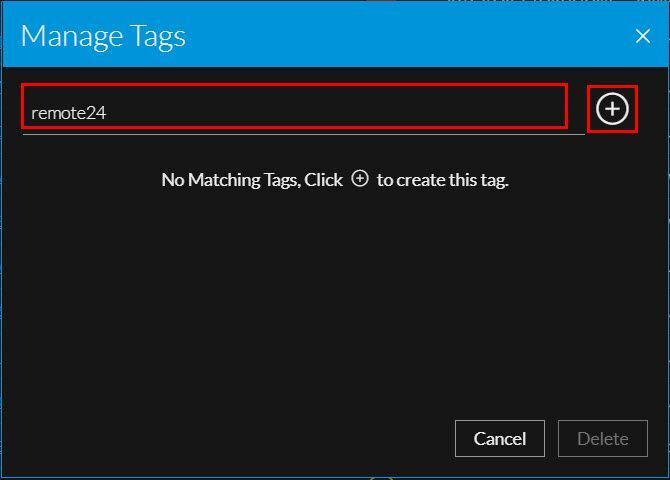
Enter a valid tag in the text field on the Manage Tags pop-up and click
 .
.
-
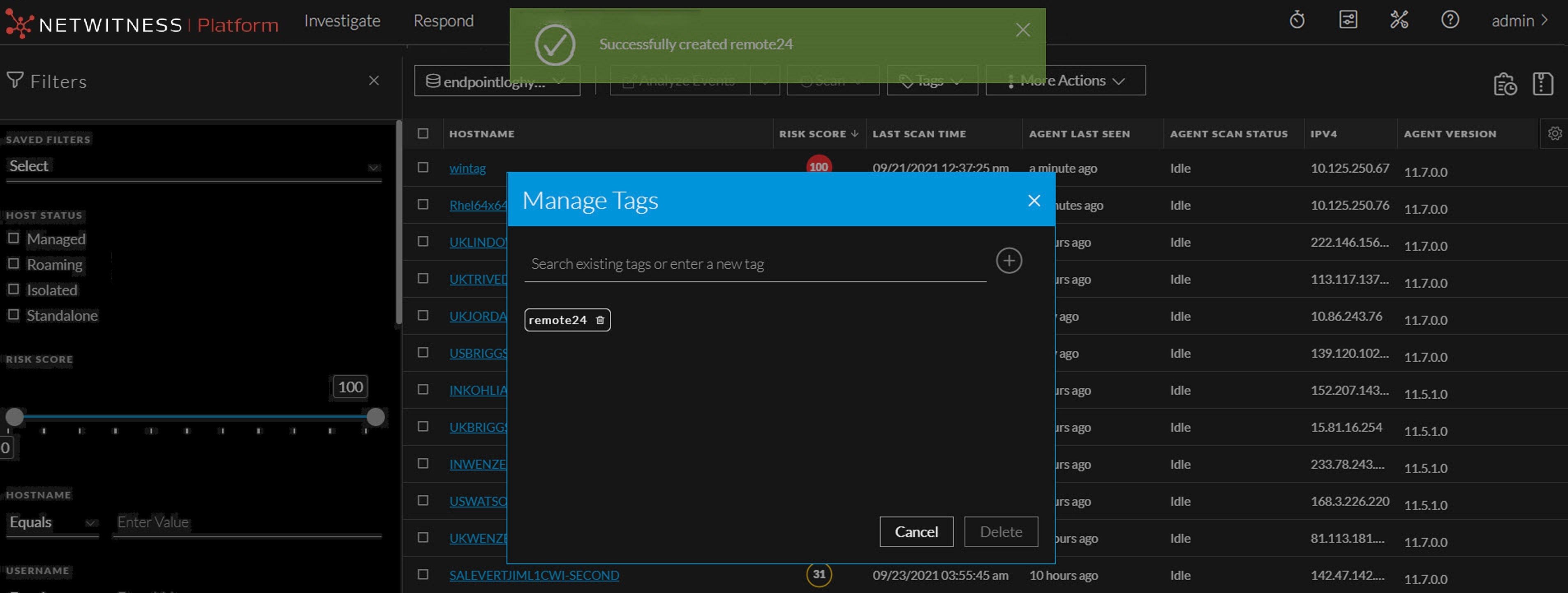
The tag is created, and a success message will appear.
-
-
Repeat step 2 to create more tags.
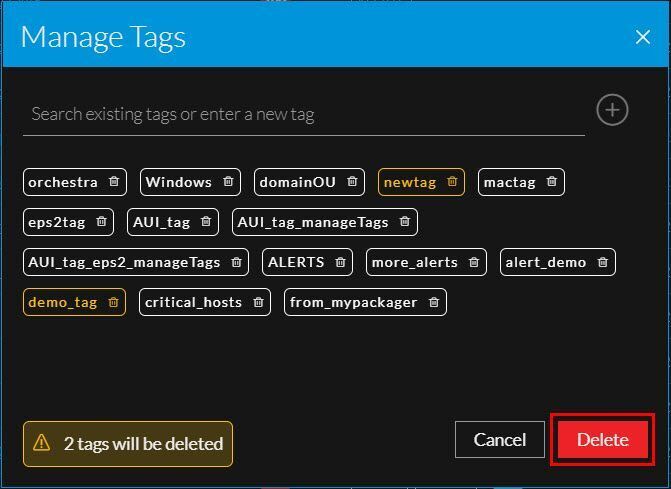
To Delete Tags:
-
Click Tags > Manage Tags on the Hosts tab.

-
Select the tags that you want to delete and click Delete on the Manage Tags pop-up.
-
Click Delete on the Delete Tags confirmation pop-up.
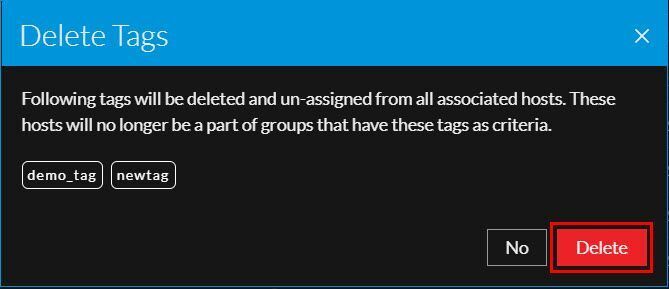
Note: The tags you deleted will also be unassigned from all associated hosts. If the associated hosts are a part of groups created using these tags as one of the criteria, then the hosts will no longer be a part of those groups. Refer What happens next after unassigning or deleting tags from hosts? for more information.
Assign tags
-
Select one or more hosts on the Hosts tab.
-
Do one of the following.
-
Select Tags > Assign Tags from the menu.

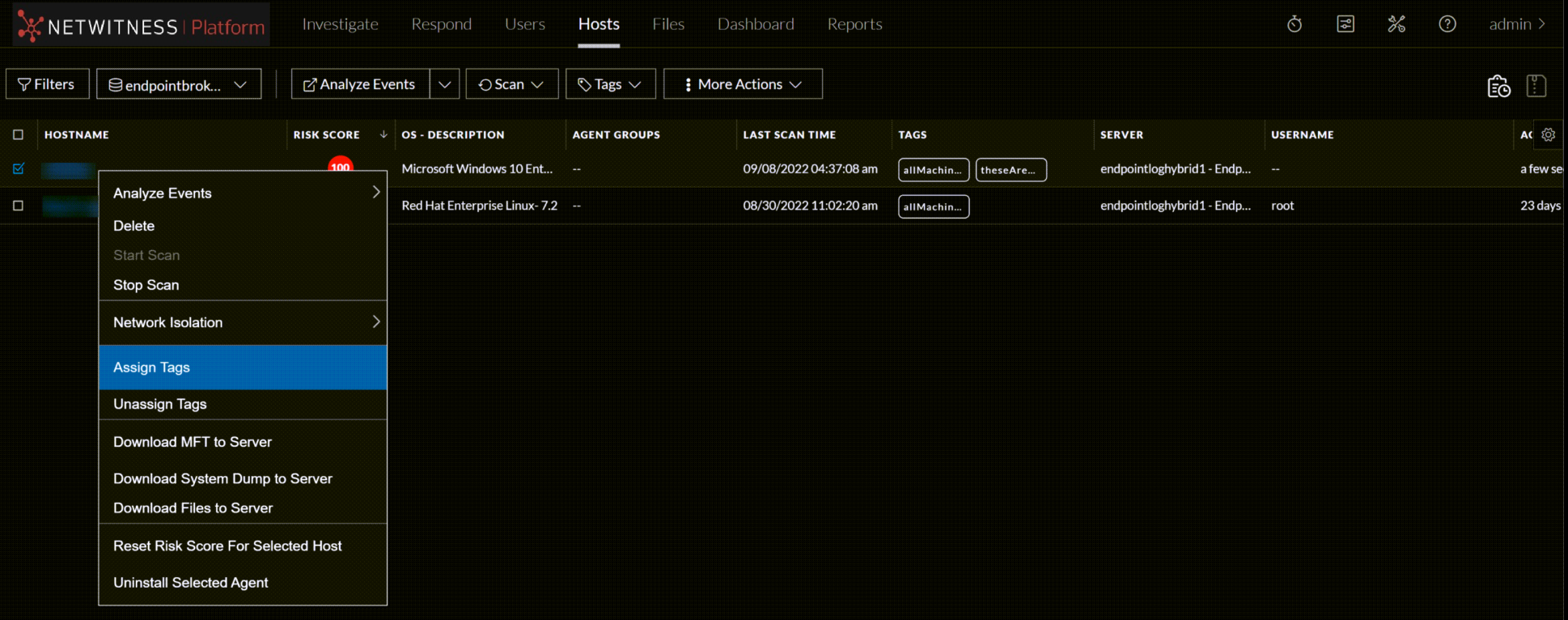
- Select a host, right click and select Assign Tags.
The Assign Tags pop-up will appear and shows all the existing tags.
-
-
Do one of the following.
-
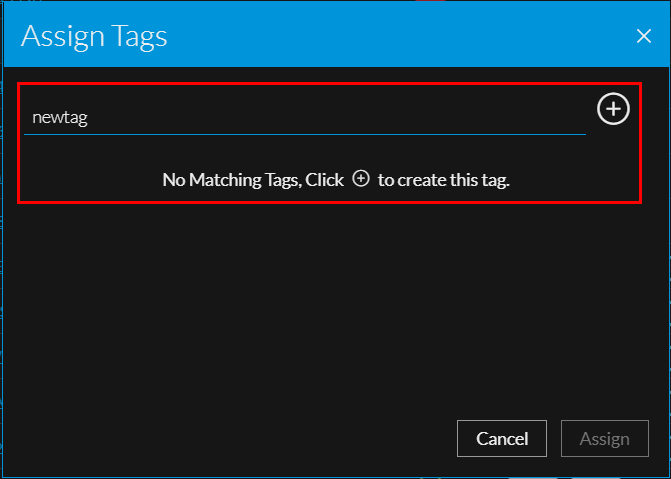
Enter a valid tag and click
to create it. The newly created tag is selected by default.
-
-
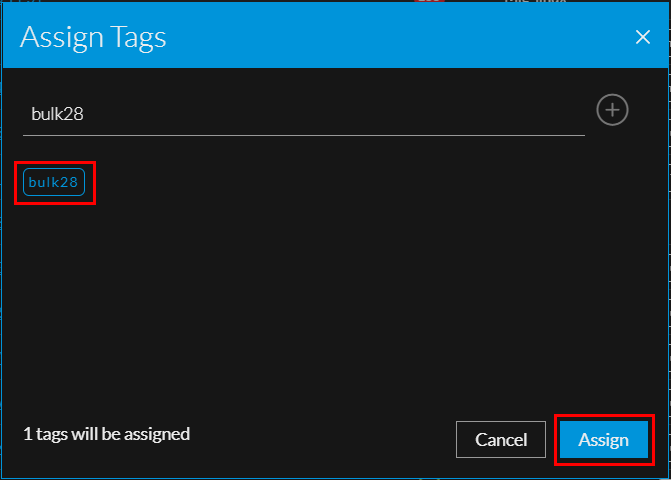
Search for an existing tag using the text field and select it if required.
-
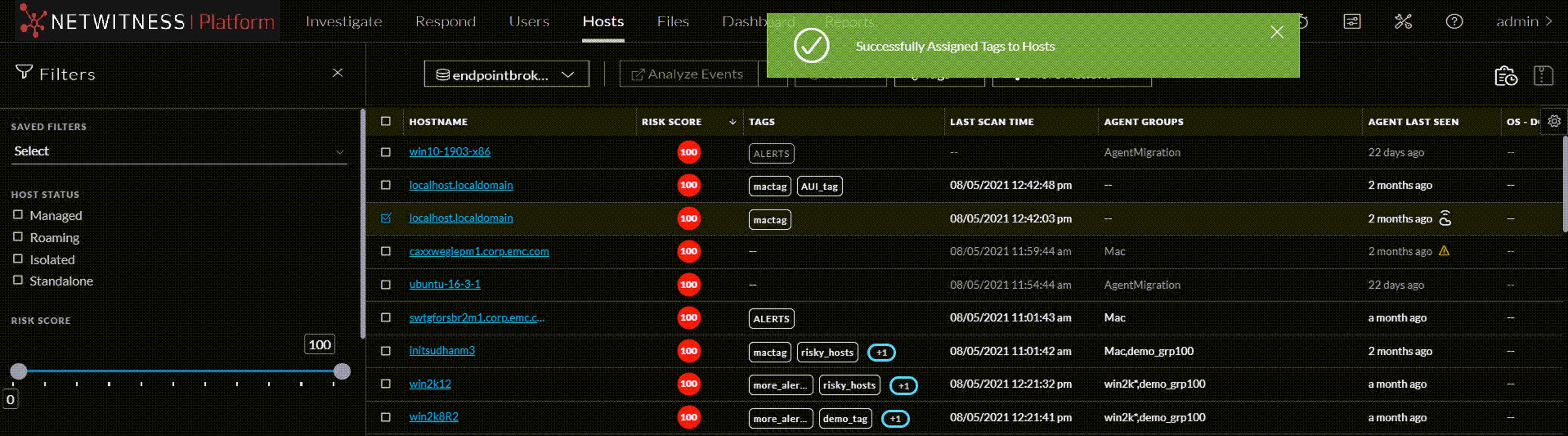
Click Assign. These tags will be assigned to the selected hosts.
Create and Assign Tags When Generating the Agent Packager
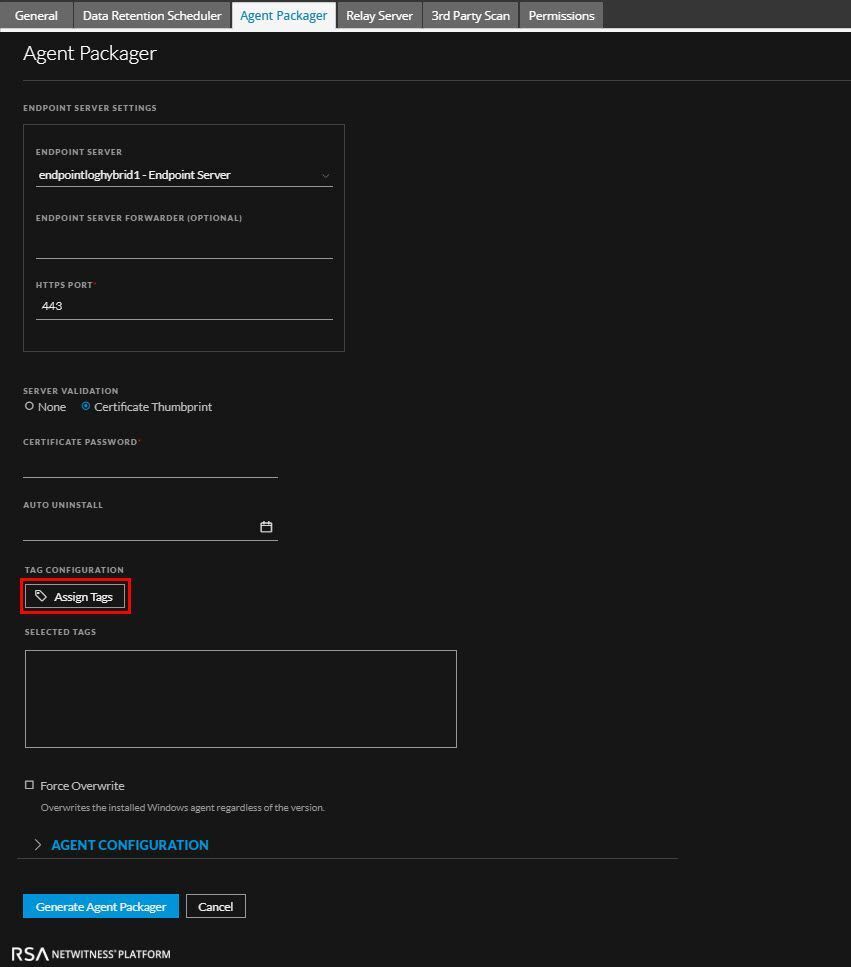
You can add tags to the hosts while installing the Endpoint agents. When generating the agent packager on the Agent Packager tab, you can either create new tags or select already existing tags. These tags will automatically be assigned to the host in which the agent will be installed.
-
Click Assign Tags under TAG CONFIGURATION on the Agent Packager tab.
-
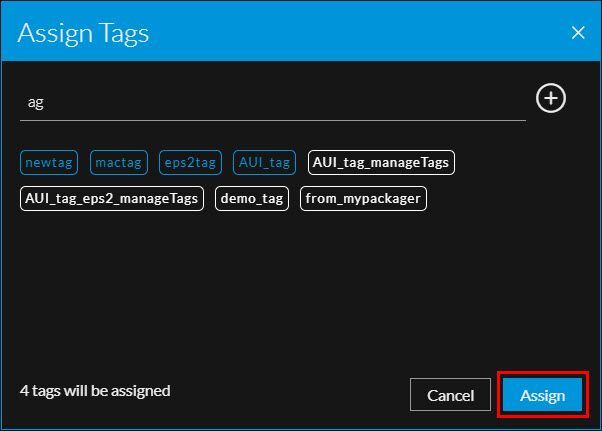
On the Assign Tags pop-up, do one of the following.
-
Search for an existing tag using the text field and click Assign.
-
Enter a new tag in the text field and click
to add it to the selection. Click Assign. -
Assigned tags will appear under SELECTED TAGS.
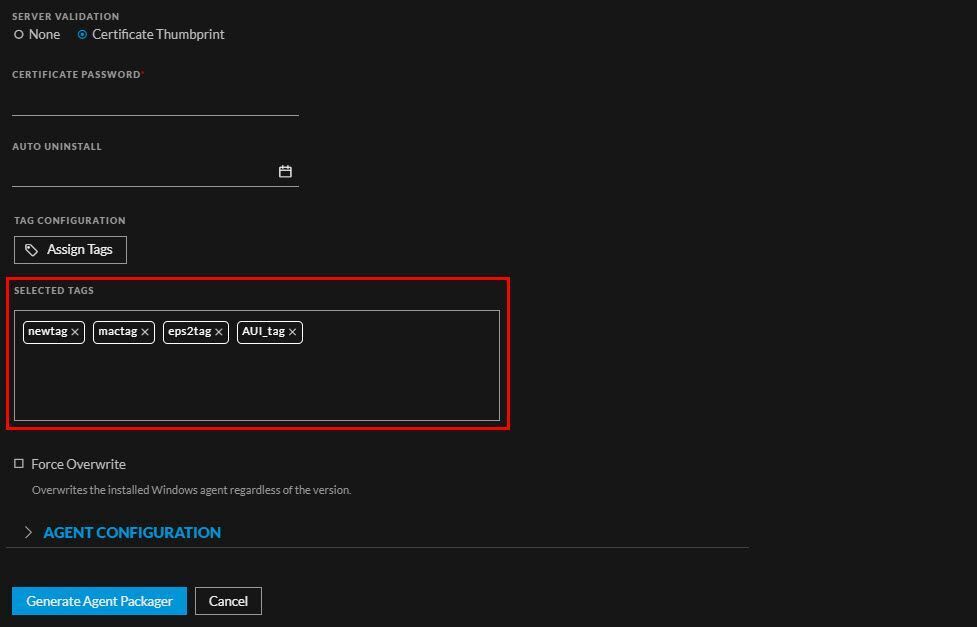
Note: The tags added while generating the Agent Packager are applicable only to the newly installed agents and not to the manually upgraded agents.
Unassign tags
-
Select one or more hosts on the Hosts tab.
-
Do one of the following.
-
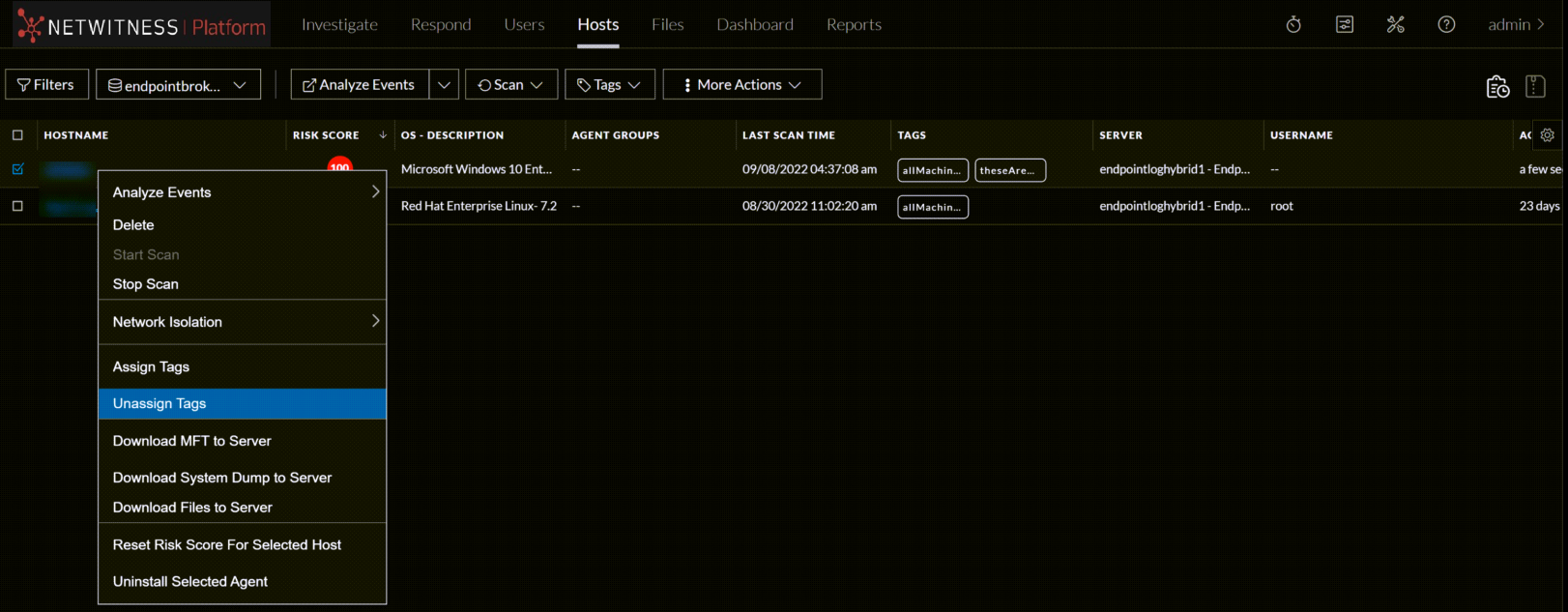
Select Tags > Unassign Tags from the menu.

-
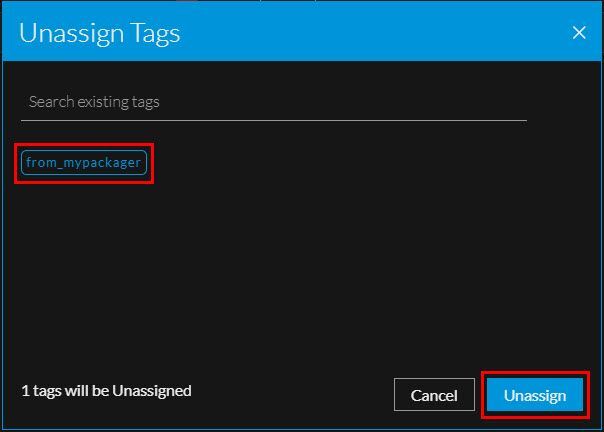
Right click a host and select Unassign Tags. The Unassign Tags pop-up will appear and show all the tag assigned to the selected hosts.
-
-
-
Search for the tags you want to unassign, select them and click Unassign.
-
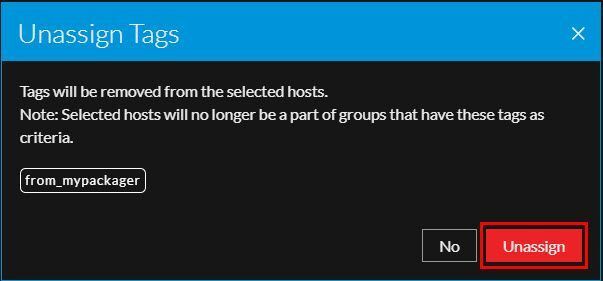
Click Unassign on the confirmation pop-up.
-
These tags will be Unassigned from the selected hosts.

What happens next after unassigning or deleting tags from hosts?
Unassigning/deleting tags from hosts will immediately initiate group & policy evaluation. For example, if a host is a part of the group created using only the unassigned/deleted tag as criteria, the host will no longer be a part of that group. Refer to the following scenarios to understand more.
Example Scenario 1: Assume you create a group with a couple of tags as grouping criteria, all the hosts with these tags assigned will be a part of the group. And, if you delete these two tags(or unassigning from the hosts), the hosts may no longer be a part of this group.
Example Scenario 2: Assume you create a group with a couple of tags and IP addresses as grouping criteria; all the hosts assigned with these tags and IP addresses will be a part of the group. And, if you delete(or unassigning from the hosts) the tags alone, the hosts may still be a part of this group as they are still grouped using the IP addresses.
View Agent HistoryView Agent History
You can view the list of commands issued to the agents (by the server or actions performed by any analyst) in the Host view and Host details. By default, commands are sorted based on the command time.
To view the commands:
- Go to Hosts.
- Do any one of the following,
- To view all commands, click
 . You can also filter commands, for more information see Filter Hosts.
The Agent History view is displayed. For more details, see Analyze History.
- To view commands specific to a particular host:
- Click the host for which you want to view the commands.
- In the Host details view, click History tab. You can also filter commands, for more information see Filter Host Details.
The History view is displayed. For more details, see Analyze History.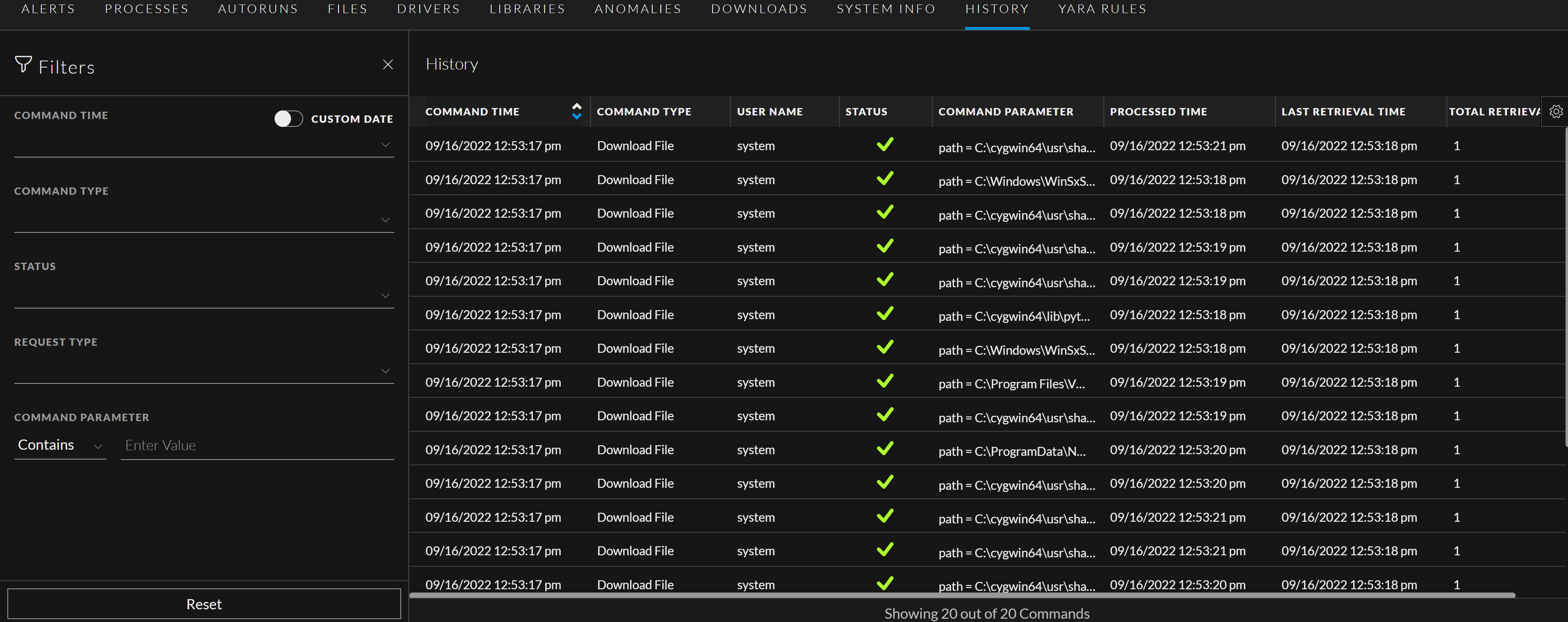
- To view all commands, click
Filter HostsFilter Hosts
You can filter hosts on agent version, agent ID, agent mode, agent upgrade, agent last seen, last scan time, operating system, hostname, username, Mac address, risk score, IPV4, driver error code, security configurations, agent groups, and host status - managed, roaming, and isolated.
In the Host view > click , to filter the commands on command type, status, host name, request type, command parameter and command time. In the Command Time field, you can filter by custom date range.
Note: While filtering on a large amount of data, use at least one indexed field with the Equals operator for better performance. The following fields are indexed in the database - Hostname, IPv4, Operating System, Last Scan Time, and Risk Score.
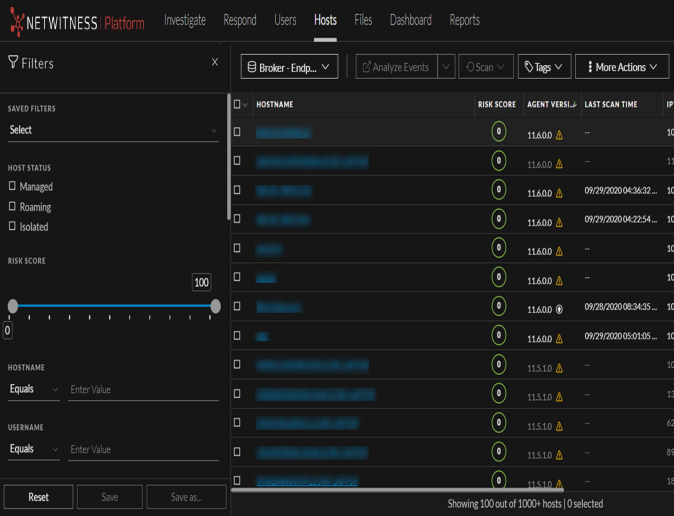
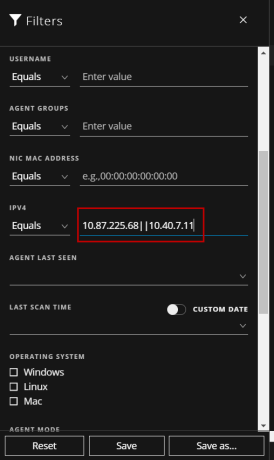
To search multiple values within a field, set the filter option to Equals, and use || as a separator.
For example, using Equals operator for multiple IPV4 values with a separator ||.
To filter on the agent last seen or last scan time, select the option from the drop-down list. If you select 3 Hours ago for the Last Scan Time, the result displays hosts that were last scanned 3 hours ago or earlier.
To filter on the risk score, use the slider to increase or decrease the values between 0 to 100.
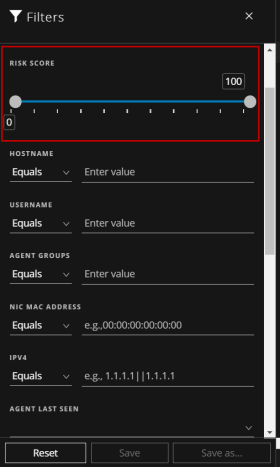
Click Save to save the filter and provide a name (up to 250 alphanumeric characters). The filter is added to the Saved Filters panel on the left. To delete a filter, hover over the filter name and click  .
.
Note: Special characters are not allowed except underscore (_) and hyphen (-) while saving the filter.
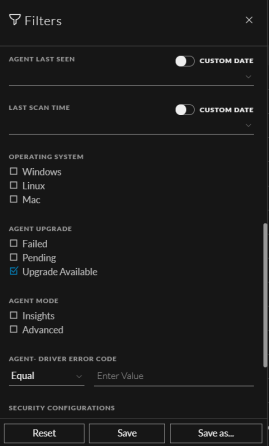
To filter the agents based on the upgrade status, select one of the upgrade statuses. For example, select the Upgrade Available checkbox to get the list of agents available for an upgrade.
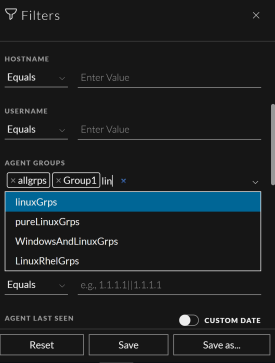
To filter the agents based on single or multiple agent groups, select a group from the drop-down list. You can also search the name of the groups from this list.
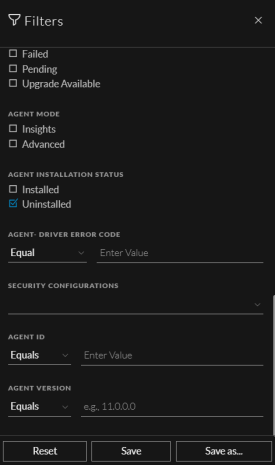
To filter the agents based on the installation status, select one of the installation statuses. For example, select the Uninstalled checkbox to get the list of agents for which the uninstall is initiated or successfully completed.
You can also filter the commands on command type, status, host name, request type, command parameter and command time (In which you can filter by custom date range), by clicking  .
.
Adding and Sorting Columns in the Table
By default, the Hosts view displays a few columns and the hosts are sorted based on the risk score. To add or remove columns:
- Go to Hosts.
-
Select the columns by clicking
 in the right-hand corner.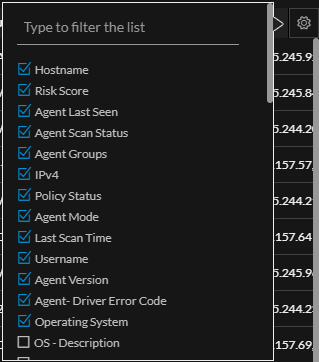
- Scroll down or enter the keyword to search for the column.
- Click the arrow on the column header to sort the column in ascending or descending order.
Scan HostsScan Hosts
You may want to perform an on-demand scan if you want to get the latest snapshot of the host.
You can either choose to perform a quick scan or a full system scan.
Quick scan - Scans all executable files that are loaded in memory. Both Insights and Advanced agents support quick scan.
Full System Scan - Scans all fixed drives or the system drive You can perform a full system scan only on advanced agents that are in version 11.6 or later. Native executables are included in the full system scan, by default
When hosts are scanned, the Endpoint Agent retrieves the following data that can be used for investigation:
- Drivers, processes, DLLs, files (executables), services, autoruns, anomalies, host file entries, and scheduled tasks running on the host.
- System information such as network share, installed Windows patches, Windows tasks, logged-in users, bash history, and security products installed.
To perform a Quick Scan:
-
Go to Hosts.
-
Select one or more hosts (up to 100) at a time, and do one of the following:
-
Click Scan > Start Scan from the menu (Or)
-
Right-click and select Start Scan from the context menu
3. Click Start Scan on the pop-up. Quick scan is initiated for executable modules loaded in memory.
The following are the scan statuses:
Note: By default, the scan utilizes 25% of the CPU. You can click CPU Maximum and select a value from 5% to 100%. Increasing the CPU Maximum limit reduces the scan time but could lead to more CPU usage.
To perform a Full System Scan:
-
Go to Hosts.
-
Select one or more hosts (up to 100) at a time for an on-demand scan, and do one of the following:
- Click Scan > Start Scan from the menu bar (Or)
- Right-click and select Start Scan from the context menu

file or process name
device drivers
uploading a system dump). In this case
size
and so on that is reported during the host scan.