.png?width=180&height=32&name=NW%20Logo%20(2).png)
Investigation Configuration Panel
The  (Admin) > System > Investigation Configuration panel provides the user interface for administrators to configure the system-wide settings that NetWitness Investigate uses when analyzing data and reconstructing an event.
The settings allow an administrator to manage application performance for Investigate. As analysts analyze and reconstruct sessions that they are investigating, performance can be affected by operations that involve loading, searching, visualizing, and reconstructing large amounts of data.
Note: Analysts can also set individual preferences for Investigate in the Profiles view and in the Navigate, Legacy Events, and Events views.
To access the Investigation Configuration panel:
- Go to (Admin) > System.
- In the options panel, select Investigation.
Workflow

What do you want to do?
Related Topics
Quick Look
The Investigation Configuration panel has four tabs: Common Settings (Version 11.5 and later), Navigate, Events, Legacy Events, and Context Lookup.
Though most fields in the tabs have a selection list with specific increments through the range of possible values, you can enter a value within the allowed range manually. An invalid entry is signaled by the field highlighted in red. When valid values are selected, clicking Apply in a given section puts the changes into effect immediately.
Common Settings Tab
The Common Settings tab applies to all Investigate views. 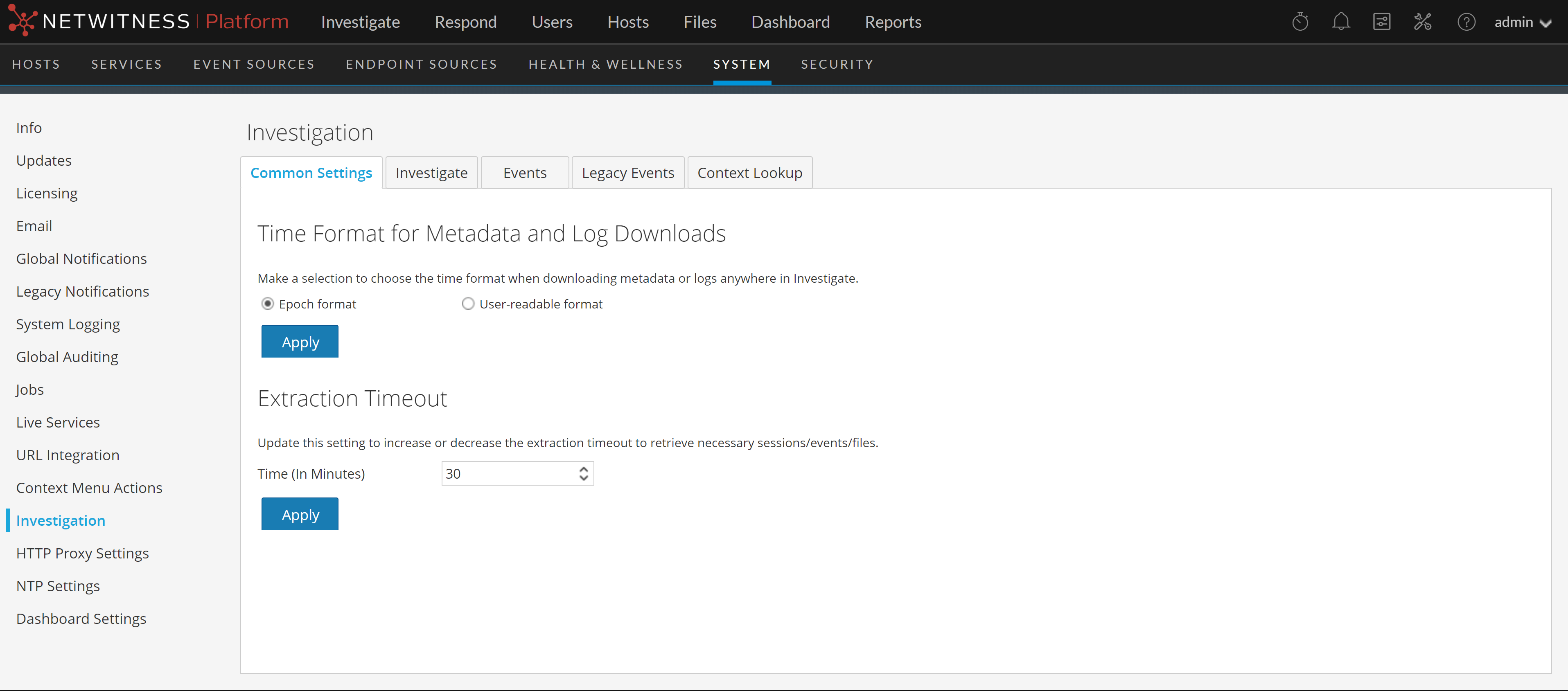
The following table describes the options in this tab.
Investigate Tab
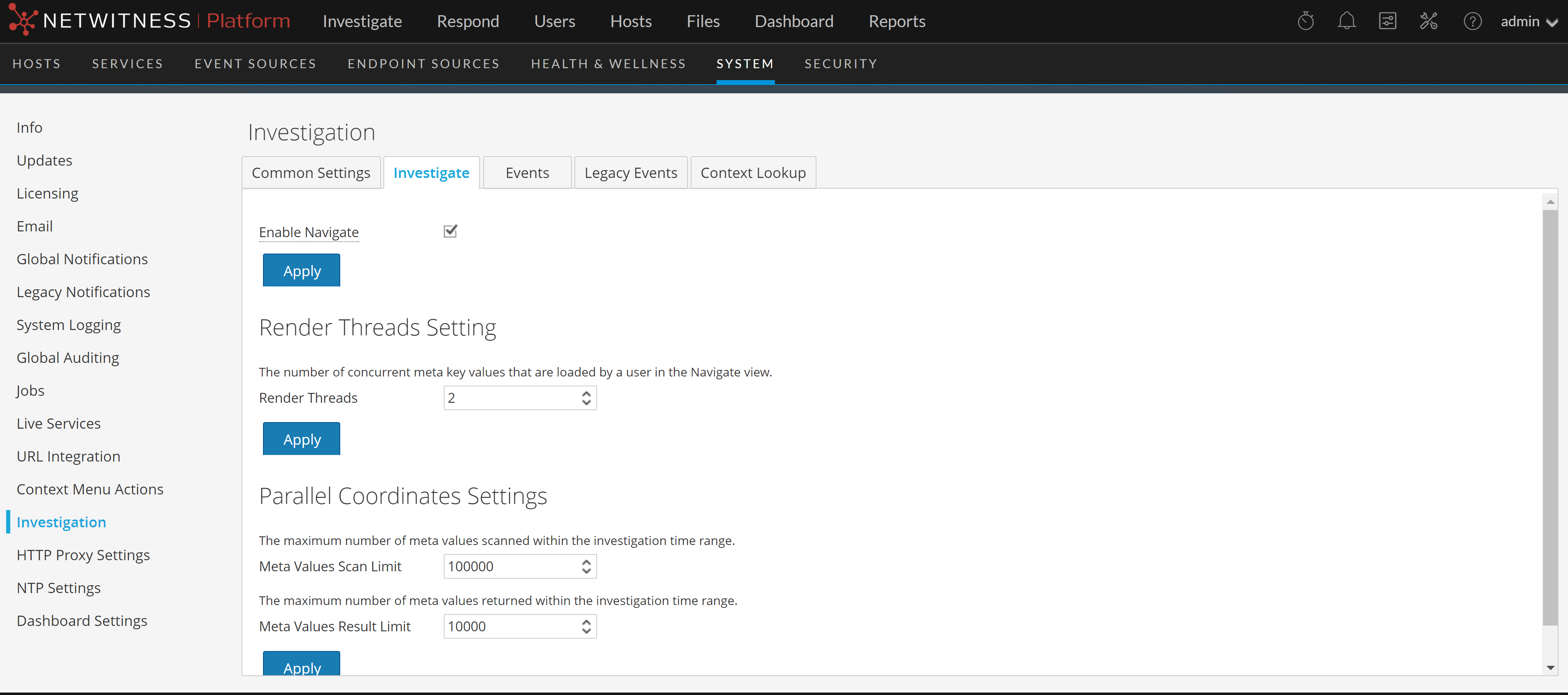
The Investigate tab has two sections: Render Threads Setting and Parallel Coordinates Settings. The following figure shows the Navigate tab.
Render Threads Setting
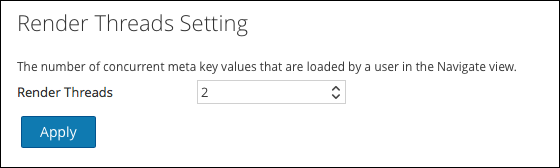
The Render Threads Setting is a selectable value between 1 and 20, which defines the number of concurrent (Values) loads in the Navigate view. The default value is 1.
Parallel Coordinates Settings
The Parallel Coordinates Settings apply to the Parallel Coordinates visualization in the Navigate view. There is a fixed limit on the amount of data that can be rendered as a parallel coordinates chart. In NetWitness the administrator can configure parallel coordinates limits here.
Note: For better performance, recommended settings are Meta Values Scan Limit: 100000 and Meta Values Result Limit: 1000-10000.
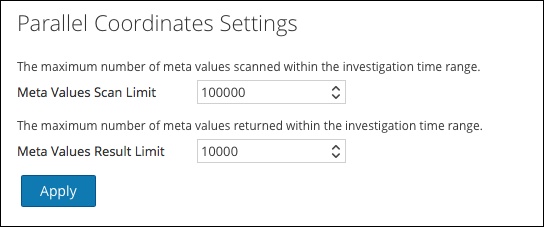
The following table describes the Parallel Coordinates Settings.
Legacy Events Tab
The Events tab provides configurable settings that affect the investigation of events. This tab has five sections: Enable Legacy Events, Event Search Settings, Reconstruction Settings, Web View Reconstruction Settings, and Reconstruction Cache Settings. The following figure shows the Events tab.
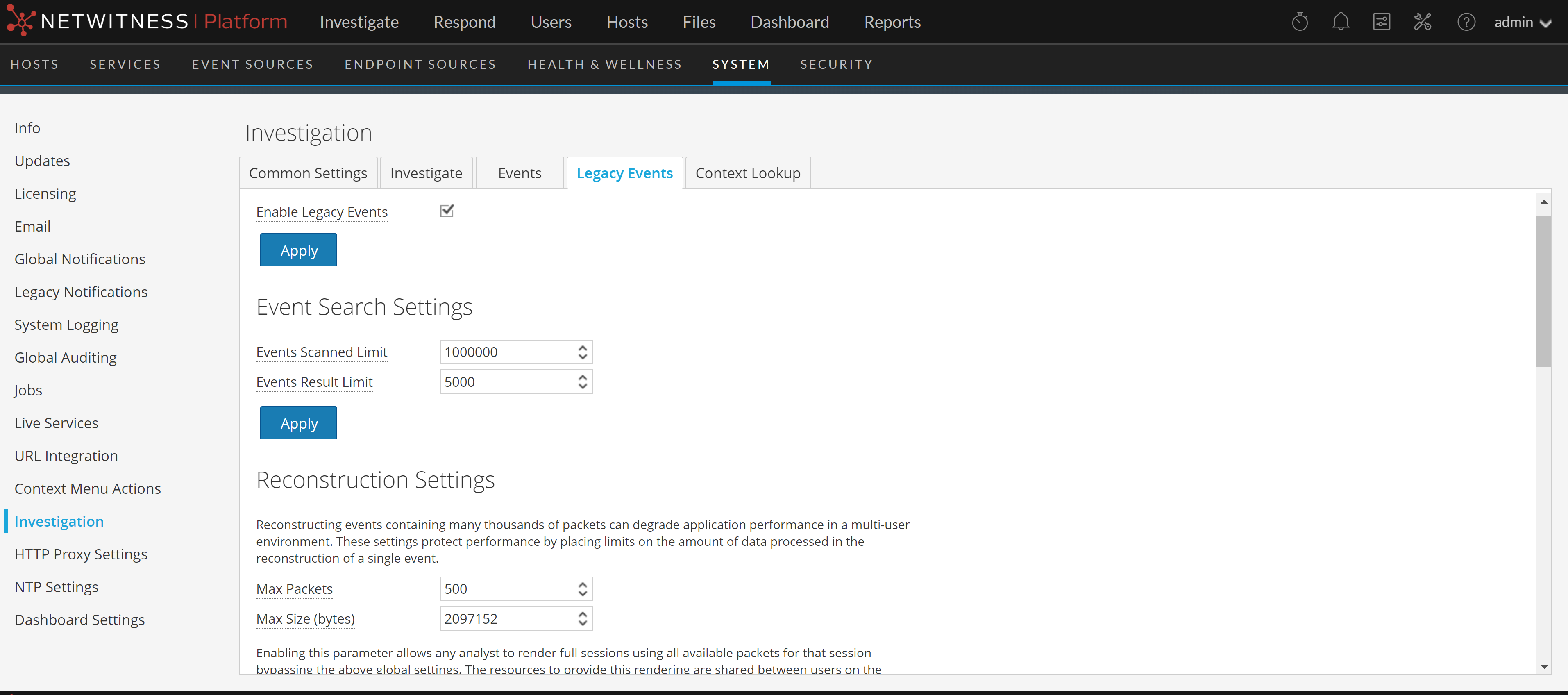
Enable Legacy Events
The Enable Legacy Events checkbox helps to enable and view the legacy events tab and view the classic events page on the UI. By default, this option is disabled.
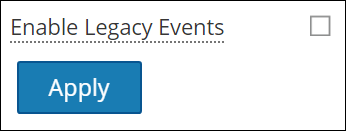
Event Search Settings
The Event Search Settings help to limit the number of events scanned when searching in the Events view.
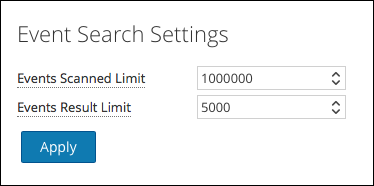
The following table describes the Event Search Settings.
Reconstruction Settings
As analysts reconstruct sessions that they are investigating, some events can be very large and contain many thousands of source packets. Reconstructing these sessions, especially in a multi-user environment, can degrade application performance. The Reconstruction Settings allow an administrator to limit the number of packets and the size of a single event during reconstruction.
Note: An override to the Reconstruction Settings section is configurable for web views (under Web View Reconstruction Settings).
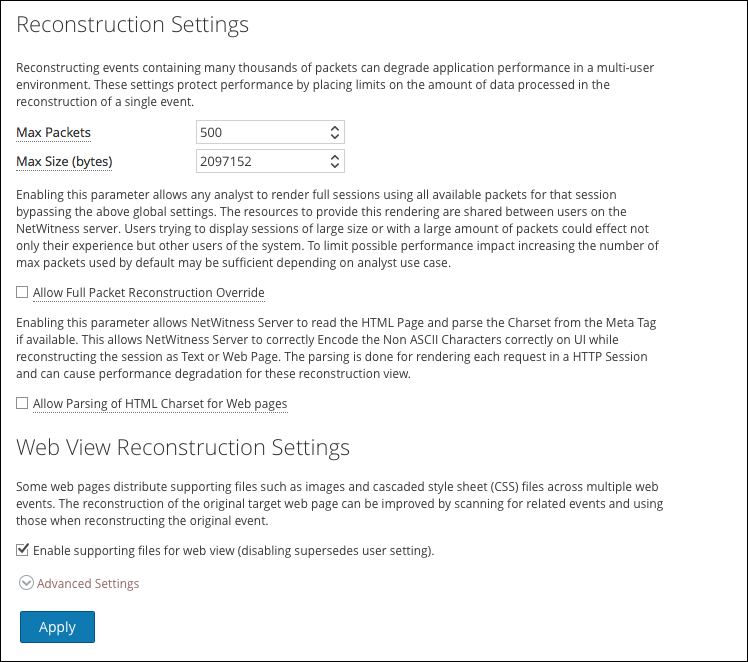
The following table describes the Reconstruction Settings features.
Web View Reconstruction Settings
The Web View Reconstruction Settings allow an administrator to configure settings that improve the reconstruction of a web view by scanning and reconstructing related events that contain the same supporting files. When NetWitness is reconstructing a web view that spans multiple events, it is possible to improve the reconstruction of the target event by scanning and reconstructing related events that contain the same supporting files, such as images and cascaded style sheet (CSS) files.
- The only related events scanned are HTTP service type events with the same source address as the target event, and a time stamp within a specified time range before and after the target event.
- The maximum number of related events to scan is configurable.
Clicking on the Advanced Settings option displays all configurable settings in this section.
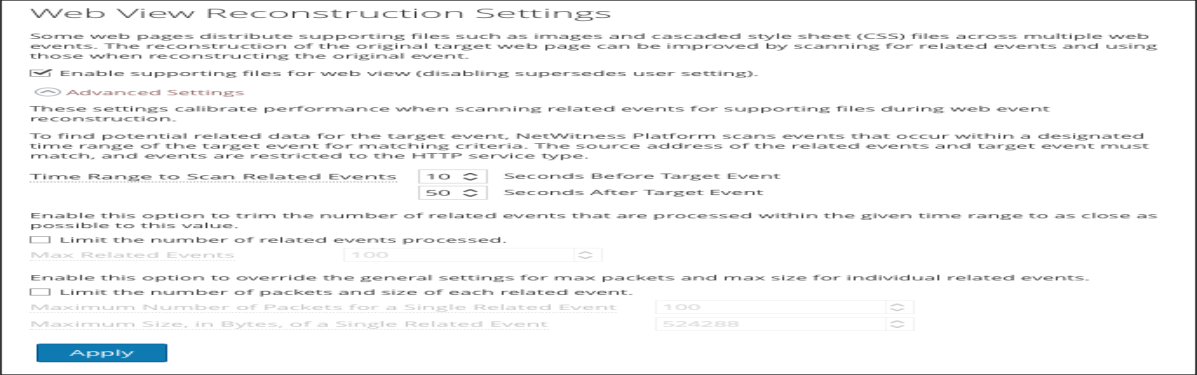
The following table describes the Web View Reconstruction Settings.
Reconstruction Cache Settings
In some cases, the reconstruction cache can present incorrect content; for this reason NetWitness removes reconstructions that are older than a day from the cache. The cache is cleaned every day at midnight. Between the daily cache cleanings, certain actions may result in stale cache being used for a reconstruction, and if the need arises, administrators can manually clear cache for one or more services that are connected to the current NetWitness Server.
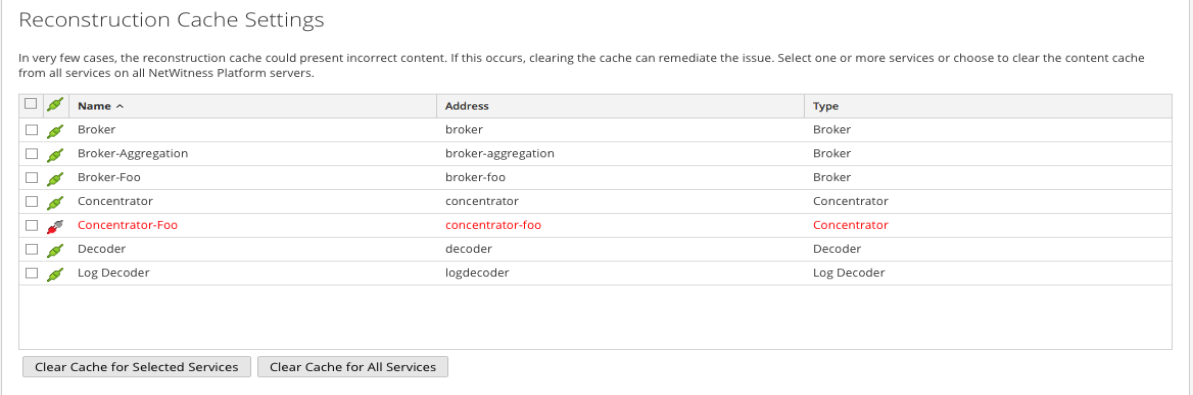
The following table describes the Reconstruction Cache Settings features.
Context Lookup Tab
Procedures associated with this panel are provided in "Manage Meta Type and Meta Key Mapping" in the Context Hub Configuration Guide. The following figure shows the Context Lookup tab.
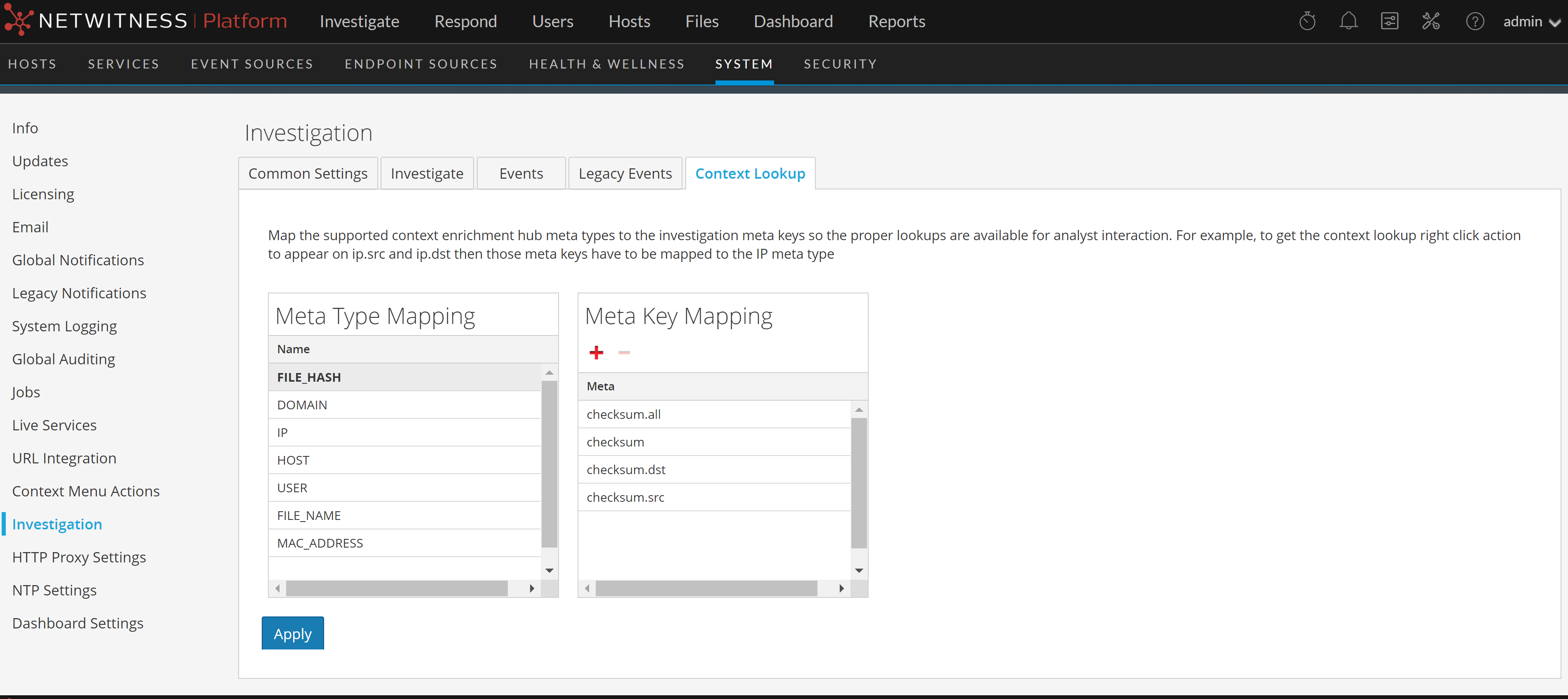
The Context Lookup tab enables the administrator to configure the Investigate meta keys and meta type mapping. The administrator can add or remove meta keys found in Investigate to the list of meta types supported by Context Hub service. NetWitness Respond and Investigate use these default mappings for context lookup. For information about adding meta keys, see "Configure Context Hub Data Source Settings" in the Context Hub Configuration Guide.
Caution: For the Context Lookup to work correctly in the Respond and Investigate views, this is the best practice: When mapping meta keys in the (Admin) > SYSTEM > Investigation > Context Lookup tab, add only meta keys to the Meta Key Mappings. Do not add fields in the MongoDB. For example, ip.address is a meta key and ip_address is not a meta key (it is a field in the MongoDB).
The following table describes the features of the Context Lookup tab.
Events Tab
The following figure shows the Event tab.
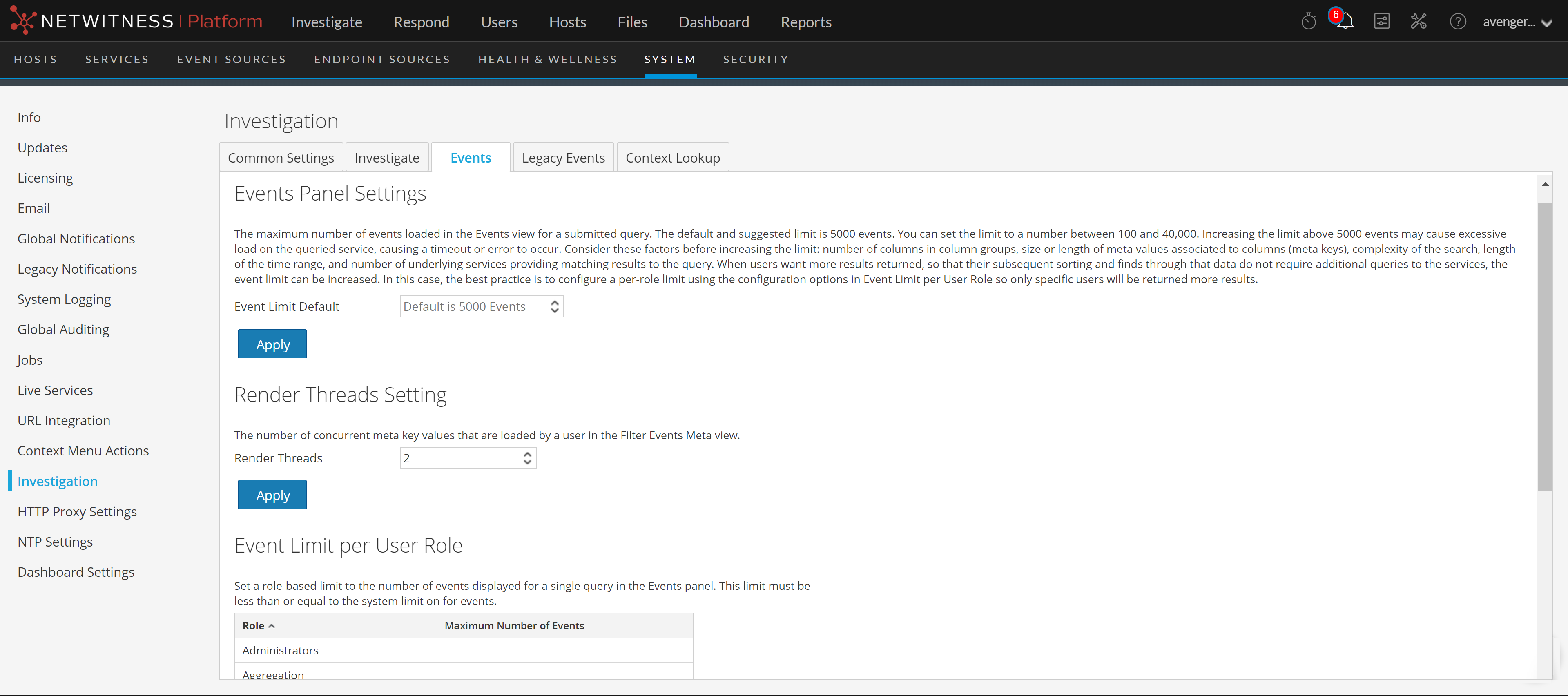
The Events tab provides configurable settings that affect the number of events displayed in the Events panel. This tab has two sections: Events Panel Settings and Event Limit per User Role.
of a Single Related EventThis option allows you to set the maximum size of a single related event in bytes. Possible values are in the range from 102