.png?width=180&height=32&name=NW%20Logo%20(2).png)
Jobs Panel and Jobs Tray
Jobs are started by various NetWitness components; for example, downloading Content Management System (CMS) resources from Live Services and extracting logs, meta, and PCAP files from NetWitness Investigate.
In the  (Admin) > System view, Administrators can manage all NetWitness jobs in the Jobs panel. Other non-administrative users can view their own jobs in the user Profile Jobs panel.
In addition, while working in NetWitness, you can open a quick view of your jobs from the NetWitness toolbar. When a job status has changed, the Jobs icon ( ) is flagged with the number of running jobs. Once all jobs are completed, that number disappears.
In the Jobs panel, you can:
- View and sort the jobs
- Pause or resume a job
- Cancel a job
- Delete a job
- Download a job
The structure of the jobs panel is the same in all views.
What do you want to do?
Your actions may be limited to your own jobs depending on your permissions.
Quick Look
To access the Jobs panel, do one of the following:
-
In the upper right corner of the NetWitness browser window, select your username and then select Profile. In the options panel of the Preferences dialog, select Jobs.
The Jobs panel is displayed. It shows the jobs of a particular user.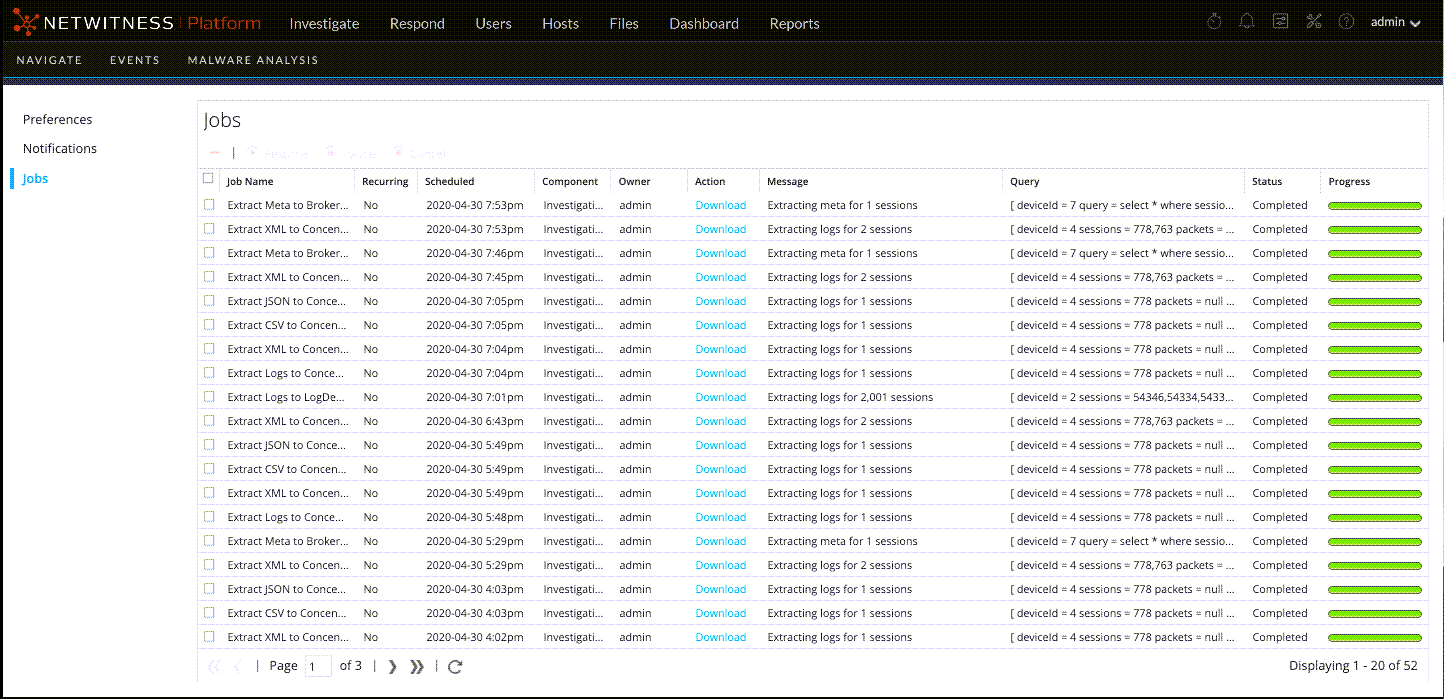
-
Go to
(Admin) > System, and in the options panel, select Jobs.
The Jobs panel in the Admin System view is displayed. It shows the jobs for all users.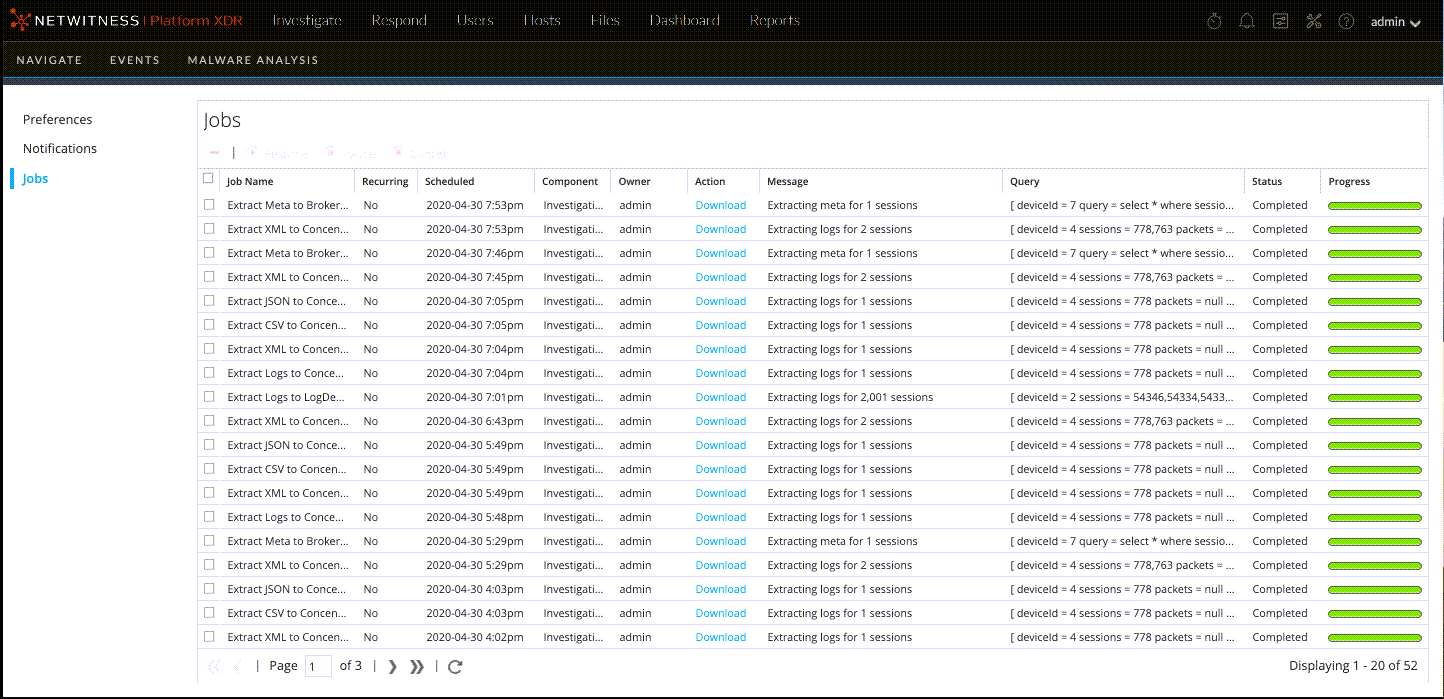
The Jobs panel organizes information about jobs into a list. The columns present a job progress bar, the job name, an indication that the job is recurring or not recurring, the NetWitness component that is controlling the job, the owner of the job, the status, any associated message, and a download button to allow downloading of a job's packet capture files or payload files.
To display the Jobs tray, click the Jobs icon  .
.
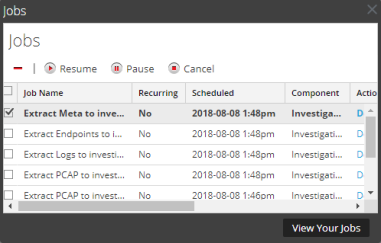
The Jobs tray lists all jobs that you own, recurring and non-recurring, using a subset of the columns available in the Jobs panel. Otherwise the Jobs tray and the user Profile Jobs panel are the same. In the Admin System view, the Jobs panel lists information about all NetWitness jobs for all users.
The following table describes the available options in the Jobs panel.
The following table describes the Jobs tray and Jobs panel columns.