Skip to content
  • There are no suggestions because the search field is empty.

List Permissions Dialog

Lists Permissions DialogLists Permissions Dialog

In the Lists Permissions dialog, you can manage access permissions for a user role at the list or list group level. Only a user with Read and Write permission can configure the list in the Reporting Module.

Workflow

This workflow shows the procedure to manage lists or list groups. You can set access control at the list or list group level so that only users with specific roles can access the lists. You can use lists to define rules for generating reports, charts and alerts.

You must ensure that Reporting Engine is configured on NetWitness.
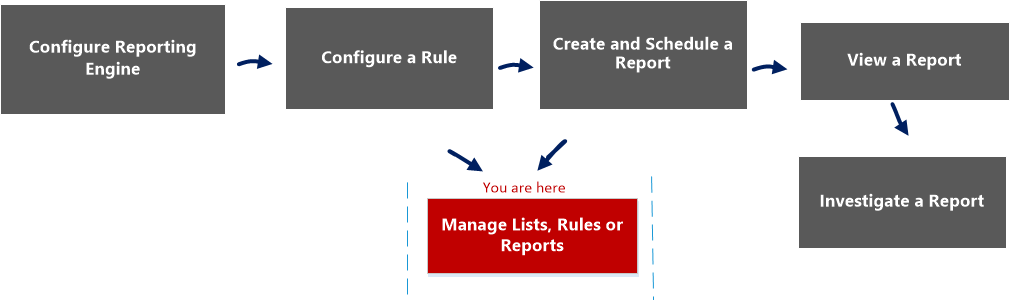
netwitness_manage_report_workflow.png

What do you want to do?

  • Role: Administrator / Analyst
  • I want to ...:

    Configure Reporting Engine

  • Show me how:

    For more information, see "Step 3: Configure Reporting Engine Data Sources" topic in the Reporting Engine Configuration Guide


  • Role: Administrator / Analyst
  • I want to ...: Create a List or List Group/Create or Deploy a Rule/Test a Rule
  • Show me how: Configure a Rule


  • Role: Administrator / Analyst
  • I want to ...: View a report or list of all reports
  • Show me how: View a Report

  • Role: Administrator / Analyst
  • I want to ...: Investigate a Report
  • Show me how: Investigate a Report


*You can complete these tasks here.

Related Topics

  • List View
  • List section in the "Role Permissions" topic in the System Security and User Management Guide.

Quick View

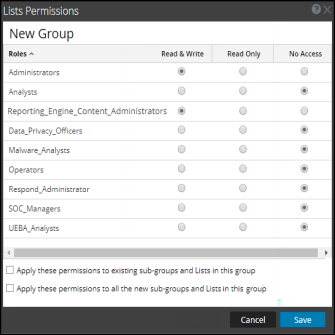
The following figures are examples of the Lists Permissions dialog and List Group Permission dialog:
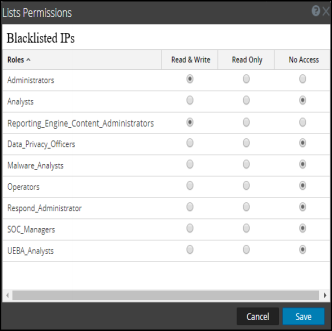
netwitness_110_list_permission_332x331.png

netwitness_110_listgroup_permission_335x335.png

To access this view

  1. Go to Reports.
    The Manage tab is displayed.
  2. Click Lists.
    The Lists view is displayed.
  3. In the Lists view, select a report.
  4. In the Lists toolbar, click netwitness_110_list_options_button.png > Permissions.
    The Reports Permissions dialog is displayed.

The following table describes the features in the Lists Permissions dialog:

  • Feature: Roles
  • Description: Describes roles of the users logged into the NetWitness user interface.

  • Feature: Read & Write
  • Description: Allows users to access, view, edit, delete, import, and export lists on the Lists view. Users can also change the permission on the rule.

  • Feature: Read Only
  • Description: Allows users to only access and view the list on the lists view.

  • Feature: No Access
  • Description: Doesn't allow users to access or view the lists.

  • Feature: Apply these permissions to subgroups and lists in this groups
  • Description: Automatically applies permissions to the subgroups and lists in the groups, if checkbox is selected.

  • Feature: Cancel
  • Description: Cancels all the changes made to the permissions.

  • Feature: Save
  • Description: Saves the selections and provides access to the roles based on the selections.