Skip to content
  • There are no suggestions because the search field is empty.

List View

List ViewList View

In the List view you can see available lists and groups in a grid.

Workflow

This workflow shows the procedure to define lists or list groups. You can set access control at the list or list group level so that only users with specific roles can access the lists. You can use lists to define rules for generating reports, charts and alerts.

You must ensure that Reporting Engine is configured on NetWitness.
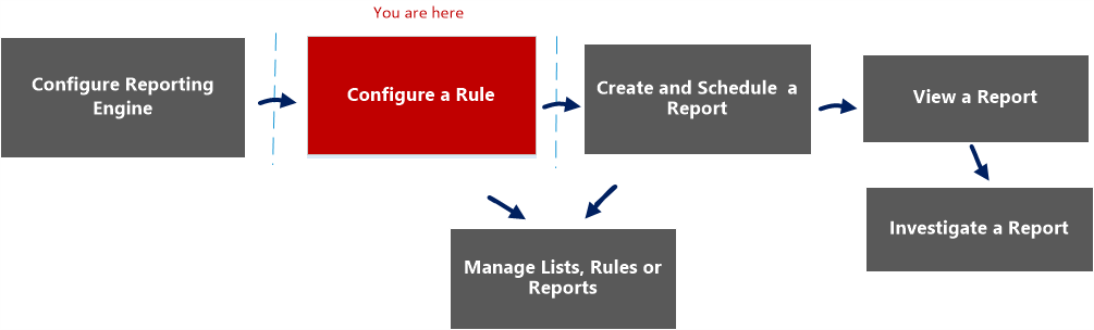

netwitness_confrule_workflow_1094x330.png

What do you want to do?

  • Role: Administrator / Analyst
  • I want to ...:

    Configure Reporting Engine

  • Show me how:

    For more information, see "Step 3: Configure Reporting Engine Data Sources" topic in the Reporting Engine Configuration Guide


  • Role: Administrator / Analyst
  • I want to ...: Create a List or List Group/Create or Deploy a Rule/Test a Rule*
  • Show me how: Configure a Rule


  • Role: Administrator / Analyst
  • I want to ...: View a report or list of all reports
  • Show me how: View a Report

  • Role: Administrator / Analyst
  • I want to ...: Investigate a Report
  • Show me how: Investigate a Report


*You can complete these tasks here.

Related Topics

Quick View

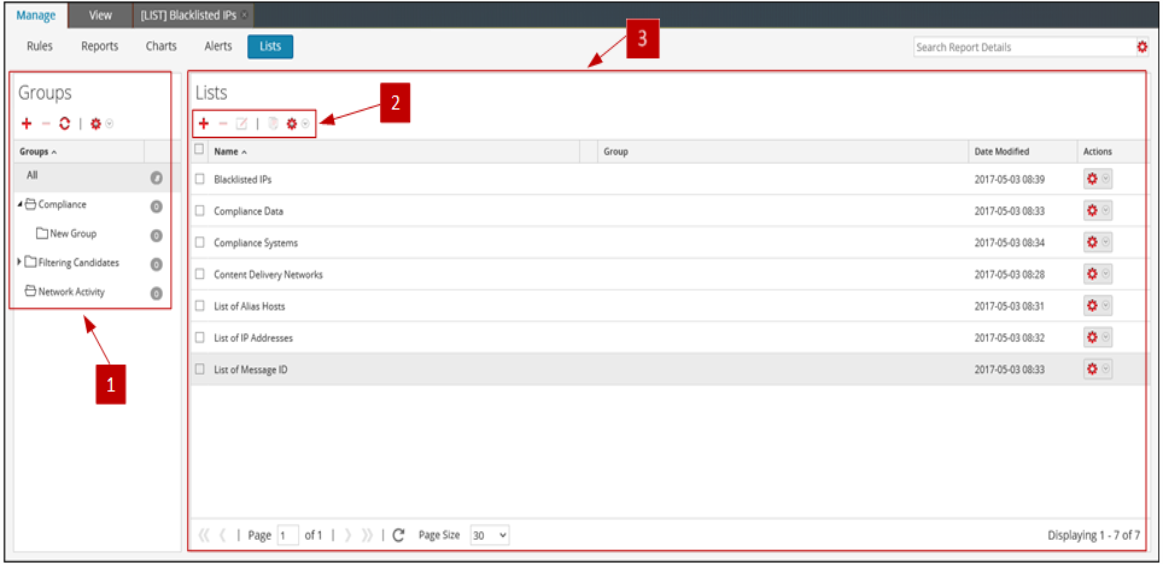
The following figure shows the List view.
netwitness_list_view2_1163x564.png

To access this view

  1. Go to Reports.

    The Manage tab is displayed.

  2. Click Lists.

    The Lists view is displayed.

The List view includes the following panels:

  • Column 1: 1
  • Column 2: Lists Groups panel

  • Column 1: 2
  • Column 2: Lists toolbar

  • Column 1: 3
  • Column 2: Lists panel

Lists Groups Panel

The Lists Groups panel provides a list of groups used to organize lists and has a toolbar that allows you to create and manage the groups.

  • Feature: netwitness_add_icon.png
  • Description: Allows users to add a new group to the Reporting module.

  • Feature: netwitness_delete_icon.png
  • Description: Allows users to delete groups.

  • Feature: netwitness_ic-refresh.png
  • Description: Refreshes the view.

  • Feature: netwitness_editservice.png
  • Description: Allows users to access following options: Import, Export and Permissions.

  • Feature:

    netwitness_ic-filt_40x26.png

  • Description:

    Allows users to filter unused lists.


You can perform the following actions using the Lists Groups panel.

  • Refresh lists in a group.
  • Move lists between different groups. You can move a list from one group to another by dragging and dropping the list in the required group.
  • Create list groups.
  • Delete list groups.
  • Import list groups.
  • Export list groups.
  • Set access control for list groups.

Lists Toolbar

  • Feature: netwitness_add_icon.png
  • Description: Allows user to add a new list to the Reporting module.

  • Feature: netwitness_delete_icon.png
  • Description: Allows user to delete one or more selected lists.

  • Feature: netwitness_edit_icon.png
  • Description: Allows user to edit lists.

  • Feature: netwitness_duplicate_button.png
  • Description: Creates a duplicate copy of the selected list.

  • Feature: netwitness_editservice.png
  • Description: Allows user to access the following options: Import, Export and Permissions.

Lists Panel

The Lists panel displays all the lists defined in a tabular format.

  • Column: Name
  • Description:

    Displays the name of the list.

    Note: For Name field, the icon to extend the column size is not displayed at the end of the column field. You have to hover the mouse a little to the left side to see the icon for extending the column.


  • Column: Group
  • Description: Displays the list group to which the list belongs.

  • Column: Date Modified
  • Description: Displays the date and time when the list was modified.