.png?width=180&height=32&name=NW%20Logo%20(2).png)
Parser Rules Tab
This tab contains details about the rules for the default log parser, as well as any other custom rules and log parsers that have been defined.
To access this tab, go to  (Configure) > Log Parser Rules.
Workflow
This workflow shows processes available from the Log Parser Rules view.
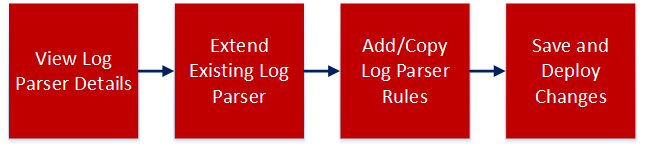
What do you want to do?
*You can perform this task here.
Related Topics
Default Log Parser and Log Parser Rules
Quick Look
Note: The list of log parsers is based on the first Log Decoder that is installed or registered by the Orchestration Server. If you have more than one Log Decoder, this tab only lists log parsers that have been configured on the first one.
The Log Parser Rules tab organizes and displays information about the configured log parsers in your system.
If you select the Dynamic Rules entry for a parser, the screen displays the dynamic rules:
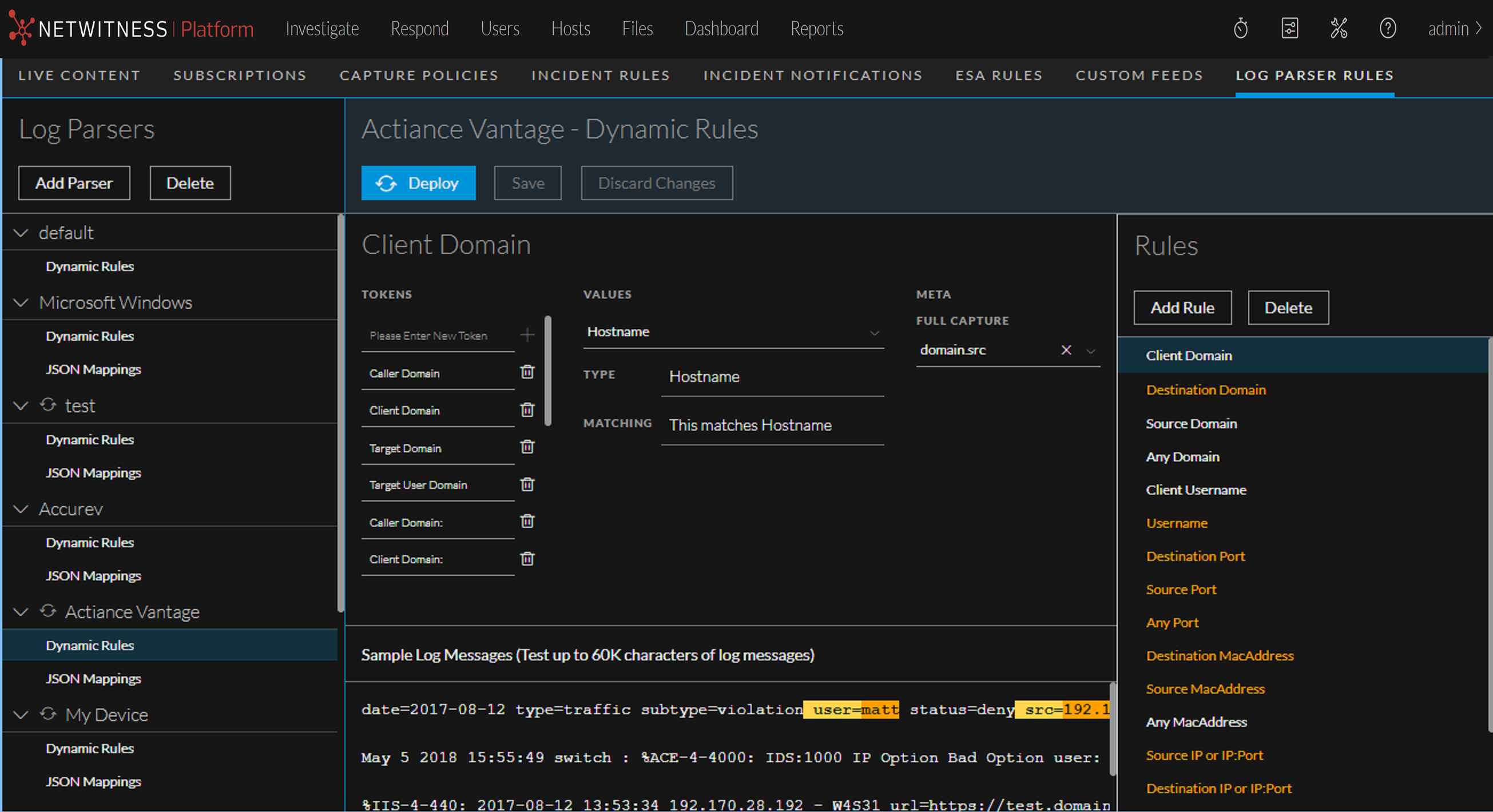
Note: The  icon indicates that there is some uncompleted or unsaved work. For example, next to a parser name, it means that the parser has not yet been deployed.
If you select JSON Mappings, the screen displays JSON mappings for the parser.
Log Parsers Panel
The Add Dynamic Log Parser dialog box allows you to add a custom log parser.
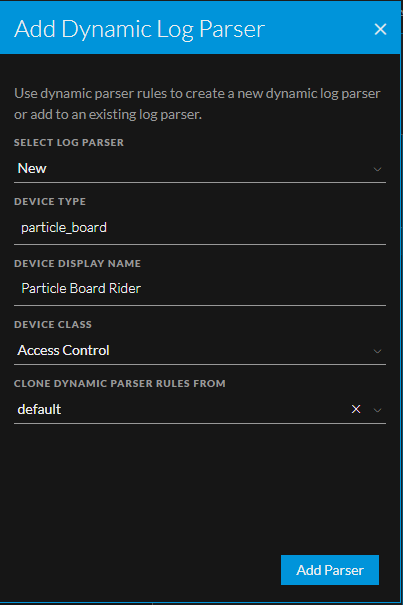
When you are adding a log parser, the following parameters are available.
Dynamic Rules
If you select the Dynamic Rules entry for a parser, you see the following panes:
- Details
- Rules
Details Pane
The details pane shows the three pieces for the selected rule:
- Tokens: one or more tokens to match in the message. For example, the Any Port rule looks for the following strings to match against: port , port:, port=, and others.
-
Values: the value that follows the token. This is a string that is captured as meta. For example, assume a log contains the following string:
port 12345
The Any Port rule has a token that matches "port ". When it encounters that string, it assigns the token value, "12345" to a meta key.
- Meta: the meta keys to which the value is mapped. For example, the Any Port rule maps the port value to the port meta key.
Essentially, a rule says, "when you are parsing a message, if you match one of my tokens, assign the value that follows the token to the meta key that I want it stored as."
The bottom section of the Details panel contains sample log messages, and how they would be parsed for the selected log parser.
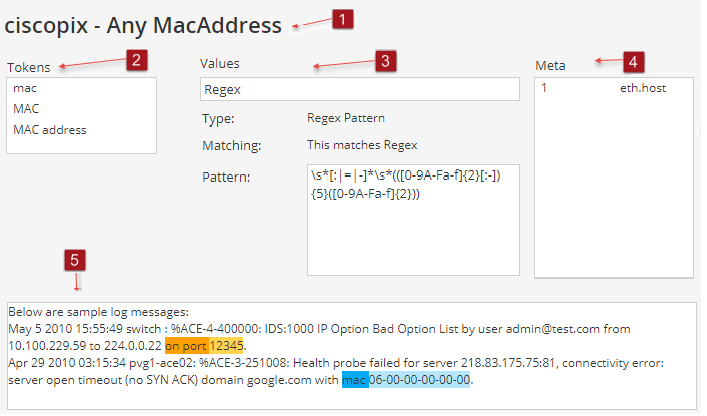
For example, consider the following scenario:
- The default parser is selected.
- The Any Domain rule is selected.
- The Tokens matching list displays all of the tokens that are matched when found in a log message: Domain, Domain Name, domain, ADMIN_DOMAIN, and so on.
- The Meta list displays the NetWitness meta to which the value for the token is mapped: domain.
So, let's say the sample log message area has the following text:
In this case, the Sample Log Message area looks like this:
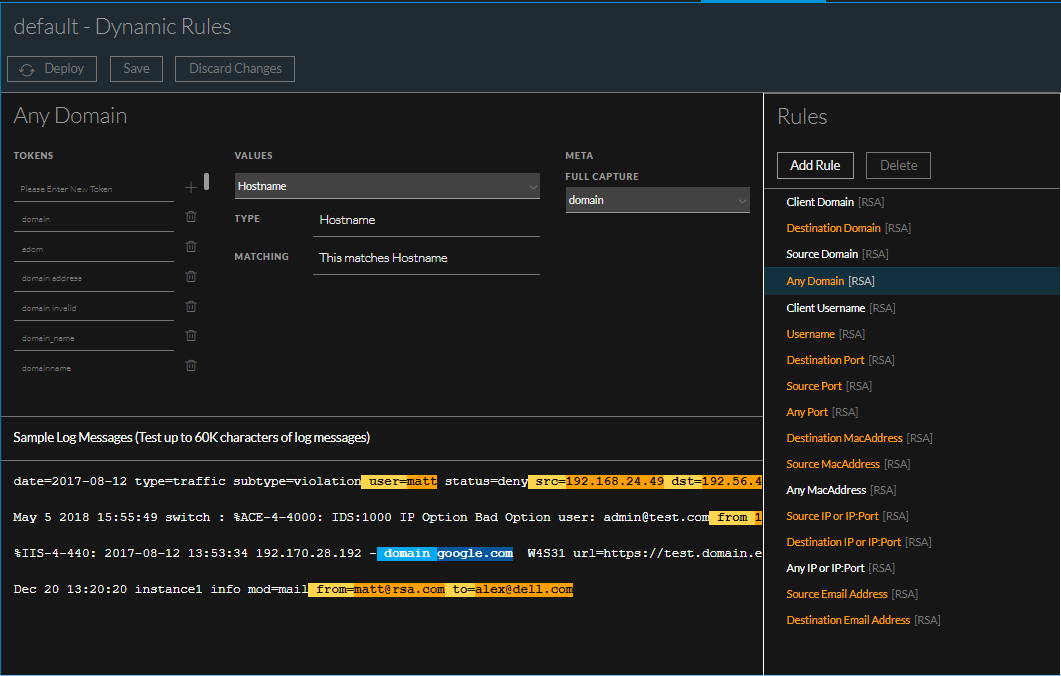
Note that some strings are highlighted, and that there are two "pairs" of highlight colors:
-
Dark blue and light blue highlighting is applied to the strings that match the currently selected rule.
- Dark Blue highlighted strings match a token in the selected rule. In this case, domain is the token that is matched for the Any Domain rule.
- Light Blue highlighted strings are the values that correspond to the tokens in dark blue. For example, google.com is highlighted in light blue, because it corresponds to the domain token.
-
Orange and yellow highlighting is applied to the strings that match rules for the current parser that are not currently selected.
- Orange highlighted strings match a token in a rule that is not currently selected.
- Yellow highlighted strings are the values that correspond to the tokens in orange. For example, the user token matches the Username rule (which is not currently selected).
In this example, the domain meta would be assigned a value of google.com for this log message, if it was parsed using the default log parser.
Rules Pane
The Rules pane displays the list of rules used by the selected log parser. When you select a rule, you change the values that are displayed in both the Tokens and Values areas of the panel.
JSON Mappings
If you select the JSON Mappings entry for a parser, you see the following panes:
- Sample JSON Message
- Meta Mappings
- Mapping Details
Sample JSON Message
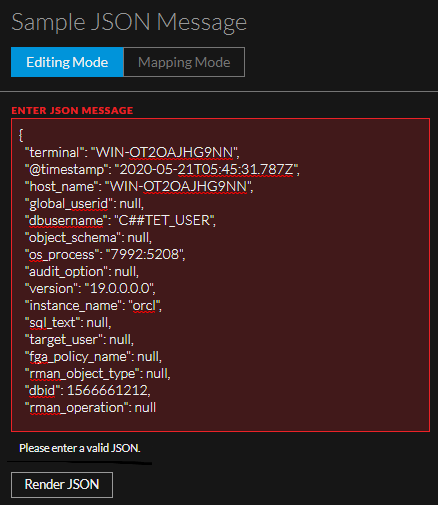
You can enter or paste sample JSON text. Click the Render JSON button to automatically format the text into JSON code. If the text is not valid JSON, you receive a message and the text is not formatted.
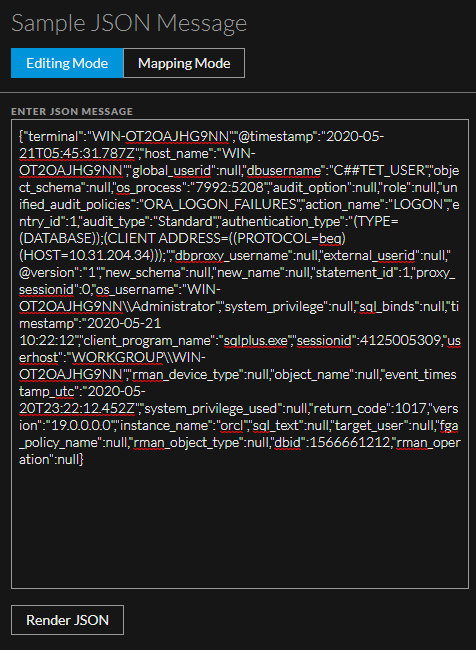
The following screen shows the Sample JSON Message area with some JSON that has been pasted in:
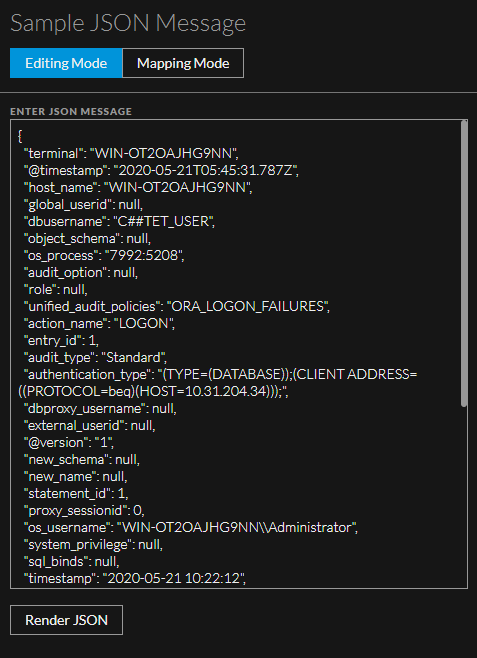
Since this is valid JSON, clicking Render JSON produces the following:
Note that you can see the tree mode of the sample JSON if you click Mapping Mode:
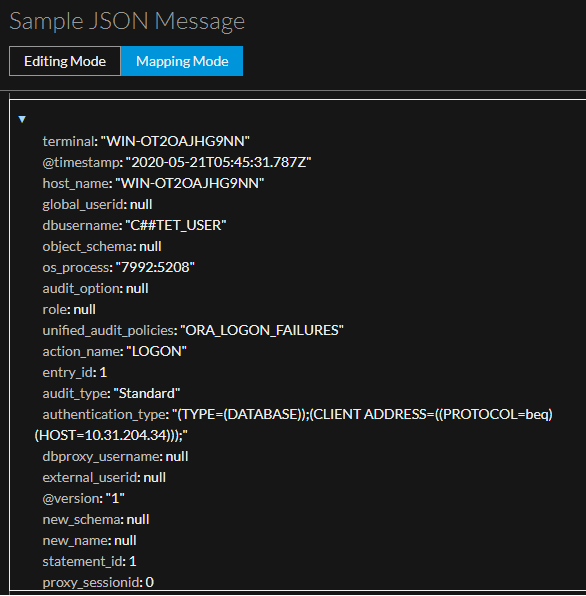
Note: You can edit the sample JSON in Editing mode, but not in Mapping mode. Mapping mode is read only.
On the other hand, if you enter text that is not valid JSON, the screen looks as follows:
Auto Discover JSON Mappings
You can automatically create the mappings without the need to manually enter the name and path of the mapping. For details, see .Auto Discover JSON Mappings.
When the system auto discovers mappings, the path is filled in automatically, based on the structure of the mappings. For simple name-value pairs, this is straightforward. For example, for this pair, "host_name": "WIN-OT2OAJHG9NN" , the path is set to /host_name.
However, the rules for nested mappings and arrays are as follows:
-
For a nested structure, names are separated with a forward slash (/).
{
 "parent": {
 "child": "value"
 }
}
The path is set to /parent/child.
-
Arrays are accessed by omitting the index.
{
 "array": [
 "x",
 "y",
 "z"
 ]
}
The path is set to /array/.
{
 "array": [
 {
 "name": "value"
 }
 ]
}
The path is set to /array//name.
-
Variable names are accessed by omitting them from the path.
{
 "root": {
 "x": {
 "name": "value"
 },
 "y": {
 "name": "value"
 }
 }
}
The paths are set to /root/x/name and /root/y/name.
Remove Unmapped Entries
If there are mappings that you do not want to save, you can remove them. After you validate all of the mappings that you want to keep, you can click Remove Unmapped to remove all mappings that you have not yet validated.
For example, assume you have auto-discovered some mappings as shown here:
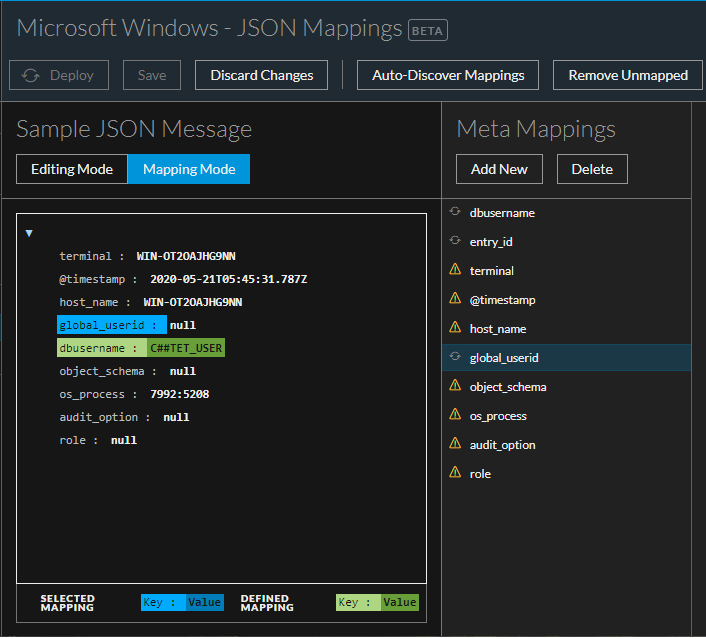
After you click Remove Unmapped, you can see that only mapped entries remain:
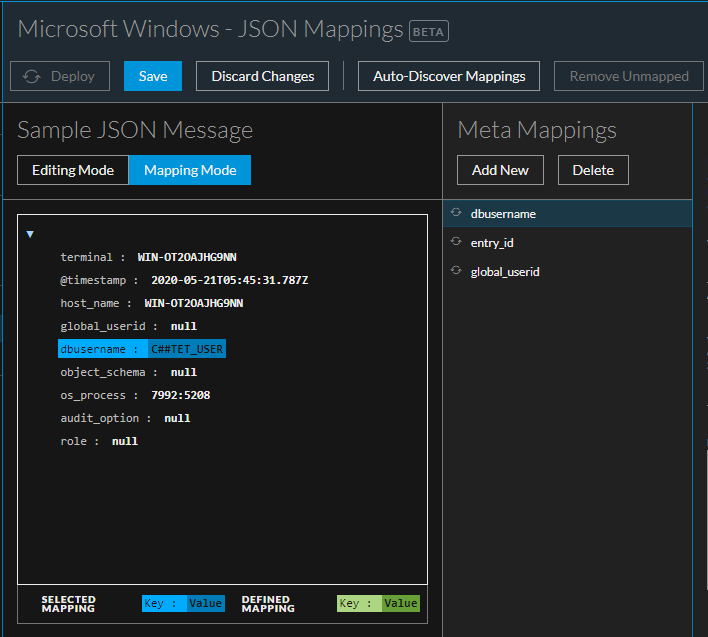
Note: You cannot save your work until all of the entries have either been mapped or removed from the list.
Meta Mappings
This panel lists the mappings that exist for this parser. You can add a mapping by using the Add New button, or delete an existing mapping by selecting it and clicking Delete.
Mapping Details
The Mapping Details pane displays the following information.
Note: You need to select a meta or enter a Value Format, but you do not need to fill in values for both settings.
Disable log Parser Rules
You can disable log parser rules, so that none of them are processed by the Log Decoder. You might have your log parsers working as you like, and do not want any extra processing that you do not need.
You disable them from the reference Log Decoder.
- Go to
 (Admin) > Services.
 -
In the Administration Services view, select the Decoder and
 > View > Config.
The