Skip to content
  • There are no suggestions because the search field is empty.

Malware Analysis Events List and Files List

Malware Analysis Events List and Files List

The Malware Analysis Events List and Files List provide a detailed view of events or files. You can double-click on an event or file in either of the lists to display the Analysis Results view in a new browser tab.

To access this view, go to Investigate > Malware Analysis > Select a Malware Analysis Service dialog. Select a service from the left panel, then select a job from the right panel, and click View Scan. In the Summary of Events view do one of the following:

  • In either the Total panel or the High Confidence panel, click the number in the Events Created section.
  • If you want to view the Files List, click the number in the Files Processed section.

Workflow
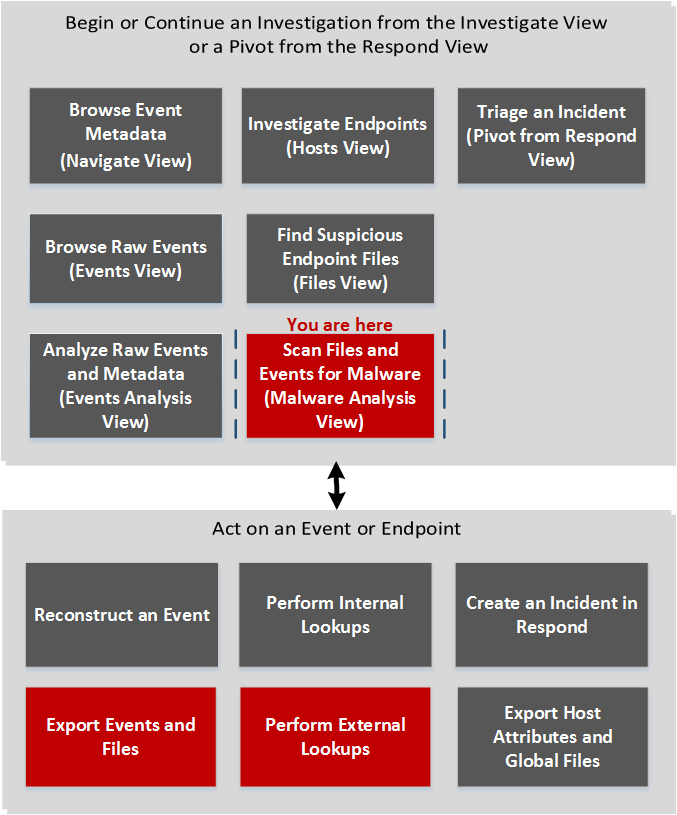
netwitness_invwkflwhlpma.png

What do you want to do?

  • User Role: Threat Hunter
  • I want to ...:

    browse event metadata

  • Show me how:

    NetWitness Investigate User Guide


  • User Role: Threat Hunter
  • I want to ...:

    browse raw events

  • Show me how:

    NetWitness Investigate User Guide


  • User Role: Threat Hunter
  • I want to ...:

    analyze raw events and metadata

  • Show me how:

    NetWitness Investigate User Guide


  • User Role: Threat Hunter
  • I want to ...:

    investigate endpoints (Version 11.1)

  • Show me how:

    NetWitness Endpoint User Guide


  • User Role:

    Threat Hunter

  • I want to ...:

    find suspicious endpoint files (Version 11.1)

  • Show me how:

    NetWitness Endpoint User Guide


  • User Role:

    Incident Responder

  • I want to ...:

    triage an incident in Investigate

  • Show me how:

    NetWitness Respond User Guide


*You can perform this task in the current view.

Related Topics

  • "How NetWitness Investigate Works" in the NetWitness Investigate User Guide

Quick Look

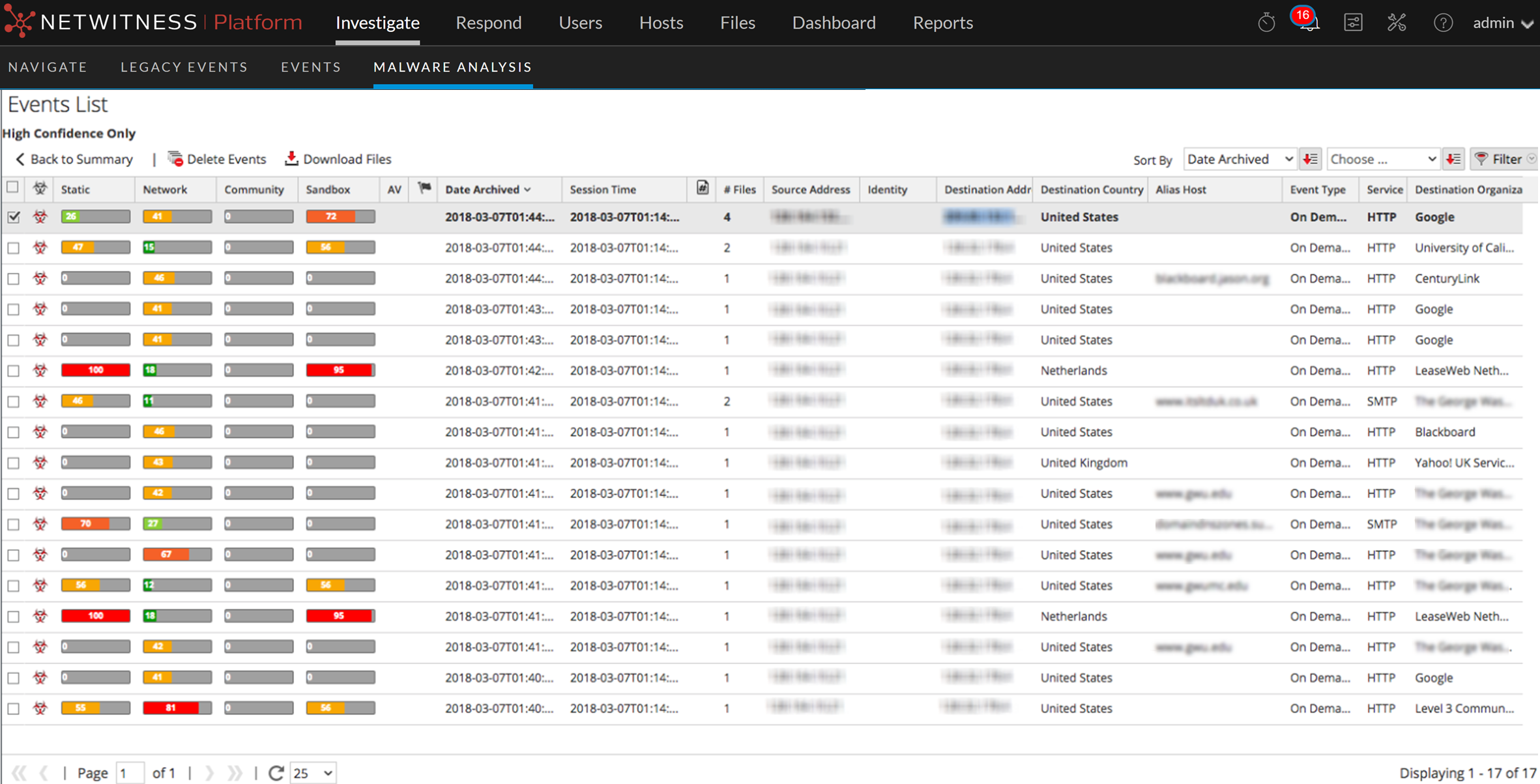
This is an example of the Events List view.
122_EvList_1222.png

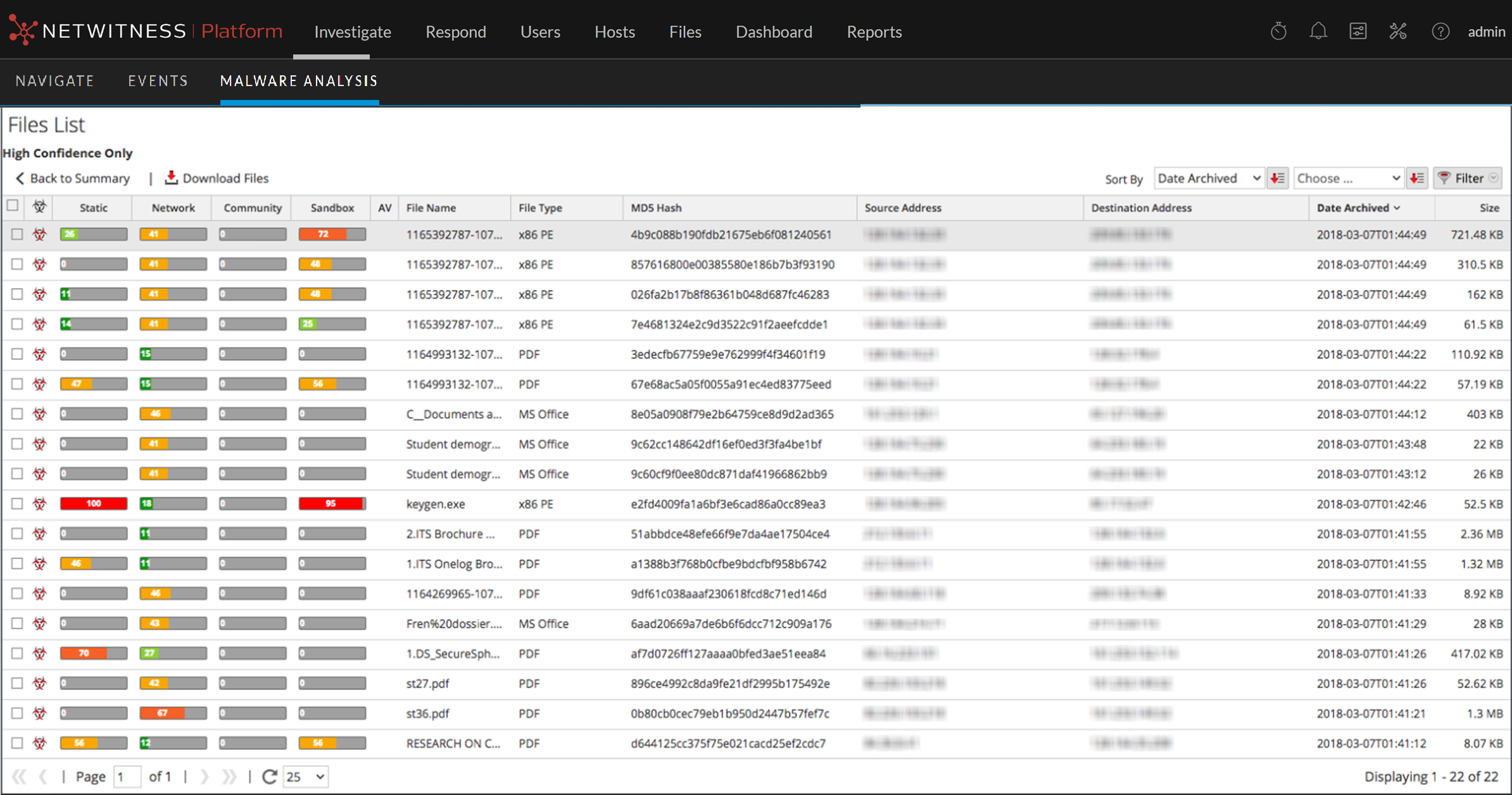
This is an example of the Files List view.
122_FileListFilt_1222.png

These are the features in the Events List toolbar, and the Files List toolbar is the same, except it has no option to delete events.

netwitness_evlisttlb_600x21.png

  • Feature:

    Back to Summary

  • Description:

    Returns to the Summary of Events view.


  • Feature:

    Delete Events

  • Description:

    Removes the selected events from the current events list.


  • Feature:

    Download Files

  • Description:

    Displays the Malware File Download dialog, which allows you to download available files.


  • Feature: netwitness_sortorder.png
  • Description:

    Displays a drop-down menu from which you can decide how to sort the list. These are the options for sorting:

    • High Confidence
    • Static
    • Network
    • Community
    • Sandbox
    • AV
    • File Name
    • File Type
    • Hash
    • Date Archived
    • Size

    The button directly to the right of this drop-down indicates whether the list will be sorted by ascending or descending values.


  • Feature: netwitness_sortorder.png
  • Description:

    Displays a drop-down menu from which you can select a secondary sorting order. This menu includes an option forNetWitnessNone, so selecting a secondary sorting order is not necessary.


  • Feature: netwitness_ic-filtbutton_52x18.png
  • Description:

    Displays a drop-down window in which you can filter the list by filename or MD5 Hash.


These are the features in the Events List.

  • Feature: netwitness_highconf.png
  • Description: Indicates whether the event is influenced by the high confidence flag.

  • Feature: Static, Network, Community, Sandbox
  • Description: Displays the scores for each scoring module.

  • Feature: AV
  • Description: Indicates whether the AV flagged this event as suspicious.

  • Feature: netwitness_customrule.png
  • Description: Indicates whether the event is influenced by a customized rule.

  • Feature: Date Archived
  • Description: Displays the date and time the event was archived.

  • Feature: Session Time
  • Description: Displays the time of the event's session.

  • Feature: netwitness_custrule.png
  • Description: Indicates whether the hash value is marked as trusted.

  • Feature: # Files
  • Description: Displays the number of files included in the event.

  • Feature: Source Address
  • Description: Displays the address of the event source.

  • Feature: Identity
  • Description: Displays the identity of the event source.

  • Feature: Destination Address
  • Description: Displays the address of the event destination.

  • Feature: Destination Country
  • Description: Displays the country of the event destination.

  • Feature: Alias Host
  • Description: Displays the hostname of the alias.

  • Feature: Event Type
  • Description: Displays the type of event. For example, Manual Upload.

  • Feature: Service
  • Description: Displays the service on which the event occurred.

  • Feature: Destination Organization
  • Description: Displays the organization of the destination.

These are the features in the Files List grid.

  • Feature: netwitness_highconf.png
  • Description: Indicates whether the event is influenced by high confidence flag.

  • Feature: Static, Network, Community, Sandbox
  • Description: Displays the scores for each scoring module.

  • Feature: AV
  • Description: Indicates whether the AV flagged this event as suspicious.

  • Feature: File Name
  • Description: Displays the name of the file.

  • Feature: File Type
  • Description: Displays the type of the file (for example, PDF or x86 PE)

  • Feature: MD5 Hash
  • Description: Displays the MD5 hash.

  • Feature: Source Address
  • Description: Displays the address of the file source.

  • Feature: Destination Address
  • Description: Displays the address of the file destination.

  • Feature: Date Archived
  • Description: Displays the date and time the file was archived.

  • Feature: Size
  • Description: Indicates the size of the file.