Manage Parser Mappings
Manage Parser Mappings Manage Parser Mappings
The Manage Parser Mappings dialog allows you to map the appropriate parsers for selected Event Source addresses. From the Details view, select the Map button.
Workflow
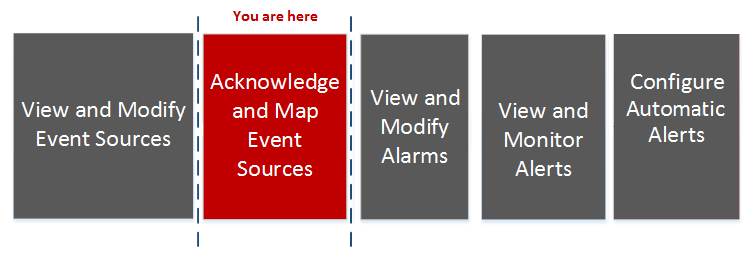
This workflow shows the overall process for configuring event sources.
What do you want to do?
- Role:
Administrator
- I want to...:
View and modify event sources.
- Documentation:
- Role:
Administrator
- I want to...:
Acknowledge and map events sources.
- Documentation:
- Role:
Administrator
- I want to...:
*Add and configure parser mappings for a Log Decoder
- Documentation:
- Role:
Administrator
- I want to...:
View event source alarms.
- Documentation:
- Role:
Administrator
- I want to...:
Troubleshoot event source management.
- Documentation:
*You can perform this task here.
Related Topics
Viewing Logs from Pre-11.0 Log Decoder
Quick Look
Note: For event sources that were created manually, the Manage Parser Mappings window has an empty Display Name in the Log Parsers column. To view the missing display names, close the Manage Parser Mappings dialog box, and then reopen it.
- Column 1: 1
- Column 2:
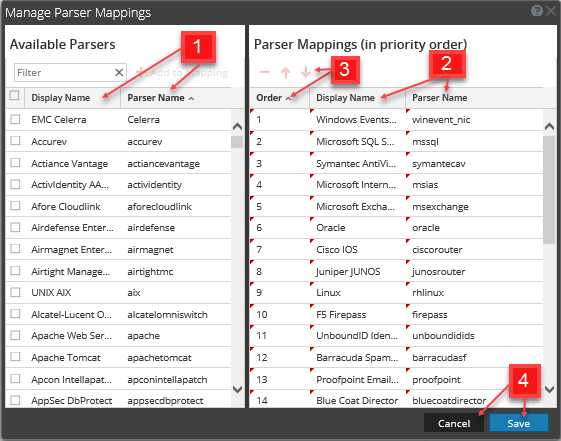
Displays all the available parsers that you can map based on the event sources that you selected from the Discovery view. Also displays the mappings that are already present in the Log Decoders for the selected event source or the parsers that have been discovered.
To filter your available parsers, type the first few letters of the parser name that you want to map.
Click the Add to Mapping button to add the parser to the parser mappings listed in the right panel.You need to select parsers before the Add toMapping button is enabled.
Add the selected parser by clicking the Add to Mapping button in the right panel.
You can rearrange the order of the parser mappings using the up
and down
arrow keys and you can also drag and drop selected parser mappings. You can select multiple mappings by pressing the Ctrl key.
- Column 1: 2
- Column 2:
Displays the names of the selected parsers that you want to map.
- Column 1: 3
- Column 2:
Displays the order of the selected parser mappings.
You can delete parser mappings by selecting the minus sign (
).
Press the Ctrl key to select multiple mappings to perform group operations on them.
- Column 1: 4
- Column 2:
Click Save to save your mappings to all the Log Decoders. A pop-up message informs you that your mappings are successfully saved. When the window is closed, the banner on the Details tab is updated to reflect the status. If mapped, the text displayed is Mapped.
Click Cancel to return to the Details tab.
Best PracticesBest Practices
When mapping multiple device types from the same event source, assign the highest priority to the strictest log parser. Conversely, a log parser with generic headers should be lowest in priority. The CEF log parser is an example of a strict log parser.
Advanced ConfigurationAdvanced Configuration
Mapping configurations with the Log Collector are not displayed in the Parser Mappings window. If the mapping is saved, it is saved for the corresponding IP address, not for the corresponding Log Collector entry. If no mappings are found for the corresponding IP address, the discovered event source types are displayed in the Parser Mappings window.
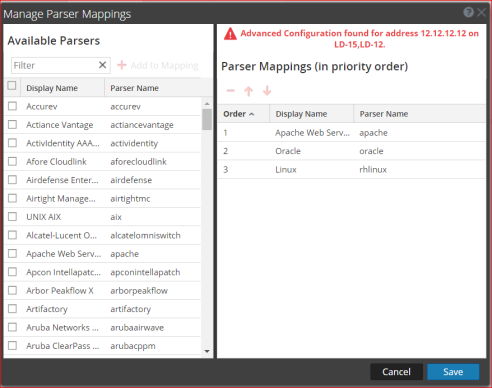
If advanced Log Decoder configurations are discovered, a message similar to the one below displays in the Manage Parser Mappings dialog.
Note: If you want to edit the advanced configuration, you need to navigate to the Log Decoder service's parser mappings configuration.