.png?width=180&height=32&name=NW%20Logo%20(2).png)
Managing Dashboards
A dashboard is a group of dashlets that give you the ability to view data in one space, the key snapshots of the various components that you consider important. In NetWitness, you can compose dashboards to obtain high-level information and metrics that portray the overall picture of a NetWitness deployment, displaying only the information that is most relevant to the day-to-day operations.
The dashboards for all NetWitness components are available to add to the default NetWitness dashboard or a custom NetWitness dashboard.
You can view dashboards on different areas of interest depending on your user permissions. You have the option to select a preconfigured dashboard, import a dashboard, or create your own custom dashboard. The dashboards help you to quickly and easily view reports. You can configure your dashboards to display the information that supports your workflow. This topic explains the high-level tasks that can be done when you are setting up a dashboard.
Dashboard Basics
If the Dashboard view is your default landing page following logging in to NetWitness, you always see either the default dashboard or the currently configured dashboard immediately after completing the login process. To return to the dashboard from another NetWitness component, click Dashboard.
Dashboard Title
The dashboard title reflects the currently active dashboard; for example, Default Dashboard.
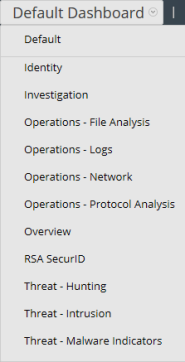
Dashboard Selection List
You can access preconfigured and custom dashboards on the dashboard selection list. When you select a dashboard, its title is displayed below the NetWitness toolbar.
A dashboard has:
- The dashboard toolbar
- The dashboard title and the dashboard selection list.
Dashboard Toolbar
The dashboard toolbar is available next to the title of the selected dashboard. The dashboard toolbar allows various operations on dashboards and dashlets.

Note: The Copy, Delete, Import, Export, Share, and Add Row options are disabled for preconfigured dashboards.
- Option:

- Description: Sets the selected dashboard as the Favorite.
- Option:
- Description: Displays the list of available dashboards from which you can make a selection.
- Option:

- Description: Displays the Create a Dashboard dialog, where you define or add a custom dashboard.
- Option:

- Description: Deletes a custom dashboard. The default dashboard cannot be deleted.
- Option:

- Description: Allows you to copy a dashboard.
- Option:

- Description: Displays the Manage Dashlet dialog.
- Option:

- Description: Exports a dashboard as a .zip file.
- Option:

- Description: Imports a dashboard as .zip or.cfg file.
- Option:

- Description: Allows you to share a dashboard with another user.
- Option:

- Description:
Enables user to add rows and columns to the dashboard based on the requirement. Click the
 icon in a row to add a dashlet.
The Default Dashboard
The default dashboard is configured to display specific dashlets in specific positions. The default dashboard serves as an example of dashboard composition and a starting point for customization.
- You can customize the information on the default dashboard by editing, adding, moving, maximizing, and deleting dashlets.
- After modifying the default dashboard, you can restore the default dashboard (
 ) to its original layout.
 - The default dashboard cannot be deleted or shared.
Selecting a Preconfigured Dashboard
On installation of NetWitness, the following preconfigured dashboards are automatically activated and are available to you:
- Default
- Identity
- Investigation
- Operations - File
- Operations - Logs
- Operations - Network
- Operations - Protocol Analysis
- Overview
- SecurID
- Threat - Hunting
- Threat - Intrusion
- Threat - Malware Indicators
You cannot perform the following actions on a preconfigured dashboard:
- Edit a dashboard
- Export a dashboard
- Share a dashboard
- Delete a dashboard
For more information on each preconfigured dashboard, see the Dashboards Catalog in the NetWitness Content space on NetWitness Community.
Note: If you are logged into an Analyst UI, you can view but cannot enable, disable, or edit preconfigured Dashboards.
Enabling or Disabling Dashboards
When you enable or disable a dashboard, all the dashlets within the dashboard are enabled or disabled along with the associated charts, unless they are used in any other dashboard.
NetWitness modules can display only those dashlets presented in the Manage Dashboard dialog. The main dashboard offers all NetWitness dashlets. This is an example of currently available dashlets.
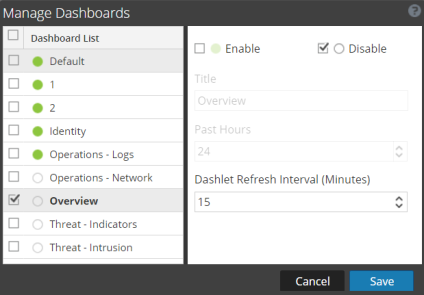
- Name: Dashboard List
- Description: Displays a list of the default, preconfigured, and custom dashboards.
- Name:

- Description: Indicates if the selected dashlet is enabled.
- Name:

- Description: Indicates if the selected dashlet is disabled.
- Name: Title
- Description: Displays the title of the selected dashlet and you can also rename the dashboard.
- Name: Past Hours
- Description: Displays the time for which the data is collected.
- Name: Dashlet Refresh Intervals (Minutes)
- Description: Displays the refresh interval time of a dashlet.
Enable a Dashboard
If you select a dashboard that is not enabled, a masked screen is displayed.
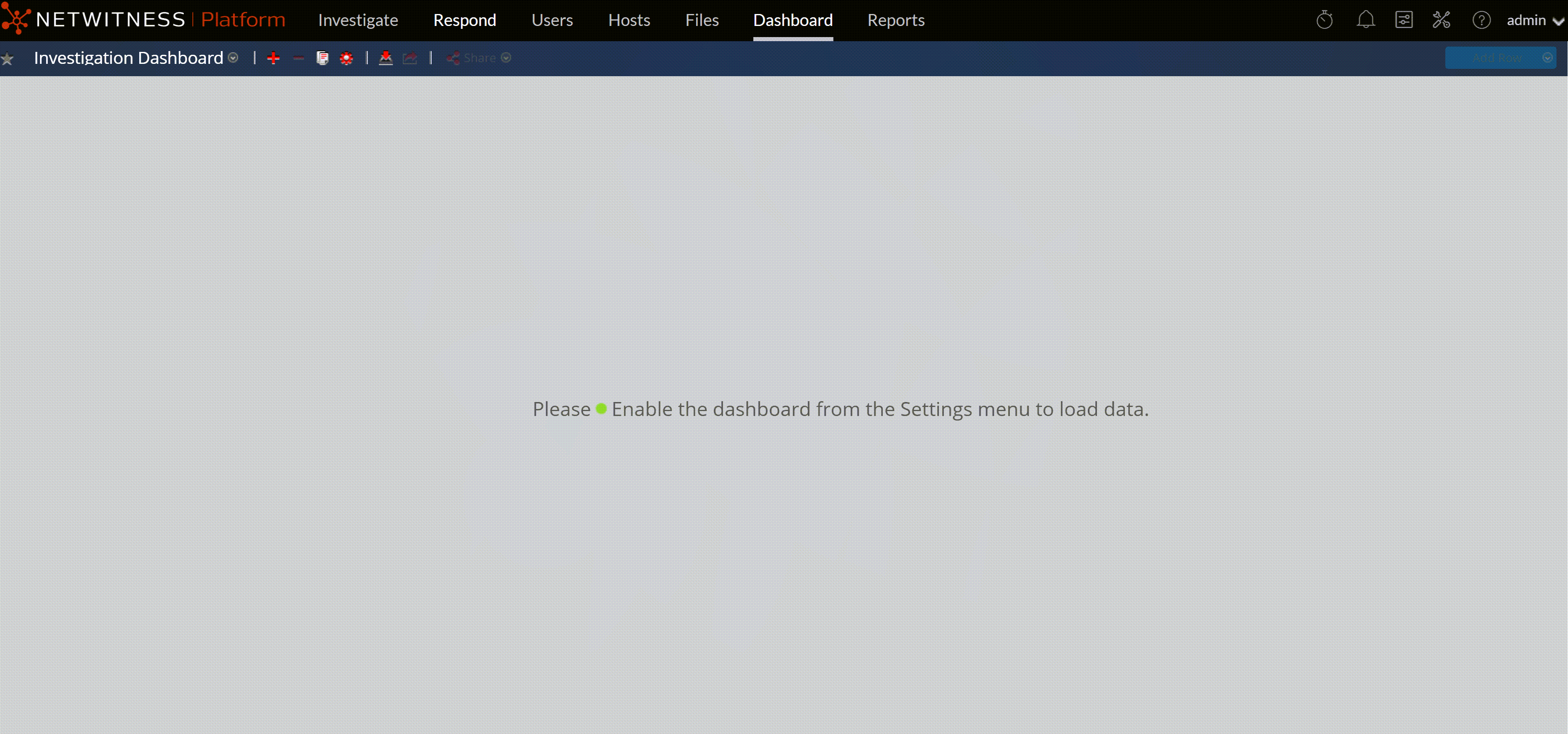
To enable one or more dashboards:
-
Navigate to the dashboard to be enabled.
-
In the dashboard toolbar, click
(Manage Dashboards).
The Manage Dashboards dialog is displayed.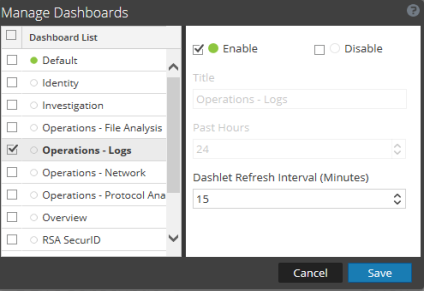
-
From the dashboard list, select the dashboards to be enabled.
-
Select the Enable checkbox.
- Click Save.
Disable a DashboardDisable a Dashboard
To disable one or more dashboards:
-
Navigate to the dashboard to be disabled.
-
In the dashboard toolbar, click
(Manage Dashboards).
The Manage Dashboards dialog is displayed.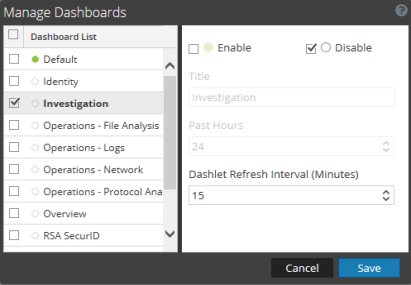
-
From the dashboard list, select the dashboards to be disabled.
- Select the Disable checkbox.
- Click Save.
Setting a Dashboard as a Favorite
To customize the views in NetWitness, you can set a preconfigured or custom dashboard as a Favorite. The NetWitness dashboard offers all NetWitness dashlets. The Favorite dialog sets a specific dashboard as your favorite dashboard and is listed as favorite every time you log in to NetWitness.
-
Navigate to any dashboard.
-
In the dashboard toolbar, click

If the favorite icon is red in color, it indicates that selected dashboard is set as a Favorite and is listed on top above the line.
Creating Custom Dashboards
You can create custom dashboards to serve a particular purpose; for example, to represent a specific geographical or functional area of the network. Each custom dashboard is appended to the dashboard selection list.
To create a custom dashboard:
- In the dashboard toolbar, click .
The Create a Dashboard dialog is displayed.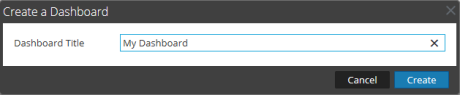
- Enter a title for the new dashboard and click Create.
The new dashboard is displayed as a blank screen.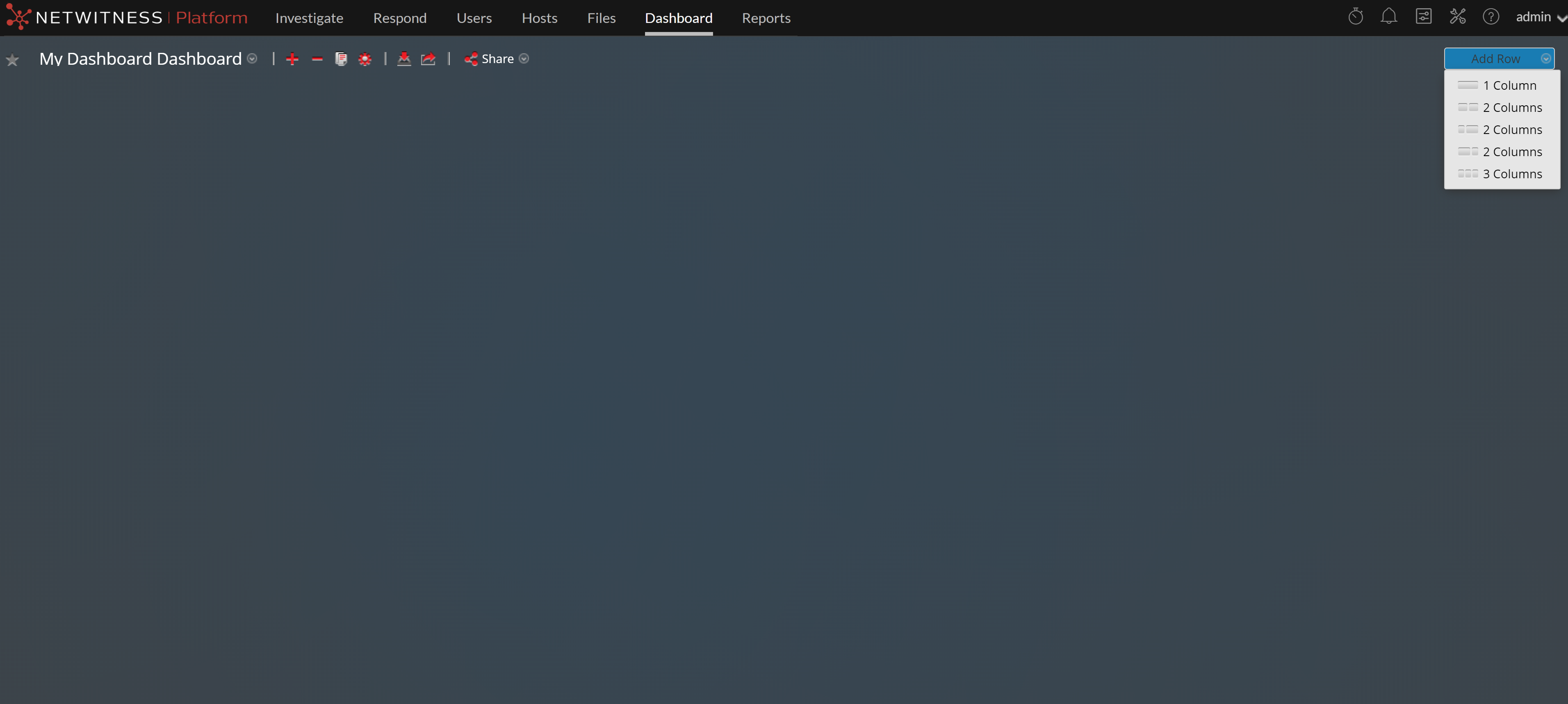
- Add rows to the dashboard, which can contain one or more columns, using the Add Row option on the right side of the screen (
 ). Click the desired column configuration in the drop-down list to add one row to the dashboard with the selected number of columns. Repeat the process to add more rows.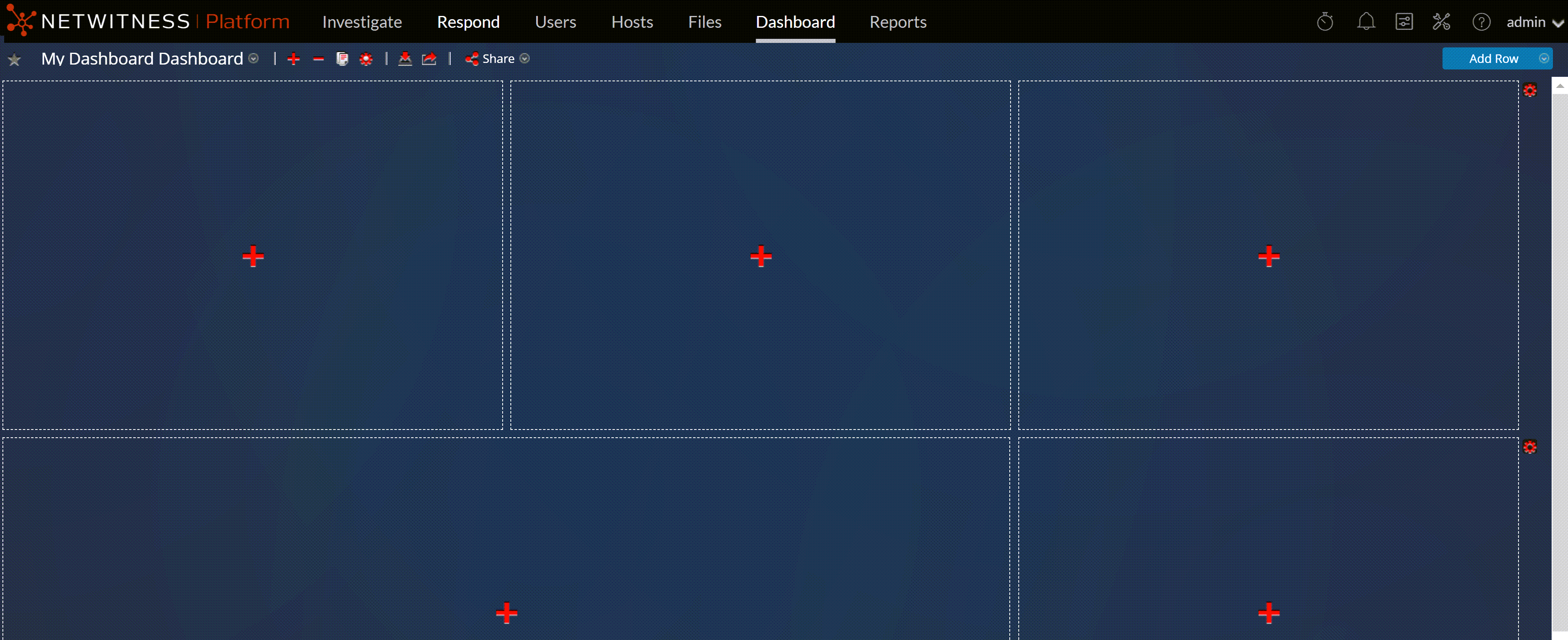
- You can add any desired dashlets to the dashboard by clicking in an empty placeholder in a row. For complete details on adding and managing dashlets, see Working with Dashlets.
After custom dashboards are created, you can:
- Switch between dashboards by selecting an option from the dashboard selection list.
- Delete any custom dashboard.
- Import or export a dashboard.
Each dashboard has:
- The dashboard toolbar.
- The dashboard title and the dashboard selection list.
- Zero or more dashlets.
Working with DashletsWorking with Dashlets
Dashlets are the parts that make up a dashboard. NetWitness uses dashlets to display focused subsets of system information, services, jobs, resources, subscriptions, rules, and other information.
The controls for a dashlet are in the title bar. All dashlets use a common set of controls, and only those that apply to the particular dashlet appear in the title bar of the dashlet.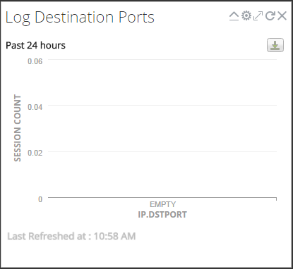
The following table displays the description of each icon on the dashlet.
- Icon:

- Name: Collapse vertically
- Description: Collapses the dashlet vertically so that only the title is visible.
- Icon:

- Name: Expand vertically
- Description: Expands the dashlet to its original size.
- Icon:

- Name: Reload
- Description: Reloads the dashlet.
- Icon:

- Name: Settings
- Description: Displays configurable settings for the dashlet.
- Icon:

- Name: Maximize
- Description: In some dashlets with content that does not fit horizontally within the width of the dashlet, maximizes a chart or a dashlet to full screen.
- Icon:

- Name: Delete
- Description: Deletes the dashlet from the dashboard.
- Icon: Last Refreshed at
- Name:
- Description: Displays the time at which the data is polled from the related chart.
- Icon: View More
- Name:
- Description: When clicked, navigates to the corresponding dashboard which is linked to the main dashlet and displays more details. If you have not linked the dashboard to an existing dashlet, this link with not be available on the dashlet. To configure this option, click , and in the Dashboard Link field select a related dashboard view more details of the specific dashlet.
You can add dashlets to the default dashboard or construct a custom dashboard with your own useful set of dashlets to make your workflow more efficient.
Add a Dashlet
To customize the views in NetWitness, you can add dashlets to a default dashboard or create custom dashboards. However, you cannot add dashlets to preconfigured dashboards.
To add a dashlet:
- Navigate to any dashboard or create a new dashboard.
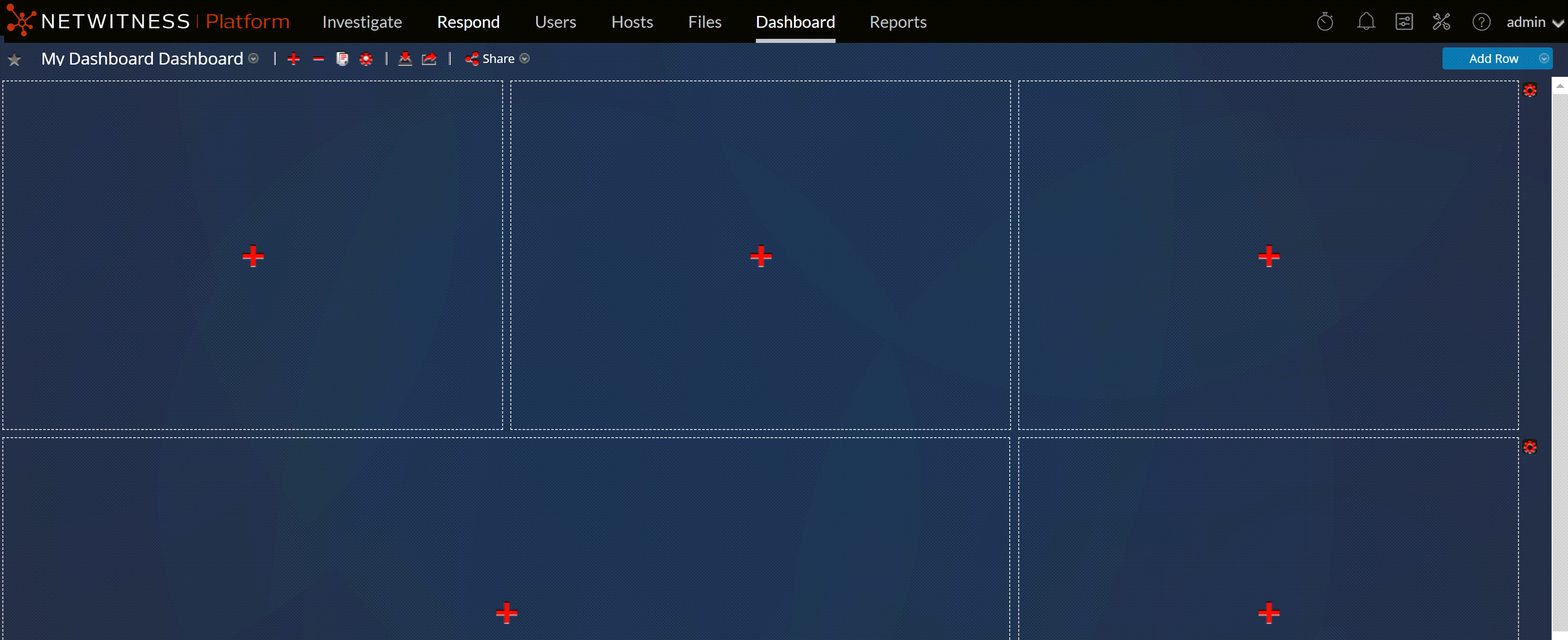
- Click Add a Dashlet dialog.
- Type a title for the dashlet. The title can include letters, numbers, special characters, and spaces.
- If there are additional configurable fields for the dashlet, set appropriate values.
- When all required fields have been configured, click Add.
The dashlet is added to the dashboard in the selected placeholder and is automatically saved.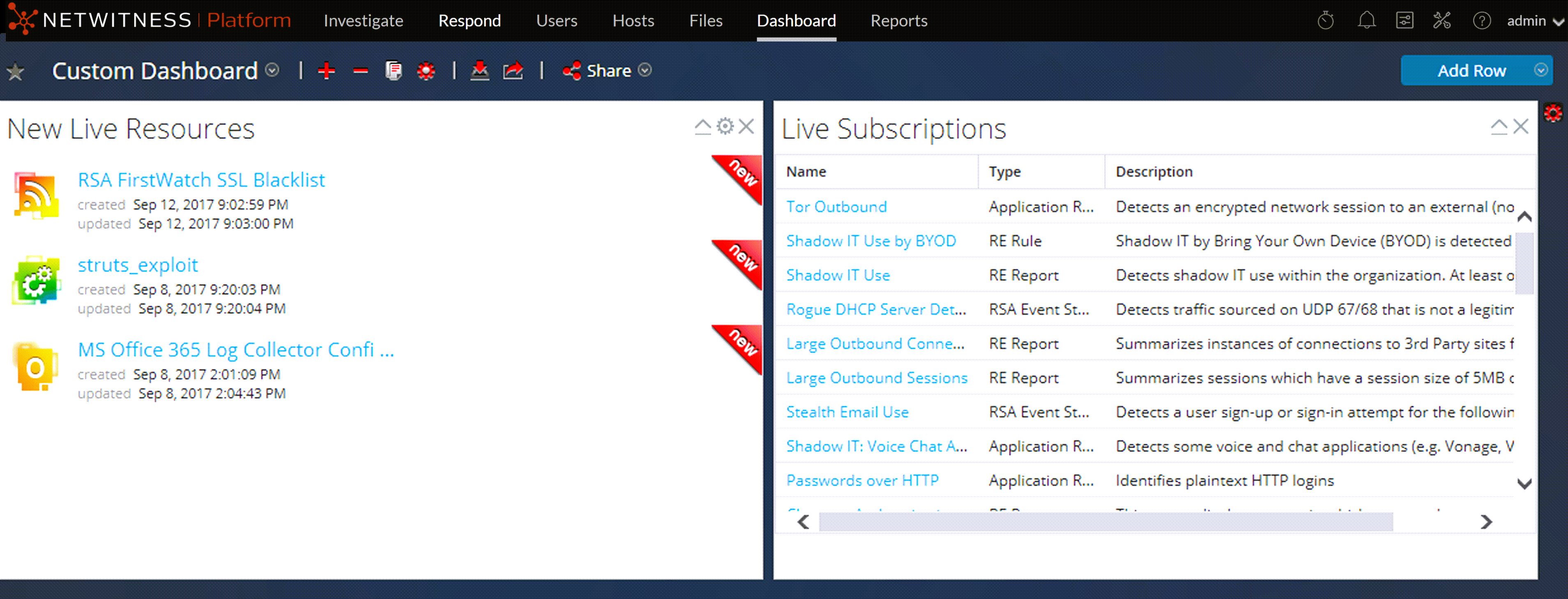
) in the dashlet title bar.
The Options dialog is displayed.
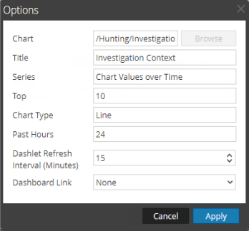
The directional cursor
 appears over the dashlet. Click and hold in the header of the dashlet that you want to move.
The figure below shows a dashlet as it is being re-arranged.
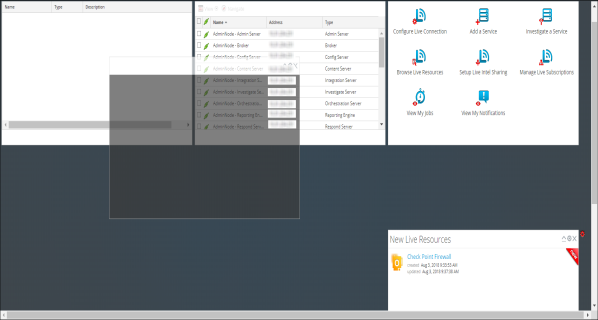
The dashlet that currently occupies that position moves down.
. The dashlet is displayed on full screen.,,,,,,, click the same control icon in the dashlet title bar:
. The dashlet is restored to previous size.,,,,,,, ,,,,,,, ,,,,,,, if you want to delete. The dashlet is removed from the dashboard.
Click No, if you do not want to delete.,,,,,, the empty space is replaced by a placeholder where you can add another dashlet using the above Add a Dashlet procedure.,,,,,,, ,,,,,,, you can export your dashboards that are not currently in use. When you are ready to use a previously exported dashboard, import the dashboard into NetWitness.,,,,,, ,,,,,,, ,,,,,,, click
 (Import Dashboard).
The Import Dashboard dialog is displayed.
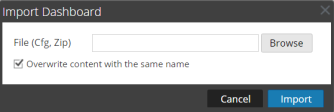
The dashboard is displayed in NetWitness.
 (Export Dashboard).
The exported file is saved in .zip format.,,,,,,, ,,,,,,, ,,,,,,, you can copy dashboards to the NetWitness dashboard or a custom dashboard. The NetWitness dashboard, as the name suggests, offers all NetWitness dashlets. The Copy Dashboard dialog creates a duplicate dashboard, which can be customized. When you copy a dashboard, the default name is prefixed with Copy of. For example, if the name of the original dashboard is XYZ, the default title of the copied dashboard will be Copy of XYZ., ,,,,,,, click
 .
.
The Copy Dashboard dialog is displayed. The following screenshot is an example of copying a dashboard.
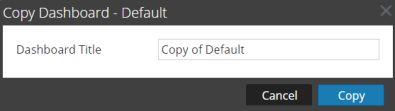
 and select the checkbox of the role with whom you want to share the dashboard.,,,,,,, ,,,,,,, clear the checkbox of the role. If a dashboard is shared, the dashboard name will be displayed with the share icon
 .,,,,,, ,,,,,,, ,,,,,,, ,,,,,,, ,,,,,,, ,,,,,,, ,,,,,,, ,,,,,,, ,,,,,,, ,,,,,,, a scheduled job is triggered once a week on Sunday at 00:00.,,,,,,, ,,,,,,, ,,,,,,, ,,,,,,, ,,,,,,, ,,,,,,, ,,,,,,, ,,,,,,, if an Analyst UI is deployed for the EMEA SOC team, analysts can query their EMEA NetWitness Platform hosts directly. If the EMEA team has Broker hosts and Concentrator hosts within the region, the Analyst UI can connect and query them instead of connecting back to Primary User Interface (Primary UI).,,,,, these features apply and affect the dashboards available to analysts:,,,,,,, ,,,,,,, ,,,,,,, ,,,,,,, ,,,,,,, the analyst must create a copy or contact the Admin to customize it.