.png?width=180&height=32&name=NW%20Logo%20(2).png)
Miscellaneous Live Services Procedures
This describes several other procedures.
- Displaying Resource Details in Live Resource View
- Downloading a Resource
- Locating and Removing a Deployed Resource from Services
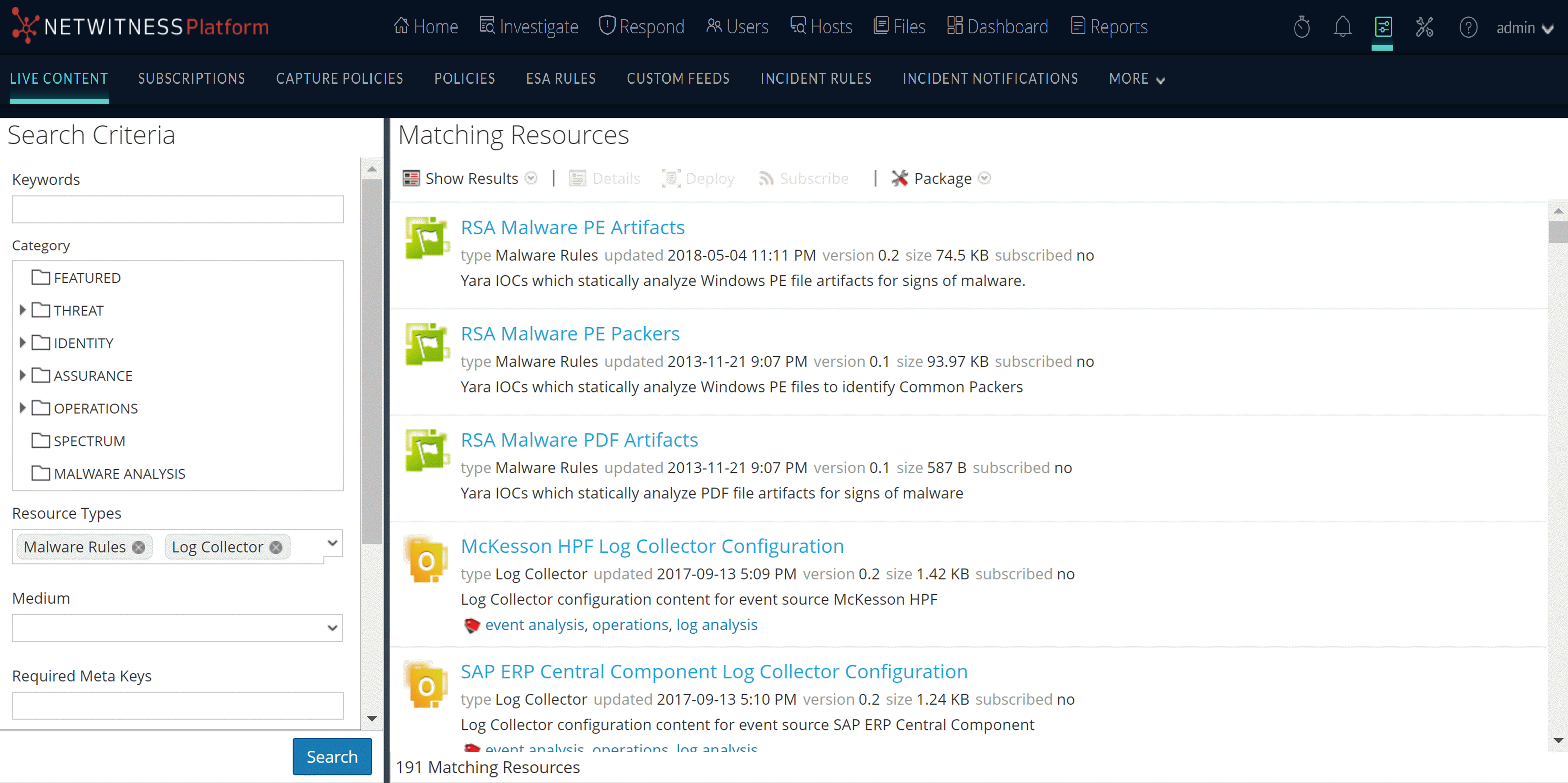
- Showing Results as a List or in Detail
- Viewing Resource Details
Displaying Resource Details in Live Resource ViewDisplaying Resource Details in Live Resource View
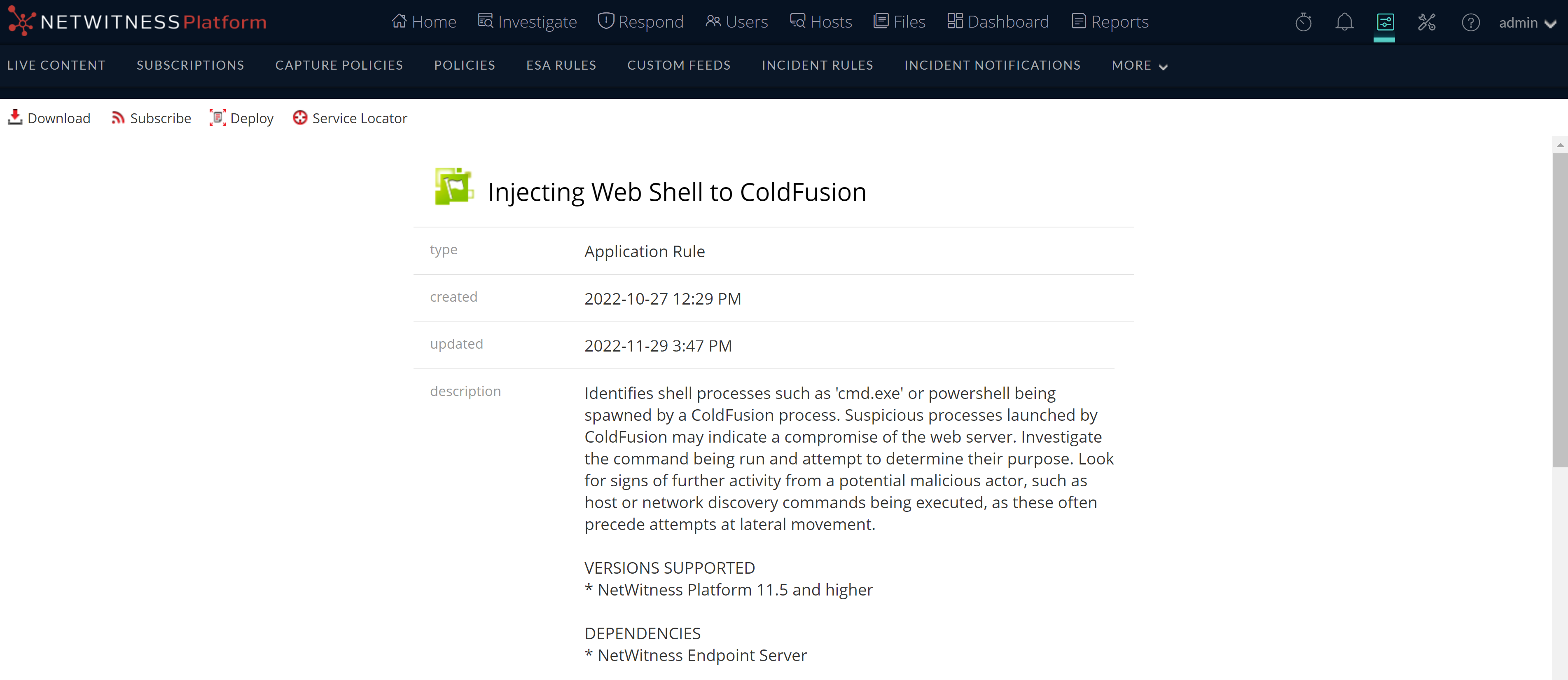
After you select a resource (in the Live Resource View), you can view its detailed information.
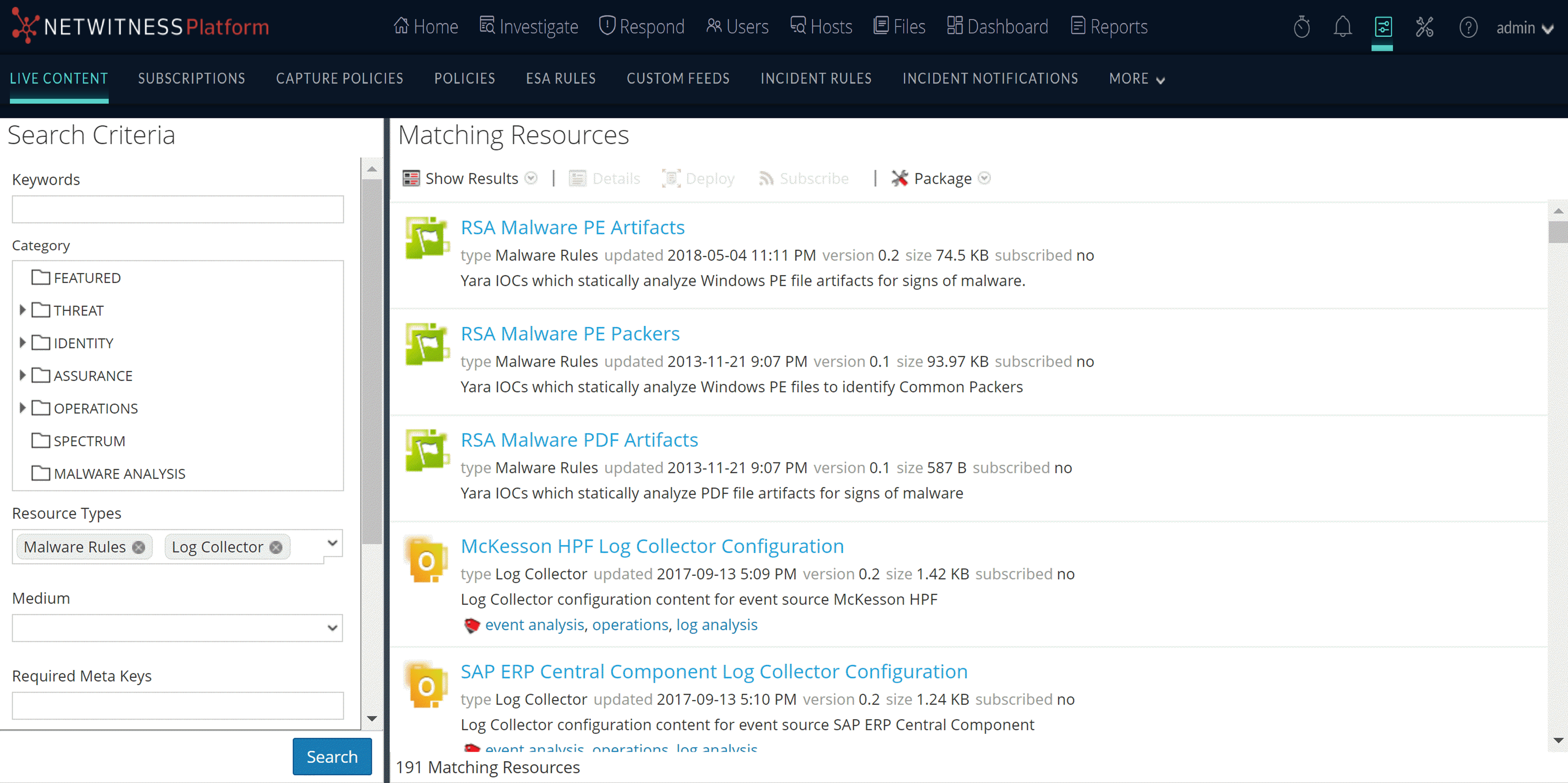
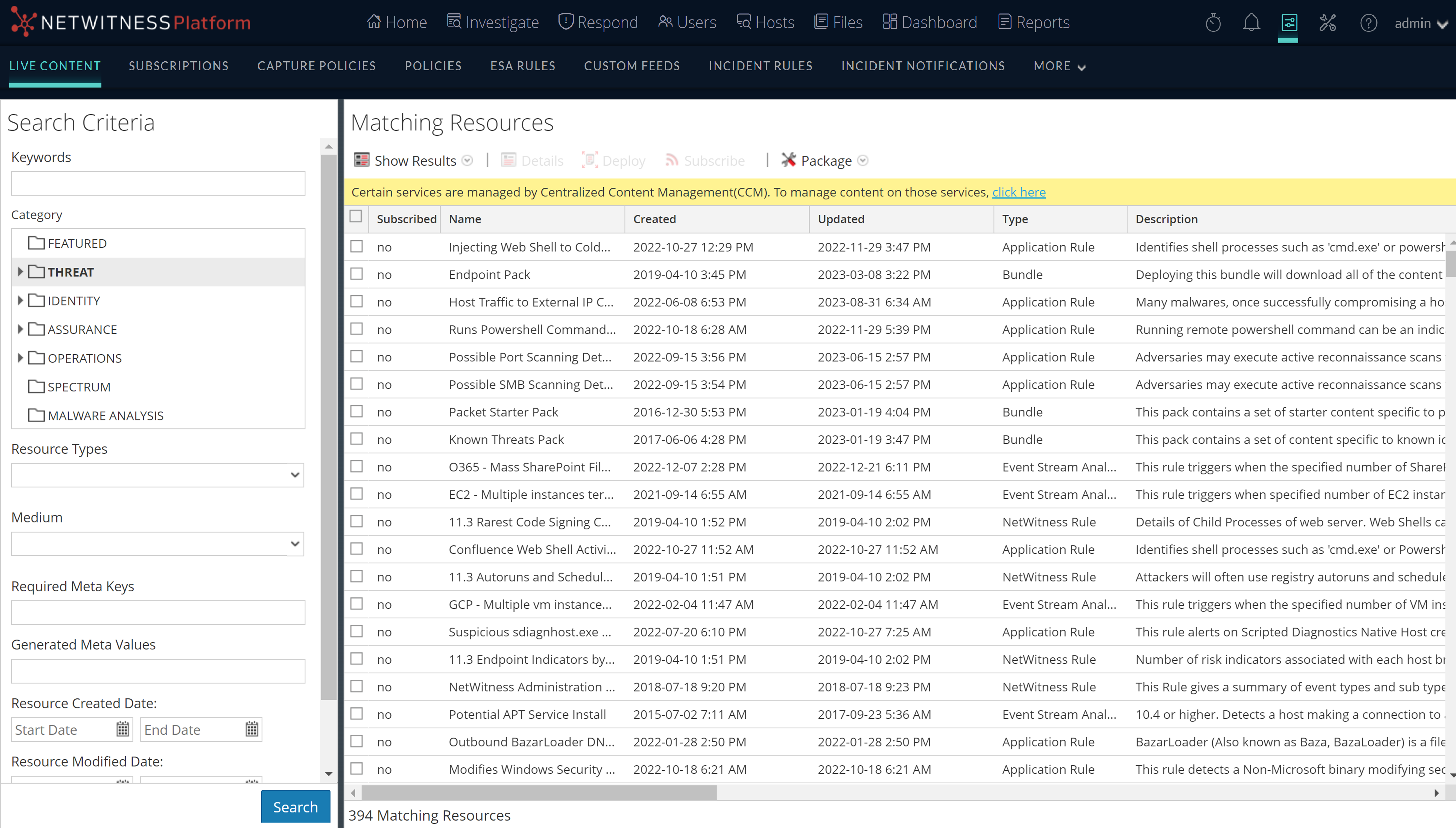
To open a separate tab in the Live Resource view with details of a selected resource, do one of the following:
-
If you are viewing the results in Show Results > Detailed view, click the resource type icon or the resource name.
-
If you are viewing the results in Show Results > Grid view, double-click a resource or select a resource and click Details.
Downloading a ResourceDownloading a Resource
You can download a single resource from the Live Resource View.
To download a resource:
- Go to
 (Configure) > Live Content.
 - In the Search Criteria panel, enter the criteria needed to return the resource you want to download.
- Select a single resource, then click
 .
. - Click
 .
.
The resource is saved as a ZIP archive to your local Downloads folder.
Locating and Removing a Deployed Resource from ServicesLocating and Removing a Deployed Resource from Services
You can locate and remove a deployed resource from services from the Live Resource View.
To view a list of services on which a resource is deployed:
-
With a resource displayed in the Resource View, click
 .
.The Service Locator dialog is displayed.
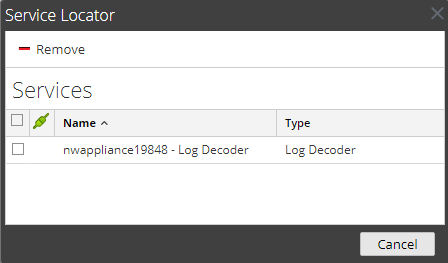
- Select one or more services in the Services list.
-
Click
 .
.The resource is removed from the selected services.
Showing Results as a List or in DetailShowing Results as a List or in Detail
-
Select Show Results > Grid to change to grid results when viewing detailed results.
-
Select Show Results > Detailed to change to detailed results when viewing grid results.
Viewing Resource DetailsViewing Resource Details
You can display detailed information about a subscribed resource in the Resource View.
To view details:
- In the Subscriptions tab, select a single subscription.
-
Click
 .
.The details of the resource are displayed in the Resource View.