Navigate View
Navigate View
The Navigate view ( Investigate > Navigate) displays event metadata--the meta keys and meta values-- that were found in captured data for the selected service. The data is filtered and displayed in accordance with the options you set for profile, time range, meta group, and query. You can also drill into the data by clicking meta keys and meta values.
Note: By default, the Navigate view is disabled in Version 11.6 as the Filter Events Panel in the Events view provides this functionality. To enable the Navigate view, see Configure the Navigate View and Legacy Events View.
Workflow
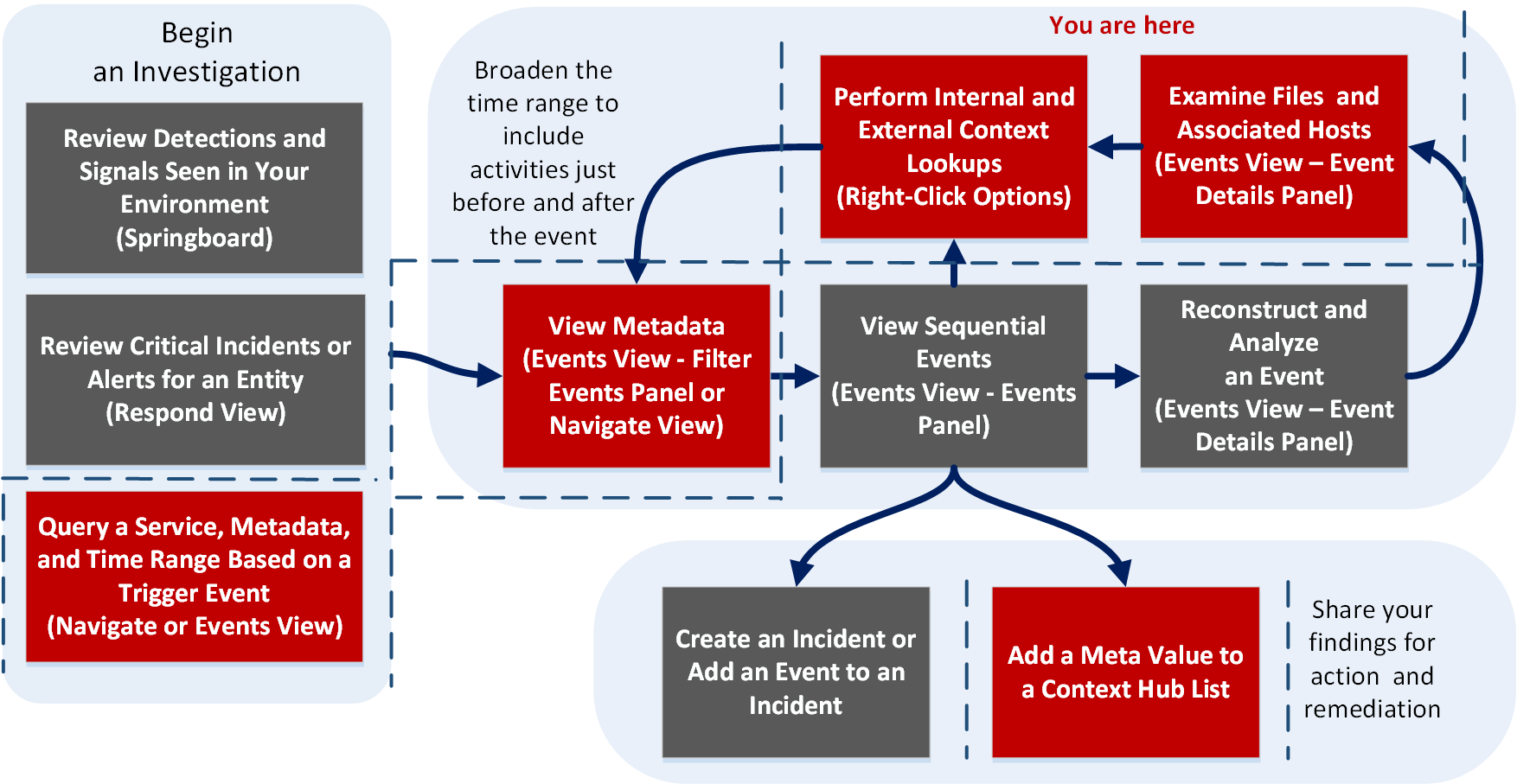
In the Navigate view, you can:
- View metadata for events in the Values panel.
- Visualize events in a timeline or parallel coordinates chart.
- Save events, go to an event using the event ID, visualize an event, and print an event.
- View additional contextual data for meta keys and values.
- Open a drill point or an event in the Legacy Events or the Events view.
What do you want to do?
- User Role:
Incident Responder or Threat Hunter
- I want to ...:
review detections and signals seen in my environment
- Show me how:
NetWitness Platform Getting Started Guide
- User Role: Incident Responder
- I want to ...:
review critical incidents or alerts
- Show me how:
NetWitness Respond User Guide
- User Role: Threat Hunter
- I want to ...: query a service, metadata, and time range*
- Show me how:
Begin an Investigation in the Events View
Begin an Investigation in the Navigate or Legacy Events View
- User Role: Threat Hunter
- I want to ...:
view metadata*
- Show me how:
- User Role: Threat Hunter
- I want to ...:
view sequential events
- Show me how:
- User Role:
Threat Hunter
- I want to ...:
reconstruct and analyze an event
- Show me how:
- User Role: Threat Hunter
- I want to ...: examine files and associated hosts*
- Show me how:
Download Data in the Events View
- User Role: Threat Hunter
- I want to ...: perform lookups*
- Show me how:
- User Role: Threat Hunter
- I want to ...: create an incident or add to an incident
- Show me how:
- User Role:
Threat Hunter
- I want to ...:
add a meta value to a Context Hub list*
- Show me how:
*You can perform this task in the current view.
Related Topics
Quick Look
This figure illustrates the Version 11.5 Navigate view.
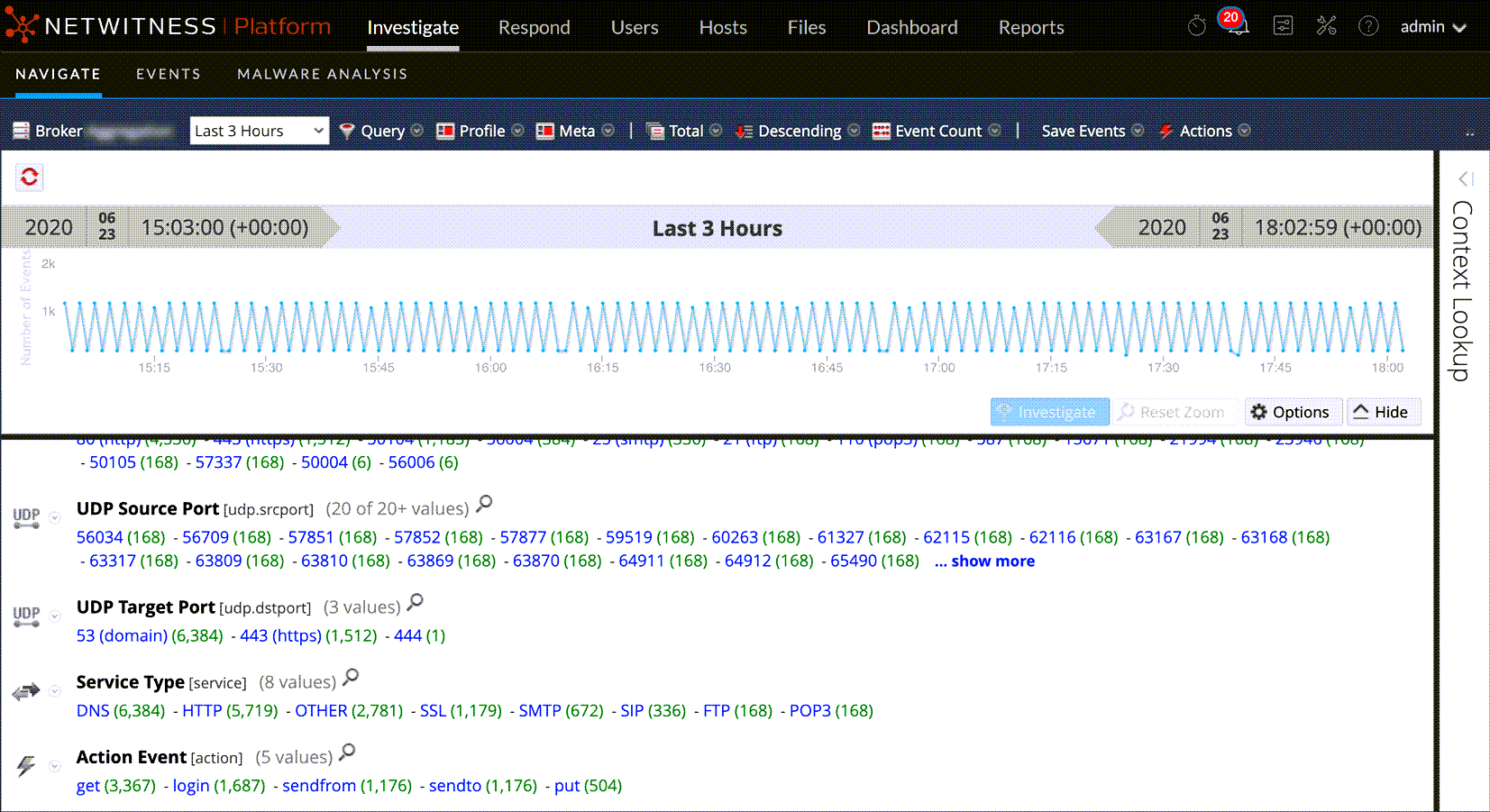
The Navigate view consists of these features:
- Toolbar
- Pause/reload button and breadcrumb
- Time banner
- Optional debug information.
- Collapsible Visualization panel
- Values panel
- Context Lookup panel
- Context menus
Toolbar
The following figure is an example of the toolbar. The toolbar provides a way to:
- Change the service being investigated.
- Control the range of data displayed: You can select use profiles, set a time range, use meta groups, and create queries to apply to the data.
- Set the quantification method and sorting method for data in the Values panel.
- Perform actions on the results. You can export and print results, open an event for which you have an event ID in the Legacy Events view or Events view, and pass a query to Informer.
- Configure Investigate settings without navigating away from the Investigate views.

Some of the toolbar options are labeled with the default value or the selected value rather than displaying the name of the option. For example, the time range option in the example above is labeled Last 5 Minutes to reflect the currently selected value. These are the toolbar options.
- Option:

- Description: Displays the selected service name next to the icon. Clicking the icon opens the Investigate a Service dialog, in which you can select a service to investigate and set the default service to investigate (see Begin an Investigation in the Navigate or Legacy Events View). Changing the service does not cause a reload of the data.
- Option: Time Range
- Description: Displays the Time Range options; the currently selected option is displayed in the toolbar (see Filter Results in the Navigate View). Possible choices are:
- All Data
- Last 5, 10, 15, or 30 Minutes
- Last Hour, Last 3, 6, 12, or 24 Hours
- Last 2 or 5 Days
- Early Morning
- Morning
- Afternoon
- Evening
- All Day
- Yesterday
- This Week
- Last Week
- Custom
Note: If you specify custom start or end times in seconds, the value for start time in seconds always defaults to :00, and the value for end time in seconds always defaults to :59. For example, if you are using time to drill down into an issue, the drill time will be interpreted as HH:MM:00 - HH:MM:59. Seconds display in this format in Investigate functions.
- Option: Query
- Description: Displays the Query dialog, in which you can enter a custom query directly instead of drilling down the data. See Query Dialog for a description of the dialog.
- Option: Profile
- Description: Displays the Profile menu; the currently selected profile is displayed in the toolbar. A profile allows you to manage and use profiles that can include custom meta groups, a default column group, and a beginning query. The Profiles apply to the Navigate view (meta groups and queries), the Legacy Events view, and the Events view (column groups and queries). See Use Query Profiles to Encapsulate Common Areas for Investigation for more information.
- Option: Meta
- Description: Displays the Meta Group menu. You can use Default Meta Keys or a custom Meta Group. You also have the option to make changes to both group types (see Use Meta Groups to Focus on Relevant Meta Keys).
- Option: Sort Field
- Description: Displays the Sort Field menu; the currently selected option is displayed in the toolbar. The menu has two options: Order by Total and Order by Value. The Sort Field is a complement to the Sort Order option; the data for each meta key is ordered based on the total (green number) or the meta value (blue text) (see Filter Results in the Navigate View).
- Option: Sort Order
- Description: Displays the Sort Order menu; the currently selected option is displayed in the toolbar. The menu has two options: Sort in Ascending Order and Sort in Descending. The Sort Order is a complement to the Sort Field option; the selected sort field for each meta key is ordered in ascending or descending order (see Filter Results in the Navigate View).
- Option: Quantification Method
- Description: Displays the Quantification Method menu; the currently selected option is displayed in the toolbar. The Quantification Method only applies to the meta key results in the Values panel. It does not apply to the timeline.
The drop-down menu contains three options for calculating the quantity (green number in parentheses) for a meta value: Quantify by Event Count, Quantify by Event Size, and Quantify by Packet Count (see Filter Results in the Navigate View).
These are applied differently depending on the type of data in view.
For packet data:- Quantify by Event Count shows the number of sessions.
- Quantify by Event Size shows the size in bytes.
- Quantify by Packet Count shows the number of packets.
- Quantify by Event Count shows the number of logs.
- Quantify by Event Size shows the size in bytes.
- Quantify by Packet Count shows the number of logs.
- Option: Save Events
- Description: Displays the Save Events menu, in which you can use options to: extract files associated with an event, export the current drill point as a PCAP file, and export the current drill point as a log file (see Export a Drill Point).
- Option: Actions
- Description: The Actions menu includes actions that you can perform in the Navigate view (see Refining the Results Set). In Version 11.1 and later, the options are Visualize, Go to event in Event Reconstruction, Go to event in Events view, and Print).
- Option: Search Events
- Description: Enables you to search for text patterns within the current set of events. If you click in the Search field, it shows a drop-down menu with search options. If you click Apply, it saves the selected options and also updates the search options in the Legacy Events view and the Investigations profile (see Search for Text Patterns in the Navigate and Legacy Events Views).
- Option: Settings
- Description: Displays the settings for the Navigate view (which are also editable in the Profile view) so that you can change Investigate settings without navigating away from the Navigate view. When you change a setting In the Navigate view the setting is also changed in the Profile view (see Configure the Navigate View and Legacy Events View).
Pause/Reload Button and Breadcrumb
The breadcrumb tracks each query as you drill down through the metadata for the service. The following figure is an example of the breadcrumb.

Each query is listed with a drop-down menu in a pipe separated string. The last point is the current point, also called the tip. The icon in front of the breadcrumb allows you to pause the loading of meta values and to reload meta values. The breadcrumb does not include the service name and appears only if a query is in effect. If too many drill points exist for display, the overflow is shown as double angle brackets, >>, at the end of the breadcrumb. Each drop-down menu in the breadcrumb is the same, with slight variation based on the position of the crumb.
The following table describes the controls and menu options in the breadcrumb.
- Feature:

- Description: Pause and Reload button. Controls the loading of data in the view. It has three possible functions: pause loading, continue loading, and reload.
- Feature: Navigate Here
- Description: Opens the selected drill point in the current Values panel.
- Feature: Navigate Here (new tab)
- Description: Opens the selected drill point in a new tab.
- Feature: Insert Before
- Description: Inserts a query before the current drill point. The Create Filter dialog opens and you can define a custom query to insert in the breadcrumb (see Create a Query in the Navigate and Legacy Events Views).
- Feature: Append
- Description: Appends a query after the current drill point. The Create Filter dialog opens and you can define a custom query to append to the end of the breadcrumb (see Create a Query in the Navigate and Legacy Events Views).
- Feature: Remove
- Description: Removes the selected drill point from the breadcrumb.
- Feature: Edit
- Description: Opens the selected drill point in the Create Filter dialog so that you can edit the query.
- Feature: >>
- Description: Clicking the angle brackets displays a drop-down menu of the breadcrumb overflow.
(Optional) Debug Information
If you have activated the Show Debug Information setting and the service you are navigating is a Broker, NetWitness, displays the debug information beneath the breadcrumb.
The debug information is the where clause from the current query. The only time there is no where clause is when the time range is all data and there are no drill points. If the Broker has at least one aggregate service that is offline, the debug information also lists the offline service.
For example:
(attachment exists)&&(tcp.dstport = '80')&&(risk.info exists)$$time='2014-05-04 18:50:00"-"2014-05-09 18:59:59(attachment exists) && (tcp.dstport = '80') && (risk.info exists) && time="2014-05-04 18:50:00"-"2014-05-09 18:50:59"
In addition, the time taken to load is displayed at the end of each meta key in the Values panel.
Time Banner
Just below the breadcrumb and debug information (if present), the time banner shows the time range used to create the chart. The following figure is an example of the time banner.

Visualizations
At the top of the Navigate view is a visualization of the current drill point. You can use this to drill into data from the Visualization panel (see Filter Results in the Navigate View). You can show or hide the visualization, and choose one of thevisualization options: Timeline or Coordinates. The Visualization opens initially to the last saved Visualization.
Timeline Chart
The timeline is the count of the number of events that occur at a specific instance. The timeline provides event counts so that you can see if the number of events increases drastically at a given point in time. The timeline displays activity for the specified service and time range as a line chart or a bar chart based on your choice in the Options menu. The second figure illustrates a line chart and third figure illustrates a bar chart.
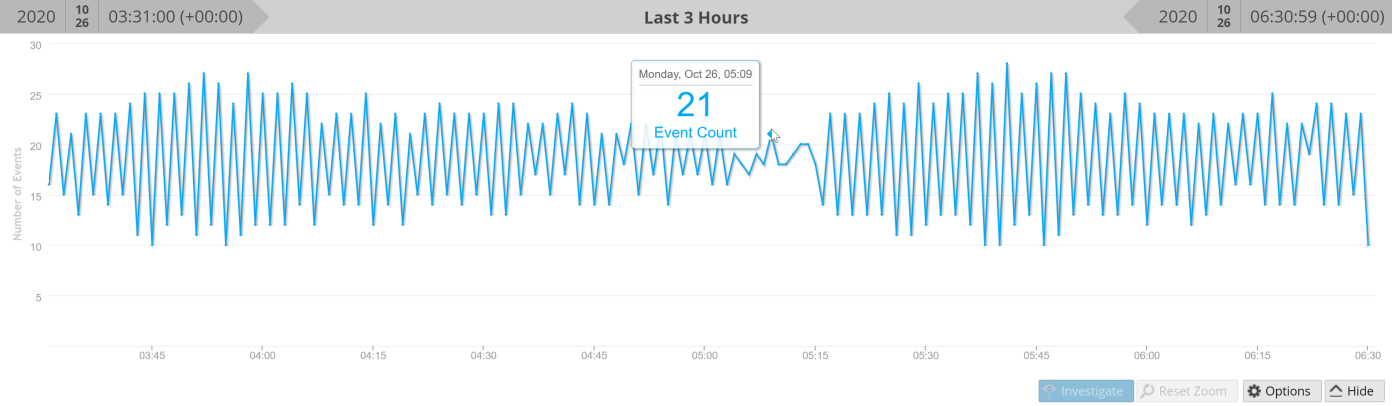
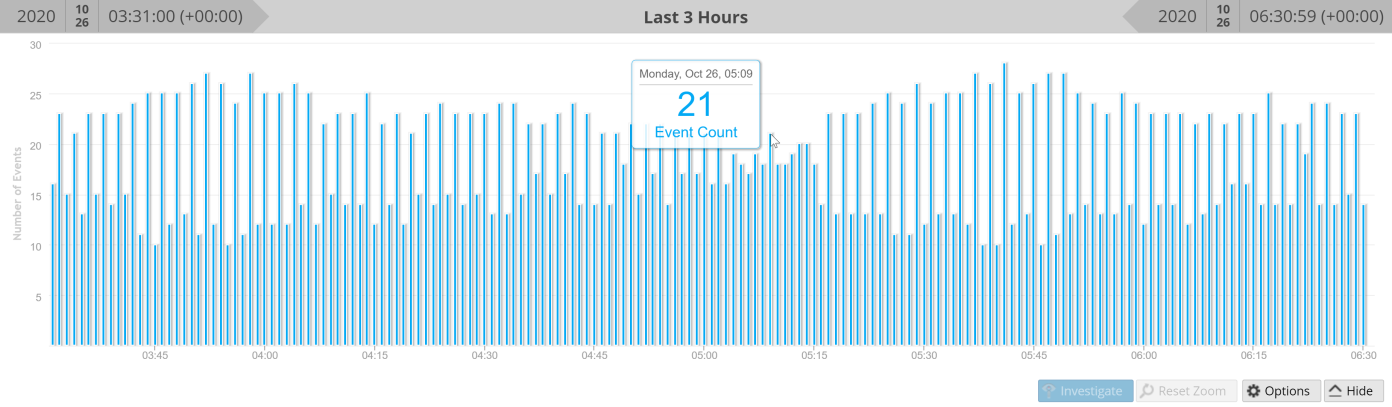
The timeline displays activity for the specified service and time range, as a line chart or a bar chart based on your choice in the Options menu.
- Feature: Number of Events (Timeline)
- Description: The Y axis of the chart based on thousands of events.
- Feature: Time Line (Timeline)
- Description: The X axis of the chart based on the time the events occurred.
- Feature: Event point (Timeline)
- Description: If you want to explore a specific section, simply select the range from the chart. The new time range will be reflected in the chart.
- Feature: Investigate (Timeline)
- Description:
- Feature: Options
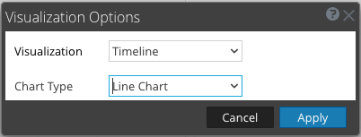
- Description: Displays the Visualization Options dialog. Data points can be displayed as a Line chart (default), a Bar chart, or Coordinates chart. When a chart type is select, the relevant options are displayed.
- Feature: Hide
- Description: Collapses the chart.
Displays the Add Keys to Parallel Coordinates Visualization dialog so that you can add axes to the visualization. This is useful if you are looking for relationships between the default meta keys and some additional ones.
Deletes the selected keys so that they do not appear as axes in the visualization. This can help to make the visualization less cluttered and allow for more data points to be included in the visualization.
Reverts to the default meta keys for visualization, which consist of all meta keys in the current drill point.
Controls the display of additional information about the number of selected axes versus the recommended count. This helps to make you aware of possible performance improvements by removing axes.AxesLists the meta keys selected as axes in the visualization.CancelCancels any changes made to the visualization options.ApplySaves the changes made to the visualization options and applies to the current visualization.,,,,,, you can select the meta keys or meta groups to use as axes the Parallel Coordinates visualization.,,,,,,, ,,,,,,, ,,,,,,, ,,,,,,, ,,,,,,, ,,,,,,, ,,,,,,, which presents meta keys and meta values found in the service being investigated. Procedures for analyzing data in the Values panel are provided in
Filter Results in the Navigate View.,,,,,,, ,,,,,,, values, and counts for non-indexed meta keys are not drillable; the Values and counts are shown in black.,,,,,, ,,,,,,, ,,,,,,, which offer actions that can apply to that meta key. You can use these to change the way the results for the meta key are displayed in the current view. Changes made to meta keys are displayed in the current view and persist until you refresh the page or select a new service in the Navigate view toolbar. See
Drill into Data in the Values Panel,,,,,,, NetWitness, a refresh restores the default meta keys from the core service.,,,,,, ,,,,,,, the user friendly name of the meta key is displayed with the index file name of the meta key following in brackets. For example
Content Type [content] gives the user friendly name of the content meta key with the index file name in parentheses. For meta groups, the name of the group is given in plain English with the meta group name following in parentheses. This is an example of a meta group name as it would appear in the Values panel:
All User Keys [users.all].3 and 4Clicking
on an indexed meta key opens the Search dialog in which you can enter a filter for the current meta key. The search function is not available for non-indexed meta keys, and is based on the actual meta value rather than the alias. Drilling in the Search dialog using aliases is not supported.
NOTE: Check with your administrator to obtain a list of aliases used for a meta key in Investigation. When an alias is used, this search dialog does not provide results. Instead, you must query the meta key using the Right-click query capability or the Query dialog.5The meta value associated with the found meta key. These are listed in order by meta value name or by the count of events in which the meta value was found, according to your preference.6,, ,,,,,,, ,,,,,,, the meta key is Content Type, and 40 of 40+ values are currently displayed. You can display additional values by clicking