.png?width=180&height=32&name=NW%20Logo%20(2).png)
Issue
This article provides how-to information on how to navigate the boot sequence on a NetWitness S6 appliance to accomplish such functions as initiating a boot stick installation.Resolution
Method One (Preferred):This method uses the one-shot feature to change the boot sequence TEMPORARILY to the selected option. The sequence will revert back to the previous configuration after the reboot.
- Reboot your appliance using the reboot command.
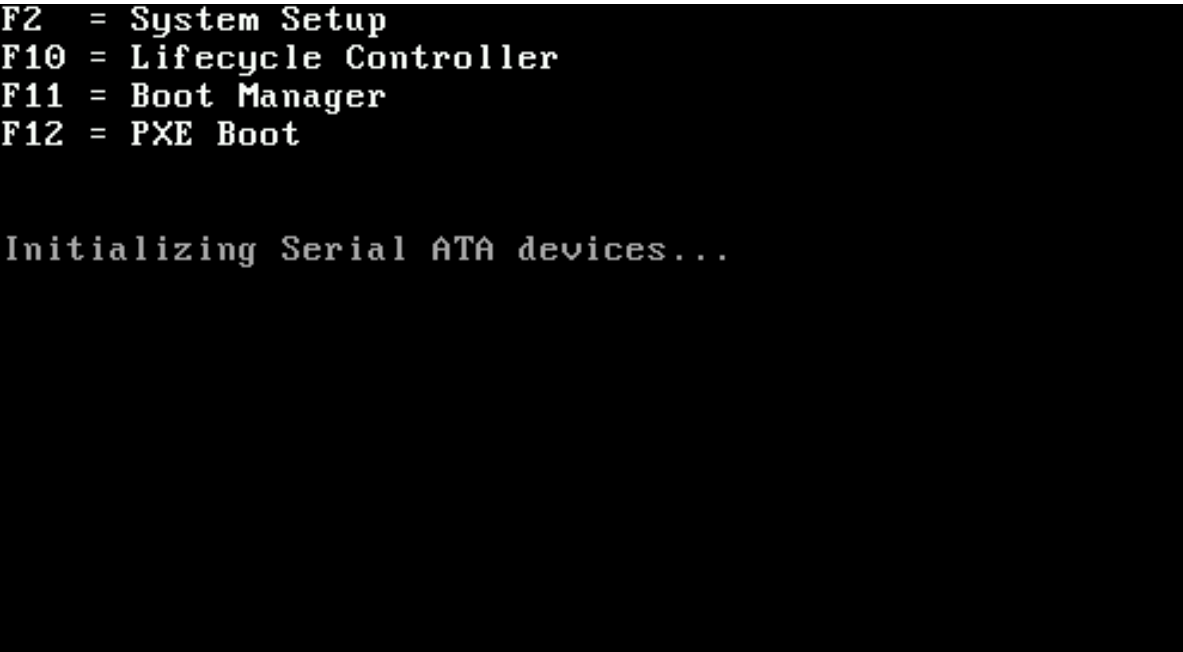
- Monitor your appliance until it gets to the following screen and press F11.
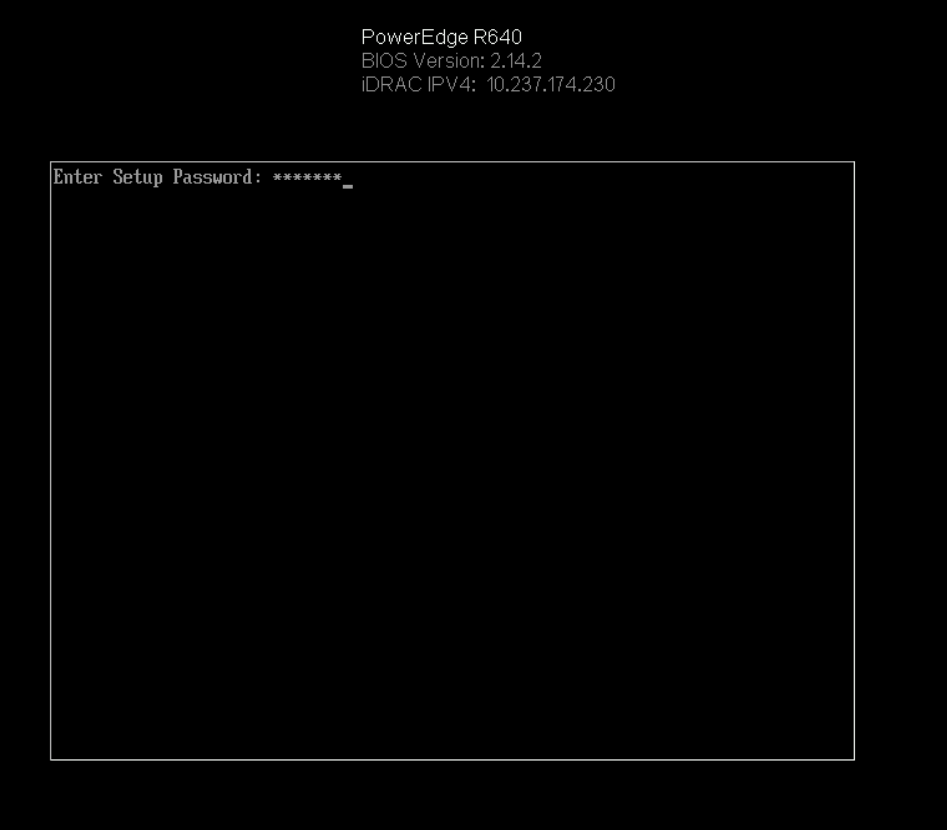
- It will eventually prompt you for the UEFI BIOS password. Enter the password and press ENTER. The default password is rsabios
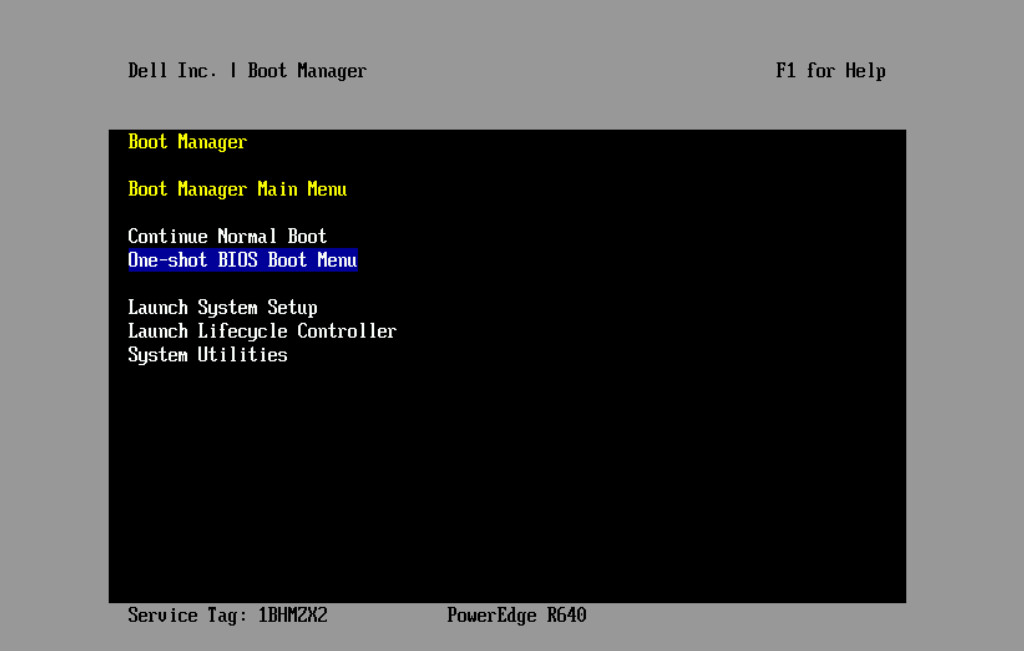
- Navigate to the One-shot BIOS Boot Menu.
- The system will then load the bios boot manager. Select the desired Boot option (ie. USB Flash Memory) from the list provided using the keyboard arrow keys and hit Enter.
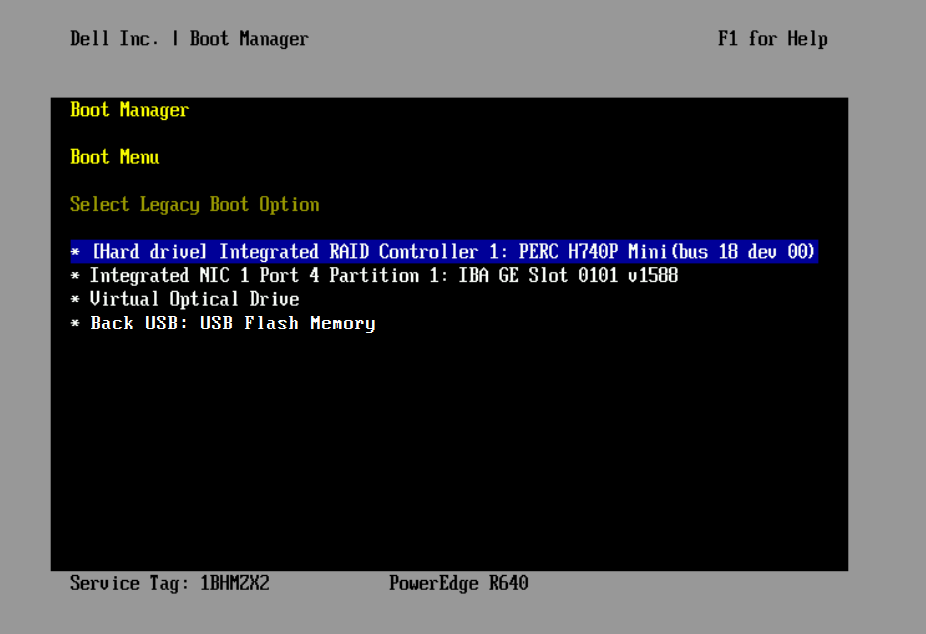
- The selected option will boot (ie. USB drive) should now load.
Method Two:
Warning: This method will PERMANENTLY change the boot sequence of the appliance.
- Reboot your appliance using the reboot command.
- Monitor your appliance until it gets to the following screen and press F2.
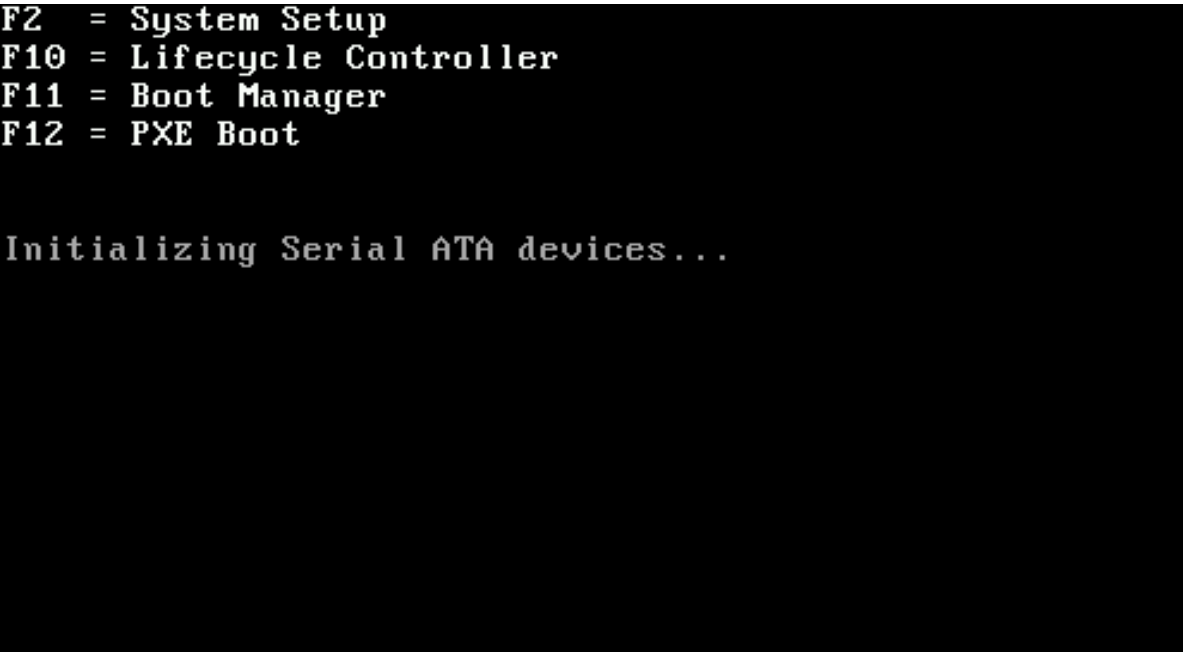
- It will eventually prompt you for the UEFI BIOS password. Enter the password and press ENTER. The default password is rsabios
- Select System BIOS.
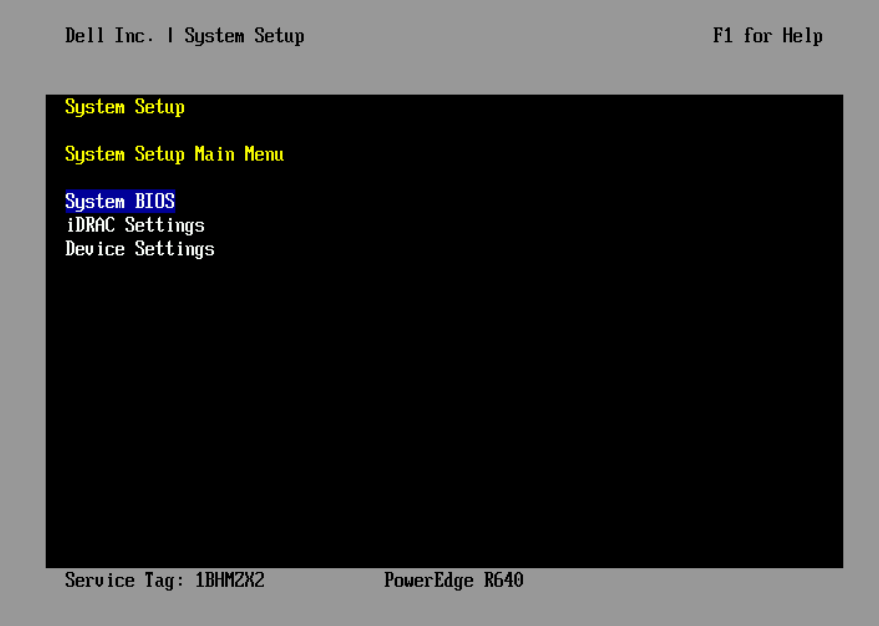
- Select Boot Settings.
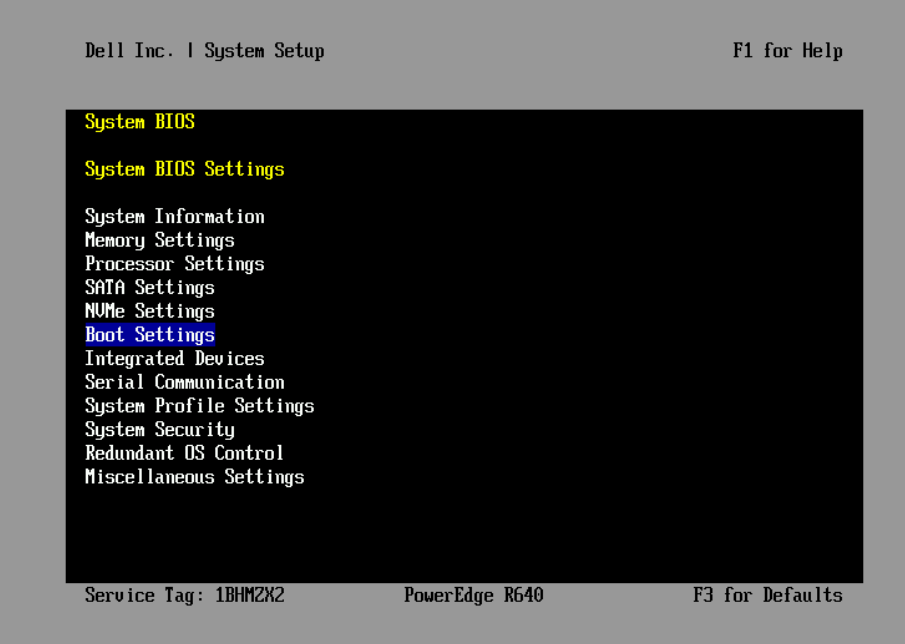
- Select BIOS Boot Settings.
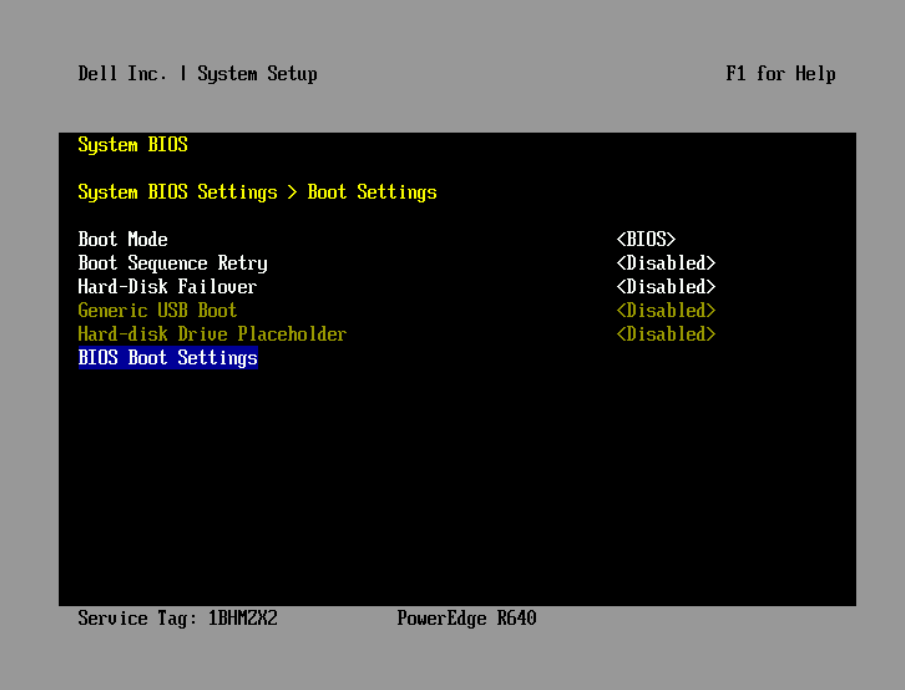
- Press enter on the boot sequence part, a popup with the boot order will appear.
- With the arrow keys, move up or down to highlight the desired option (ie. USB Flash Drive) from the the list and move it to the top of the list by pressing the + key and hit ENTER:
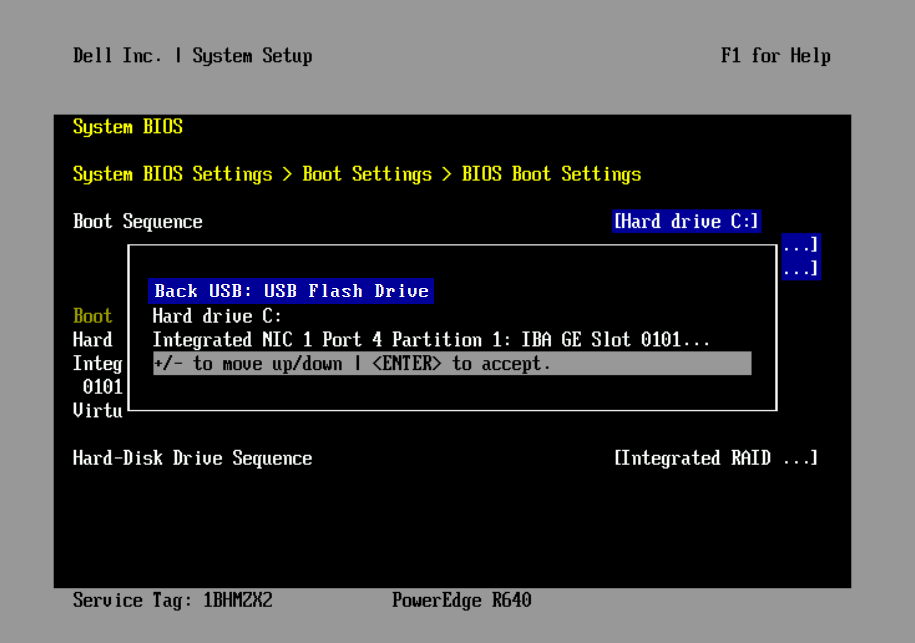
- Save your settings and exit the UEFI BIOS it will prompt you to reboot.
Notes
If for some reason a forced reboot is required during this sequence, press the key combination ctrl+alt+del.
Also, remember to revert your settings after completing these steps so that the system auto boots off the hard drive.
Product Details
NetWitness Product Set: NetWitness Logs & NetworkNetWitness Product/Service Type: Netwitness S6 Appliance
NetWitness Version/Condition: 11.x, 12.x
Platform: CentOS
O/S Version: EL7
Approval Reviewer Queue
Technical approval queue