Skip to content
  • There are no suggestions because the search field is empty.

Overview View

Overview Tab

The Overview tab provides an initial view into the recent and most important user or network entity activities in the environment. Each panel shows either prioritized incidents for investigation or consolidated metrics reflecting potential risks to the enterprise.

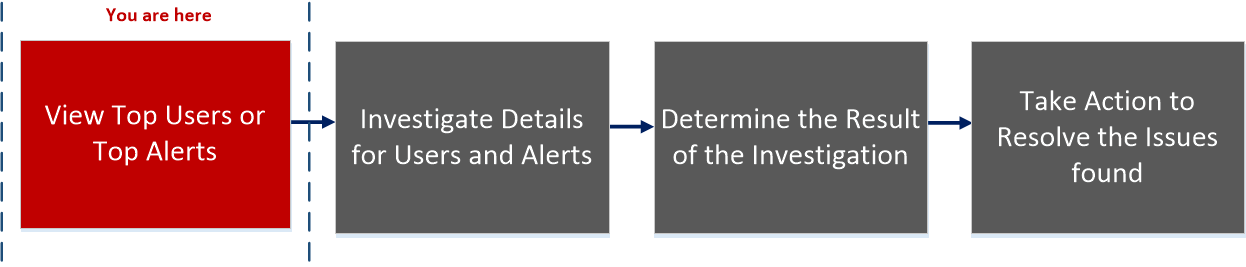
Workflow
netwitness_112_overview.png

What do you want to do?


  • User Role: UEBA Analyst
  • I want to ...: Investigate alerts in my environment.
  • Documentation: Investigate Top Alerts

  • User Role: UEBA Analyst
  • I want to ...: Begin an investigation of critical alerts.
  • Documentation: Investigate Top Alerts

  • User Role: UEBA Analyst
  • I want to ...: Sort alerts to focus my investigation.
  • Documentation: Filter Alerts

  • User Role: UEBA Analyst
  • I want to ...: Investigate threat indicators.
  • Documentation: Investigate Events

  • User Role: UEBA Analyst
  • I want to ...: Export alert data.
  • Documentation: Manage Top Alerts

*You can complete the tasks here.

Related Topics

Quick Look

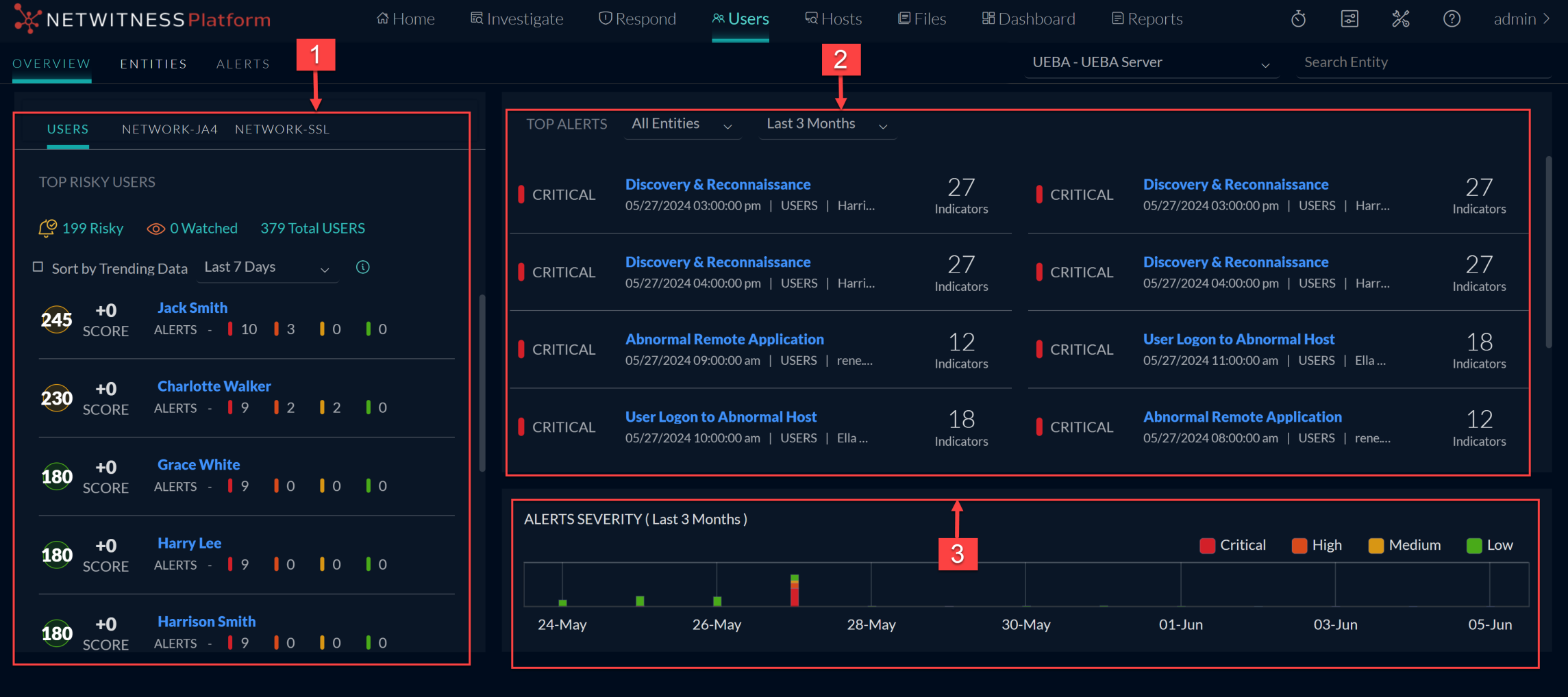
The following figure shows the Overview tab.
125_Users_Overview_0624_2289x1018.png

The Overview tab consists of the following panels:

  • Column 1: 1
  • Column 2: Top Risky User or Network entities panel

  • Column 1: 2
  • Column 2: Top Alerts panel

  • Column 1: 3
  • Column 2: Alerts Severity panel

Top Risky User or Network Entity Panel

The High Risk User or Network entities panel lists the top ten high-risk users or network entities along with the user or network entity score.

In this example, the following table describes the high risk users panel elements.

  • Name: Risky
  • Description: All user or network entities with a risk score greater than 0.

  • Name: Watched
  • Description: All user or network entities who are currently flagged as Watched.

  • Name: Total Users
  • Description: All user or network entities in the network.

  • Name: User or Network entity name
  • Description: The name of the user or network entity.

  • Name: User or Network Entity Score
  • Description:

    The score of the user or network entity, with the color indicating the severity of the score.

    • red indicates critical
    • orange represents a high risk
    • yellow indicates a medium risk
    • green represents a low risk

Top Alerts Panel

The Top Alerts panel displays a list of alerts for the associated user or network entity, severity, alert creation date, and number of indicators. The list consists of the top ten alerts in the Last 24 Hours, Last 7 days, Last 1 Month and Last 3 Months.

The following table describes the top alerts panel elements.

  • Name: Severity Icon
  • Description: The alert severity icon. The options are Critical, High, Medium, or Low.

  • Name: Alert Name
  • Description: The name of the alert.

  • Name:

    Alert Creation Date

  • Description:

    The date when an alert is generated.


  • Name: Number of Indicators
  • Description:

    The number of indicators associated with the alert.


Alerts Severity Panel

The Alert Severity panel graphically displays the number of alerts.

The following table describes alert severity panel elements.

  • Name: Severity level
  • Description:

    The severity is color coded, where red indicates a Critical alert, orange represents a High risk alert, yellow indicates a Medium risk alert, and green represents a Low risk alert. For example:
    netwitness_112_sevlev.png