Skip to content
  • There are no suggestions because the search field is empty.

Relay Server Tab

Relay Server Tab

In the Relay Server tab, you can download and configure Relay Server . To access this view:

  1. Go to ADMIN > Services.
  2. In the Services view, select Endpoint Server.
  3. Click netwitness_actions_icon.png and select > View > Config.
  4. Click the Relay Server tab.

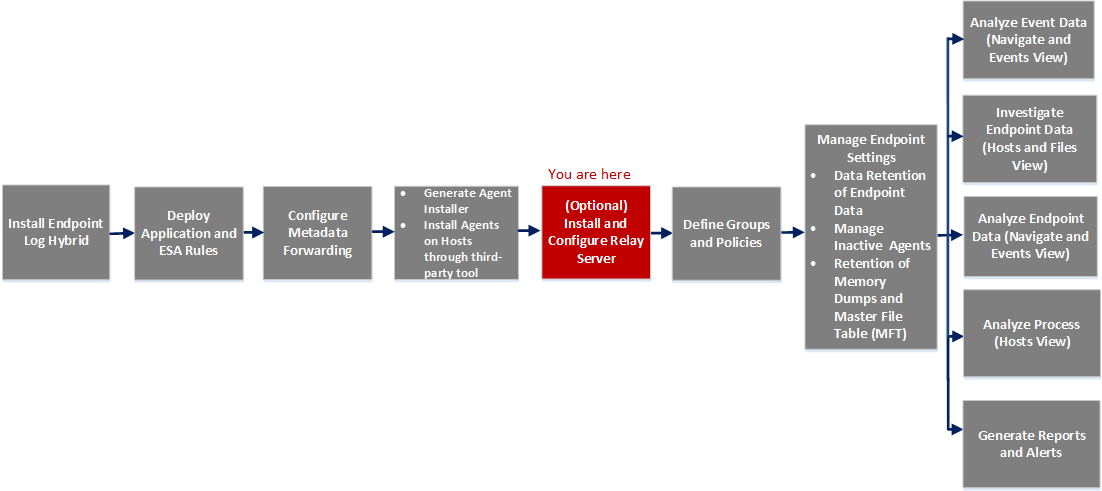
Workflow

netwitness_eprelayserver.png

What do you want to do?


* You can perform this task in the current view.

Quick Look

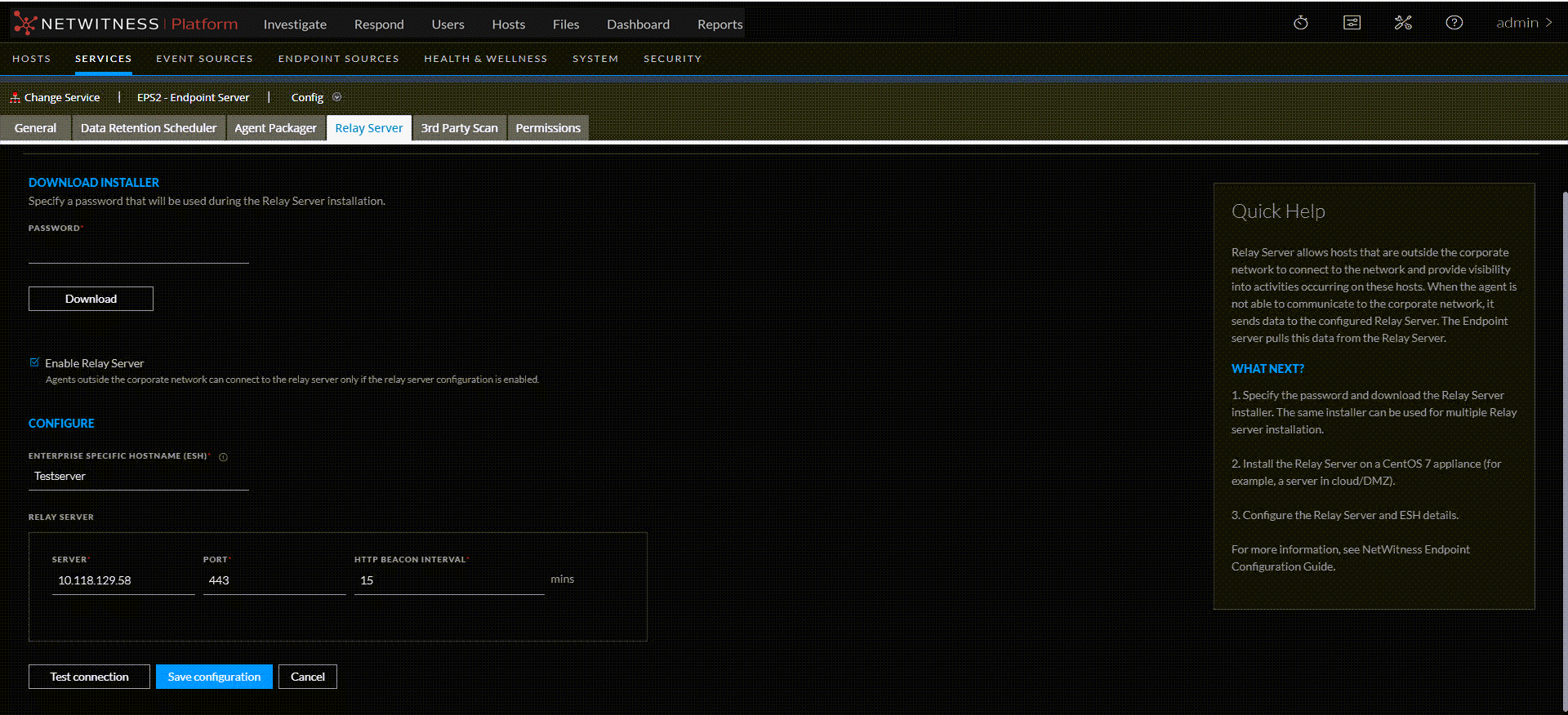
The following figure is an example of the Relay Server tab.
RelSer.png

Features

The following table lists the fields for Relay Server tab.

  • Field:

    Download Installer


  • Field: Password
  • Description:

    Enter the relay server installation password. For example, netwitness. Password must be minimum of 3 characters and can contain alphanumeric and special characters.

    Note: You must provide the same password when prompted during Relay Server installation.


  • Field: Download
  • Description: Click to download the Relay Server installer.

  • Field: Enterprise Specific Hostname (ESH)
  • Description: Enter the hostname which can be resolved only within the corporate network.

  • Field: Enable Relay Server
  • Description: Check Enable Relay Server for Agents outside the corporate network to connect to the configured relay server. By default, this option is disabled.

  • Field: Configure

  • Field:

    Server

  • Description:

    Hostname or IP of the Relay Server.


  • Field:

    Port

  • Description:

    Port number. For example, 443.


  • Field:

    HTTP Beacon Interval

  • Description:

    Enter the Interval value ranges from 60 – 1440 minutes.


  • Field:

    Test Connection

  • Description:

    Click test connection to check if the relay server is reachable by the agents.


  • Field:

    Save Configuration

  • Description:

    Saves the relay server configuration.


  • Field: Cancel
  • Description: Cancel the unsaved changes.