Reporting Engine Output Actions Tab
You can configure output actions for a Reporting Engine to determine the format you want the data to be presented to you based on your requirements. The service configuration parameters are available in the Output Actions tab of the Services Config view configured for a report or an alert execution. This tab consists of the following panels:
- NetWitness Configuration
- Simple Mail Transfer Protocol (SMTP)
- Simple Network Management Protocol (SNMP)
- Syslog
- Simple File Transfer Protocol (SFTP)
- Uniform Resource Locator (URL)
- Network Share
For instance, Syslog output action is used specifically for Reporting Engine Alerts, whereas, SFTP, URL, and Network Share output action is used specifically for Reporting Engine Reports.
You can configure the required permission to access this view in Manage Services.
You must ensure that the Reporting Engine is up and running and the data source from which you want to generate a report is configured in the NetWitness.
Workflow
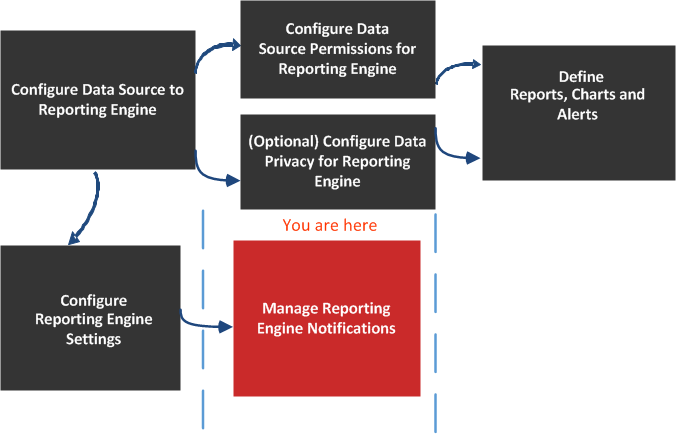
What do you want to do?
- Role: Administrator
- I want to...: Configure Data Source to Reporting Engine
- Refer to...: Configure the Data Sources
- Role: Administrator
- I want to...: Configure Data Source Permissions for Reporting Engine
- Refer to...: Configure Data Source Permissions
- Role: Administrator
- I want to...: Configure Data Privacy for Reporting Engine
- Refer to...: Configure Data Privacy for the Reporting Engine
- Role: Administrator
- I want to...: Define Reports, Charts, and Alerts
- Refer to...:
- Role: Administrator
- I want to...: Configure Reporting Engine Settings
- Refer to...: Configure Reporting Engine Settings
- Role: Administrator
- I want to...: Configure NetWitness Configuration *
- Refer to...: Configure Reporting Engine General Settings
- Role:
Administrator
- I want to...:
Configure SMTP Configuration*
- Refer to...:
- Role: Administrator
- I want to...: Configure SNMP Configuration*
- Refer to...: Configure Reporting Engine General Settings
- Role: Administrator
- I want to...:
Configure Syslog Configuration*
- Refer to...:
- Role:
Administrator
- I want to...:
Configure SFTP Configuration*
- Refer to...:
- Role: Administrator
- I want to...: Configure URL Configuration*
- Refer to...: Configure Reporting Engine General Settings
- Role:
Administrator
- I want to...:
Configure Network Share Configuration*
- Refer to...:
*You can complete these tasks here.
Related Topics
Quick Look
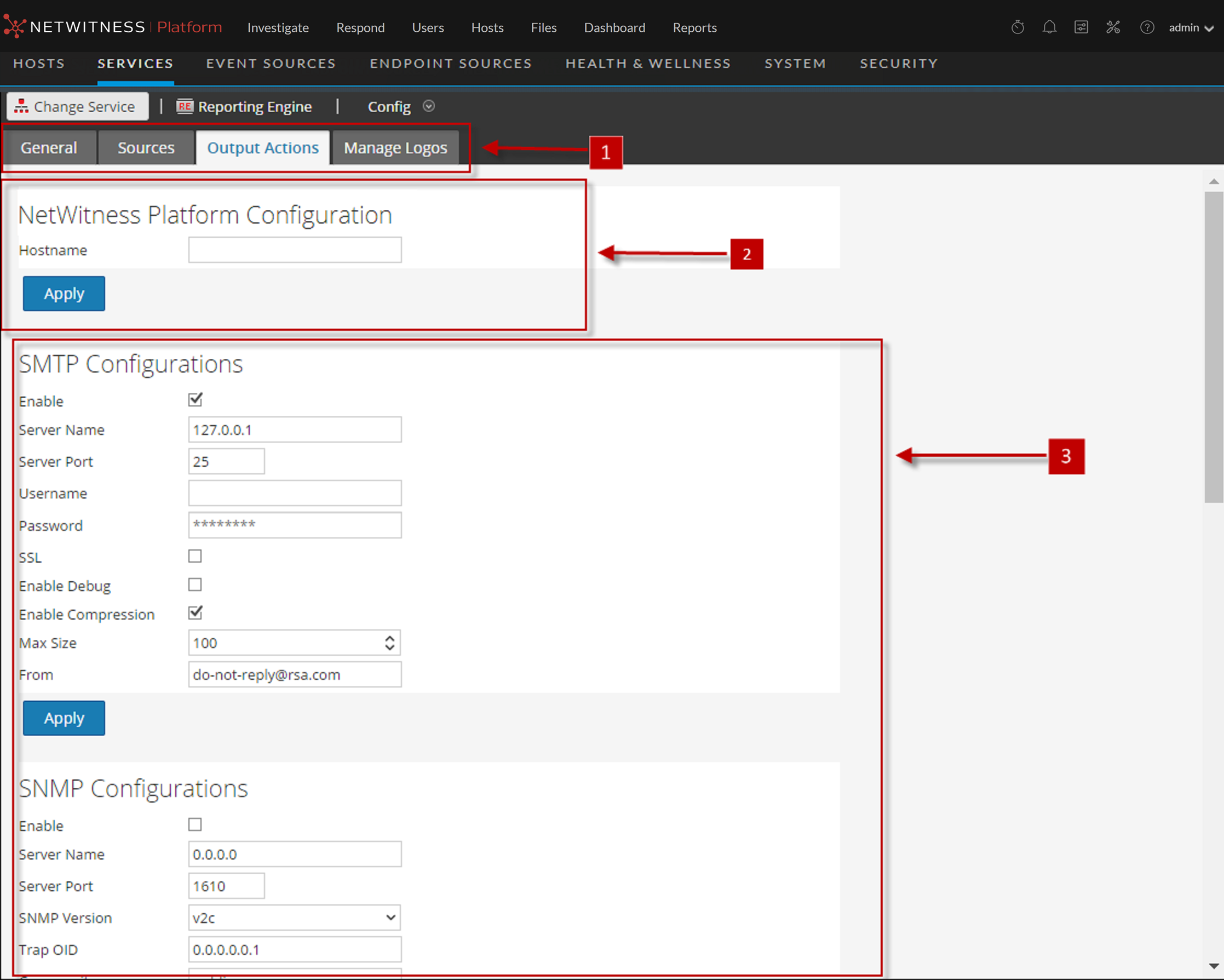
- Column 1: 1
- Column 2: Displays all the available configurable tabs.
- Column 1: 2
- Column 2: Displays the NetWitness configuration host.
- Column 1: 3
- Column 2: Displays all the types of output action that can be configured.
NetWitness Configuration
The following figure shows the NetWitness Configuration on the Output Actions Tab.
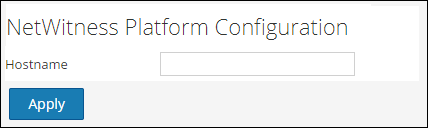
The following parameters identify the NetWitness host that is associated with the Reporting Engine.
- Name: Host Name
- Config Value:
IP Address or Hostname of the NetWitness server. You must specify this parameter for all kind of deployments so that you can refer to this address to create investigation links to NetWitness from Reports, Alerts, and so on. The NetWitness uses this parameter to correctly generate:
- SMTP Output Action
- SNMP Output Action
- Syslog Output Action
- SFTP Output Action
- URL Output Action
- Network Share Output Action
- Hyperlinks for meta values in Report PDFs
- Name:
Apply
- Config Value:
Update the configuration.
SMTP
After an execution is completed, an email notification is sent to the user based on the SMTP configuration.
The following figure shows the SMTP Configuration on the Output Actions Tab.
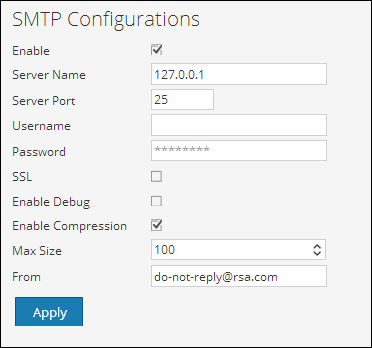
The following parameters manage SMTP (email) output action configuration for a Reporting Engine service. When you add a Reporting Engine service, default values are in effect. You must modify the Config Values of these parameters according to the requirements of your enterprise.
- Name: Enable
- Config Value: Check this box to enable SMTP as an output action for both alert and report from this Reporting Engine. By default, this value is enabled.
- Name: Server Name
- Config Value: Specify the hostname or IP Address of the server on which the target SMTP server runs. Default value is 0.0.0.0.
- Name: Server Port
- Config Value: Specify the SMTP server port number. Default value is 25.
- Name: Username
- Config Value: Specify the username of your SMTP account. Default value is blank. Password Specify
- Name: Password
- Config Value: Specify the password of your SMTP account.
- Name: SSL
- Config Value: Check this box to use Secure Socket Layer (SSL) to communicate with the SMTP server. Default value is do not use SSL.
- Name: Enable Debug
- Config Value: Check this box to enable debugging. Default value is do not enable debug.
- Name: Enable Compression
- Config Value: Check this box to enable compression. Default value is enable compression. If this value is enabled, the output files will have .zip extension.
- Name: Max Size
- Config Value: Specify the maximum size of attachments that can be sent. Default value is 100.
- Name: From
- Config Value: Specify the email address from which Security Analytics sends all messages. Default value is do-not-reply@rsa.com.
- Name: Apply
- Config Value: Update the configuration.
SNMP
After an execution is completed, a trap notification is sent to the user based on the SNMP configuration.
The following figure shows the SNMP Configuration on the Output Actions Tab.
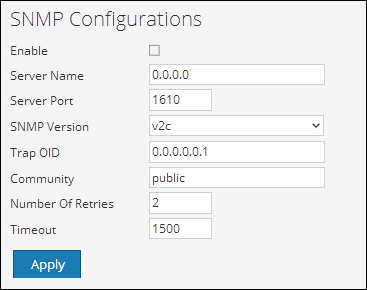
The following parameters manage SNMP (messages to network-attached services) output action configuration for a Reporting Engine service. When you add a Reporting Engine service, default values are in effect. You must modify the Config Values of these parameters according to the requirements of your enterprise.
- Name: Enable
- Config Value: Check this box to enable SNMP output action as an output for alert messages from this Reporting Engine. Default value is Disable.
- Name: Server Name
- Config Value: Specify the hostname or IP Address of the server on which the target SNMP server runs. Default value is 0.0.0.0.
- Name: Server Port
- Config Value: Specify the port number of the server on which the target SNMP server listens for faults and exceptions. Default value is 1610.
- Name: SNMP Version
- Config Value: Specify the version number of the SNMP protocol NetWitness uses to send SNMP traps.
- Name: Trap OID
- Config Value: Specify the object identification number that identifies the type of trap to send. Default value is 0.0.0.0.0.1.
- Name: Community
- Config Value: Specify the SNMP group to which NetWitness belongs. The default value is public.
- Name: Number Of Retries
- Config Value: Specify the maximum number of times NetWitness tries to resend the alert message through SNMP. Default value is 2.
- Name: Timeout
- Config Value: Specify the number of seconds after which NetWitness times out (stops trying to send SNMP alerts). Default value is 1500.
- Name: Apply
- Config Value: Update the configuration.
Syslog
After an execution is completed, all notifications are sent via Syslog messages to a particular host based on the Syslog configuration. Multiple Syslog servers can be configured on the Syslog Configuration panel.
The following figure displays the Syslog Configuration on the Output Actions Tab.
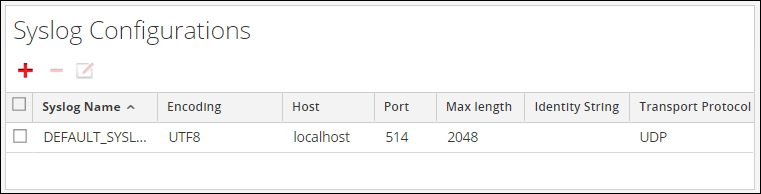
The following parameters manage syslog output action configuration for a Reporting Engine service. When you add a Reporting Engine service, you can define values for this output configuration, as no default values are available for this configuration. You must modify the Config Values of these parameters according to the requirements of your enterprise.
- Name: Syslog Name
- Config Value: The name of the Syslog configuration.
Note: You cannot create a Syslog configuration with a name that already exists in the Reporting Engine Syslog configuration list.
- Name: Encoding
- Config Value: Specify the internationalization encoding for Syslog messages. Default value is UTF8.
- Name: Server Name
- Config Value: Specify the hostname or IP Address of the server on which the target Syslog process runs. Default value is blank.
- Name: Server Port
- Config Value: Specify the port number of the server on which the target Syslog server listens for faults and exceptions. Default value is 514.
- Name: Max Length
- Config Value: Specify the maximum size (in bytes) of each Syslog alert message. Default value is 2048. If UDP is the transport type and the Syslog message size is greater than 1024 bytes, you must configure a Syslog server that supports message sizes greater than 1024 bytes.
- Name: Identity String
- Config Value: Specify the string NetWitness inserts as a prefix in all Syslog alert messages. Default value is blank.
- Name: Include Local Hostname
- Config Value: Check this box to include the local hostname in all Syslog alert messages. Default value is do not include local hostname.
- Name: Truncate Message
- Config Value: Check this box to truncate all Syslog alert messages. Default value is do not truncate Syslog messages.
- Name: Use Identity
- Config Value: Check this box to use the IDENT protocol. Default value is does not use this protocol.
- Name: Include Local Timestamp
- Config Value: Check this box to include the local timestamp in all Syslog alert messages. Default value is do not include local timestamp.
- Name: Transport Protocol
- Config Value: Specify the transport type for Syslog message delivery. There are three parts to the Syslog transport type: UDP, TCP, and SECURE_TCP. Default value is UDP.
- Name: Syslog Message Delimiter
- Config Value: Specify the delimiter for the Syslog message. There are three delimiters: CR, LF, and CRLF. By default the value is CR.
Note: This field populates when you select TCP or SECURE_TCP as the transport protocol.
- Name: Trust Store Password
- Config Value: Specify the password for the Trust store.
Note: This field populates when you select SECURE_TCP as the transport protocol.
- Name: Key Store Password
- Config Value: Specify the password for the Key store.
Note: This field populates when you select SECURE_TCP as the transport protocol.
- Name: Apply
- Config Value: Save the configuration.
SFTP
After an execution is completed, you can send or transfer files to a remote location based on the SFTP configuration.
The following figure displays the SFTP Configuration on the Output Actions Tab.
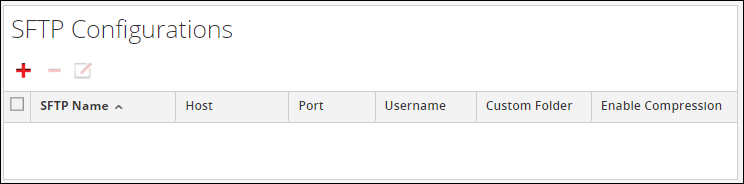
The following parameters manage SFTP (file transfer to a local drive) output action configuration for a Reporting Engine service. When you add a Reporting Engine service, you can define values for this output configuration, as no default values are available for this configuration. You must modify the Config Values of these parameters according to the requirements of your enterprise.
- Name: SFTP Name
- Config Value: The name of the SFTP configuration.
Note: You cannot create an SFTP configuration with a name that already exists ,,,,,,, ,,,,,,, ,,,,,,, enter a port number. Default value is 22.
- Name: Username
- Config Value: Specify the username for the SFTP configuration.
- Name: Password
- Config Value: Specify the password for the SFTP configuration.
- Name: Custom Folder
- Config Value: Select an SFTP location where you want to transfer the file to. You can use the pre-defined Windows or Linux directory structure in the custom folder path. For example, /root/Downloaded_Files.,,,,,, RE will create the directory in the custom folder path and copy files to this directory.,,,,,,, the output files will have ".zip" extension.
Delete a Syslog, SFTP, URL and Network Share configuration.
Edit a Syslog, SFTP, URL and Network Share configuration.,, ,,,,,,, ,,,,,,, ,,,,,,, ,,,,,,, ,,,,,,, ,,,,,,, ,,,,,,, ,,,,,,, ,,,,,,,