.png?width=180&height=32&name=NW%20Logo%20(2).png)
Responding to IncidentsResponding to Incidents
An Incident is a logically grouped set of alerts created automatically by the Incident Aggregation Engine and grouped by a specific criteria. An incident, available in the Respond view, allows an Analyst to triage, investigate, and remediate these groups of alerts. Incidents can be moved between users, notated, and explored using a nodal graph. Incidents allow users to ensure that they understand the full scope of an attack or event in their NetWitness system and then take action.
The Respond view is designed to help you quickly identify the ongoing issues in your network and work with other Analysts to quickly solve the issues.
The Respond view presents Incident Responders with a queue of incidents in severity order. When you take an incident from the queue, you receive relevant supporting data to help you investigate the incident. This enables you to determine the incident scope so you can escalate or remediate it as appropriate.
Within the Respond view, you can see Incidents, Alerts, and Tasks:
- Incidents: Enables you to respond to and manage incidents from start to finish.
- Alerts: Enables you to manage alerts from all sources received by NetWitness and create incidents from selected alerts.
- Tasks: Enables you to view and manage the complete list of tasks created for all incidents.
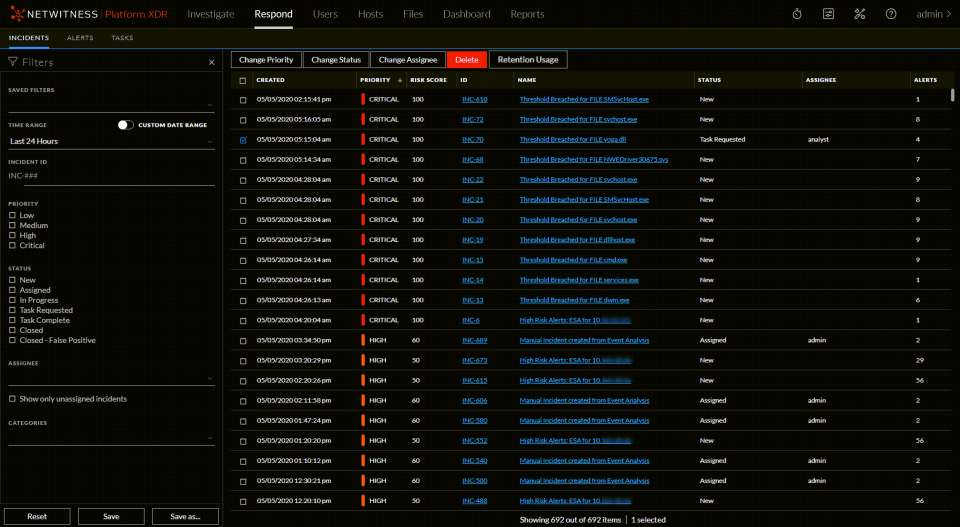
If you navigate to Respond > Incidents, you can see the Incidents List view and from there you can access the Incident Details view for a selected incident. These are the main views that you use to respond to incidents. The following figure shows the list of prioritized incidents in the Incidents List view.
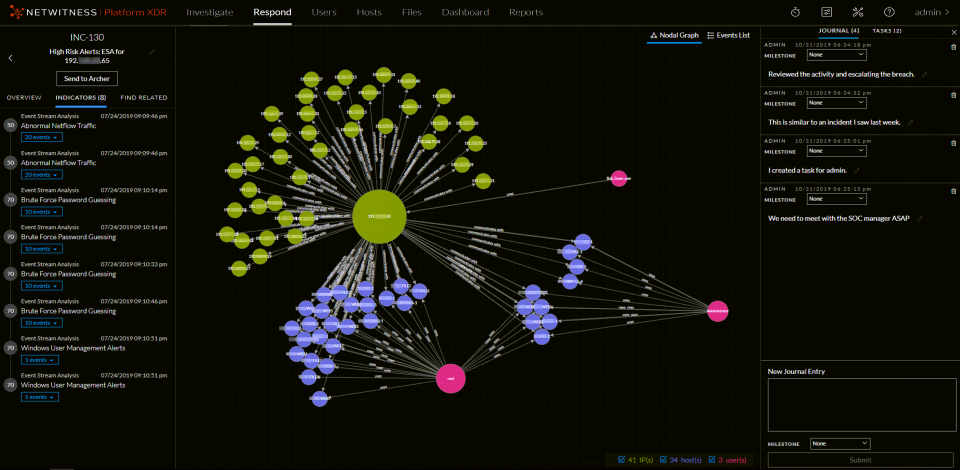
The next figure shows an example of details available in the Incident Details view.
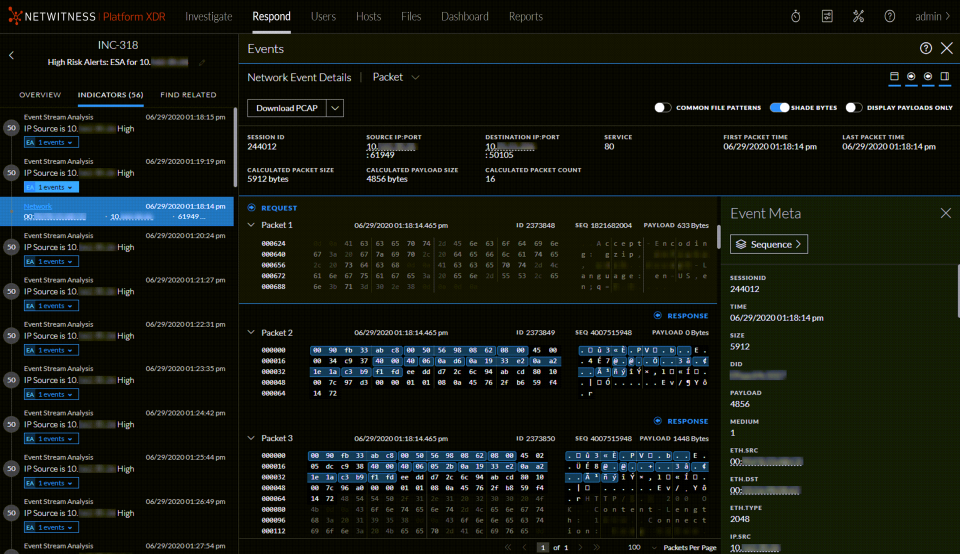
The Respond view is designed to make it easy to evaluate incidents, contextualize that data, collaborate with other analysts, and pivot to a deep-dive investigation as needed. The following figure shows an example of an event analysis in the Incident Details view.
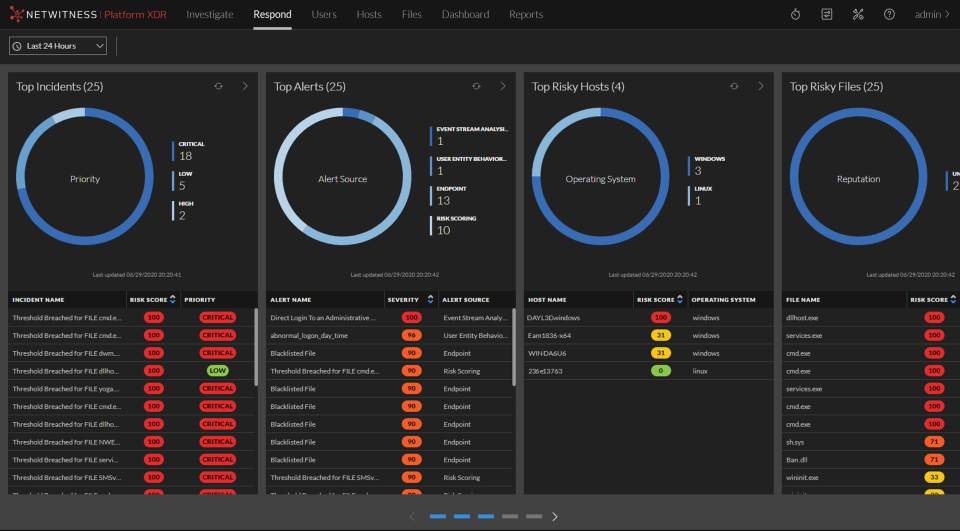
In NetWitness Version 11.4 and later, alerts and incidents are also displayed in the Springboard by default. Springboard is a landing page for analysts showing them all risks detected by the platform in a single place. For more information on the Springboard, see "Managing the Springboard" in the NetWitness Platform Getting Started Guide. Go to the NetWitness All Versions Documents page and find NetWitness Platform guides to troubleshoot issues.
Respond Persist Data Respond Persist Data
The primary objective of this feature is to enable you to investigate events for a longer period of time. When investigating a set of alerts or events, it is important to have the assurance that the underlying data (raw and meta) will be available for both the length of time it takes to run the analysis, and for historical look up. From NetWitness Platform Version 11.6, you can persist events that are associated with particular incidents, thereby enabling you to view the incident in the future, regardless of its age. You can also add a new journal entry in the JOURNAL tab for the persisted events for future reference. The event data will always be available for viewing and reconstruction as long as the event is persisted, enabling you to easily refer back to details, even if the original event has rolled over from the NetWitness database.
Once you persist an event, the data is copied from the NetWitness database into a long term storage cache within the data source. You can persist or suspend persist events per incident or per alert within an incident or a specific event in an alert that belongs to an incident. The roll over in the NetWitness database does not impact the events that are already saved in the long term cache.
You can:
-
You can persist or suspend persist events per incident or per alert within an incident or a specific event in an alert that belongs to an incident.
- Perform complete event reconstruction for persisted events even after the session is rolled over from the NetWitness database.
-
Filter incidents which has persisted events.
-
Suspend persist of all events associated with an incident, even if only a few events persisted in it.
- Remove all associated persisted events by deleting an alert or incident.
This topic contains the following basic Respond Persist Data procedures:
- Customizing Respond Persist Data
- Working with Incident Filters
- Persist and Suspend Persist Events
- Change Event Retention
Customizing Respond Persist Data Customizing Respond Persist Data
The persisted events are saved in the directory /var/netwitness/pin-
To customize the persist directory:
1. Go to Admin >Services.
The Services page appears.
2. From the Filter pull down menu, select the concentrator and the log decoder services.
The concentrator and log decoder are listed in the Services page.
3. Go to Actions > View > Explore.
The Explore page appears.
4. Go to sdk > config .
The Configuration page appears.
The following table provides information on the default values for each parameter that are configured in the Configuration page.
2. [Optional]*** In the Long Term Cache Directory (pin.cache.dir), enter the path of the custom directory where you want to save the persisted events, if you do not want to use the default location. The default path is /var/netwitness/pin-
Note: When you install NetWitness Platform for the first time or upgrade to the 11.6 version, the directories are pre-configured with default values.
Working with Incident FiltersWorking with Incident Filters
You can filter incidents based on the persisted events.
To filter incidents:
- Go to Respond > INCIDENTS.
The INCIDENT page appears.
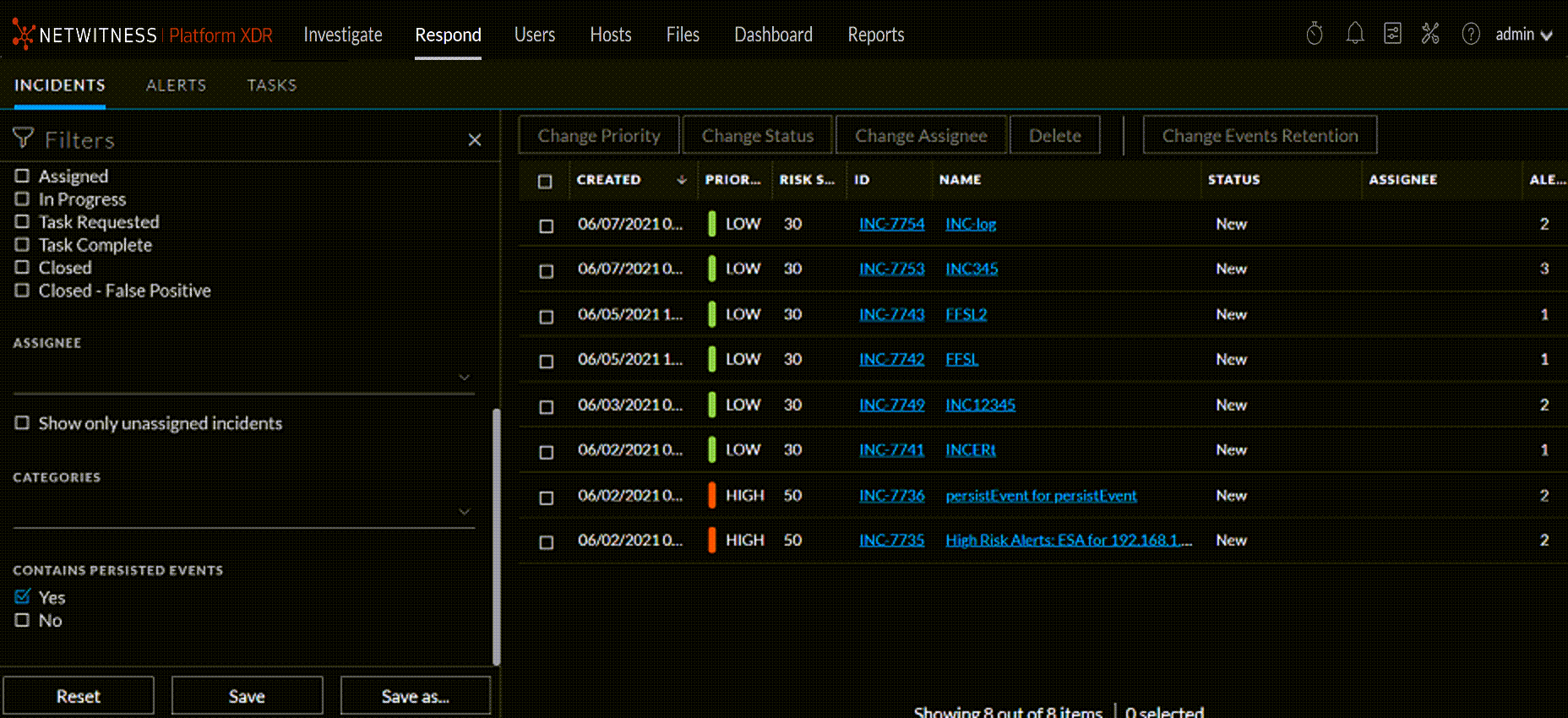
2. In the FILTERS tab, the CONTAINS PERSISTED EVENTS menu provides the filters to view incidents based on the persisted events.
- Select Yes to view the incidents that contain persisted events.
- Select No to view the incidents that do not contain persisted events.
For more information on working with filters, see Filter the Incident List.
Persist and Suspend Persist Events Persist and Suspend Persist Events
Persist an event to retain the event and thereby, copy the event data from the regular database into a long-term storage cache within the NetWitness source. Suspend persist the event to delete the event in the long-term storage cache.
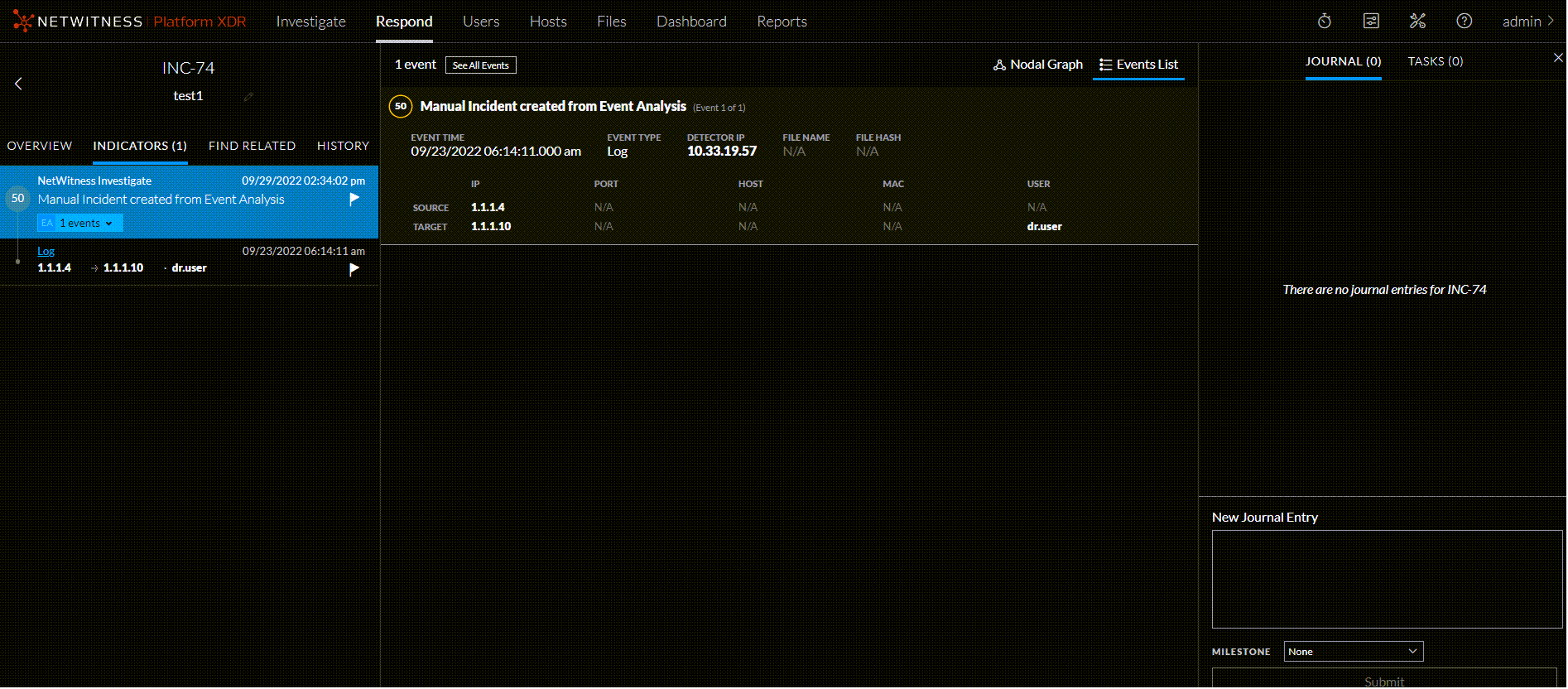
- To persist an event, click the flag listed under each of the event. The selected flag is highlighted, and the message Event Persisted successfully appears.
- To suspend persist event, click a highlighted flag (persisted event) once again. The selected flag is no longer highlighted, and the message Suspended Event Persist successfully appears.
- To persist all events in an alert, click the flag at the alert level. The selected flag is highlighted along with all the flags associated with events of the alert.
- To suspend persist all events in an alert, click the flag at the alert level. The selected flag is highlighted along with all the flags associated with events of the alert.
Change Event RetentionChange Event Retention
Incidents can contain multiple persisted events, for which analysis has been completed. They can be suspended from persisting at a time using this feature.
Note: A maximum of 1 incident can be persisted or suspend persisted at a time in the source NetWitness database. If you try to change event retention for more than 1 incidents, an error message will be displayed. This limitation is introduced to optimize and extract the best performance for this feature. This limit cannot be changed.
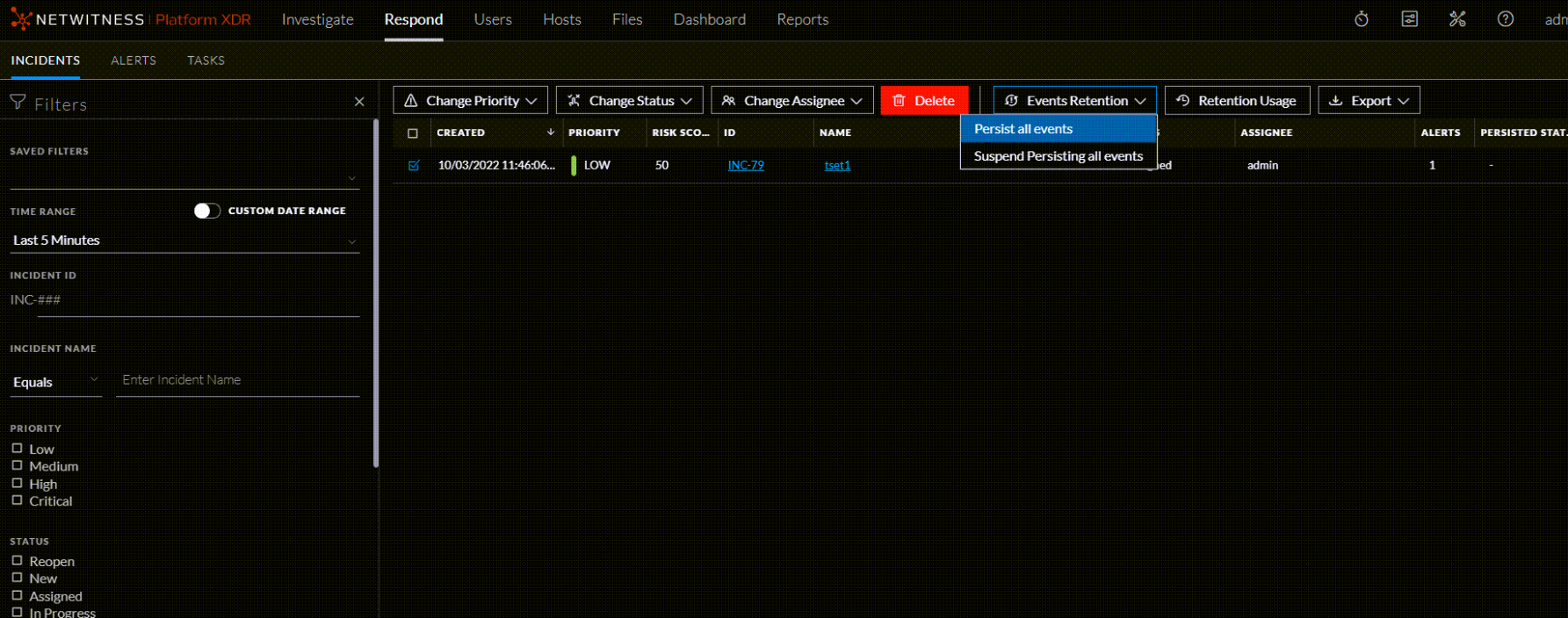
- Go to Respond > INCIDENTS.
All the incidents are listed in the INCIDENTS page. -
Click the selection check-box to select the incident.
-
Click Change Events Retention > Persist all events or Suspend Persist all events.
The Confirm change in Retention window appears. - Click OK.
The events in the selected incident are either persisted or suspended from persisting.
Note: You cannot change the event retention for incidents that are in New or Closed state.
Note: Suspending persist of events in an incident from NetWitness will delete it from the long term cache of the source only. This may not be reversible if the original event data has rolled out in the source database. The events will be deleted permanently.
When you delete incidents or alerts, or suspend persist all the events in an incident, the action will always be successful. However, there are chances for the back-end function to fail due to, but not limited to the following reasons:
- Decoder/Concentrator outage
- Network disruption
- Service Outage
A data retention job is scheduled to run on a daily basis to clean up the events that failed from being deleted. To access the data retention job settings, see To change event retention:
The following table provides information on the parameters that are configured to run the job, which are enabled by default:
Everyday at a preset time, the data retention job is executed. The default failure-count is set to 5 days. If the data retention job is unable to suspend persist an event from the back-end after 5 days, it deletes the event from the repository.
Note: The retention period of risk score context is the same as the retention period of alerts. For example, if the retention period for alerts is set to 90 days, then the retention period of risk score context is also set to 90 days automatically.
Responding to Incidents Workflow
This workflow shows the high-level process that Incident Responders use to respond to incidents in the Respond view.

First, you review the list of prioritized incidents, which shows basic information about each incident, and determine which incidents require action. You can click a link in an incident to get a clearer picture of the incident with supporting details in the Incident Details view. From there, you can further investigate the incident. You can then determine how to respond to the incident, by escalating or remediating it.
These are the basic steps for responding to an incident:
- Review Prioritized Incident List
- Determine which Incidents Require Action
- Investigate the Incident
- Escalate or Remediate the Incident
Review Prioritized Incident ListReview Prioritized Incident List
In the Respond view, you can view the list of prioritized incidents. The incident list shows both active and closed incidents.
This topic contains the following basic incident list procedures:
- View the Incidents List
- Filter the Incident List
- Remove My Filters from the Incidents List View
- Save the Current Incidents Filter
- Update a Saved Incidents Filter
- Delete a Saved Incidents Filter
- View My Incidents
- Find an Incident
- Sort the Incidents List
- View Unassigned Incidents
- Assign Incidents to Myself
- Unassign an Incident
View the Incidents ListView the Incidents List
After logging in to NetWitness, most Incident Responders see the Respond view, which is set as the default view. If you have a different initial view, you can navigate to the Respond view.
- Log in to NetWitness.
The Respond view shows the list of incidents, also referred to as the Incident List view.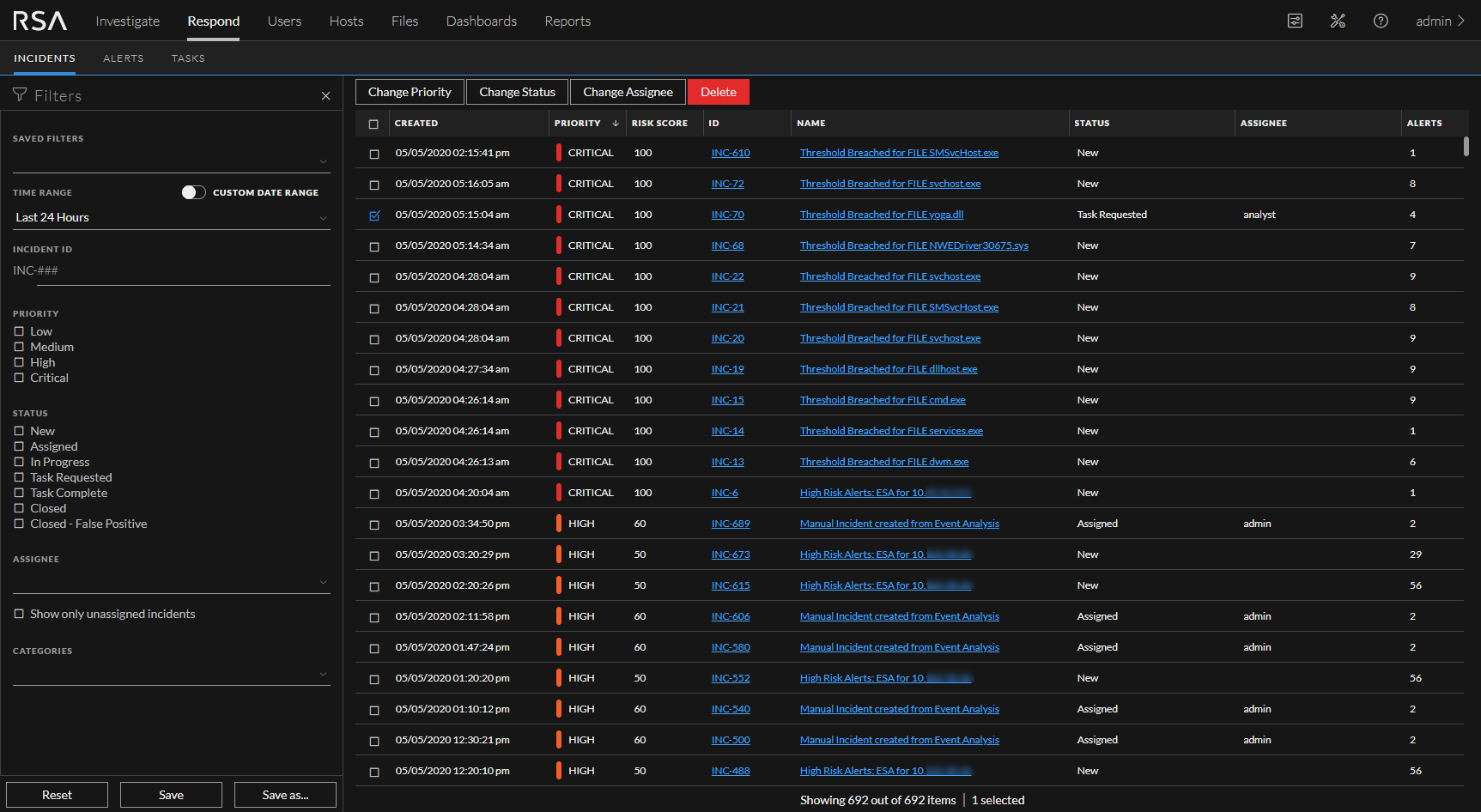
- If you do not see the incidents list in the Respond view, go to Respond > Incidents.
- Scroll through the incidents list, which shows basic information about each incident as described in the following table.
At the bottom of the list, you can see the number of incidents on the current page, the total number of incidents, and the number selected. For example: Showing 1000 out of 1115 items | 3 selected. The maximum number of incidents that you can view at one time is 1,000.
Filter the Incident ListFilter the Incident List
The number of incidents in the Incidents List view can be very large, making it difficult to locate particular incidents. The Filter enables you to specify those incidents that you would like to view. You can also choose the timeframe when those incidents occurred. For example, you may want to view all of the new critical incidents created within the last hour.
-
Verify that the Filters panel appears to the left of the incidents list. If you do not see the Filters panel, in the Incident List view toolbar, click
 , which opens the Filters panel.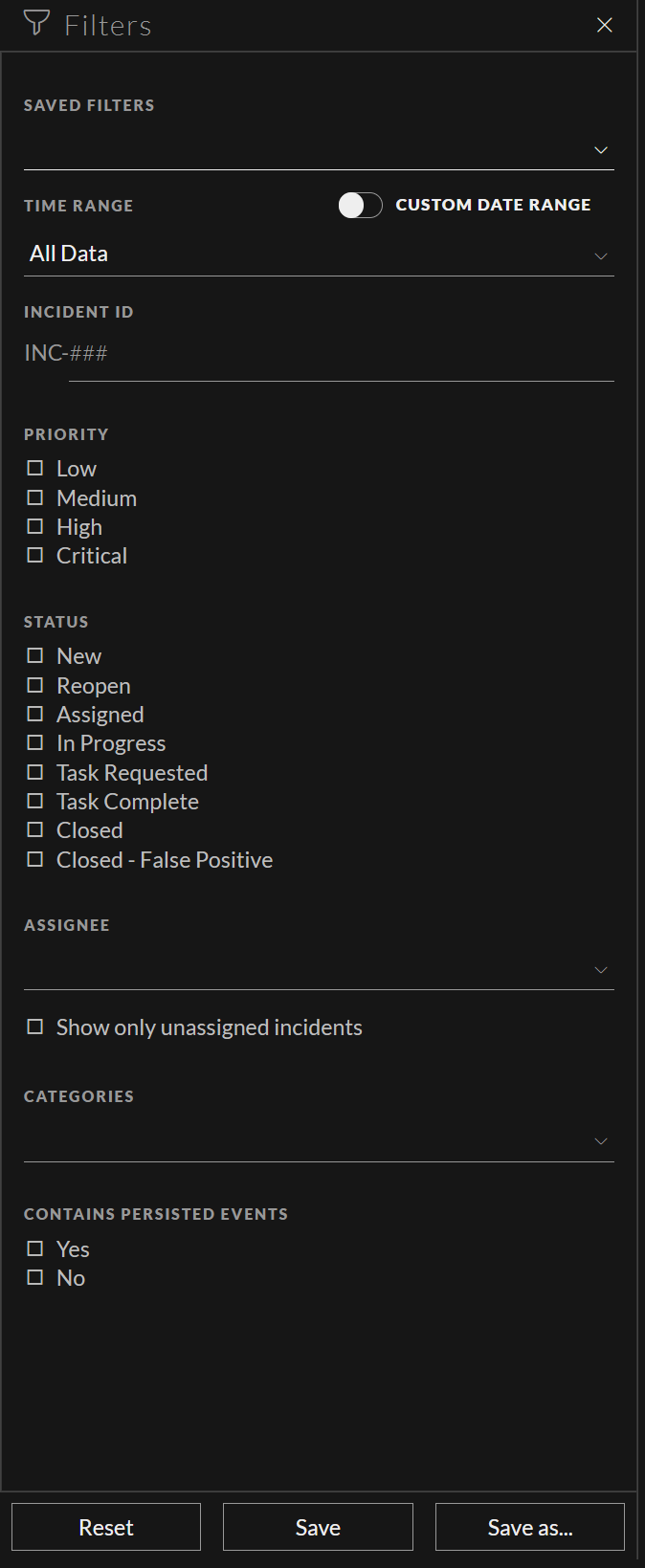
- In the Filters panel, select one or more options to filter the incidents list:
- Time Range: You can select a specific time period from the Time Range drop-down list. The time range is based on the creation date of the incidents. For example, if you select Last Hour, you can see incidents that were created within the last 60 minutes.
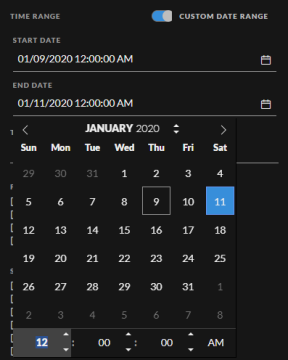
- Custom Date Range: You can specify a specific date range instead of selecting a Time Range option. To do this, click the white circle in front of Custom Date Range to view the Start Date and End Date fields. Select the dates and times from the calendar.
- Incident ID: Type the number of the incident that you would like to locate. For example, for INC-1050, type only the number "1050" to view the incident.
- Priority: Select the priorities that you would like to view.
- Status: Select one or more incident statuses. For example, select Closed - False Positive to view only false positive incidents, which were initially identified as suspicious, but then they were later found to be safe.
- Assignee: Select the assignee or assignees of the incidents that you would like to view. For example, if you only want to view the incidents assigned to Cale or Stanley, select Cale and Stanley from the Assignee drop-down list. If you want to view incidents regardless of the assignee, do not make a selection under Assignee.
(Available in version 11.1 and later) To view only unassigned incidents, select Show only unassigned incidents. - Categories: Select one or more categories from the drop-down list. For example, if you only want to view incidents classified with the Backdoor or Privilege abuse categories, select Backdoor and Privilege abuse.
- MITRE ATT&CK Tactics: Select the tactic associated with the incident.
-
MITRE ATT&CK Techniques: Select the technique associated with the incident.
- Sent to Archer: (In version 11.2 and later, if Archer is configured as a data source in Context Hub, you can send incidents to Archer Cyber Incident & Breach Response and this option will be available in NetWitness Respond.) To view incidents that were sent to Archer, select Yes. For incidents that were not sent to Archer, select No.
- CONTAINS PERSISTED EVENTS: Select a filter to view incidents based on the persisted events.
The incidents list shows a list o